Share a file with a view only link that expires
Send a PDF, spreadsheet or document as a private link that works for 1 day to a year, see views and downloads, and turn it off at any time.
Attachments are a blunt tool. Once you email a file, you cannot take it back, you do not know if anyone opened it, and the copy in someone's inbox never updates. A share link solves most of that: the file stays in your storage, the other person opens it in a browser, and you decide how long the link works.
This guide shows how to share a file from the OfficeBats Drive with a private, view only link that expires, how to check whether it was opened, and when to use a public link or in app sharing instead.
What a Drive share link does
The OfficeBats Drive is one cloud drive for every Bats app. PDFs from PDFbat, Word documents from DocsBat, spreadsheets saved from SheetsBat, documents your forms create in FormsBat and invoices from BooksBat all land there. Any file in it can get a share link.
A share link lets anyone who has it view the file in their browser and download it, without an account. They cannot change your copy, rename it, move it or see anything else in your Drive. That makes it the right tool for sending a finished file: a signed contract, a price list, a report or a quote.
There are two kinds of link:
| Private link | Public link | |
|---|---|---|
| Who can open it | Only people you send it to | Anyone, including search engines |
| Expiry | 1 day, 7 days, 30 days, 1 year or no expiry | Never expires |
| Shown in search results | No, hidden from search engines | Yes, with a title and description |
| Good for | Contracts, invoices, drafts, anything personal | Brochures, menus, public reports |
Step 1: find the file in your Drive
- Sign in at officebats.com and open Drive from the menu, or go straight to officebats.com/drive.
- Browse to the file. Each app has its own folder, for example SheetsBat, then Exports for spreadsheets you saved as Excel or PDF. You can also use Search your Drive at the top.
Step 2: create a private link
- Click the ⋯ button at the end of the file's row (the actions menu) and choose Share link.
- The dialog explains what the link does: "Anyone with the link can view this file in their browser and download it. They do not need an account."
- Leave Private link selected.
- Under Link works for, choose how long it should work: 1 day, 7 days (the default), 30 days, 1 year or No expiry.
- Click Create link.
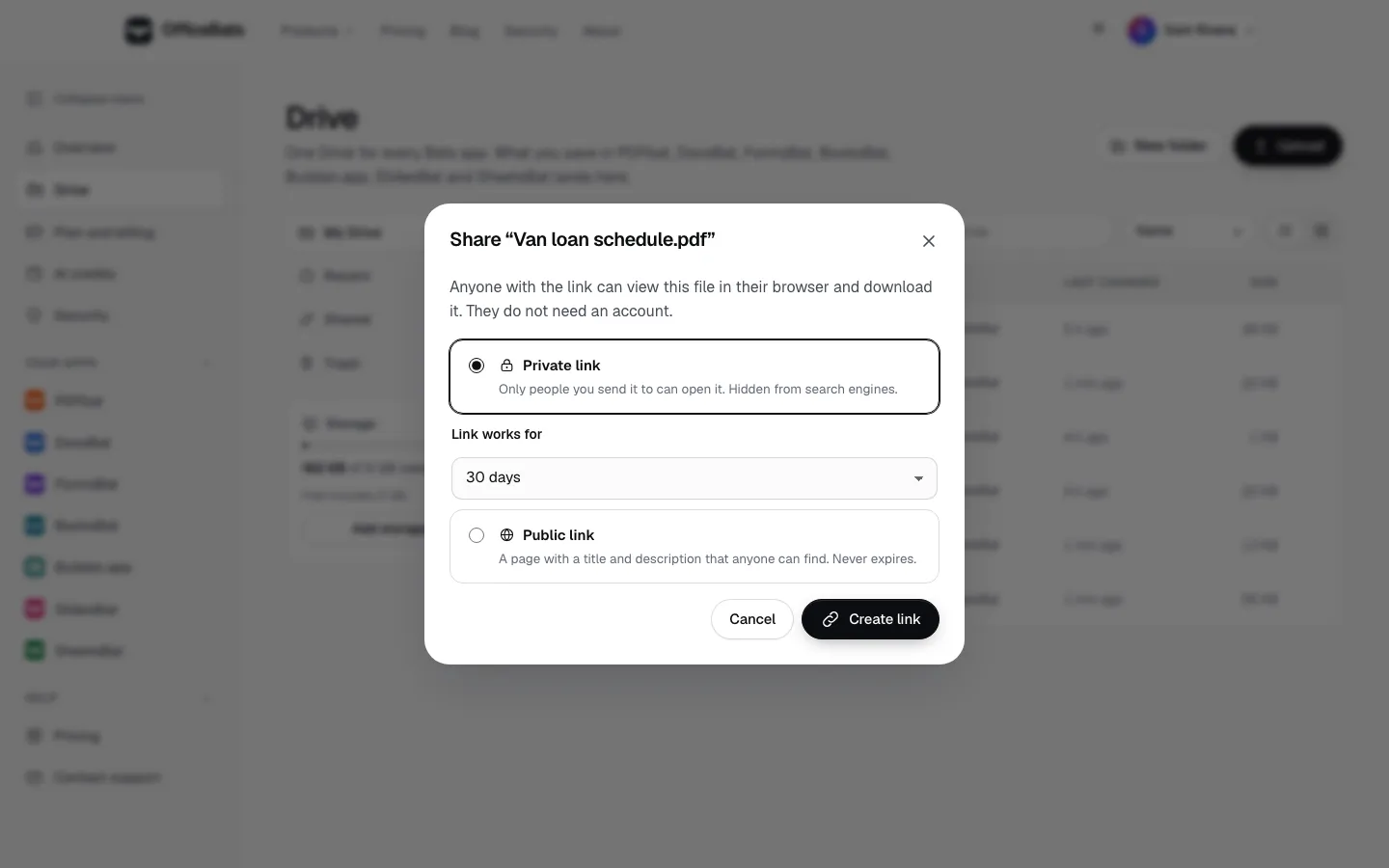
The link is created and copied to your clipboard, ready to paste into an email or a chat.
Step 3: copy, check and manage the link
After you create it, the same dialog shows the link with a Copy button and a status line, for example "Private. Works until December 13, 2026. 0 views, 0 downloads."
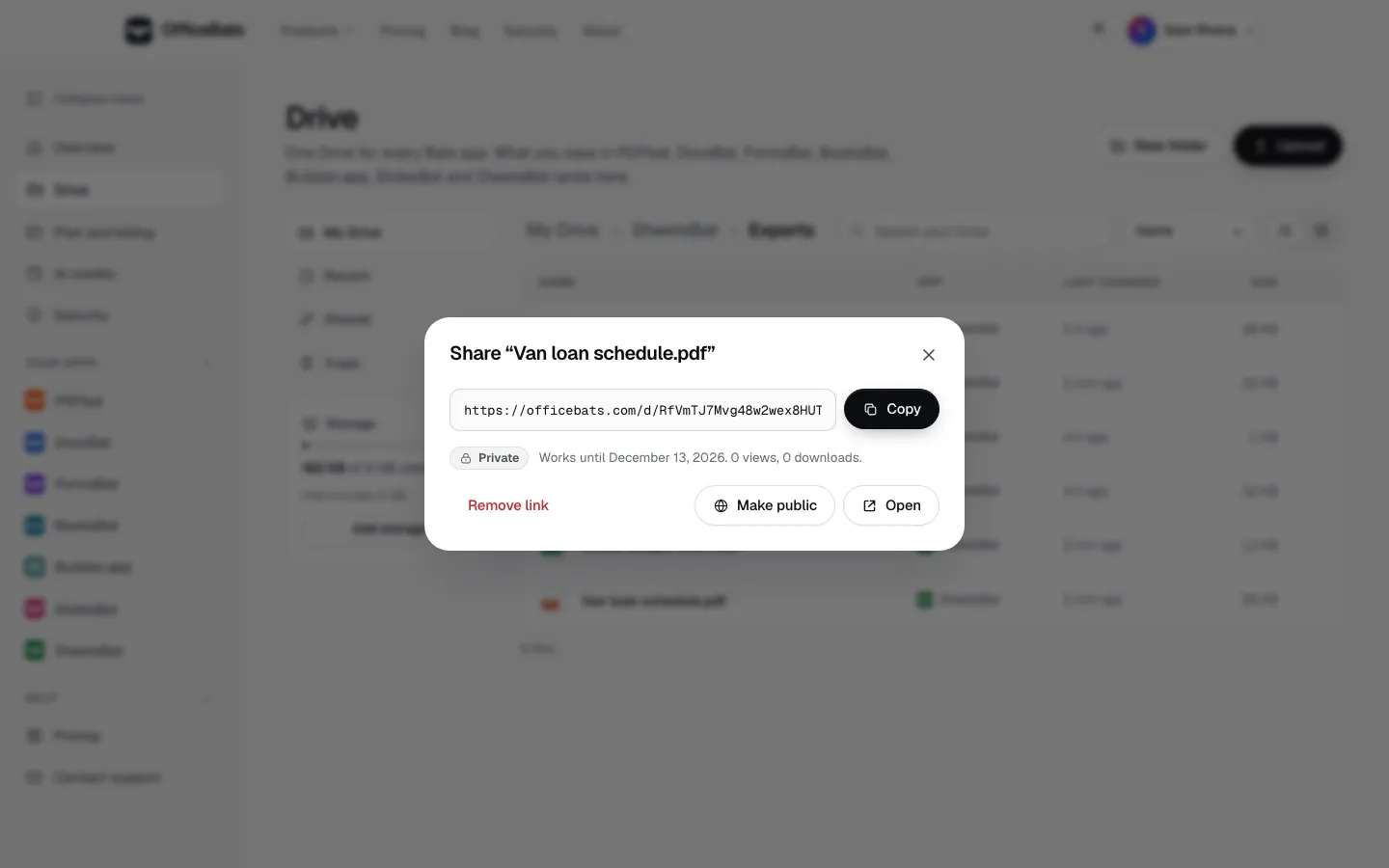
From here you can:
- Copy the link again at any time.
- Open it in a new tab to see exactly what the other person sees.
- Make public to turn it into a public link (more on that below), or Make private to turn a public link back.
- Remove link to stop it working straight away. The dialog confirms "Link removed. It no longer opens."
To come back to this later, open the file's actions menu again and choose Manage link, or open the Shared view in the Drive sidebar, which lists every file with a live link and shows when each one expires. Links you make in any Bats app show up there too.
What the other person sees
When someone opens a private link, they get a simple page with the file name, its size, who shared it and when the link stops working, a Download button and a preview of the file where the browser can show one, such as a PDF. They do not need an account, and they never see your Drive.
The view and download counts in your dialog go up as people open the preview and download the file, which is a quick way to confirm a client actually looked at the quote.
When a link stops working
A share link stops working when:
- it reaches the end of the period you chose;
- you choose Remove link;
- you move the file to the trash, which removes its link (files stay in the trash for 30 days before they are deleted for good);
- the owner's account is disabled or deleted.
Each file has one link at a time. If you want a different expiry, remove the link and create a new one; the new link has a new address, so the old one cannot be used again.
Public links: when you want to be found
Choose Public link in the dialog when you want anyone to find the file, such as a restaurant menu, an event schedule or a product brochure. A public link:
- never expires;
- gets a page with a readable address, a Title (up to 140 characters) and an optional Description (up to 300 characters);
- can appear in search results. For PDFs, the page includes the document's text, so search engines can understand it.
You can edit the title and description later with Save title and description, and switch the link back to private at any time.
View only link vs sharing inside an app
A Drive link shares a finished file. Sometimes you want something different: other people working on the document with you. For that, use the Share button inside the app instead:
| You want to | Use |
|---|---|
| Send a finished PDF or file to read and download | A Drive share link |
| Let someone read a live document that keeps changing | The app's Share button with Can view |
| Get feedback in comments | The app's Share button with Can comment |
| Edit together in real time | The app's Share button with Can edit |
In DocsBat, PDFbat, FormsBat, SlidesBat and Buildan.app, the share dialog invites people by email or OfficeBats username with Can view, Can comment or Can edit, and the owner can also turn on a share link with one of those roles. SheetsBat has view, comment and edit links of its own, and BooksBat shares records with your company team rather than by link. Our guide to real time collaboration across office apps compares them, and how to @mention someone in a comment covers feedback.
Tips for sharing files safely
- Use the shortest expiry that works. Seven days is plenty for most quotes and contracts.
- Check the counts. If a link shows views you did not expect, remove it and send a fresh one.
- Name files clearly. The file name is the first thing the other person sees, so "Harbor Lane quote, November.pdf" beats "scan0042.pdf".
- Protect sensitive PDFs too. For extra protection, add a password to the PDF itself before sharing. Our guide on how to password protect a PDF shows how.
- Keep your account secure. Anyone who signs in as you can see your Drive, so turn on two factor authentication.
For more on how the Drive works across apps, read one Drive for all your office files.
Frequently asked questions
Can people edit a file I share with a Drive link?
No. A Drive share link lets people view the file in their browser and download a copy. They cannot change, rename or move your file. To edit together, use the Share button inside the app with Can edit access.
How do I make a share link expire?
When you create a private link, choose how long it works: 1 day, 7 days, 30 days or 1 year. You can also choose No expiry, or remove the link at any time.
Do people need an account to open my link?
No. Anyone with a private or public Drive link can open and download the file without signing in.
Can I see if someone opened my link?
Yes. The share dialog shows how many times the file was viewed and downloaded through the link.
What happens to the link if I delete the file?
Moving a file to the trash removes its link straight away. You can restore the file from the trash within 30 days, then create a new link if you still want to share it.