How to password protect a PDF for free
Lock a PDF with AES 256 encryption so only people with the password can open it, choose what they may print or copy, and share the password safely.
Payslips, bank statements, contracts, medical letters and tax documents all travel by email and shared folders. Once a file leaves your hands, a password is the simplest way to make sure only the right person can open it.
This guide shows how to password protect a PDF for free with PDFbat, explains the two kinds of PDF passwords, and covers the mistakes that make a password less useful than it looks.
Two passwords, two jobs
A PDF can carry two different passwords, and most confusion comes from mixing them up.
| Password to open | Owner password | |
|---|---|---|
| Also called | User password | Permissions password |
| What it does | Encrypts the file. Nobody can see the content without it | Controls what people may do after opening: print, copy, change, annotate |
| Who needs it | Everyone who should read the file | Only you, if you want to change the permissions later |
| How strong it is | Strong when the encryption is strong and the password is long | Depends on the reader software respecting the settings |
The password to open is the one that protects your content. The owner password is a set of instructions that well behaved PDF readers follow. It is useful, for example to discourage copying text from a report, but it is not a lock in the same sense.
How to password protect a PDF, step by step
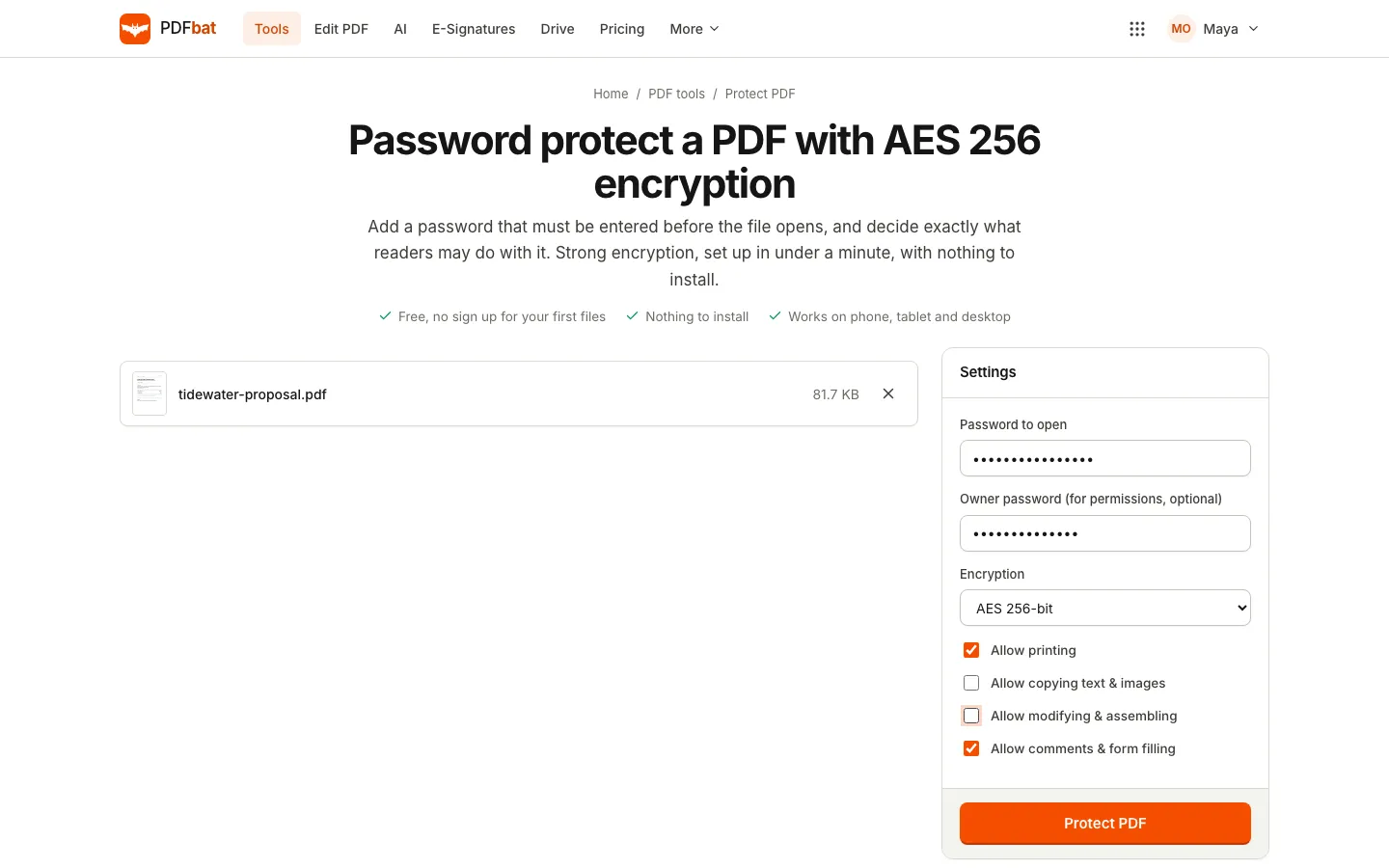
- Open the Protect PDF tool in PDFbat. You will find it under Tools, in the Security group.
- Select Choose file or drop the PDF on the page. If it is already in your Drive, use Choose from Drive.
- In Password to open, type a strong password.
- Optionally, type an Owner password (for permissions, optional). If you leave it empty, PDFbat creates a random owner password for you, so nobody can change the permissions later, including you.
- Leave Encryption on AES 256-bit unless the person receiving the file uses very old software.
- Untick any permission you want to remove: Allow printing, Allow copying text & images, Allow modifying & assembling and Allow comments & form filling.
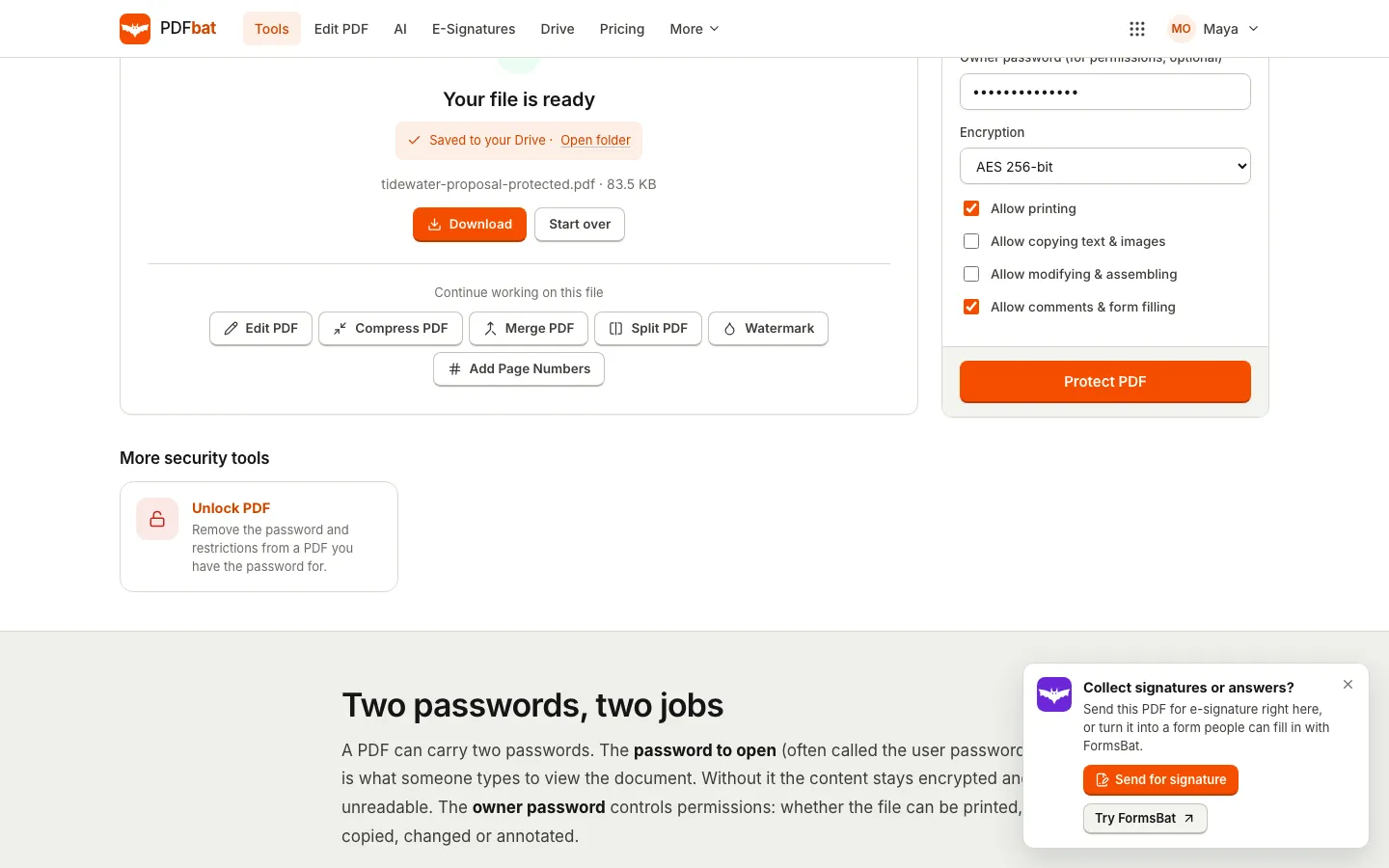
- Choose Protect PDF, then Download.
When you are signed in, the protected copy is also saved to your Drive next to the original, with "protected" added to the file name. Keep the original somewhere safe: once a file is encrypted, you need the password to open it, and nobody can recover a forgotten password for you.
Which encryption should you pick?
PDFbat offers three settings:
- AES 256-bit: the strongest option and the default. Current PDF readers open it.
- AES 128-bit: for compatibility with older readers.
- RC4 128-bit (legacy): only for very old software. Avoid it unless the recipient cannot open the file any other way.
Choosing a password that actually protects the file
Encryption is only as good as the password. A short or guessable password can be cracked by software that tries millions of combinations.
- Use at least four random words, or twelve or more mixed characters.
- Do not reuse a password from an online account.
- Do not use the recipient's date of birth or account number. Banks do this for convenience, and it is a weak choice for anything sensitive.
- PDFbat does not accept commas or equals signs in PDF passwords, so leave those out.
Sharing the password the right way
The most common mistake is sending the password in the same email as the file. If that email is forwarded or the mailbox is compromised, both arrive together.
Better options:
- Send the password by a different channel: a text message, a phone call or a messaging app.
- Agree on the password in advance for recurring documents.
- For files in your Drive, a share link that expires after 1 day, 7 days, 30 days or 1 year limits how long the file is reachable at all.
What the permission settings really do
Permissions are handy, but know their limits:
- Allow printing off: most readers grey out the print button.
- Allow copying text & images off: selecting and copying text is blocked in readers that respect the setting.
- Allow modifying & assembling off: editing pages, inserting or deleting pages is blocked.
- Allow comments & form filling off: readers stop people adding comments and filling fields.
Some PDF tools ignore permission flags. Use them to set expectations and prevent casual changes, and use the password to open for anything that must stay private.
Removing a password later
If you have a protected PDF and know its password, you can remove the protection with Unlock PDF. Enter the current password and download an unlocked copy. If the file only has permission restrictions and no password to open, leave the field empty. Unlock works only with a password you already have. It is not a way to break into files.
This is handy for documents that you open often, like a monthly statement you store in your own Drive.
Combining protection with other PDF jobs
Protection should usually be the last step, because most tools need to read the content. A sensible order:
- Edit and correct the text.
- Merge, split or reorder pages so the file has exactly what the recipient needs.
- Compress the PDF if it is large for email.
- Add page numbers or a watermark if you want them.
- Password protect it and download.
If you protect first, the other tools will ask for the password before they can work on the file.
Redaction is not the same as a password
A password keeps everyone without it out of the whole file. Sometimes you want the opposite: everyone may read the document, but a few details must disappear. That is redaction. PDFbat's Redact PDF tool and the Redact tool in the editor delete the text and images underneath, so the removed details are gone from the file, not hidden behind a box.
Frequently asked questions
Is it free to password protect a PDF?
Yes. Protect PDF and Unlock PDF are part of the PDFbat free plan. You can try them without an account for your first files, and with a free OfficeBats account the results are saved to your Drive.
How strong is AES 256 encryption in a PDF?
AES 256 is the strongest encryption the PDF format supports and is widely used to protect sensitive data. In practice, the weak point is the password, so choose a long one.
What happens if I forget the password?
The file cannot be opened without it, and PDFbat cannot recover it. Keep an unprotected original in a safe place, such as your private Drive.
Can I stop people printing or copying my PDF?
You can switch off printing and copying in the permissions. Most readers respect these settings, but some tools ignore them, so do not rely on permissions alone for confidential content.
Can I protect a PDF on my phone?
Yes. Protect PDF works in Safari and Chrome on iPhone and Android, with nothing to install.