How to @mention someone in a comment and get a reply faster
Use @mentions in document comments to ask the right person, notify them by bell and email, and close the loop. Works across the OfficeBats apps.
A comment that nobody sees is just a note to yourself. The fix is simple: mention the person you need. Type @, pick their name, and they get a notification that points straight at the thing you are asking about, instead of a vague "can you look at the deck?" message in a chat somewhere else.
This guide shows how @mentions work in OfficeBats apps, who you can mention, what the other person receives, and a few habits that make comment threads actually get resolved.
Where @mentions work
PDFbat, DocsBat, FormsBat, BooksBat, SlidesBat and Buildan.app share one live collaboration kit, so comments and mentions behave the same way in all six. What changes is the thing a comment is attached to:
| App | A comment is attached to |
|---|---|
| DocsBat | The text you selected in the document |
| PDFbat | An area on a page of the PDF |
| FormsBat | A question in the form builder |
| SlidesBat | A slide, or a box on a slide |
| BooksBat | A record, such as an invoice, quote, bill or customer |
| Buildan.app | An element on a page, or the page itself |
SheetsBat has its own comment threads on cells, with replies and resolve, but no @mentions yet. To bring someone into a spreadsheet thread, share the workbook with them and they will see the thread in the Comments panel. Our guide to co-editing a spreadsheet in real time covers SheetsBat comments.
Step 1: share the document with the person first
You can only mention people who already have access: the owner and everyone the document is shared with. This keeps mentions from leaking a private document to someone who cannot open it.
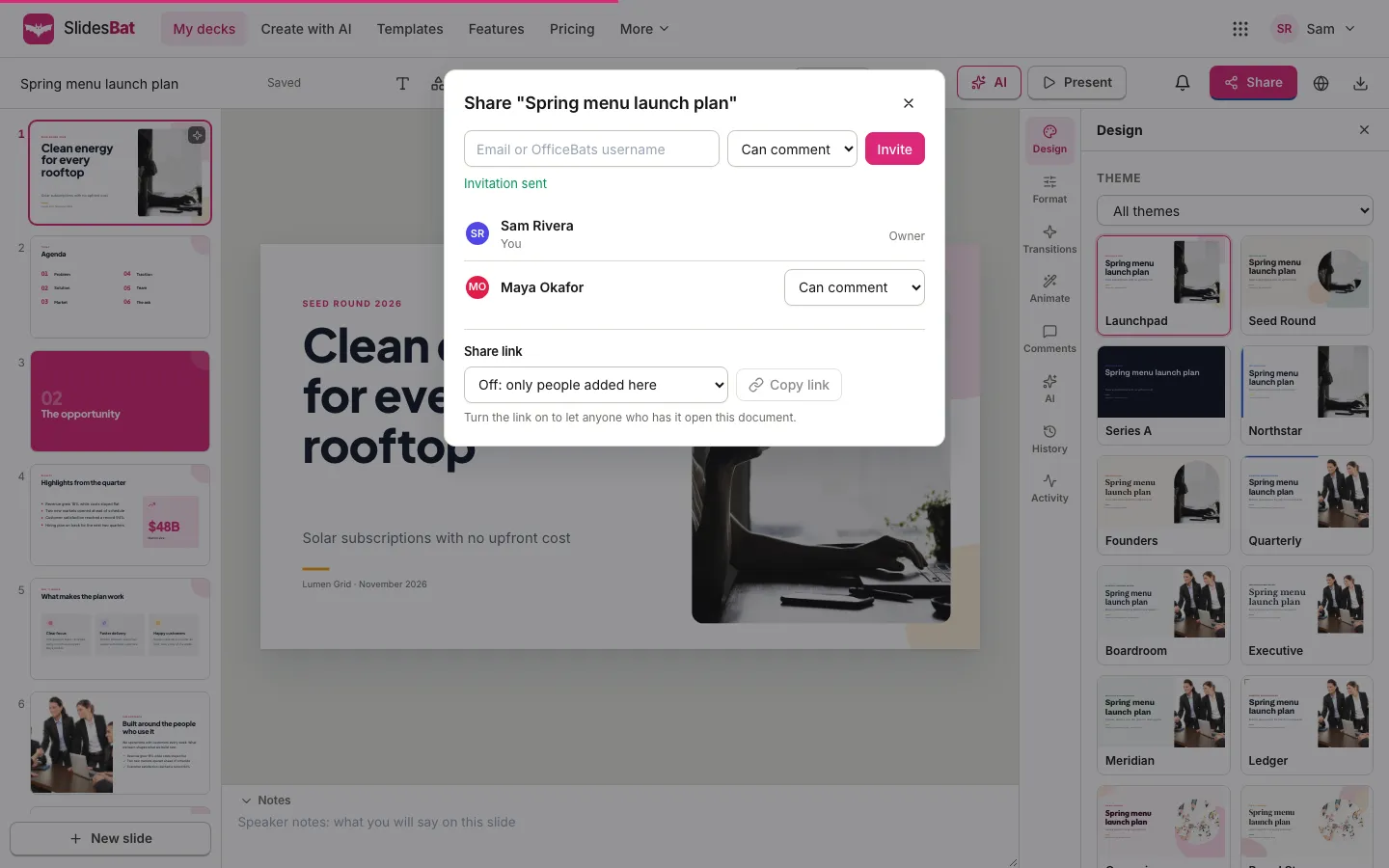
- Open the document and click Share.
- Type the person's email address or OfficeBats username in the box that says Email or OfficeBats username.
- Pick their access: Can view, Can comment or Can edit. To reply in a thread they need at least Can comment.
- Click Invite. You see "Invitation sent", and they appear in the list with their role.
The person gets a notification in the app and, if their account has an email address, an email saying you shared the document with them.
BooksBat works slightly differently: records are shared with your company team, so the share dialog adds people to the team with a role. Team members are part of the Pro and Business plans. Because every Bats app uses the same OfficeBats account, you can invite anyone who has one, even if they have never opened that particular app.
Step 2: write the comment and mention them
- Select what the comment is about: some text in DocsBat, a box on a slide in SlidesBat, a question in FormsBat, and so on. Your selection is quoted at the top of the comment box.
- Open the Comments panel.
- Start typing in the box that says "Add a comment. Type @ to mention someone".
- Type
@followed by the first letters of a name. A list of matching people appears. - Click a name, or use the arrow keys and press Enter or Tab. The name is inserted as
@Maya Okafor. - Finish your sentence and click Comment.
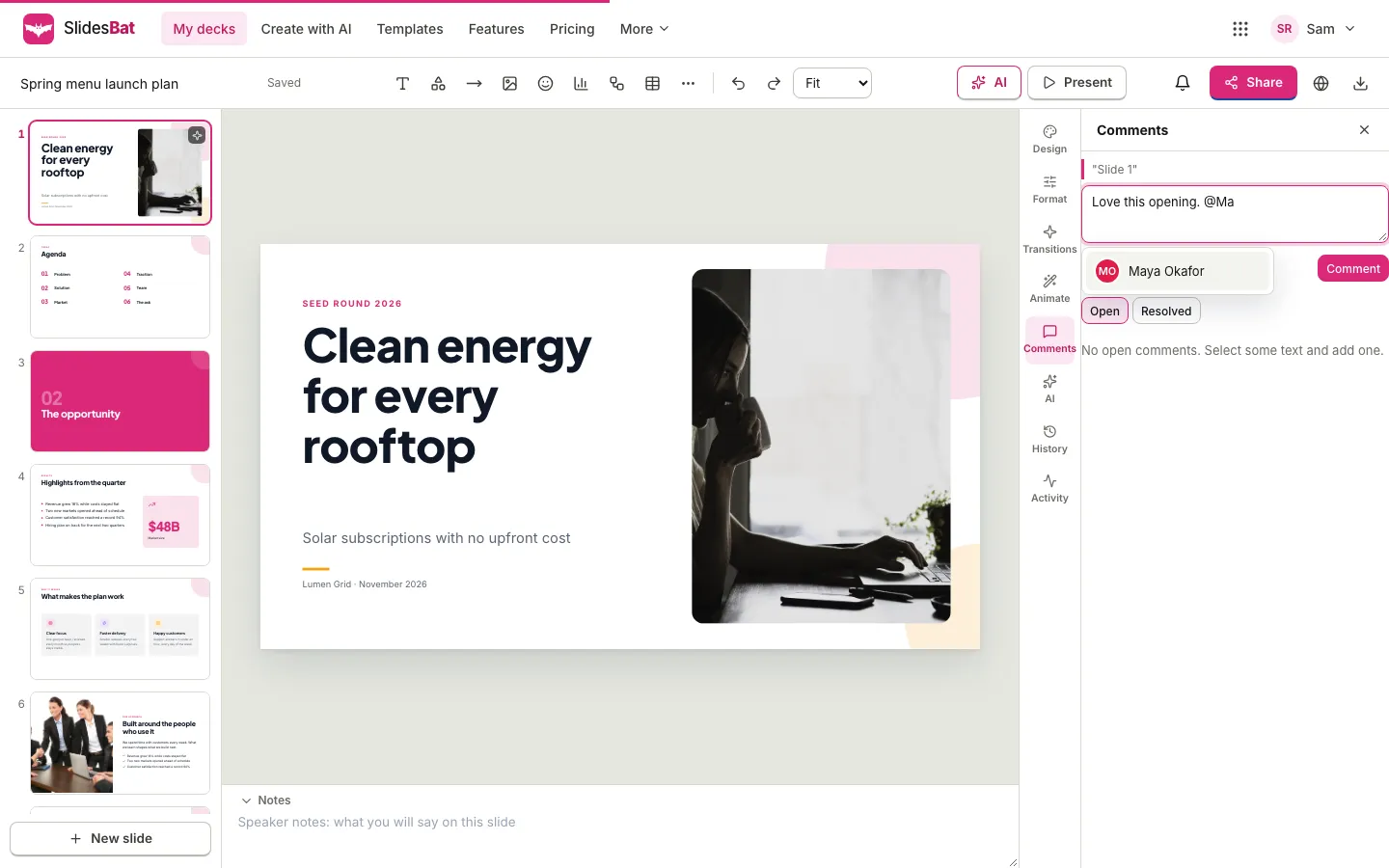
You can mention several people in one comment, up to 20. You cannot mention yourself, and names of people without access never appear in the list.
Step 3: what the other person receives
Each person you mention gets two things:
- A notification in the app. In DocsBat, PDFbat, FormsBat and SlidesBat it appears under the bell in the top bar, with the document title and the first part of your comment, for example "Sam Rivera mentioned you in a comment". BooksBat shows it in its own notification bell, and Buildan.app shows it as a notice in the editor. The bell updates live, in any document they have open in that app.
- An email, if their account has an email address. The subject reads like "Sam Rivera mentioned you in "Spring menu launch plan"", and the email has a button that opens the document.
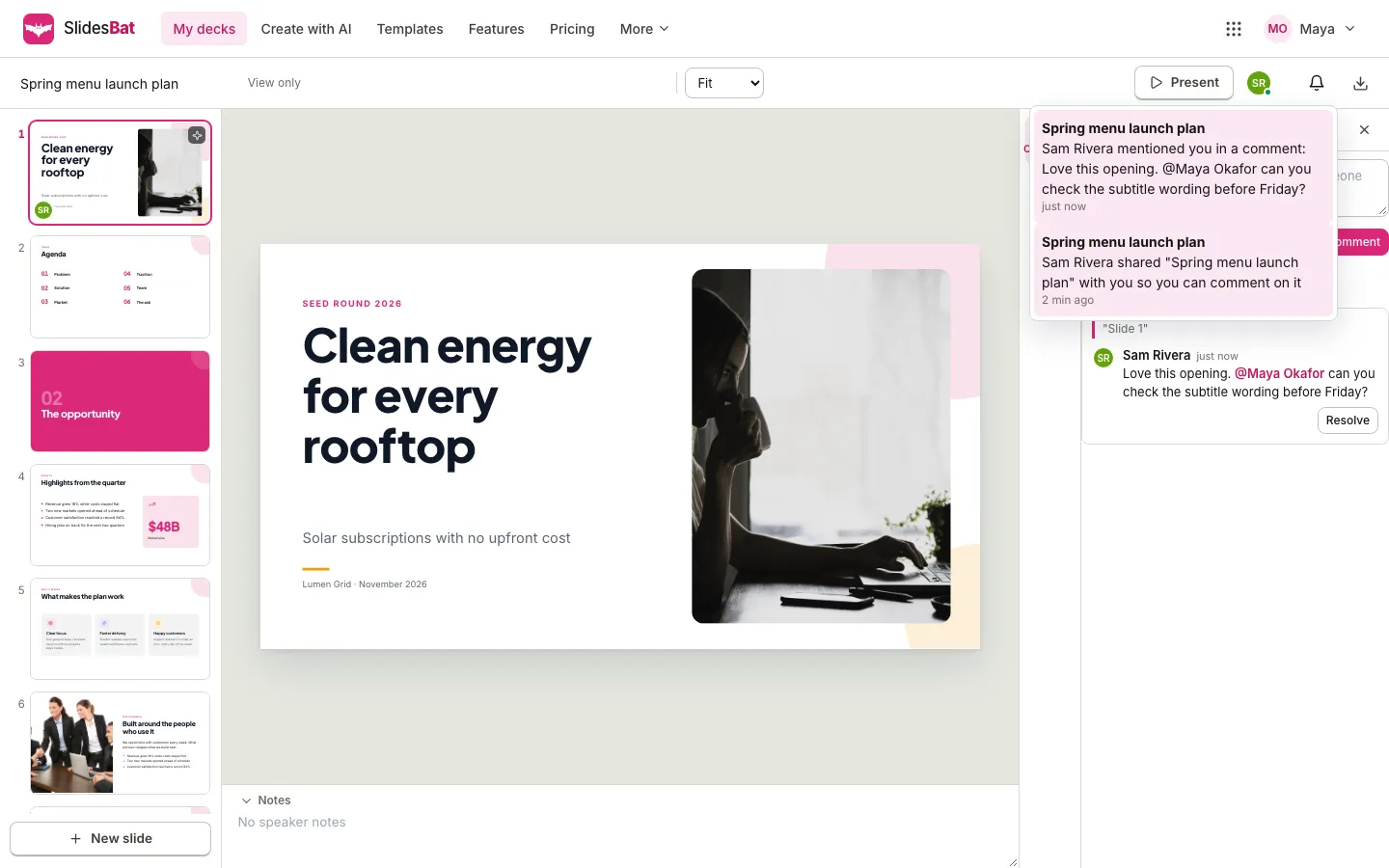
Clicking the notification opens the document, where the comment thread is waiting in the Comments panel.
Step 4: reply, resolve and keep the thread tidy
Threads are meant to end. A few rules make that easy:
- Reply in the thread. The box under each thread says "Reply. Type @ to mention someone", so you can pull in a third person mid conversation. The author of the thread is notified of replies even if you do not mention them.
- Resolve when it is done. Anyone with comment access can resolve a thread, which moves it to the Resolved tab. A new reply reopens it.
- Delete with care. You can delete your own comments. The owner of the document can delete any comment.
- Keep comments short. A comment can hold up to 5,000 characters, but a clear question with one mention gets answered faster than an essay.
Every comment, reply and resolve shows up for everyone in the document at once, and it is also logged in the document's Activity feed, so you can see who commented and when.
Habits that get faster answers
Ask one specific question. "@Maya can you check the subtitle wording before Friday?" beats "thoughts?". Mention the person who owns the decision, not everyone who might have an opinion.
Attach the comment to the exact spot. Select the sentence, the slide box or the form question first. The quote at the top of the thread saves the other person from hunting for it.
Give the right role. Someone with Can view access can read comments but cannot reply. If you expect an answer, share with Can comment or Can edit.
Resolve instead of deleting. Resolved threads stay in the Resolved tab as a record of what was decided.
Use mentions for decisions, chat for chatter. Comments live with the document. They are the right place for "approve this price" and the wrong place for "lunch?".
Privacy and security notes
- Mentions never grant access. You can only mention people who already have access, so a mention cannot open a document to someone new.
- Removing someone's access takes effect at once. If you remove a person or lower their role in the share dialog, their open session in that document is updated straight away.
- Comments are plain text. They are stored and shown as plain text, so nothing typed into a comment can run as code on the page.
- Emails go only to the address on the person's account. Mentions do not send email to anyone who is not on the document.
Everything here runs on your OfficeBats account, so the people you invite in one app can be invited in the others too. Read one account for every tool for how that works, and real time collaboration across office apps for the live editing side. If you comment on invoices with your bookkeeper, see giving your accountant access to your books.
Frequently asked questions
How do I mention someone in a comment?
Open the Comments panel, type @ and the first letters of their name, then pick them from the list and post the comment. They must already have access to the document.
Why can't I find someone when I type @?
Only the owner and people the document is shared with can be mentioned. Share the document with them first, with Can comment or Can edit access if you want a reply.
Does the person get an email when I mention them?
Yes, if their OfficeBats account has an email address. They also get a notification in the app, under the bell in DocsBat, PDFbat, FormsBat and SlidesBat, in BooksBat's own bell, or as a notice in Buildan.app.
Can I mention people in SheetsBat?
Not yet. SheetsBat has comment threads on cells with replies and resolve. Share the workbook with the person and they will see the thread in the Comments panel.
Who can delete a comment?
The person who wrote it, and the owner of the document. Anyone with comment access can resolve or reopen a thread.