Protect your account with two-factor authentication
Turn on two-factor authentication for your OfficeBats account, keep your recovery codes safe, and protect files, invoices and signatures in all seven apps.
Your OfficeBats account opens a lot of doors. It signs you in to PDFbat, DocsBat, FormsBat, BooksBat, Buildan.app, SlidesBat and SheetsBat, which may hold contracts, client files, invoices, form responses and your website. That is convenient, and it is also a good reason to give the account more protection than a password alone.
Two-factor authentication (often shortened to 2FA) is the single most useful step you can take. This guide explains what it is, how to set it up, how to handle recovery codes, and a few other habits that keep your account safe.
What two-factor authentication does
With two-factor turned on, signing in takes two things:
- Something you know: your password.
- Something you have: your phone, running an authenticator app that shows a short code that changes every 30 seconds or so.
Someone who learns your password still cannot sign in without the code from your device. Passwords leak in many ordinary ways, such as reusing them on a site that gets breached, typing them into a convincing fake page, or saving them somewhere insecure. Two-factor means a leaked password alone is not enough.
OfficeBats uses TOTP (time based one time passwords). This is an open standard supported by many authenticator apps, so you can use the one you already have or pick a well known free one.
Why it matters more with one account
Because every app signs in through OfficeBats, you use the same password and the same two-factor setup everywhere. That cuts both ways. A single weak spot would affect all seven apps, but a single strong setup protects all five at once.
You only need to set up two-factor once. After that, it applies to PDFbat, DocsBat, FormsBat, BooksBat, Buildan.app, SlidesBat and SheetsBat with no extra steps. If you are new to the shared account, our post on one account for every tool explains how it works.
How to turn on two-factor
Before you start, install an authenticator app on your phone. Then:
- Sign in to OfficeBats and open your account's security settings.
- Choose to turn on two-factor authentication.
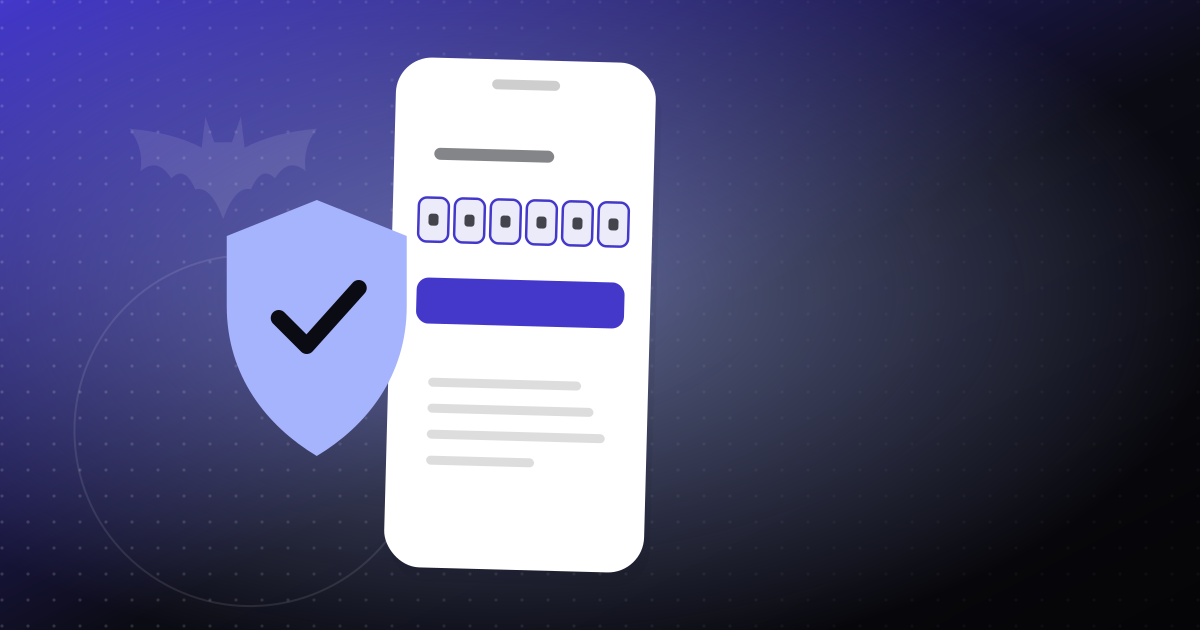
- Add the account to your authenticator app. Most apps let you scan a code shown on screen, or you can type in a setup key.
- Enter the six digit code your app shows to confirm everything is linked correctly.
- Save your recovery codes (more on these below) before you finish.
From then on, when you sign in, you enter your password and then the current code from your app.
Tips for a smooth setup
- Make sure your phone's clock is set automatically. TOTP codes depend on the time, and a phone with the wrong time can produce codes that do not work.
- If your authenticator app supports encrypted backup, consider turning it on. That way, a lost or replaced phone does not mean losing access.
- Label the entry clearly in your authenticator app (for example, "OfficeBats") so you can find it fast.
Recovery codes: your backup plan
When you turn on two-factor, you get 10 single use recovery codes. Each one can stand in for an authenticator code once, if you lose your phone or cannot reach your app. After a code is used, it stops working.
We store recovery codes hashed, the same way we treat passwords, so they are not kept in a readable form on our side. That also means you are the only one who has the readable copy, so keeping them safe matters.
Where to keep them
Good places:
- A password manager, in a secure note attached to your OfficeBats entry.
- A printed copy in a safe place at home or in the office, such as a locked drawer.
Places to avoid:
- A plain text file on your desktop.
- An email to yourself.
- A photo in your phone's camera roll (if you lose the phone, you lose the codes too).
When to use them
Use a recovery code only when you truly cannot get a code from your authenticator app. Once you are back in, set up two-factor on your new device. If you have used several recovery codes, it is a good time to make sure you still have enough left for emergencies.
Other habits that protect your account
Two-factor is the big step, but a few other habits help.
Use a strong, unique password
Use a password you do not use anywhere else. A password manager makes this easy because it creates and remembers long random passwords for you. On our side, passwords are hashed with scrypt and a unique salt, and sign in attempts are rate limited to slow down guessing.
Change your password if something feels off
If you think someone may know your password, change it. Changing your password signs out your other sessions, so any device that was signed in with the old password is logged out.
Sign out everywhere when you need to
If you signed in on a shared or borrowed computer, or you lost a device, use sign out everywhere. It ends your sessions in all seven apps, not just the one you have open.
Watch for fake sign in pages
Each app's sign in goes through OfficeBats. Before typing your password, check that you are on the real site and that the connection is secure. Be careful with links in unexpected emails that ask you to sign in urgently.
What we do behind the scenes
Account security works best when both sides do their part. Here is what we handle:
| Area | What we do |
|---|---|
| Connections | TLS (HTTPS) with HSTS |
| Stored data | Database and file storage providers encrypt data at rest |
| Passwords | Hashed with scrypt and a unique salt |
| Two-factor | TOTP, with 10 single use recovery codes stored hashed |
| Sessions | Changing your password signs out other sessions |
| Sign in | Rate limited |
We also do not use your documents to train AI models, and we do not sell personal information. You can read more on our security page.
Protecting what is inside the apps
Account security protects who can sign in. Some documents also deserve protection of their own, especially when you send them to other people.
- In PDFbat, you can protect a PDF with an AES-256 password before sharing it, and use true redaction to permanently remove sensitive text and images.
- Share links from PDF Drive can expire after 1 day, 7 days, 30 days or 1 year, and you can see how many times a file was downloaded.
- For contracts, e-signature envelopes can require signers to confirm their identity with an access code or a six digit code sent by email. Our guide to sending documents for e-signature covers this in detail.
Where to start
- Install an authenticator app on your phone.
- Sign in to OfficeBats and turn on two-factor in your security settings.
- Save your 10 recovery codes in a password manager or a safe printed copy.
- Check that your password is unique, and change it if it is not.
- If you ever lose a device, use sign out everywhere.
It is a few minutes of work, and it protects every app you use with us. If you do not have an account yet, you can create one for free and turn on two-factor right away.