How to make an animated poster online, step by step
Turn a static poster into a looping animation with presets, a timeline and music, then export it as MP4, GIF or animated WebP for social and screens.
On a phone, a shop window screen or a social feed, a poster that moves gets noticed first. The headline drops in, the price pops, a badge pulses once and the whole thing loops. None of that needs video software.
This guide shows how to make an animated poster in DesignBat, the design app in OfficeBats, using a sample "Weekend sale" poster. You will start from a template or your own design, add motion with presets, fine tune timing on the timeline, optionally let AI choose the animations, and export an MP4, GIF or animated WebP.
What you need
- A free OfficeBats account. It signs you in to DesignBat and every other Bats app.
- A poster design, or one of the animated templates. DesignBat has 1,125 templates, and 282 of them are already animated.
- A rough idea of where the poster will play: a social feed, a story, a digital screen or an email. That decides the size and the file type.
Step 1: pick a size or an animated template
From Your designs, choose Create a design and pick a size under Popular sizes, or use Custom size for anything else. DesignBat has 63 size presets, including square and portrait social posts, stories, A4 and letter posters and video sizes. A square 1080 by 1080 pixel canvas is a safe choice for most feeds; a 1080 by 1920 story size suits full screen phone placements.
If you would rather start from something finished, open Templates in the left rail of the editor and press the Animated filter. Every animated template already has its motion set up, so you can change the words and photos and keep the timing.
Step 2: design the still frame first
Get the poster right before anything moves.
- Write a short headline. Three or four words is plenty when it is going to fly in.
- Make one thing the hero: the offer, the date or the product photo.
- Keep the supporting text to one or two lines.
- Leave space around the main elements, because entrances such as Slide up or Zoom in need room to travel.
Fonts, colours and effects work as on any design, with 221 fonts and text effects such as shadow, outline and neon.
Step 3: open the timeline
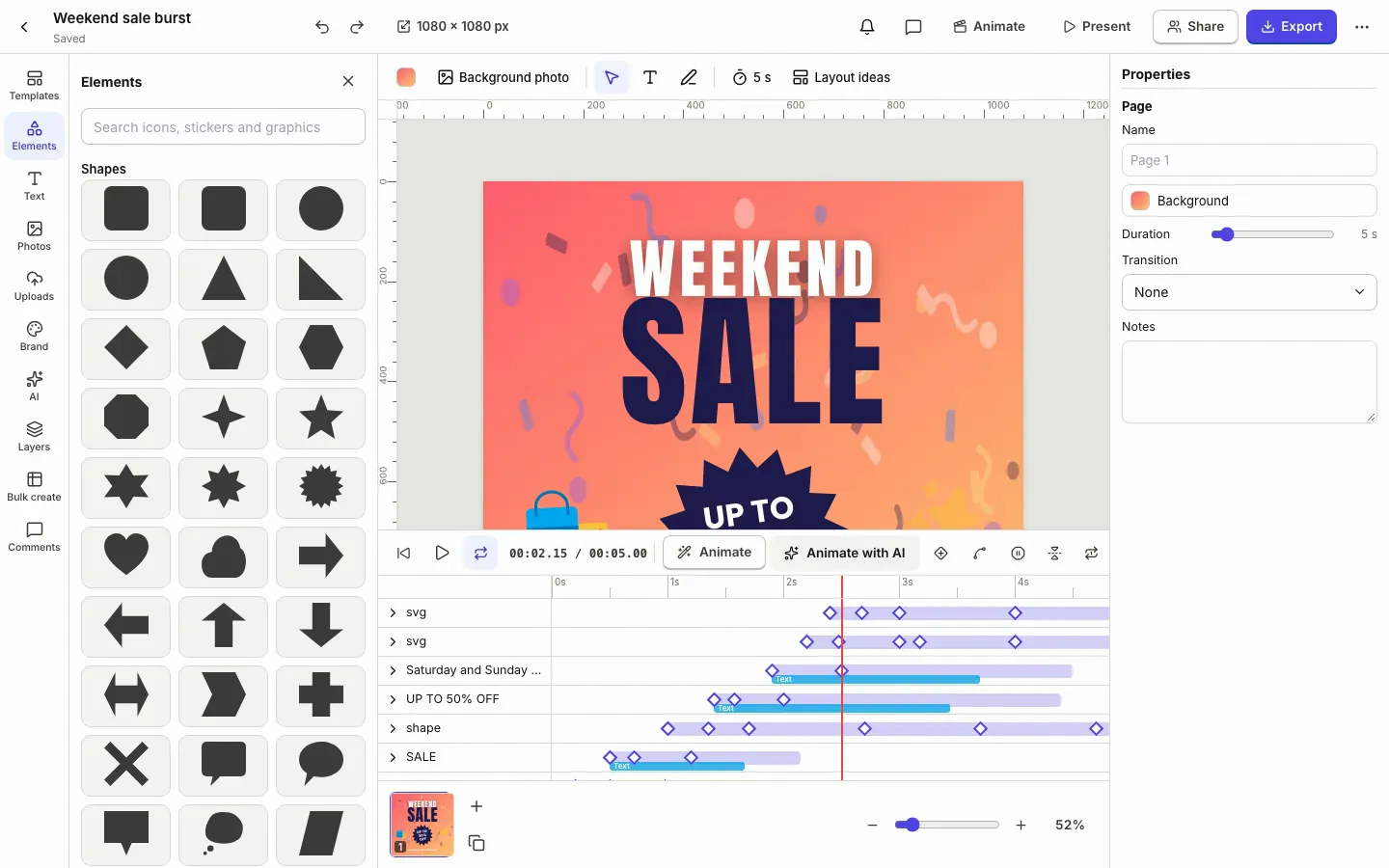
Press Animate in the top bar. The timeline opens under the canvas with one track per layer, a ruler in seconds and a red playhead. Press the play button (or Space) to preview, and press the loop button to keep it repeating while you work.
The page has a length, shown at the end of the ruler and in the page Duration slider in the properties panel. Five seconds is a good start for a looping social poster. Drag the end of the work area on the ruler to make the page longer or shorter.
Step 4: add motion with presets
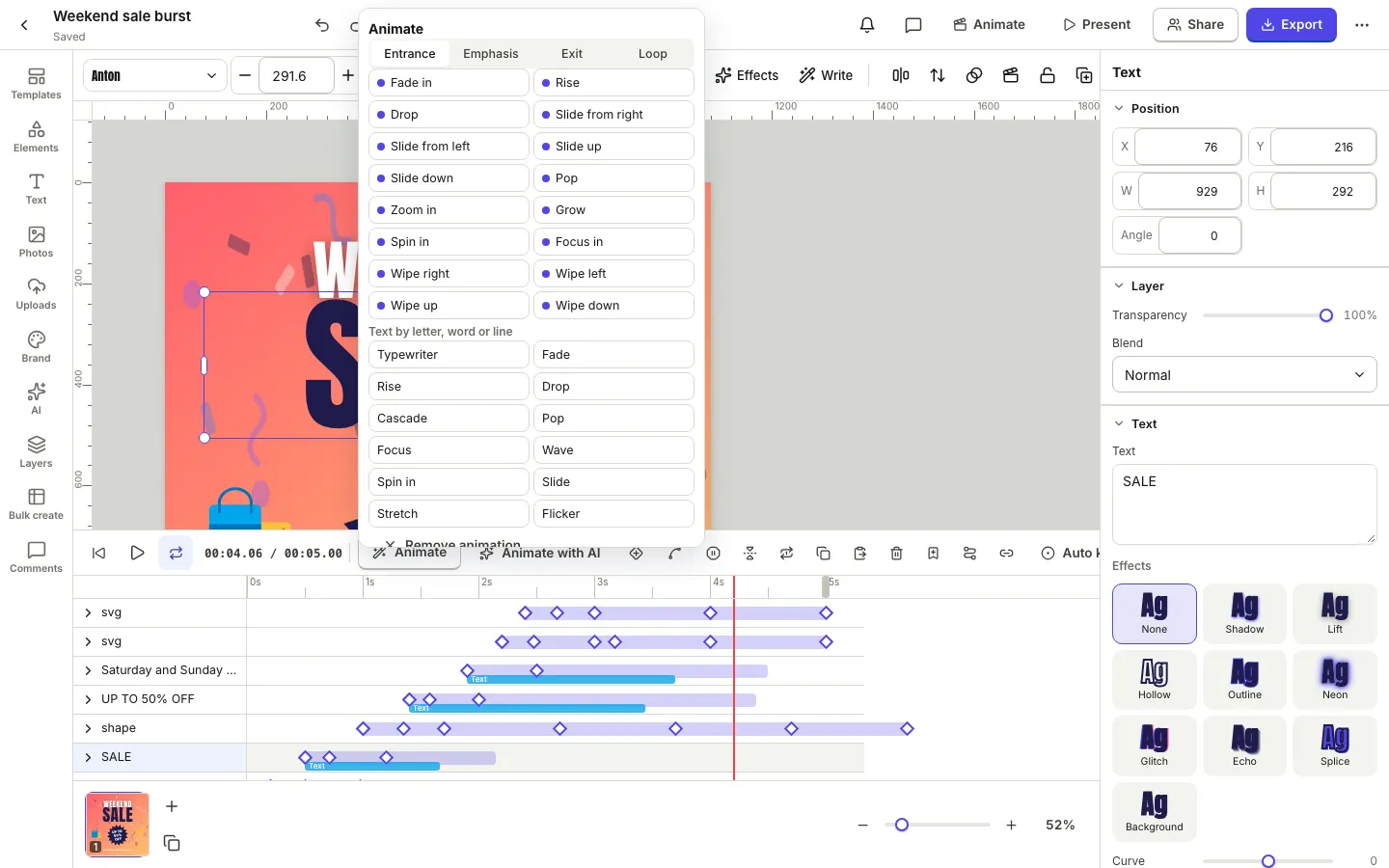
Select an element on the canvas, or click its name on the timeline, then press Animate in the timeline bar. A panel opens with four groups of presets:
| Group | What it does | Examples |
|---|---|---|
| Entrance | Brings the element onto the page | Fade in, Rise, Drop, Slide up, Pop, Zoom in, Wipe right |
| Emphasis | Draws the eye, then returns to normal | Pulse, Shake, Wiggle, Bounce, Tada, Heartbeat, Jelly |
| Exit | Takes the element off the page | Fade out, Sink, Slide out left, Pop out, Blur out |
| Loop | Repeats while the page shows | Float, Breathe, Spin, Sway, Blink, Drift |
There are 46 presets. Each one is written to the timeline as normal keyframes, then previewed.
A simple recipe for a sale poster:
- Background shapes: a loop preset such as Float or Drift, so the page never feels frozen.
- Headline: an entrance such as Drop or Slide up, at the very start.
- Offer badge: Pop, starting half a second after the headline, then a single Pulse a second later.
- Small print: a gentle Fade in last.
Select several elements first and a Stagger slider appears, which starts each one a little after the one before.
Animate text by letter, word or line
When a text element is selected, the same panel shows Text by letter, word or line with styles such as Typewriter, Rise, Cascade, Pop, Wave and Flicker. In the properties panel, the Animation section has an Animate by setting (Whole box, Letter, Word or Line), plus Stagger, Each unit, Starts at and Order (First to last, Last to first or From the centre). A headline that rises word by word reads better than one that slides in as a block.
Step 5: fine tune the timing
Each animation appears as a bar with diamond keyframes on its track. You can:
- Drag a bar to move the whole animation earlier or later.
- Drag a keyframe to change when one value is reached.
- Add a keyframe at the playhead with the diamond button or the K key, after moving or changing the element.
- Change the easing with the curve button, which opens presets and a curve you can drag.
- Hold, reverse or loop one element's animation with the buttons in the timeline bar.
For looping posters, check the last second. If something is still moving when the page restarts, the loop jumps. Let everything settle before the end, or use exit presets so the page clears first.
Add music
Press Music in the timeline bar to add an audio file. It appears as its own track with a waveform; click it for volume, fades and trim. If the track has a clear beat, DesignBat finds the beats in the browser, and Sync animations to beats in the music settings moves the starts of your animations onto the nearest beat, so the badge pops on the beat. Music is included when you export MP4 or WebM video. GIF and animated WebP are silent formats.
Step 6: or let AI animate it
If you would rather start from a suggestion, press Animate with AI in the timeline bar. DesignBat's motion designer looks at the page and chooses presets, text animation, timing and a page transition in one go, then plays the result. It is one undoable step, so if you do not like it, Undo removes all of it.
AI animation uses your shared OfficeBats AI credits and needs you to be signed in. Read how AI credits work for the details.
Step 7: export the animation
Press Export in the top bar and pick a format. For animated designs the choices are:
| Format | Best for |
|---|---|
| MP4 video | Social posts, ads and screens. Video with sound |
| WebM video | An open video format for websites |
| GIF | Short loops in email and chat, without sound |
| Animated WebP | Small looping animations on the web |
| PNG frames | Every frame as a PNG, in a zip, for other tools |
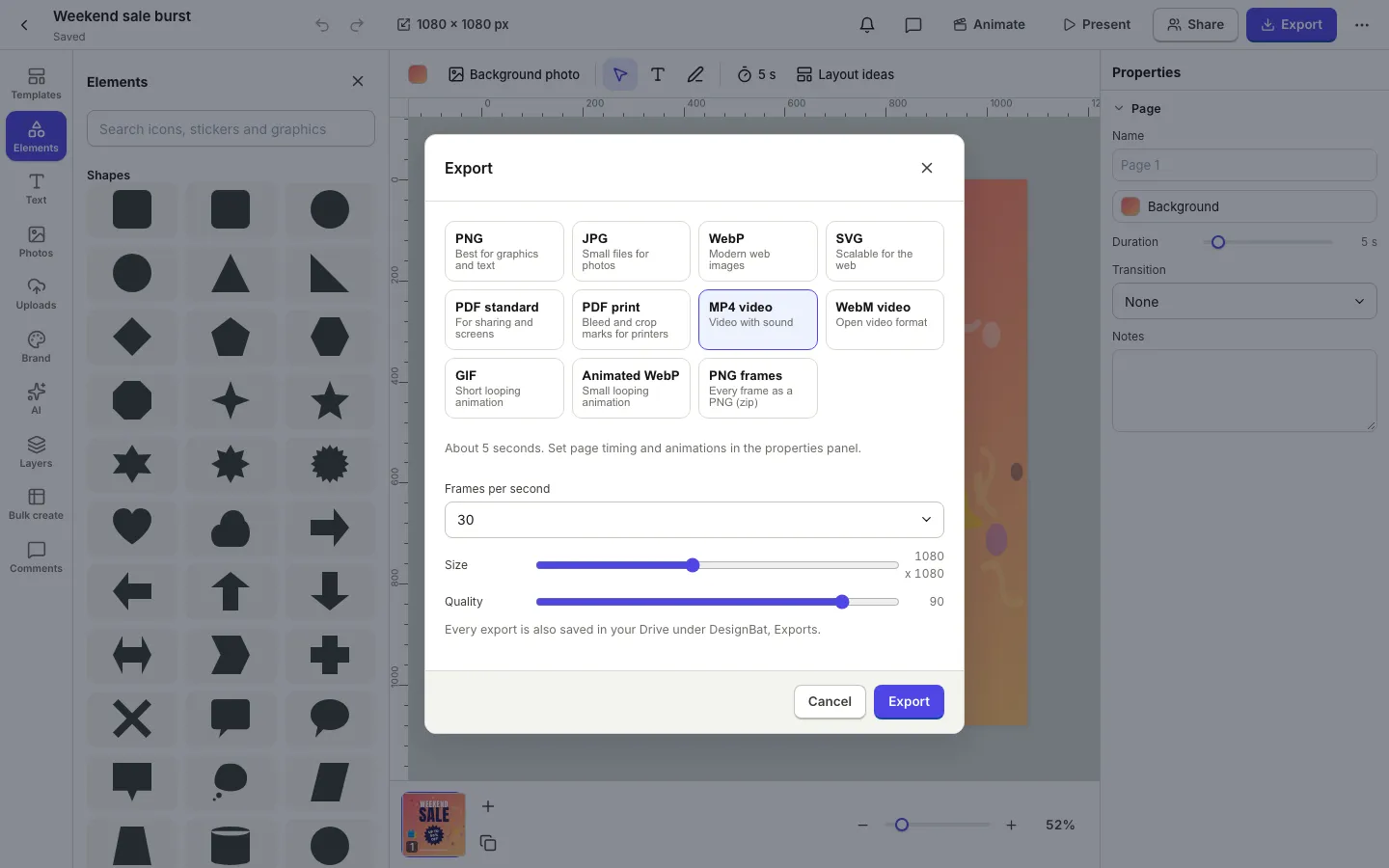
Set the Frames per second (12, 24, 30 or 60), the Size and the Quality, then press Export. A progress bar shows while the video renders, and you can cancel at any time. The download starts when it is done, and every export is also saved in your Drive under DesignBat, Exports, so you can find it again from any Bats app. See one Drive for all your office files.
Free and Pro
The Free plan includes every template, the timeline and all the presets. Free exports are limited to 15 a day, carry a small DesignBat mark, and videos can be up to 15 seconds. Pro removes the mark and the daily export limit, and allows videos up to 120 seconds. One OfficeBats plan covers DesignBat and every other Bats app; see pricing.
Tips for animated posters that work
- Move one thing at a time. The eye follows motion, so give it an order: headline, offer, details.
- Keep it short. Five to eight seconds is enough for a loop.
- Make the first frame readable. Some platforms show a still before the video plays. Check what the poster looks like at 0 seconds.
- Pick the format for the place. MP4 for social and screens, GIF for email, animated WebP for your own website.
If the poster is also going to print, see how to design a flyer and export a print ready PDF. For a matching set across platforms, press the size in the top bar and choose Make a resized copy for each platform, and keep the same look with a brand kit.
Frequently asked questions
Can I make an animated poster online for free?
Yes. DesignBat's Free plan includes the timeline, all 46 motion presets and the animated templates. Free exports carry a small DesignBat mark, are limited to 15 a day, and videos can be up to 15 seconds long.
What file type should I export an animated poster as?
Use MP4 for social media, ads and digital screens, because it is widely supported and can include music. Use GIF for email and chat, and animated WebP for small looping animations on a website.
Can I add music to an animated design?
Yes. Press Music in the timeline bar to add an audio file. You can set the volume, fades and trim, and line animations up with the beats. Music is included in MP4 and WebM exports.
Do I need AI to animate a poster?
No. Presets and keyframes work without AI. Animate with AI is optional: it chooses presets, text animation and timing for the whole page in one undoable step, and uses your OfficeBats AI credits.
Can I edit the animation after I apply a preset?
Yes. Every preset is written to the timeline as normal keyframes. You can move, stretch, delete or add keyframes, change the easing, or remove the animation from the element at any time.