How to make a YouTube thumbnail that gets clicks
Design a 1280 x 720 video thumbnail online with a bold headline, a clear face or object and strong contrast, then check it at small size and export.
A thumbnail has one job: make the right person stop scrolling and choose your video over the ten next to it. It is seen at the size of a matchbox, next to a title, often on a phone in bright light. That is why the thumbnails that work look simple. One subject, a few big words and colours that pop off the page.
This guide shows how to make one in DesignBat, the design editor in OfficeBats, starting from one of its video thumbnail templates. Everything here works on the free plan.
The four parts of a thumbnail that gets clicks
Before you open an editor, decide what goes on the image. Strong thumbnails usually have:
- One focal point. A face with a clear expression, or one object that is the subject of the video. Not five things at once.
- Three to five words. The thumbnail does not repeat the title, it adds to it. If the title is "I tested every budget microphone", the thumbnail might say "THE CHEAP ONE WON".
- High contrast. Light text on a dark area or dark text on a light area, with a colour that stands apart from the page around it.
- Room to breathe. The video length sits in the bottom right corner on most players, so keep text away from that corner.
Step 1: start from a video thumbnail template
Sign in to DesignBat with your OfficeBats account. You can start in two ways:
- From a template. Open Templates and choose the Video thumbnail category. There are 72 thumbnail templates, all at 1280 x 720 pixels, the size YouTube recommends. Pick one, choose Use this template, and it opens in the editor as your own copy.
- From a blank size. On your dashboard choose Create a design, open Video and streaming and pick Video thumbnail (1280 x 720 px).
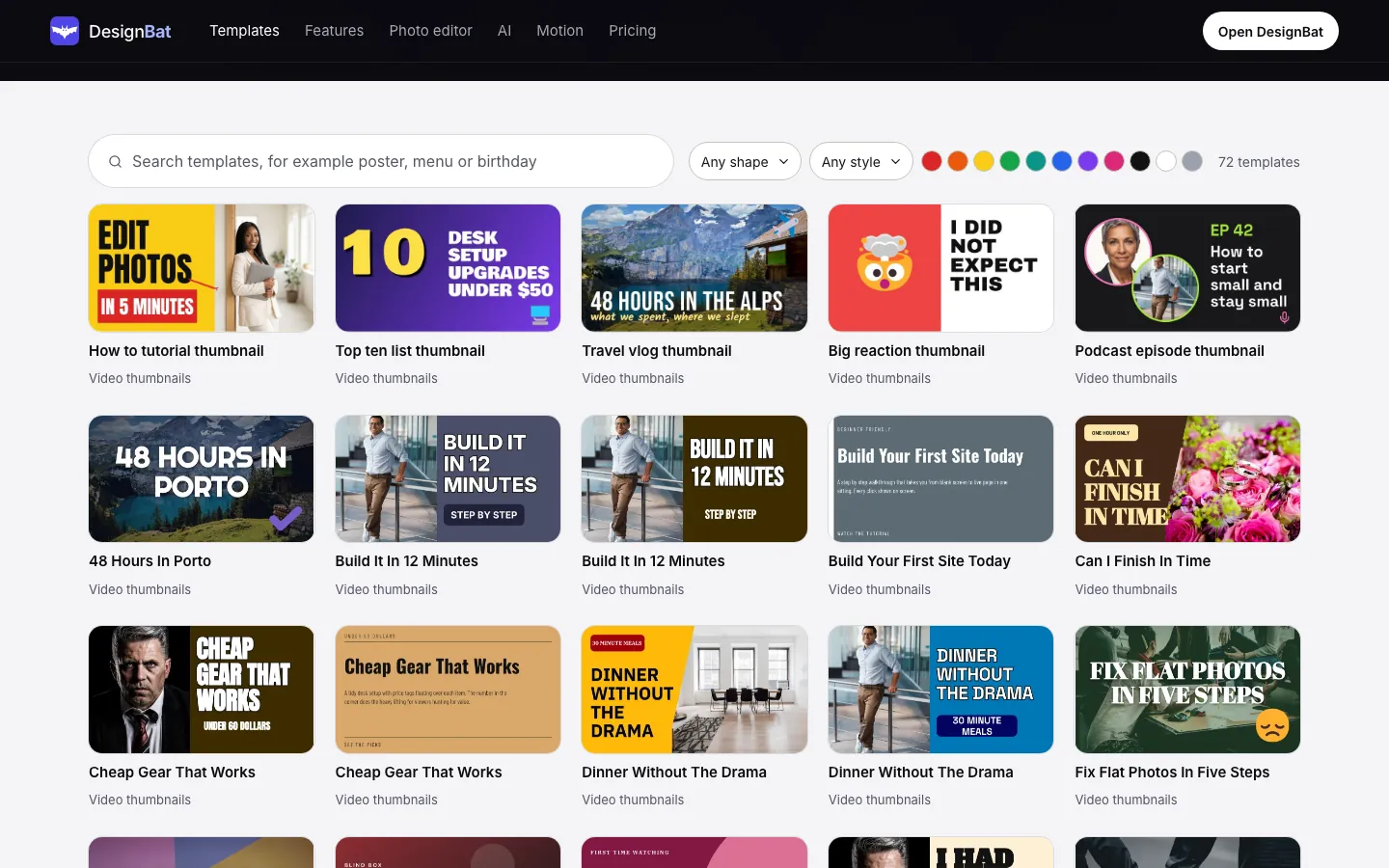
Templates save time because the hierarchy is already worked out: where the face goes, how big the headline is and how much empty space surrounds it. You only swap in your own photo and words.
Step 2: put your subject in
Click the photo in the template, or the frame it sits in, and replace it:
- Uploads takes a still from your own footage, or any PNG, JPG, WebP or GIF.
- Photos searches stock photos, with the photographer credit kept on the photo.
- Files already in your OfficeBats Drive can be added too.
To cut a person or object out of their background, select the photo and choose Remove background in the toolbar. It runs on your device, so it uses no AI credits. The first time, DesignBat asks before it downloads the small model it needs. If you change your mind, undo brings the original back.
A cut out subject lets you put a bold colour behind it, which is one of the easiest ways to make a thumbnail stand out. For a deeper look at cutouts, see how to remove the background from a photo online.
Step 3: write the headline and make it loud
Double click the headline to edit it in place. Then, with the text selected:
- Font. Pick a heavy display font from the list of 221 fonts in the top toolbar. Condensed, bold faces fit more letters at a bigger size.
- Size. Bigger than feels comfortable. If it fits easily, it is probably too small.
- Effects. In the properties panel on the right, open Effects and try Outline, Shadow or Lift to separate the letters from the photo. Neon and Glitch suit gaming and tech channels. Background puts a solid block behind the words.
- Colour. Use one accent colour for the most important word, and keep the rest white or black.
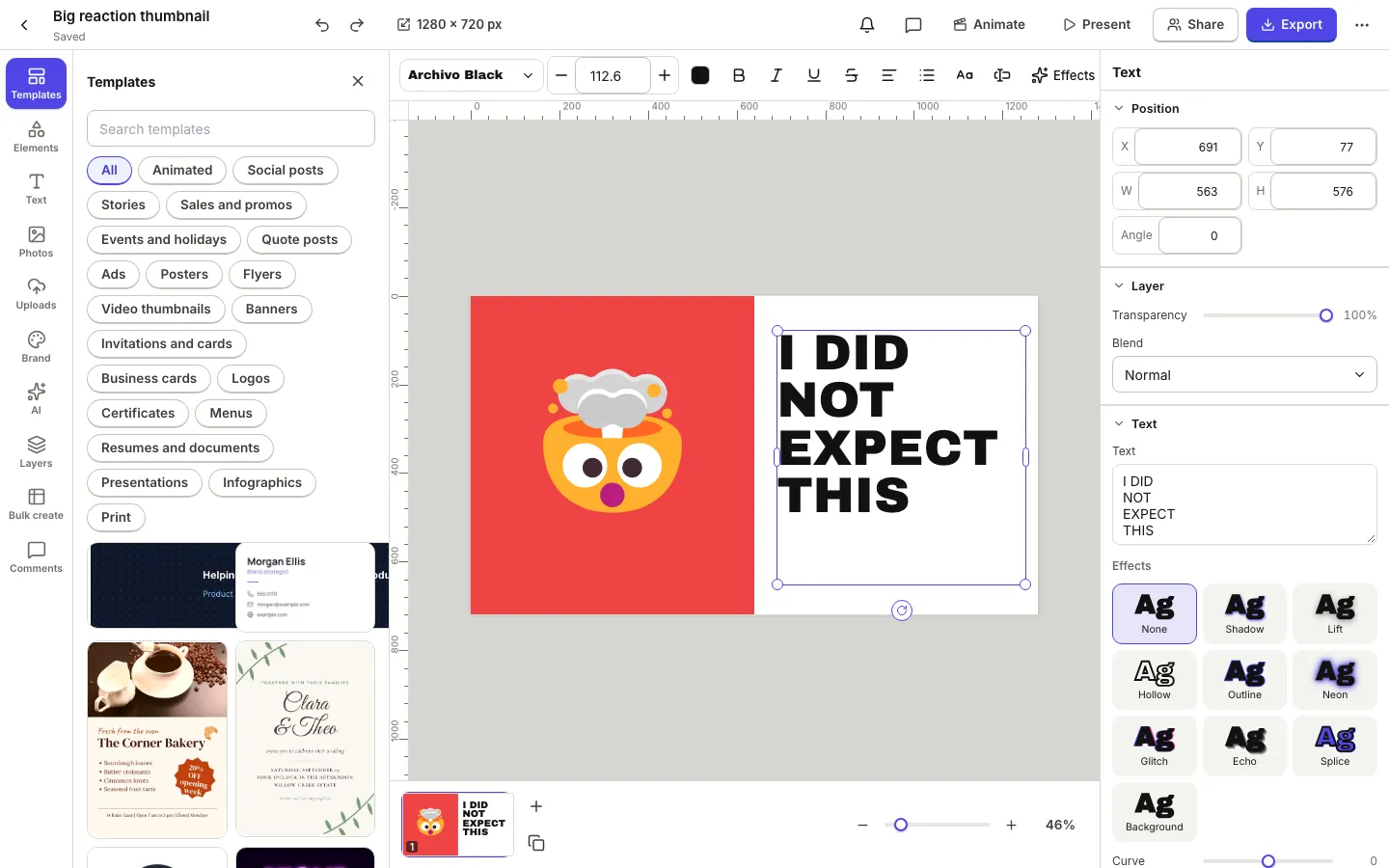
Keep the words to a short line or two. Each extra word makes every other word smaller.
Step 4: test it at the size people see it
Thumbnails are judged small. Use the zoom slider at the bottom of the editor to shrink the page until it is about the size of a thumbnail on a phone, then ask:
- Can I read every word without leaning in?
- Is it obvious what the video is about in one second?
- Does the face or object still read, or is it a blur?
Then open the More menu (the three dots at the top right) and choose Check design. It scores Readability and Layout and lists problems such as low contrast between text and its background, text that is too small to read and elements that sit off the page. Most problems have a Fix button, and Show selects the element so you can adjust it yourself.
Step 5: make a second version to compare
You rarely get the best thumbnail on the first try. Make a variation and compare them side by side:
- In the page strip at the bottom, choose Duplicate page.
- On the copy, change one thing: the headline, the background colour or the crop of the face.
- Look at both at small size and keep the one that reads faster.
If you also need a square version for social posts or a vertical one for shorts, click the size label in the top bar (1280 x 720 px) to resize. Make a resized copy creates a new design at the new size and can rearrange the layout with AI, which uses credits, or simply scale it for free.
Step 6: export the thumbnail
Choose Export in the top right:
- PNG keeps text sharp and is the safest choice.
- JPG makes a smaller file when the thumbnail is mostly a photo. Use the Quality slider to balance size and sharpness.
- If the design has several pages, the Pages menu lets you export only the page you want.
Check the upload limits of the platform you post to, and use JPG at a slightly lower quality if the file is too big.
Every export is downloaded and also saved to your Drive under DesignBat, Exports, so the thumbnail is there next time you need it. See one Drive for all your office files.
Can AI help?
Yes, if you want it to. AI features need a signed in account and use credits from your shared OfficeBats wallet:
- Design with AI on the dashboard turns a short brief, such as "a thumbnail for a video about fixing a squeaky door, bold and friendly", into a layered design you can edit.
- Layout ideas in the editor toolbar suggests other arrangements of the elements already on the page.
- The AI panel has the AI designer, which makes changes step by step while you watch. Every step can be undone, and you can stop it at any time.
AI gives you a starting point quickly. The judgement about what makes your audience click is still yours. To see how credits work across the apps, read AI credits explained.
Free and Pro
The free plan includes 20 designs, 15 exports a day, 10 AI actions a day and every template. Free exports carry a small "Made with DesignBat" mark. Pro removes the mark, lifts the design and export limits, allows 300 AI actions a day and exports images at up to 4x size. One OfficeBats plan covers DesignBat and every other Bats app; see pricing.
Frequently asked questions
What size should a YouTube thumbnail be?
1280 x 720 pixels, a 16:9 shape. DesignBat's Video thumbnail size and all 72 thumbnail templates use exactly that size, so you do not need to set it yourself.
Can I make a YouTube thumbnail for free?
Yes. The free DesignBat plan includes every thumbnail template, background removal on your device, text effects and 15 exports a day. Free exports carry a small "Made with DesignBat" mark, which Pro removes.
Should I export my thumbnail as PNG or JPG?
PNG keeps text and edges sharp. JPG makes a smaller file when the image is mostly a photo. If a platform rejects a large PNG, export as JPG and lower the quality a little.
How do I remove the background behind my face?
Select the photo in the editor and choose Remove background in the toolbar. It runs on your own device and uses no AI credits. Undo brings the original photo back.
Can I reuse the thumbnail design for my next video?
Yes. Duplicate the design or the page, swap the photo and words, and export again. If you make a series with the same layout, bulk create from a spreadsheet can fill in the titles for you.