How to make a brand kit for your small business
Pick brand colours, a heading and body font, logos and a brand voice, save them as a brand kit, then apply them to any design in one click.

Most small businesses do not have a brand guide. They have a logo file somewhere, a colour someone picked years ago and a different font on every flyer. Customers notice, even if they could not say why: things that look consistent look established.
A brand kit fixes this without a design agency. It is a short list of decisions, your colours, your fonts, your logo and how you sound, saved in one place so every new design starts from them. This guide shows how to choose those things and set them up in DesignBat, the design editor in OfficeBats, using a sample neighbourhood bakery.
What goes into a brand kit
| Part | What to decide | Example for the bakery |
|---|---|---|
| Colours | One main colour, one dark, one light, one accent | Crust orange, espresso brown, flour cream, honey |
| Fonts | A heading font and a body font | DM Serif Display and Lora |
| Logos | Your logo, plus a version for dark backgrounds if you have one | The bakery wordmark |
| Brand voice | Two or three sentences on how you write | Warm and neighbourly, plain words, no hype |
That is enough for almost everything a small business makes: social posts, flyers, menus, price lists, business cards and signs.
Step 1: choose your colours
Start with what you already have. If your shop front, logo or packaging has a colour, that is your main colour. Then add:
- A dark colour for text. Pure black is fine, but a very dark version of your main colour often feels warmer.
- A light colour for backgrounds. Off white or cream reads as softer than pure white.
- One accent for buttons, prices and badges. Use it sparingly so it keeps its punch.
Four or five colours are plenty. More than that and designs start to look like they come from different businesses. Check that your text colour on your background colour is easy to read. DesignBat's design checks warn about low contrast, so you will find out quickly if a pairing does not work.
Step 2: choose a heading and a body font
Pick two fonts that do different jobs:
- Heading font: has personality and is used big, for headlines and names. A serif like DM Serif Display feels traditional and crafted. A bold sans feels modern and direct.
- Body font: is used small and must stay readable, for details, prices and opening hours. Choose something calm with clear letters.
DesignBat includes 221 fonts with open licences, so anything you pick there is free to use in print and online. If your business already has a licensed font, you can upload it on the Brand kits page under Your fonts as a TTF, OTF, WOFF or WOFF2 file up to 10 MB. Only upload fonts you are licensed to use. Free keeps 3 uploaded fonts and Pro keeps 200.
Step 3: create the brand kit
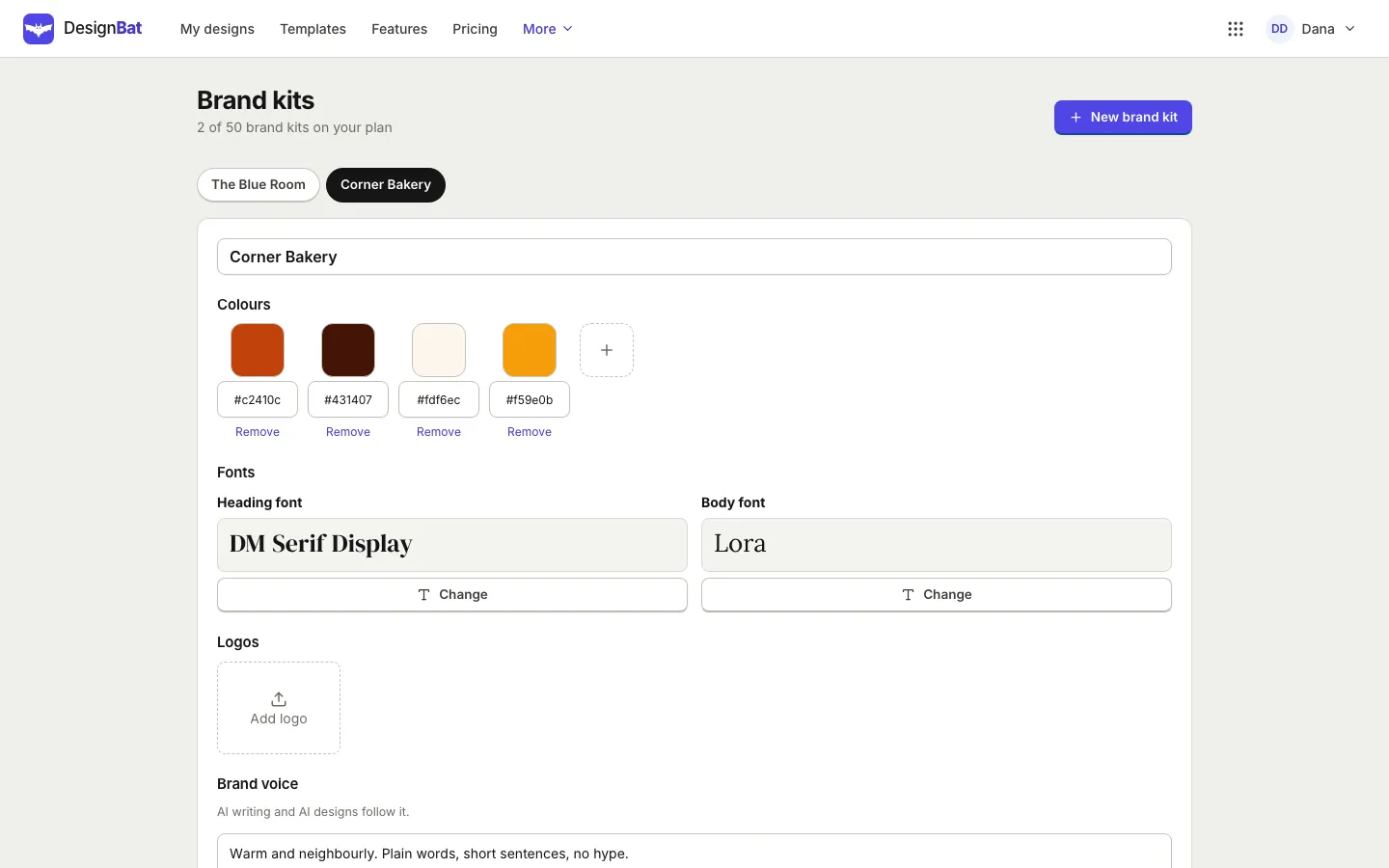
Sign in to DesignBat with your OfficeBats account and open any design. Choose Brand in the left rail of the editor, then Create a brand kit. The Brand kits page opens in a new tab. Later, the Edit link next to a kit in the same panel brings you back to it.
- Choose New brand kit. A new kit appears with a starting set of colours and fonts.
- Type your business name in the name box at the top.
- Under Colours, click a swatch to pick a colour, or type its hex code, such as #c2410c, in the box below it. Use + to add a colour and Remove to delete one.
- Under Fonts, choose Change under Heading font and Body font and pick from the list. Each preview shows the font in use.
- Under Logos, choose Add logo and upload PNG, JPG, WebP or SVG files. A transparent PNG or an SVG works best on coloured backgrounds.
- Under Brand voice, describe how your business sounds in a sentence or two.
- Choose Save.
The free plan keeps one brand kit. Pro keeps up to 50, which is useful for agencies, freelancers who design for clients and businesses with more than one brand.
Step 4: use the kit while you design
Open any design and choose Brand in the left rail of the editor. Each of your kits shows its colours, its fonts and its logos:
- Click a colour to apply it to the selected text, shape, icon or line. With nothing selected, it becomes the page background.
- Click Heading or Body to add a text box in that brand font.
- Click a logo to place it on the page.
- Apply brand to this page switches text to your brand fonts (large text to the heading font, smaller text to the body font) and recolours shapes with your brand colours, all as one step you can undo.
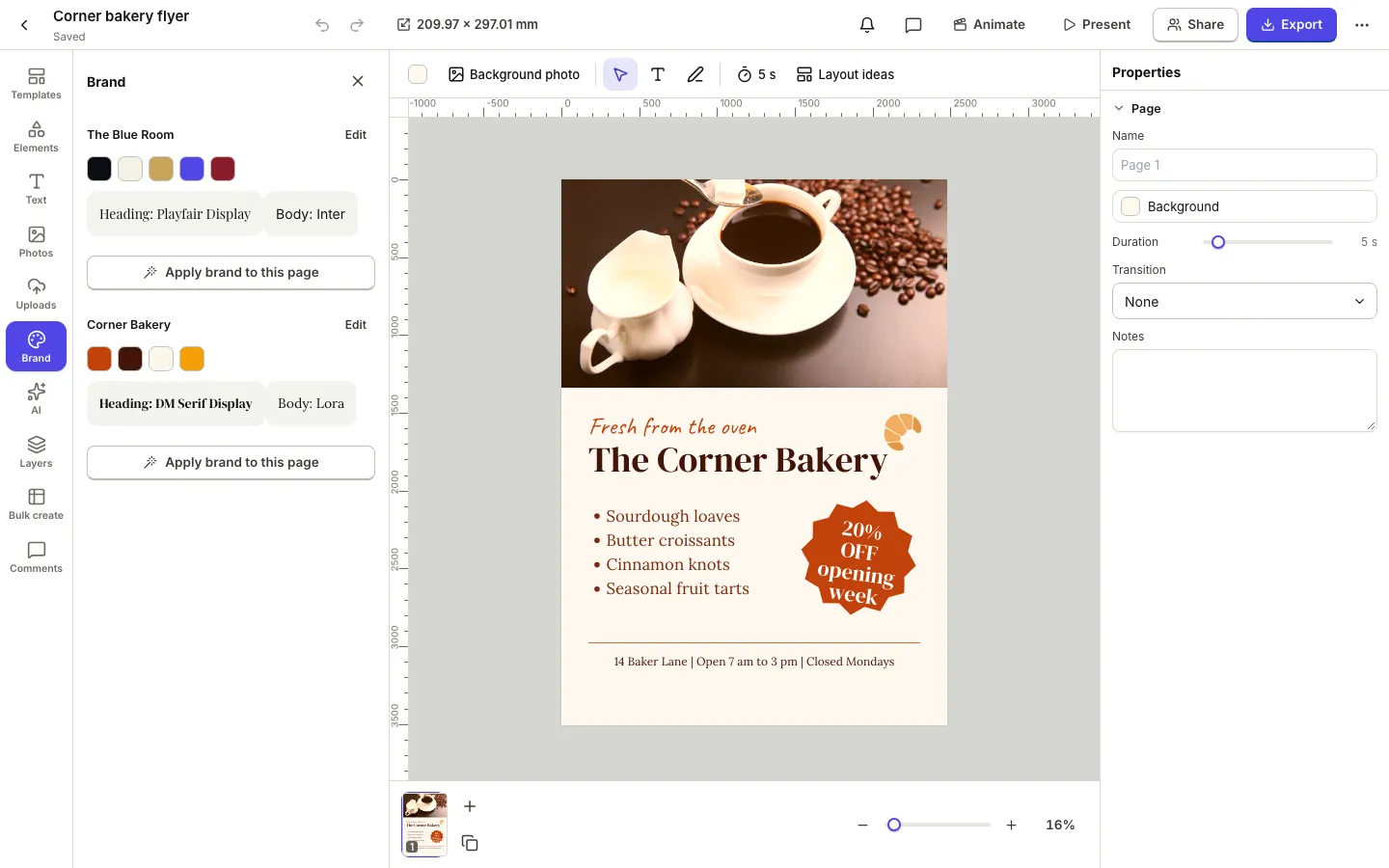
This is the quickest way to make a template your own. Pick any of the 1,125 templates, open the Brand panel, choose Apply brand to this page, then swap in your logo and words.
Step 5: check designs for brand fit
Before a design goes out, open the More menu in the editor and choose Check design. Next to readability, layout and print, it gives a Brand fit score and lists every font and colour that is not in your brand kit, such as text in a font you do not use or a shape in an off brand colour. Show selects the element, and Fix changes it to a brand font or colour where a fix is possible.
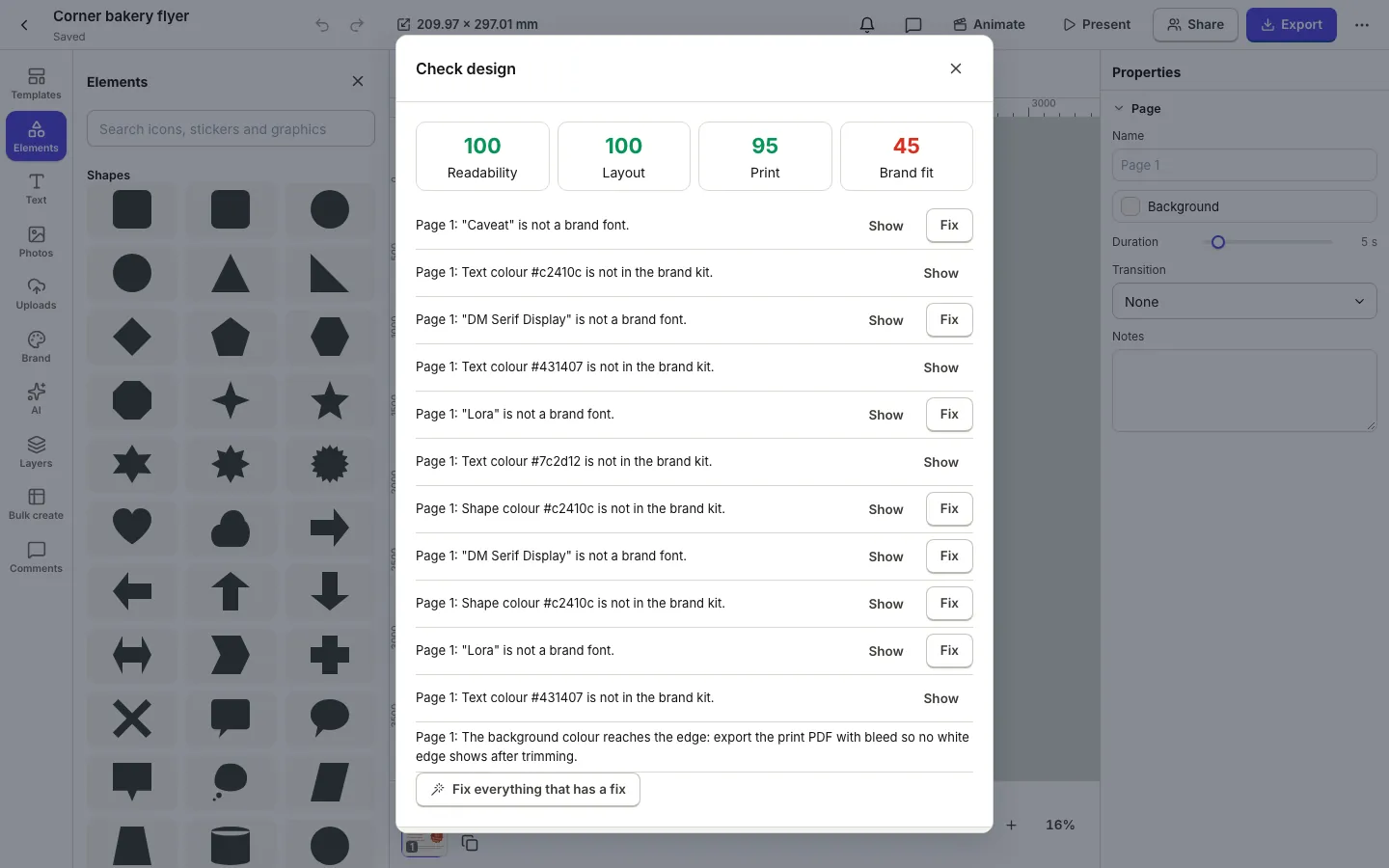
If you keep several kits, Apply brand and Check design use the first kit in your list, the one you created first.
Step 6: let AI start from your brand
With a brand kit saved, AI in DesignBat can start on brand instead of from scratch. AI needs a signed in account and uses credits from your shared OfficeBats wallet:
- Design with AI on the dashboard has a Brand kit menu. Choose your kit, describe the design, for example "a poster for our opening week, 20% off all pastries", and you get a layered design in your colours and fonts.
- In the editor, the AI panel's Create tab has Use my brand kit.
- The AI designer can be asked to "use my brand fonts and colours" on a design you already have, and works through it step by step. Every step can be undone.
To see what credits cost and how the shared wallet works, read AI credits explained.
Brand kit tips that save time later
- Name colours after what they are for, not just their hex code, so a teammate knows which one is for text.
- Write down where the logo cannot go, for example never on the orange, in your brand voice notes for whoever designs next.
- Make one template per job, such as a weekly special post and a price list, already on brand. Then each new version is a change of words, not a new design. For a series, bulk create from a spreadsheet fills in the words for you.
- Use it in print too. Flyers and menus look most professional when they match your posts; see design a flyer and export a print ready PDF.
Free and Pro
The free plan includes one brand kit, 3 uploaded fonts, 20 designs and 15 exports a day, with a small "Made with DesignBat" mark on exports. Pro keeps up to 50 brand kits and 200 uploaded fonts, removes the mark and lifts the design and export limits. One OfficeBats plan covers DesignBat and every other Bats app; see pricing, or read why one suite can replace a stack of tools in a free office suite for small business.
Frequently asked questions
What should a small business brand kit include?
Your main colours with their hex codes, a heading font and a body font, your logo files and a short description of your brand voice. That covers almost every graphic a small business makes.
Can I make a brand kit for free?
Yes. The free DesignBat plan includes one brand kit with colours, fonts, logos and a brand voice. Pro keeps up to 50 kits.
Can I use my own font in a brand kit?
Yes. Upload TTF, OTF, WOFF or WOFF2 files up to 10 MB under Your fonts on the Brand kits page, then choose them as your heading or body font. Only upload fonts you are licensed to use.
How do I apply my brand to a template?
Open the template in the editor, choose Brand in the left rail and press Apply brand to this page. Text switches to your brand fonts and shapes take your brand colours. Undo reverses it in one step.
Does AI use my brand kit?
Yes. Choose your kit in Design with AI or tick Use my brand kit in the editor's AI panel. AI writing and AI designs also follow the brand voice you saved in the kit.