Bulk create social graphics from a spreadsheet
Turn one design and a CSV file into dozens of social posts. Add placeholders like {{name}}, load your spreadsheet and get one page per row.

Speaker cards for a conference. A "welcome to the team" post for each new hire. One product card per item in a sale. Event dates for every city on a tour. These are the same design again and again with different words, and making each one by hand is slow and easy to get wrong.
DesignBat, the design editor in OfficeBats, has Bulk create for exactly this. You design one page with placeholders, add a spreadsheet, and it makes a new design with one finished page per row. This guide walks through a real example: four webinar speaker cards from a four row spreadsheet.
How bulk create works
The idea is a mail merge for graphics:
- In your text, write placeholders in double curly brackets, such as
{{name}}or{{date}}. - Prepare a spreadsheet where the first row holds column names that match the placeholders.
- Bulk create copies the current page once per data row, replaces each placeholder with the value from that row and puts all the pages in a new design. Your original stays as it was.
Placeholders work in any text box, and also in QR codes, so each page can carry its own link. Photos, logos and shapes are copied as they are, so the same photo appears on every page unless you change it afterwards.
Step 1: design one page with placeholders
Start from a template or a blank size. This example uses the Webinar speaker card template, a 1080 x 1350 px portrait post. If you have a brand kit, apply it first so every page comes out in your colours and fonts; see how to make a brand kit for your small business.
Replace the words that change from page to page with placeholders:
| On the card | Placeholder |
|---|---|
| The talk title | {{topic}} |
| The speaker's name | {{name}} |
| Their role | {{role}} |
| The day and time | {{time}} |
Style the placeholder text the way the final text should look: font, size, colour and effects all carry over. Leave enough room for the longest value you expect. A two word name and a five word name need different amounts of space, and a heading that wraps onto three lines should still fit.
Step 2: prepare the spreadsheet
Bulk create reads CSV, which any spreadsheet app can save. Put one header row on top and one row per graphic underneath:
name,role,topic,time
Alex Moreno,Freelance strategist,Pricing your work with confidence,Tuesday 4 pm
Priya Shah,Bookkeeper for studios,Quarterly taxes without the panic,Wednesday 1 pm
Sam Okafor,Photographer and teacher,Better product photos on a phone,Thursday 6 pm
Lena Brooks,Shop owner,Your first online store in a weekend,Friday 11 am
These are sample names for this guide. A few tips for clean data:
- Keep one header row. The first row is always read as column names.
- No blank rows in the middle. Empty rows are skipped, but a half empty row makes a half empty graphic.
- Quote values that contain commas, like
"Toronto, ON". Spreadsheet apps do this for you when they save CSV. - Tab separated files work too, so you can paste straight from a spreadsheet.
If you keep the list in SheetsBat, download it as CSV, or upload the CSV to your OfficeBats Drive so DesignBat can read it directly.
Step 3: load the data in Bulk create
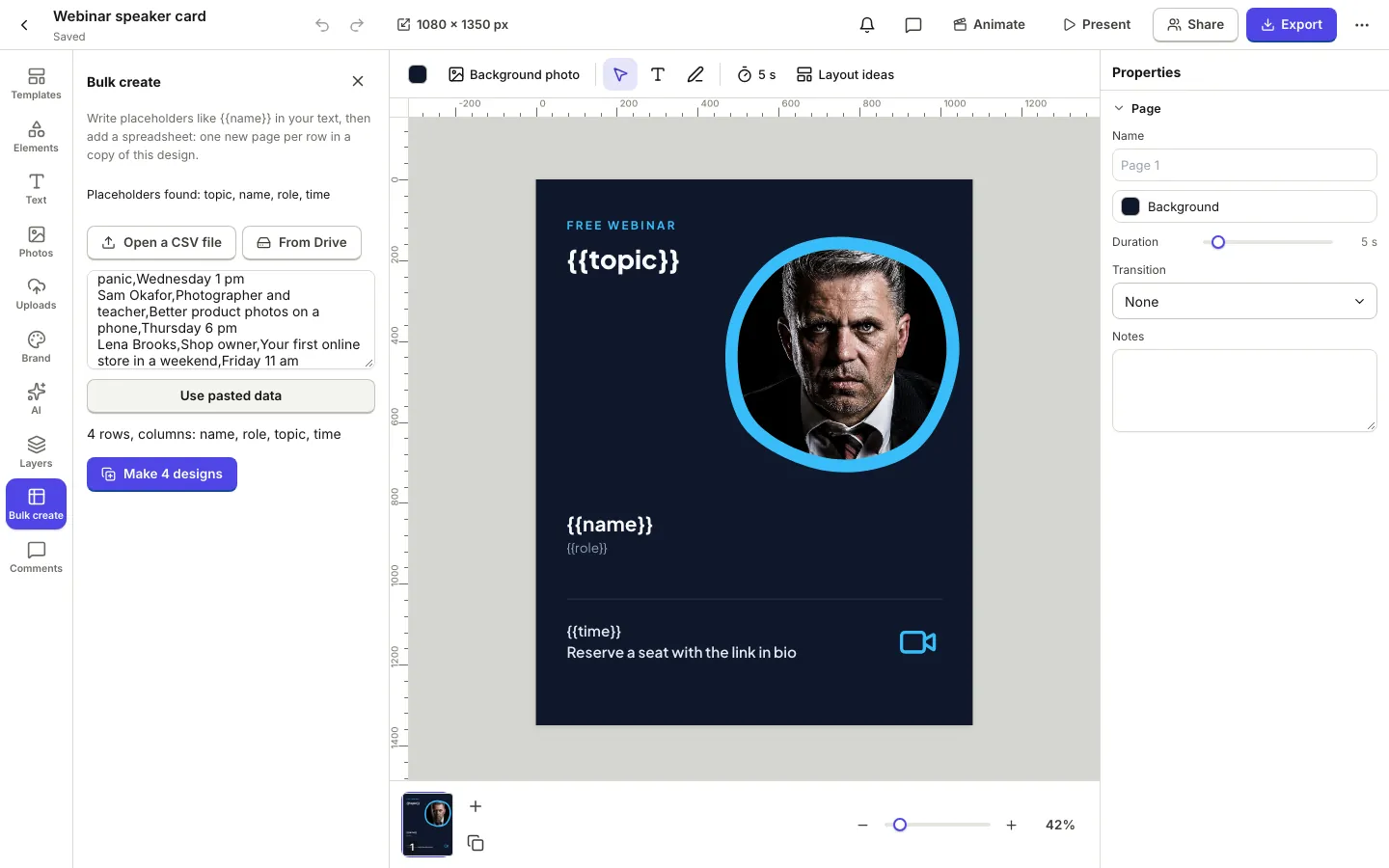
In the editor, open Bulk create in the left rail. The panel lists the placeholders it found on your pages, for example "Placeholders found: topic, name, role, time". If it says there are none yet, check the curly brackets.
Then add your data in one of three ways:
- Open a CSV file from your computer.
- From Drive picks a CSV or TSV file from your OfficeBats Drive.
- Paste the rows into the box and choose Use pasted data.
DesignBat shows how many rows it read and which columns it found, and a button such as Make 4 designs.
Step 4: make the designs
Press the Make button. DesignBat creates a new design named after the original, for example "Webinar speaker card (4 from data)", and opens it in a new tab. Each row becomes one page, in the same order as the spreadsheet.
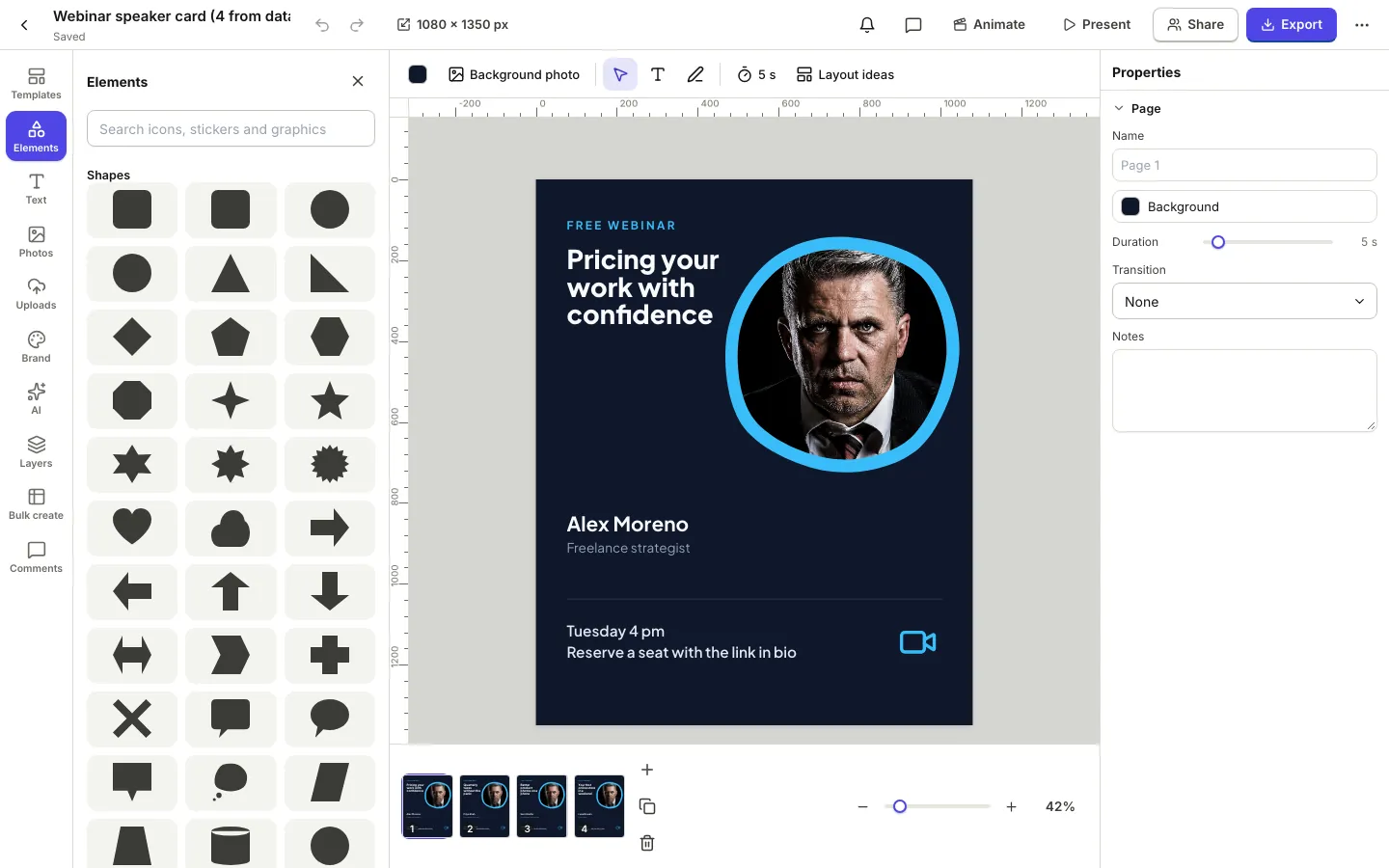
One run makes up to 200 pages. For a longer list, split the spreadsheet and run it again.
Step 5: check every page
Bulk create fills in text exactly as written, so a quick review saves a reprint or an awkward post:
- Long values. Step through the page strip and look for names or titles that wrap badly or overflow. Adjust those pages by hand, or shorten the value in the spreadsheet and run it again.
- Photos. If every card needs a different photo, replace it on each page. Select the photo and choose a new one from Uploads, Photos or your Drive.
- Readability. Open the More menu and choose Check design to catch low contrast or tiny text across all pages at once.
Need a teammate to check the copy? Share the design with a comment or edit link and work on it together live; see real time collaboration across office apps.
Step 6: export all the graphics at once
Choose Export. With several pages, the Pages menu offers All pages or This page only. Pick PNG or JPG for social posts and keep All pages selected. When you export many pages as images, they arrive together in one zip file, ready to upload to a scheduling tool or share with a client.
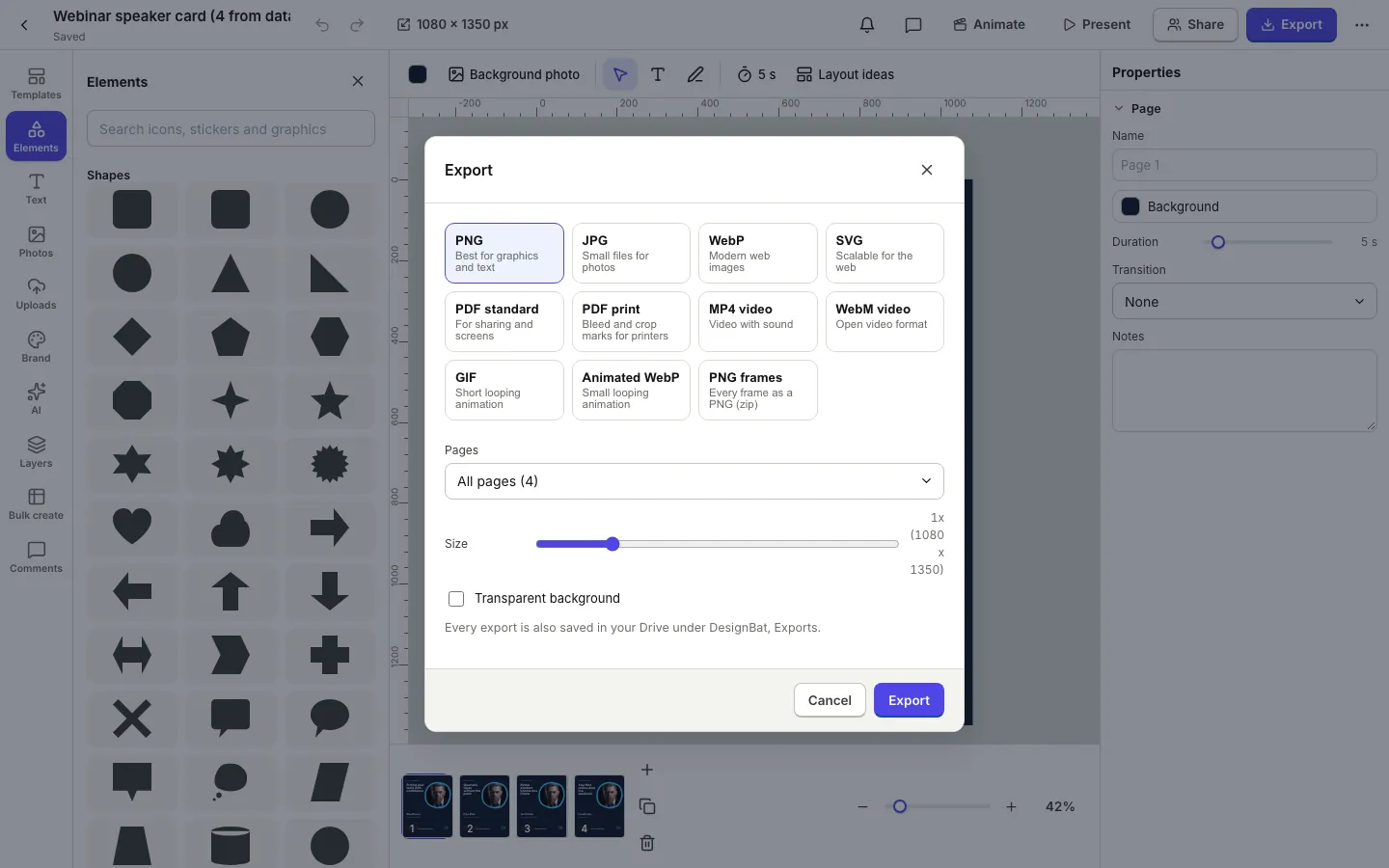
The zip is downloaded and also saved to your Drive under DesignBat, Exports.
Ideas for bulk create
- Team announcements: name, role and start date for each new hire.
- Event series: city, venue and date for each stop.
- Product cards: product name, price and a short line for each item.
- Certificates: one per attendee, with the name and course. Print sizes work too, so you can export them as one PDF.
- Quote posts: a quote and its author per row, from a list of reviews you have permission to share.
- Name badges and tickets with a QR code per person, using a placeholder in the QR code's link.
Free and Pro
Bulk create is on the free plan. Each run makes one new design, and Free keeps up to 20 designs with 15 exports a day. Free exports carry a small "Made with DesignBat" mark. Pro removes the mark and gives unlimited designs and exports, which suits regular batches. One OfficeBats plan covers DesignBat, SheetsBat and every other Bats app; see pricing.
Frequently asked questions
Can I make social media posts from a spreadsheet?
Yes. In DesignBat, write placeholders like {{name}} in your design, open Bulk create, add a CSV file or paste the rows, and press Make. You get a new design with one page per row.
What file types does bulk create accept?
CSV and tab separated text, opened from your computer, picked from your OfficeBats Drive or pasted into the panel. Save Excel or SheetsBat files as CSV first.
Can bulk create change images on each page?
Not automatically. Placeholders are filled in text boxes and QR codes. Photos and logos are copied as they are, and you can replace them page by page afterwards.
How many graphics can I make at once?
Up to 200 pages in one run. For longer lists, split the spreadsheet into parts and run bulk create once per part.
Does bulk create change my original design?
No. It always makes a new design and opens it in a new tab. Your original page with the placeholders stays as it was, ready for the next batch.