How to co-edit a spreadsheet in real time, for free
Share a spreadsheet, edit it together live, see who is where, comment on cells and roll back mistakes. A step by step guide on the free SheetsBat plan.
Emailing a spreadsheet back and forth works until two people change the same copy. Then someone spends an afternoon merging "budget_final_v3_maya.xlsx" into "budget_final_v4.xlsx" by hand. Editing one shared copy in real time removes that problem: everyone sees the same numbers, changes appear as they happen, and comments sit next to the cells they are about.
This guide shows how to do that in SheetsBat, a browser spreadsheet that is part of OfficeBats. Live co-editing, comments and version history are included on the Free plan, with up to 3 collaborators per workbook.
What you need
- A free OfficeBats account for the owner. The same account signs you in to SheetsBat and every other Bats app.
- A workbook in SheetsBat. Start a blank one, pick one of the 73 free templates, or import an Excel
.xlsx,.odsor CSV file from your computer or your OfficeBats Drive. - The people you want to work with. To edit or comment they need a free account too, so everyone can see who changed what. People who only need to look can open a view link without signing in.
Step 1: open the Share panel
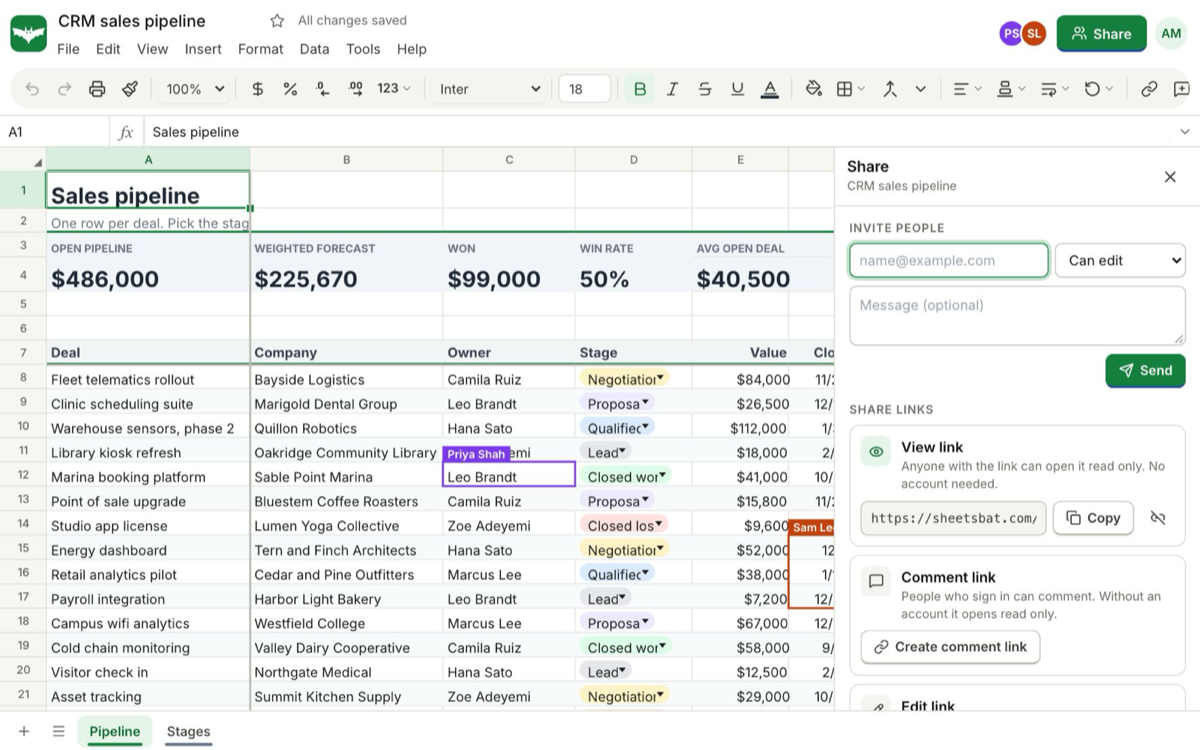
Open the workbook and click Share in the top right corner. The panel has three parts:
- Invite people: send an email invitation with a role.
- Share links: create links that open the workbook as a viewer, commenter or editor.
- People with access: everyone who can open it, and their role.
Only the owner and people with edit access can share. Viewers and commenters see the people with access but cannot invite anyone.
Step 2: choose how to invite people
Invite by email
- Type the person's email address under Invite people.
- Pick their access: Can view, Can comment or Can edit. Edit is the default.
- Add a short message if you like, then click Send.
They get an email with a button to open the spreadsheet. When they sign in, the workbook appears in their list under Shared with me.
Share a link
Under Share links you can create three kinds of link:
| Link | Who can use it | What they can do |
|---|---|---|
| View link | Anyone with the link, no account needed | Open the workbook read only |
| Comment link | People who sign in | Comment on cells; without an account it opens read only |
| Edit link | People who sign in | Edit everything; without an account it opens read only |
Copy the link and paste it into a chat or an email. Anyone who signs in through a comment or edit link is added to People with access, so you can change their role or remove them later. To stop a link working, choose Turn off next to it.
Step 3: edit together
Once two or more people have the workbook open, SheetsBat shows who is there:
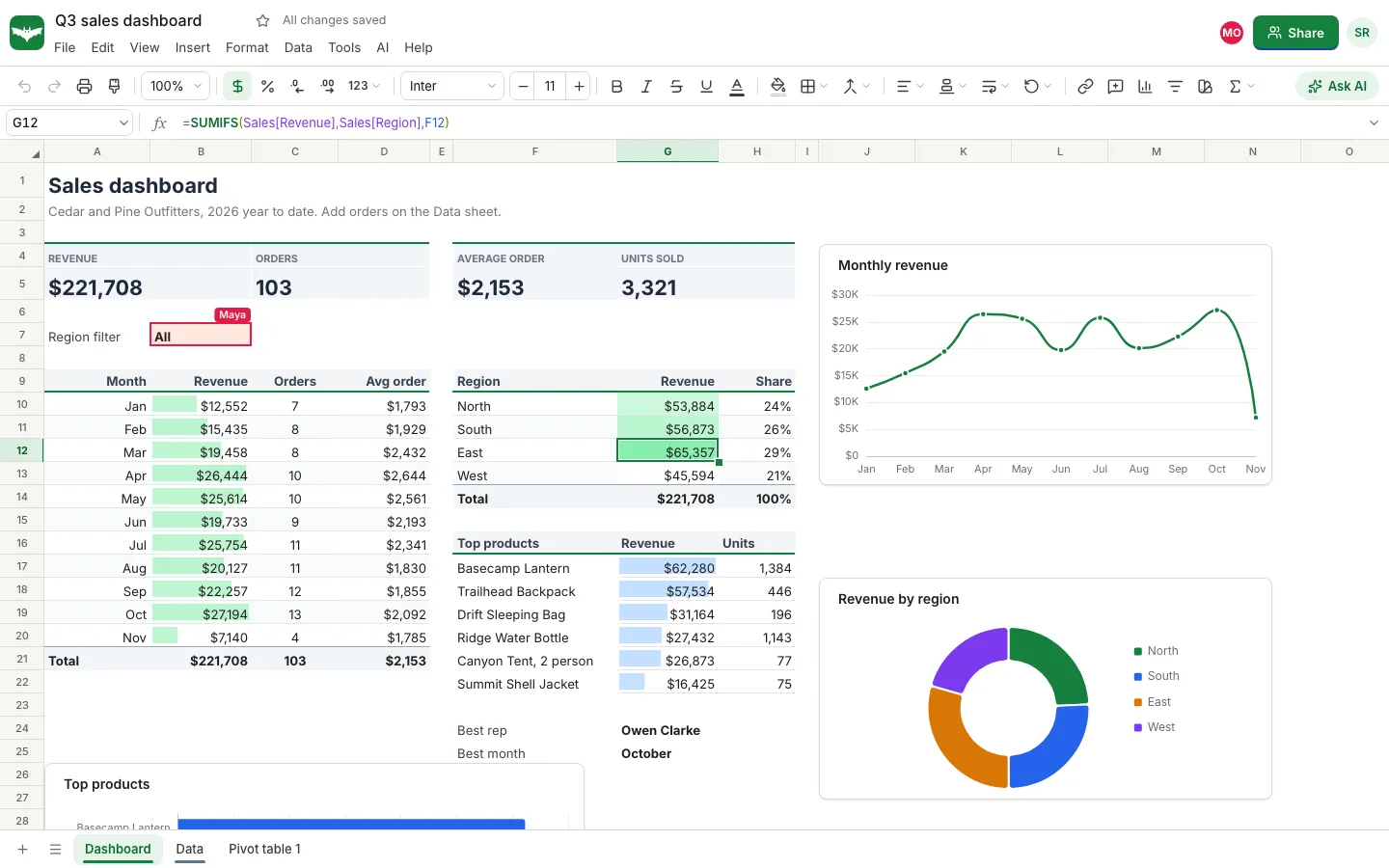
- Avatars of everyone else in the workbook appear in the top bar, next to the Share button.
- Each person's selection is outlined on the grid in their colour, with their name on a small label, so you can see where they are working.
- Changes appear live. When someone types a number, every formula that depends on it recalculates on everyone's screen.
How simultaneous edits are handled
Every change is sent to the server as a small operation, the server puts all operations in one order, and every copy applies them in that order, so everyone ends up with the same workbook. Inserting or deleting rows, moving ranges and adding sheets are adjusted against other people's changes made at the same moment, so one person can insert a row while another types further down without breaking each other's work.
There is one rule to know: if two people change the same cell at the same moment, the change that reaches the server last wins. In practice that is rare, and the presence outlines make it easy to avoid by working in different areas.
If your connection drops
Your edits are kept in a queue and sent when the connection comes back, so you can keep working on a train or a patchy connection. If WebSockets are blocked on your network, SheetsBat falls back to ordinary web requests.
Step 4: talk in comments, not in the cells
Typing "check this??" into a spare cell is how spreadsheets get messy. Use comments instead:
- Select a cell.
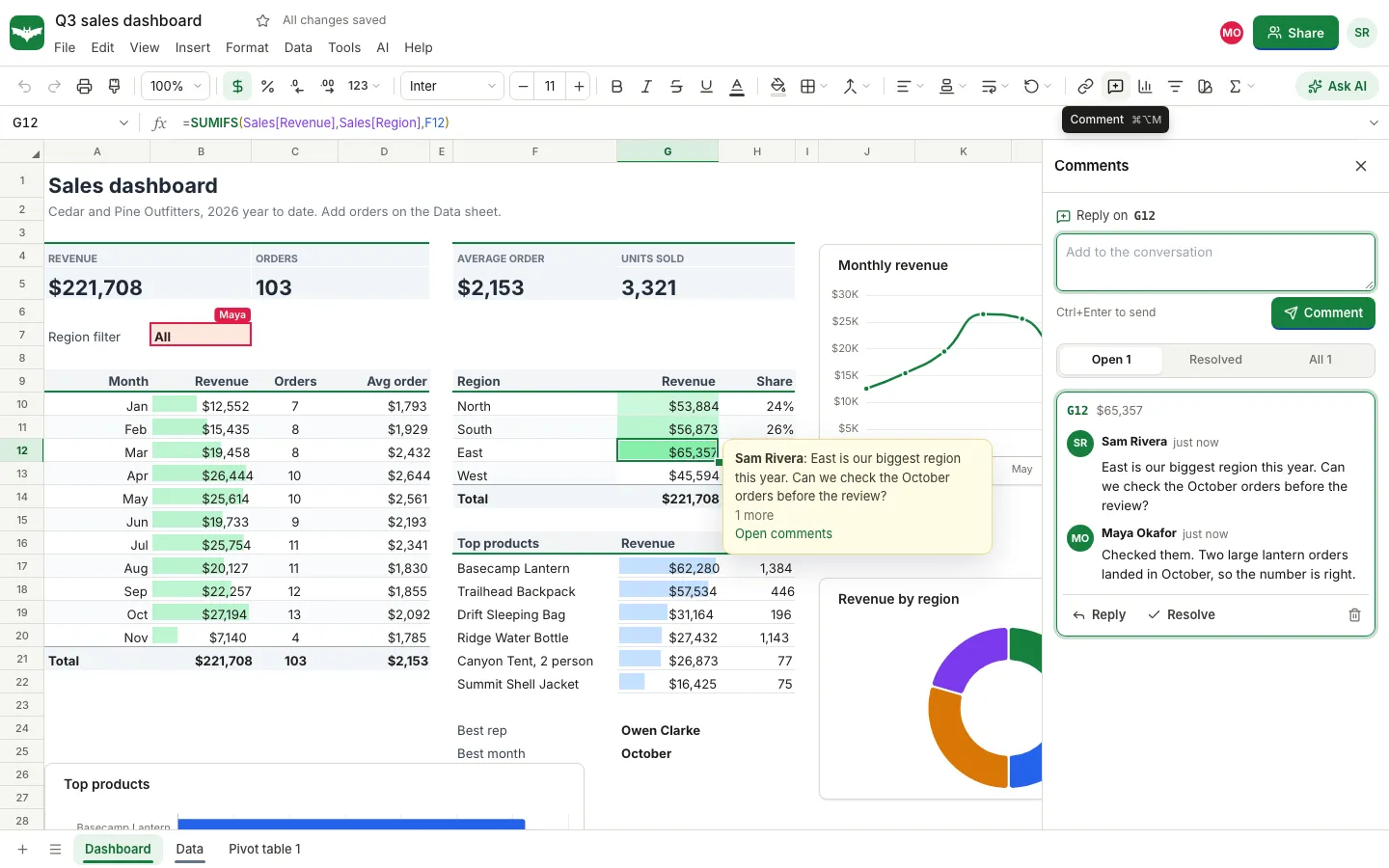
- Click the Comment button in the toolbar, or press Ctrl+Alt+M (Cmd+Option+M on a Mac).
- Write your note and click Comment, or press Ctrl+Enter.
The Comments panel lists every thread with the cell address and its value. Anyone with comment or edit access can Reply or Resolve a thread, and you can filter by Open, Resolved or All. Cells with a comment show a small marker, and hovering over them shows the latest message.
Comments need a signed in account with comment or edit access. Viewers can read them but not add to them.
Step 5: use version history as your safety net
Real time editing means a mistake is shared instantly too. Version history fixes that:
- Open File, then Version history.
- SheetsBat saves a version automatically every few minutes while people edit. Click one to preview it.
- Choose Restore this version to go back. Restoring keeps the current state as a version too, so you can always undo the restore.
Before a big change, use Name current version, for example "Before the budget review", so it is easy to find later. On the Free plan versions are kept for 7 days; Pro keeps them for 365 days.
Free plan limits for shared spreadsheets
| Free | Pro | |
|---|---|---|
| Workbooks | 25 | Unlimited |
| Cells per workbook | 500,000 | 5 million |
| Collaborators per workbook | 3 | 100 |
| Version history | 7 days | 365 days |
| Import size | 10 MB | 50 MB |
| AI credits a month | 300 | 5,000 |
Pro costs $10.99 a month or $109.90 a year and covers every Bats app, not just SheetsBat. New accounts get a 3 day trial of Pro across the whole suite, no card needed. See pricing for the full comparison.
Tips for a calm shared workbook
- Give each person an area. One sheet per region or per month keeps people out of each other's cells.
- Protect the formulas. Use Data, then Protect sheets and ranges, so collaborators edit only the input cells.
- Use dropdowns for inputs. Data validation keeps entries consistent when several people type into the same column.
- Resolve threads when done. A short Open list is easier to act on.
- Download a copy for the record. File, then Download, then Excel workbook (.xlsx), or Save to Drive to keep a snapshot in your OfficeBats Drive.
Co-editing works the same way across the suite. DocsBat, SlidesBat, PDFbat, FormsBat, BooksBat and Buildan.app share one live editing kit with presence, comments and sharing, and our overview of real time collaboration across office apps explains the differences. If you work with numbers alongside an accountant, read about giving your accountant access to your books, and for a practical summary to share, start with how to make a pivot table.
Frequently asked questions
Can I co-edit a spreadsheet in real time for free?
Yes. SheetsBat's Free plan includes live co-editing, presence, comments and 7 days of version history, with up to 3 collaborators per workbook. Pro raises that to 100 collaborators and 365 days of history.
Do the people I share with need an account?
Only to edit or comment. A view link opens the workbook read only for anyone, without signing in. Editing and commenting need a free account so everyone can see who changed what.
What happens if two people edit the same cell at once?
SheetsBat puts every change in one order on the server. If two people change the same cell at the same moment, the change that arrives last wins. Changes to different cells, and row or column inserts, are combined without conflict.
Can I open an Excel file and edit it with others?
Yes. Import an .xlsx, .ods or CSV file into SheetsBat, share it, and edit it together. When you are done, download it again as .xlsx or save a copy to your OfficeBats Drive.
Can I undo something a collaborator changed?
Your own undo only reverses your own changes. To go back further, open File, then Version history, preview an earlier version and restore it. The current state is kept as a version, so the restore can be undone too.