How to give your accountant access to your books (safely)
Share your accounting with your accountant or bookkeeper without sharing a password. Roles, review only access, comments, audit log and closing the books.

Every year the same ritual plays out in small businesses: export a pile of reports, zip up receipts, email them to the accountant, answer twenty questions by email, export again because something changed. Or worse, share the login so the accountant can look for themselves.
There is a better way. Give your accountant their own access to your books, with exactly the permissions their job needs. They see live numbers, fix what needs fixing, leave notes on the records they question, and every change is logged. This guide shows how to set that up in BooksBat, and how to choose the right level of access for accountants, bookkeepers, auditors and your own team.
Never share your password
It's worth saying plainly: don't give anyone your own sign in. A shared password means:
- you can't tell who changed what, because everything looks like you;
- you can't take access away without changing your password everywhere;
- the other person can reach billing, company settings and anything else you can.
Separate access fixes all three. Each person has their own sign in, their own role and their own line in the audit log.
Step 1: Open Team
Open Team in the sidebar, under Settings. It has three tabs:
- Members: who has access to this company, with their role and status.
- Roles: what each role can see and change, area by area.
- Companies: the companies you belong to, with a switcher.
Step 2: Invite your accountant
Press Invite your accountant. The dialog explains what the role does: your accountant gets their own sign in with access to the books, reports, journal entries and closing the books, but not to users. Enter their Email and, optionally, their Name, then press Send invitation.
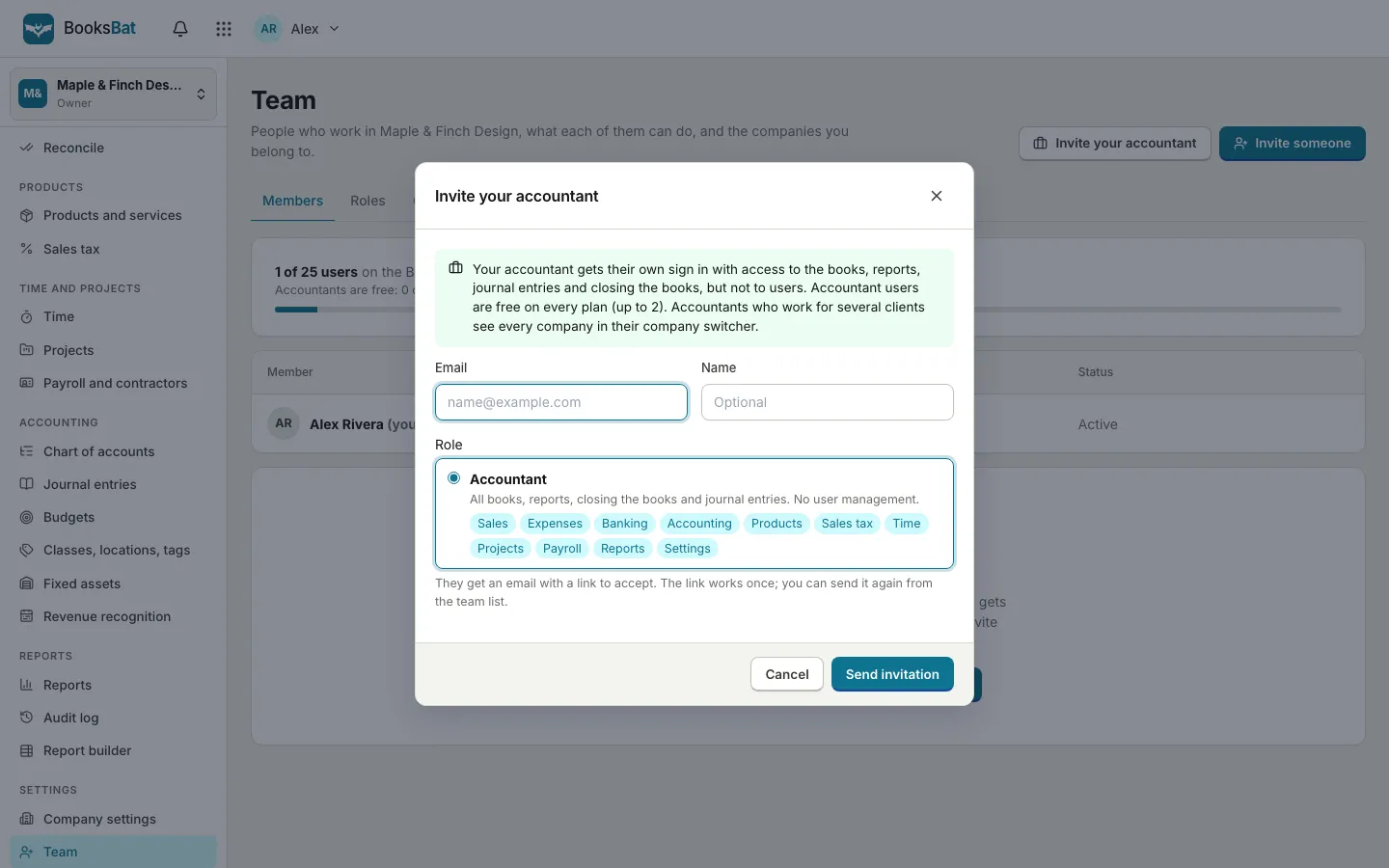
They get an email with a link to accept. The link works once. If it gets lost, use Resend or Copy the invitation link from the team list. They can accept with an existing account or create one, and the invitation adds them to your company.
Step 3: Choose the right role for everyone else
Not everyone who looks at your books is an accountant. The Roles tab lists every role with a table of what it can change, what it can only view, and what it can't see at all.
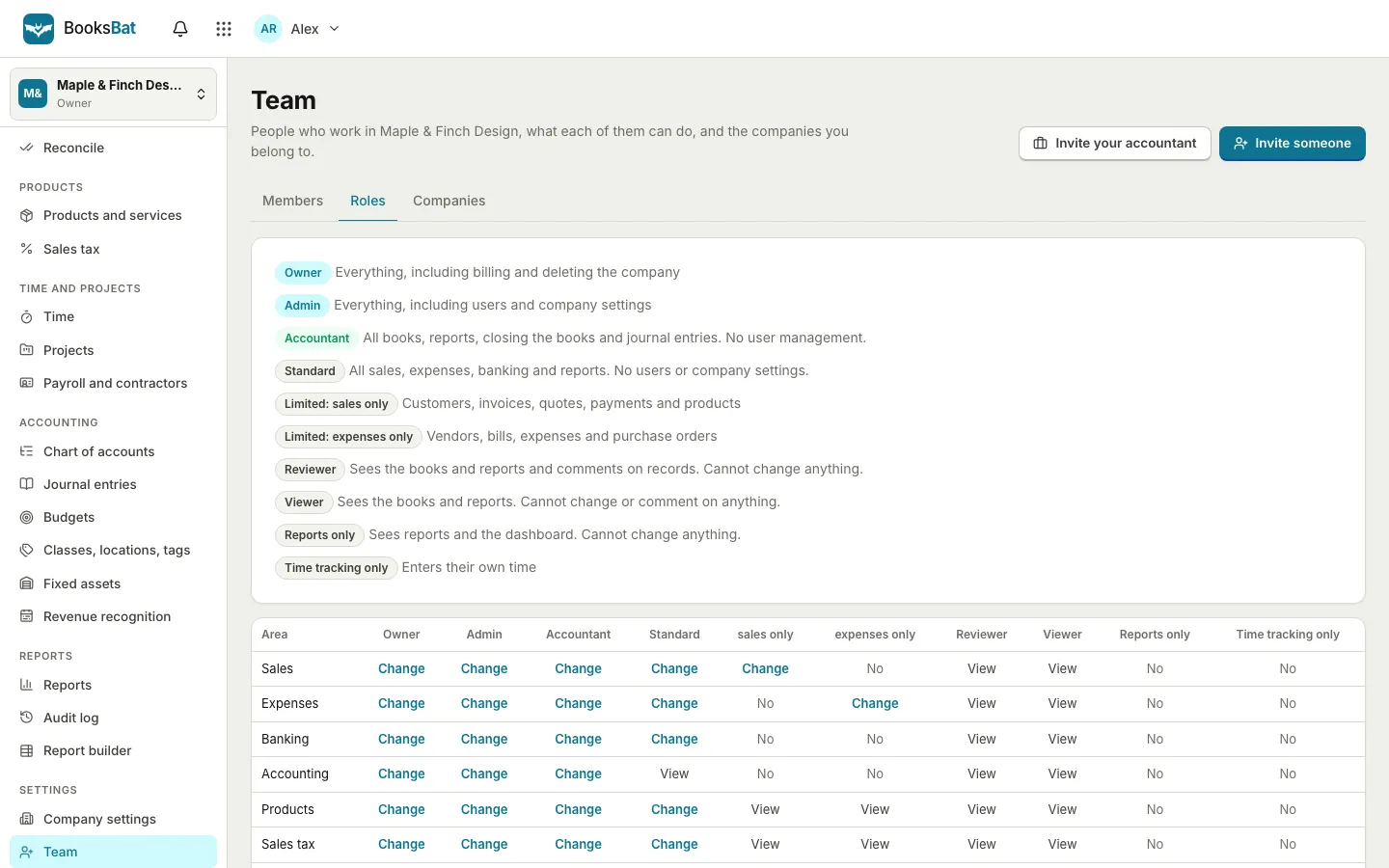
| Role | Good for | What they can do |
|---|---|---|
| Accountant | Your accountant or bookkeeper | All books, reports, closing the books and journal entries. No user management. |
| Admin | A partner or operations lead | Everything, including users and company settings |
| Standard | Office manager | All sales, expenses, banking and reports. No users or company settings. |
| Limited: sales only | Sales staff | Customers, invoices, quotes, payments and products |
| Limited: expenses only | Someone who enters bills | Vendors, bills, expenses and purchase orders |
| Reviewer | An auditor, an adviser, a reviewing accountant | Sees the books and reports and comments on records. Cannot change anything. |
| Viewer | An investor or lender | Sees the books and reports. Cannot change or comment. |
| Reports only | A partner who only needs the numbers | Sees reports and the dashboard |
| Time tracking only | Contractors logging hours | Enters their own time |
To add people other than accountants, press Invite someone and pick a role. Team members beyond yourself are part of Pro (up to 3 users) and Business (up to 25 users). You can change a role at any time from the Members tab, and the change applies right away.
Step 4: Work together on the same records
Once your accountant has access, you don't need to email exports back and forth.
Live records
When two people open the same invoice, bill or expense, each sees the other's avatar and edits appear for both, live. The field someone is typing in is locked for everyone else, so nobody's typing is overwritten. Lists and the dashboard refresh when someone else changes a record.
Comments and @mentions
Instead of an email that says "what is the $180 on October 21st?", your accountant opens that record and leaves a comment on it. Mention a person with @ and they get a notification. Replies stay on the record, so the question and the answer live next to the number they are about. A Reviewer can comment but cannot change anything, which suits a year end review.
The Share button on a record
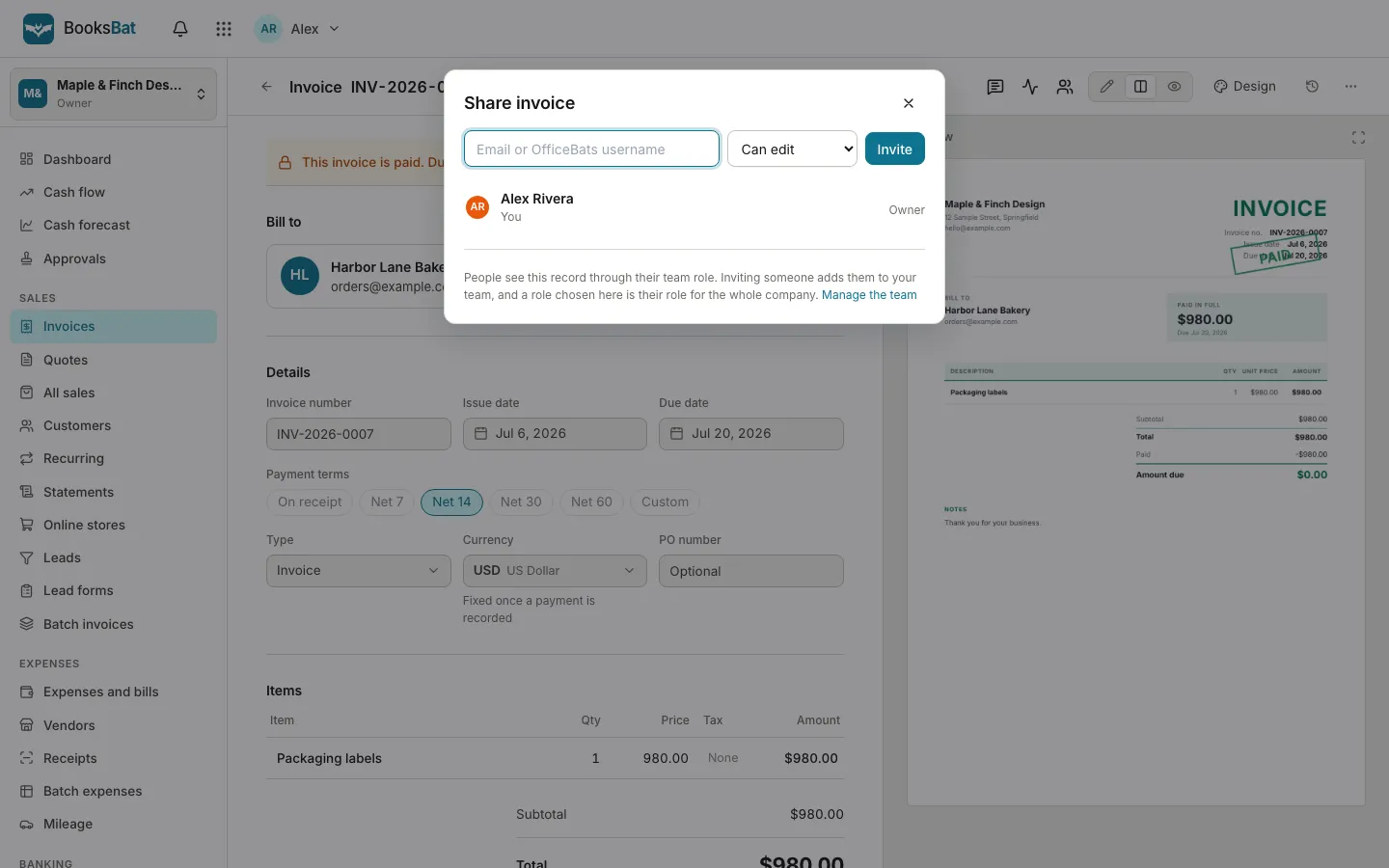
Each record has a Share button that shows who can open it. In BooksBat, access always follows the team role, so there is no second sharing list to keep track of. Inviting someone from a record adds them to your team, and the role you choose there is their role for the whole company.
Step 5: Keep control
The audit log
Audit log, under Reports, lists every change with who made it, when, and the values before and after. Owners, admins and accountants can read it. If a number moves unexpectedly, this is where you find out why.
Close the books
After your accountant finishes a period, they can close it. Under accounting settings, Close the books sets a Closing date, and an optional Closing date password protects it. Changes to transactions dated on or before the closing date then need that password; without a password, the period has to be reopened first. Either way, a filed year can't be changed by accident.
Remove access when the work is done
On the Members tab, Remove ends someone's access right away. An accountant can also Leave company themselves. If you work with a firm, remove the person who leaves the firm and invite their replacement.
What to give your accountant access to
A good handover checklist for the first visit:
- Bank accounts reconciled up to the last statement. See bank reconciliation for small business.
- Expenses categorised, with receipts attached. Tracking expenses as a freelancer has a simple routine.
- Invoices complete, including any converted from quotes.
- Opening balances entered if you moved from another system.
- A short note in a comment on anything unusual: a loan, an asset you bought, a refund.
With that in place, your accountant can run the profit and loss statement, the balance sheet and the rest of the reports themselves, whenever they need them.
Frequently asked questions
Does adding my accountant cost extra?
No. Accountant users are free on every plan, up to 2 per company. Other team members are part of Pro, up to 3 users, and Business, up to 25 users.
Can my accountant manage users or billing?
The Accountant role covers the books, reports, journal entries and closing the books, but not user management. Billing and deleting the company stay with the owner.
Can someone review my books without being able to change them?
Yes. Give them the Reviewer role to see the books and reports and comment on records, or the Viewer role to see them without commenting. Neither can change anything.
How do I see what my accountant changed?
Open the Audit log under Reports. It shows every change, who made it and when, with the values before and after.
Can one accountant work on several companies?
Yes. Accountants who work for several clients see every company they have been invited to in their company switcher and move between them without signing out.