Word to PDF without breaking your formatting
Why Word files shift when converted to PDF, how to keep fonts, tables, headers and page numbers in place, and a quick checklist to run before you send.
You spent an hour getting a proposal to sit exactly right. The signature block lands at the bottom of page 3, the table fits on one page, the logo is aligned. Then you convert it to PDF and the table splits in half, a heading is orphaned at the foot of a page, and page 4 is suddenly blank.
This happens a lot, and it is almost always caused by a handful of predictable things. This guide explains why formatting breaks, how DocsBat avoids the most common causes, and what you can do on your side to get a clean PDF every time.
Why Word documents change when converted
A Word file does not store finished pages. It stores text, styles and rules ("this heading keeps with the next paragraph", "this table is 100% of the page width"), and the software lays out the pages when it opens the file. Two different programs can follow the same rules and still end up with different page breaks.
The biggest cause by far is fonts.
The font problem
If your document uses Calibri and the converter does not have Calibri, it substitutes another font. If that substitute is even slightly wider, every line holds a few fewer characters. Lines wrap earlier, paragraphs grow, and everything after that point shifts down. By page 5 your carefully placed page break is in the wrong place.
The fix: metric compatible fonts
DocsBat's Word to PDF conversion uses metric compatible font twins. These are fonts designed to have exactly the same character widths as the originals, so lines break in the same places.
| Font in your document | Used in the PDF |
|---|---|
| Calibri | Carlito |
| Cambria | Caladea |
Because the widths match, text takes up the same space, paragraphs stay the same height, and page breaks land where you left them. For text in other writing systems, DocsBat uses Noto fonts, which cover every script, so Arabic, Hindi, Chinese, Japanese, Korean and many others render properly instead of turning into empty boxes.
What carries over into the PDF
Beyond text and fonts, the conversion keeps the parts of a document that most often go wrong:
- Bulleted and numbered lists
- Tables
- Pictures
- Headers and footers
- Page numbers
That covers the structure of nearly every business document: letters, proposals, reports, CVs, contracts and invoices.
How to convert Word to PDF, step by step
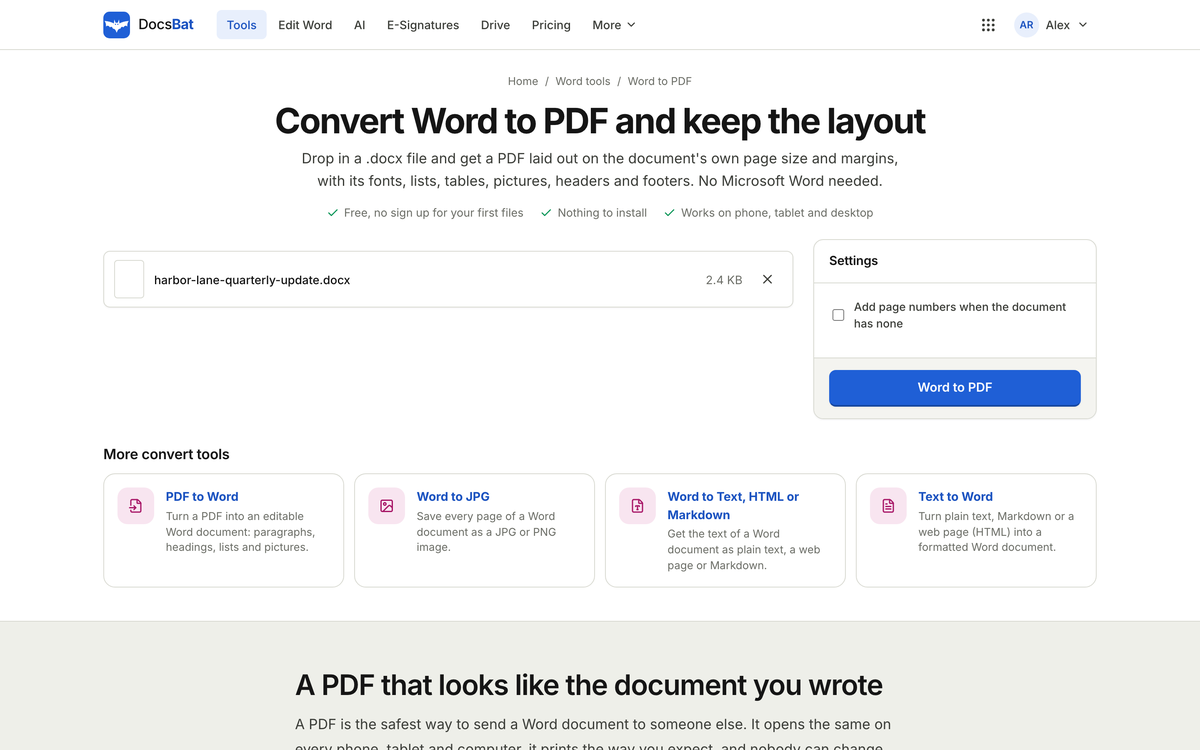
- Sign in at docsbat.com with your OfficeBats account, or create one free.
- Open the Word to PDF tool and upload your .docx (or .docm or .dotx). Password protected .docx files open once you enter the password. The old .doc format is not supported, so resave those as .docx first.
- Convert. The PDF is saved to your Drive automatically.
- Preview it before sending. Scroll every page.
- Download or share. Share links can expire after 1 day, 7 days, 30 days or 1 year.
If you are already editing the document in the DocsBat editor, you can export to PDF directly from there instead. See how to edit Word documents online for the editing side.
Prepare your document for a clean conversion
Most layout surprises can be prevented before you convert. These habits help in any software, not just ours.
Use page breaks, not blank lines
Pressing Enter a dozen times to push a heading onto the next page works until one line above it changes. Then the heading lands halfway down the next page. Insert a real page break instead (in Word, Ctrl+Enter or Cmd+Enter). It always starts a new page, no matter what happens above it.
Use styles for headings
Built in heading styles usually include "keep with next", which stops a heading from sitting alone at the bottom of a page. Manually bolded text does not have that rule.
Set table widths deliberately
Tables set to fit the page width adapt cleanly. Tables with a column dragged slightly past the margin can get clipped or squeezed. If a table matters, check that it sits inside the margins in the original.
Anchor pictures sensibly
Pictures set "in line with text" move with the paragraph and are predictable. Floating pictures positioned relative to the page can drift if text above them reflows. For logos in a letterhead, put them in the header.
Avoid trailing empty paragraphs
An empty paragraph after a table at the very end of a page can create a blank page. Delete stray empty lines at the end of sections.
A quick checklist before you send
Run through this with the PDF open, not the Word file.
- Is the page count what you expected?
- Does every table start and end where it should?
- Are headings attached to the text that follows them?
- Are page numbers correct, including on the first page if it should be different?
- Do headers and footers appear on the right pages?
- Are pictures in place and sharp?
- Is there a blank page anywhere?
If something looks off, fix it in the Word file and convert again. It is quicker than trying to patch the PDF.
After converting: useful next steps
A PDF is often the format you send for a final step. A few things you might do next:
- Get it signed. Send it for e-signature from DocsBat or PDFbat. Signers do not need an account, and the finished PDF is sealed with a digital signature so later changes are detectable. Read more in how to send documents for e-signature.
- Make it smaller. If the PDF is too large to email, compress it in PDFbat.
- Add a watermark or page numbers if you forgot them in the original. DocsBat has Watermark and Page numbers tools for the Word file, and PDFbat has the same for PDFs.
- Protect it with a password if it contains sensitive information.
Going the other way
If you need to turn a PDF back into an editable Word file, DocsBat also has PDF to Word. That direction is naturally harder, because a PDF stores finished pages rather than editing rules, so expect to tidy up some formatting afterwards.
The short version
Formatting breaks during conversion mainly because of font substitution and fragile spacing. DocsBat handles the first with metric compatible fonts (Calibri becomes Carlito, Cambria becomes Caladea) and Noto fonts for every script. You handle the second by using real page breaks, heading styles and tables that fit the margins.
Convert, scroll every page, and send with confidence. The Free plan includes 10 tool tasks a day with files up to 25 MB, and Pro removes the daily limit and raises files to 100 MB.