Sending documents for e-signature: signing order, reminders and audit trails
How to send a PDF for e-signature the right way: choose a signing order, set reminders and expiry, verify identity, and keep an audit trail you can trust.
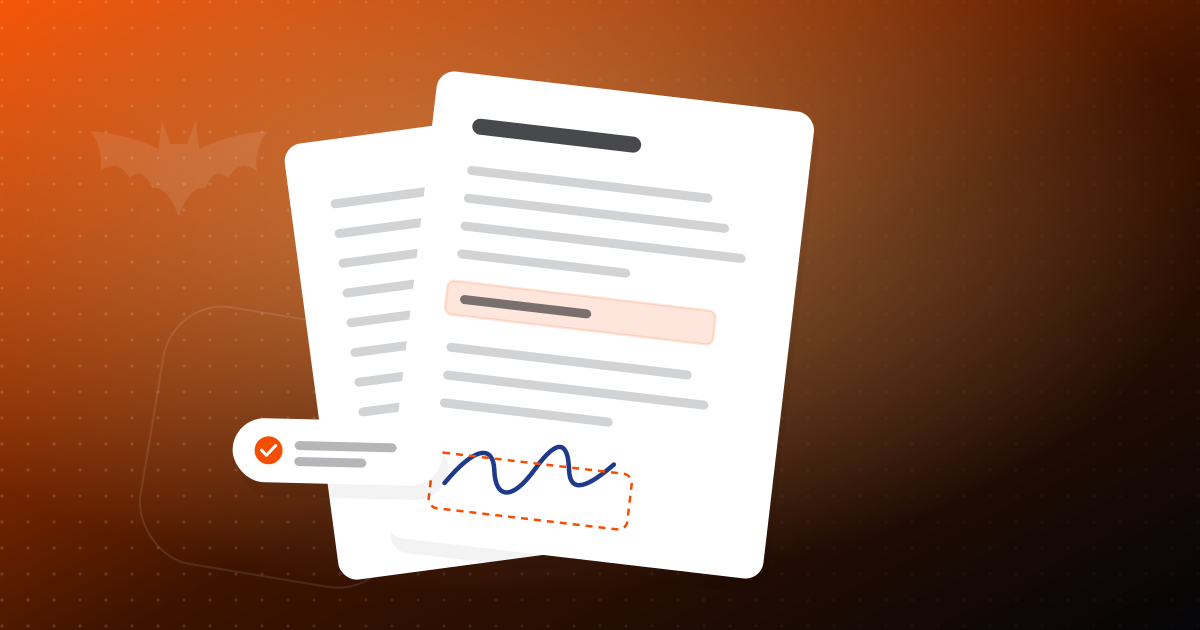
Getting a document signed by one person is easy. Getting it signed by three people, in the right order, before a deadline, with a record that would hold up if anyone asked questions later, takes a bit more thought.
This guide walks through sending documents for e-signature with PDFbat: how to set up an envelope, when to use sequential or parallel signing, how reminders and expiry keep things moving, and what the audit trail actually proves.
What an envelope is
In PDFbat, an e-signature request is called an envelope. It holds the document, the people who need to sign or receive it, the fields each person fills in, and the rules for how the process runs.
Signers do not need an account. They get an email with a link, open the document in their browser, fill their fields and sign. When everyone has finished, the final PDF is saved to the "Signed" folder in your PDF Drive and emailed to everyone involved.
If you only need to sign something yourself, you do not need an envelope. See how to sign a PDF online for that simpler case.
Setting up an envelope step by step
- Prepare the final document. Make sure it is the version you want signed. Changes after sending mean starting over.
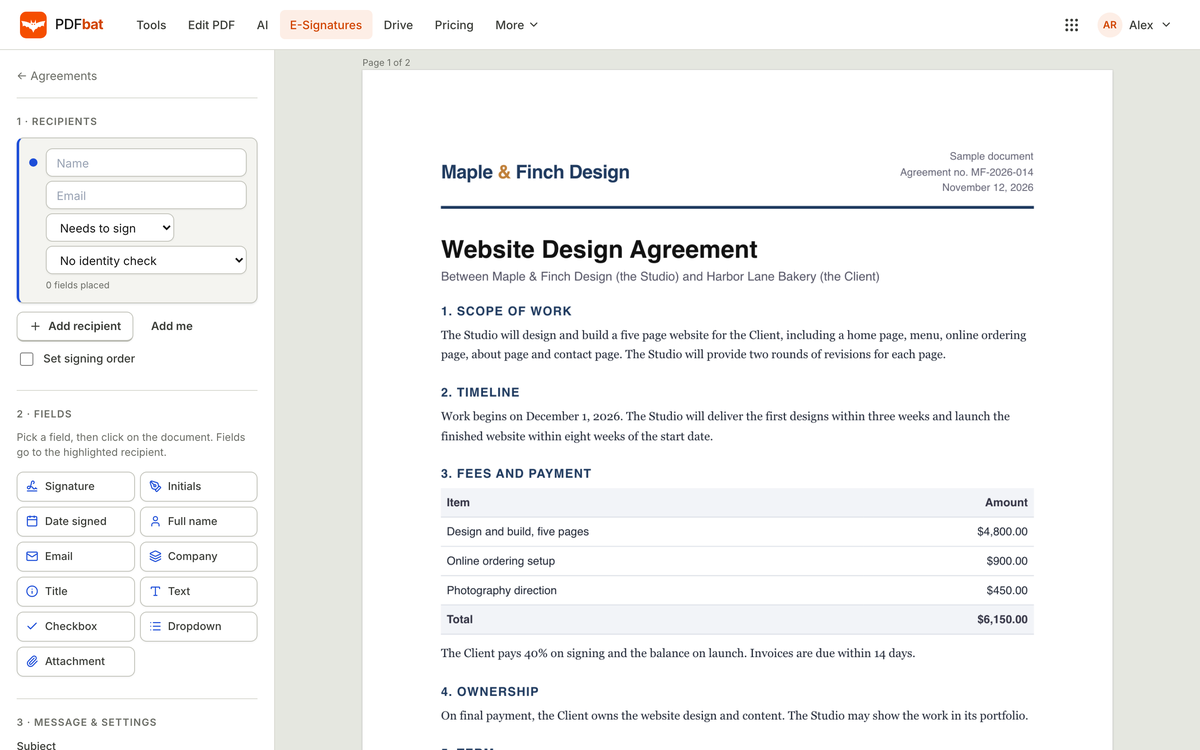
- Add recipients. Enter each signer's name and email. Add CC recipients for people who should get the final copy but do not sign.
- Choose the signing order. Sequential or parallel (more on this below).
- Place fields. Drag fields onto the pages and assign each one to a signer.
- Set identity checks if needed. An access code, or an emailed 6 digit code.
- Set reminders and expiry. Decide how often to nudge and when the request should lapse.
- Send. Then track progress in PDFbat.
The 11 field types
You can place these fields for each signer:
- Signature and initials
- Date
- Text, name, email, company and title
- Checkbox and dropdown
- File attachment (signers can attach files up to 10 MB, such as a copy of an ID or a certificate)
Assigning fields carefully saves a lot of back and forth. If a contract needs the signer's job title, add a title field rather than hoping they will write it in.
Sequential or parallel signing
The signing order decides who gets the document when.
| Order | How it works | Good for |
|---|---|---|
| Sequential | Each signer receives it only after the previous one finishes | Approvals, contracts where your side signs last |
| Parallel | Everyone receives it at the same time | Consent forms, acknowledgements, group sign offs |
When sequential makes sense
Use sequential order when the order itself matters. A common pattern is: the client signs first, then a manager on your side countersigns. Another is an internal approval chain, where a team lead signs before finance. Sequential order also keeps later signers from seeing a document that earlier people have not agreed to yet.
When parallel is faster
If the signers are independent, such as five team members acknowledging a new policy, parallel order is quicker because nobody waits on anybody else.
Reminders, expiry and fixing mistakes
Documents rarely stall because people refuse to sign. They stall because the email got buried.
Reminders
Set automatic reminders so pending signers get a nudge at a regular interval, up to every 30 days. For time sensitive agreements, a short interval of a few days is reasonable. For routine paperwork, a weekly reminder is usually enough without being annoying.
Expiry
Set an expiry date, up to 365 days out. An offer letter or quote should not stay signable forever. Expiry makes the deadline clear to everyone and prevents someone signing an outdated document months later.
Reassign, correct, decline and void
Things change after you send. PDFbat lets you:
- Reassign a signing step to someone else, for example when the person who should sign is on leave.
- Correct a recipient, such as fixing a mistyped email address.
- Void an envelope you no longer want signed.
Signers can also decline if they do not agree, which tells you clearly where things stand instead of leaving you waiting.
In person signing
If the signer is sitting next to you, for instance a customer at a counter or a new hire on their first day, you can use in person signing on your device instead of sending an email.
Identity checks
By default, access to the signing link comes through the signer's email. For more sensitive documents, add an extra check:
- Access code: you share a code with the signer by phone or another channel, and they enter it before opening the document.
- Emailed one time code: the signer receives a 6 digit code by email that is valid for 10 minutes.
An access code is stronger when you share it through a different channel than email, since someone with access to the signer's inbox would not also have the code.
What the audit trail proves
When the envelope completes, you get more than a signed PDF.
- An audit trail that records each event (sent, opened, signed, declined) with timestamps and IP addresses.
- A certificate of completion that includes a SHA-256 hash of the original document, which identifies that exact file.
- A sealed final PDF signed with a PKCS#7 digital signature, so any later change to the file can be detected.
Together, these show who signed, when, and that the document has not been altered since. In the US, the ESIGN Act recognises electronic signatures, and in the EU, eIDAS does the same, for most business documents. Some documents have special rules, including certain wills and some court, family law and real estate documents, so check requirements for anything unusual.
Saving time on repeat documents
If you send the same kind of document again and again, set it up once.
Templates with roles
Create a template with roles such as "Client" and "Manager" instead of specific people. Fields are already placed. Each time you send, you just fill in who plays each role.
Bulk send from a CSV
Need the same document signed by many people individually, such as an updated policy for every contractor? Bulk send creates a separate envelope for each row of a CSV file, up to 500 rows at a time.
Public signing links
For documents anyone can sign, like a waiver or a sign up agreement, a public signing link lets people open and sign without you adding them one by one.
A quick example
A small design studio sends client contracts every week. They built a template with "Client" and "Studio lead" roles, sequential order so the client signs first, a weekly reminder and a 30 day expiry. Sending a new contract now takes about a minute, and every signed copy lands in the Signed folder with its certificate.
Plans and limits
The free plan includes 3 envelopes a month, which is enough to try the full process. Pro and Business include unlimited envelopes. Developers can also use webhooks for envelope events through the PDFbat API. See pricing for details.
Where to start
- Use an envelope whenever you need a signature from someone else and a record of it.
- Pick sequential order when order matters, parallel when it does not.
- Always set reminders and an expiry.
- Add an access code or emailed code for sensitive documents.
- Turn repeat documents into templates with roles.
Open PDFbat and send your first envelope, or create a free account to get started.