How to add a table of contents to a Word document online
Build a table of contents with page numbers from your headings, keep it up to date as you edit, and save it as a real Word field. No desktop Word needed.
A handbook, a report, a policy or a long proposal is hard to use without a table of contents. Readers want to see the structure at a glance and jump to the part they need. Typing a contents page by hand works until the first edit moves everything by a page.
A proper table of contents is generated from your headings and updates when the document changes. This guide shows how to add one to a Word document in your browser with DocsBat, and how to set up your headings so it works the first time.
How a table of contents works in Word
A Word table of contents is not typed text. It is built from paragraphs that use heading styles. Every paragraph styled as Heading 1 becomes a top level entry, Heading 2 becomes an entry indented under it, and so on. The page numbers come from where each heading lands on the page.
That has two consequences:
- Headings must use heading styles. A line that is just bold and large will not appear, however much it looks like a heading.
- The table has to be updated after edits. When text moves, the page numbers change, and the table catches up when you update it.
DocsBat builds the table from Heading 1, Heading 2 and Heading 3 paragraphs, with page numbers from the page view.
Step one: apply heading styles
Open your document in the DocsBat editor (Edit Word, then open a .docx from your computer or your Drive). Then, for every section title:
- Click in the title line.
- On the Home tab, open the paragraph style list (it shows Normal for ordinary text).
- Choose Heading 1 for main sections, Heading 2 for sections inside them, and Heading 3 for the level below.
Keep the levels in order. A Heading 3 directly under a Heading 1, with no Heading 2 between, still works, but it reads oddly in the contents.
Check your structure with the Navigation pane
Before you insert the table, open the View tab and choose Navigation. The pane lists your headings in order. If a section title is missing, it is not styled as a heading yet. If a normal sentence appears, it has a heading style by mistake. Fix both in the style list.
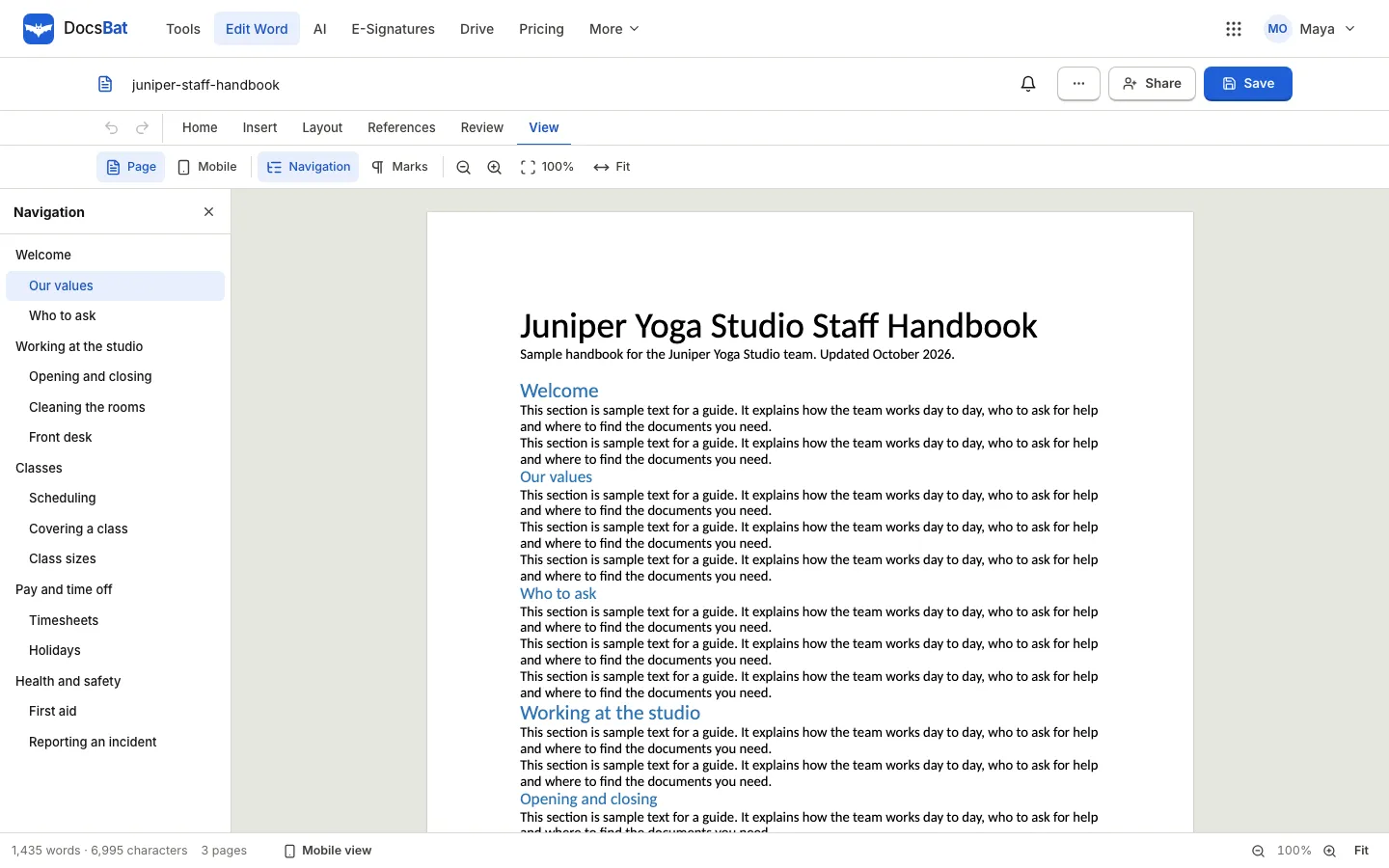
A good test is to read the Navigation pane on its own, without the body text. If it tells you what the document covers and in what order, your table of contents will too. If two neighbouring entries say almost the same thing, merge the sections or rename one, because readers will see that list at the top of the document.
Step two: insert the table of contents
- Click at the place where the contents should go, usually after the title and any introduction.
- Open the References tab.
- Choose Contents.
The table appears with a "Contents" title, an entry for each heading, indents for each level, dotted leaders and page numbers.
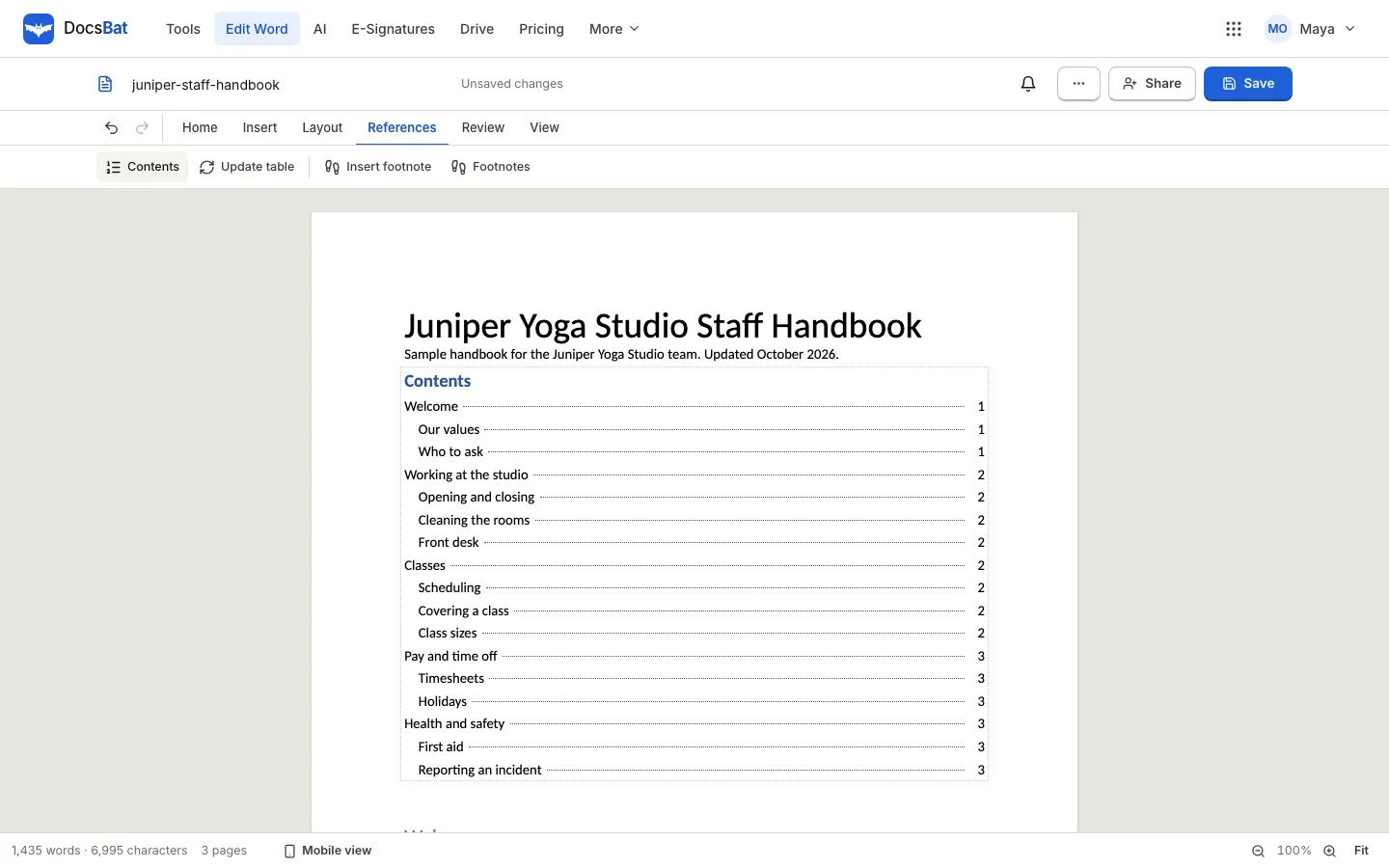
If the document has no headings yet, DocsBat still inserts the table and reminds you to use Heading 1 to 3 for your titles, then update the table.
Jump to a section
Click any entry in the table to move to that heading in the document. It is a quick way to navigate a long file while you edit.
Step three: keep it up to date
After you add, remove or rename sections, or after edits push text onto new pages, update the table:
- Open the References tab.
- Choose Update table.
DocsBat rebuilds the entries from your current headings and refreshes the page numbers, then confirms that the table of contents is up to date. You can also right click the table and choose Update table of contents, or Delete table of contents to remove it.
Step four: save and share
Save the document as .docx. DocsBat writes the table as a real Word table of contents field, so when someone opens the file in desktop Word they can update it there too.
When the document is final:
- Download as PDF from the File menu if readers only need to read it. The Word to PDF guide explains how to keep the layout intact.
- Share it from your Drive if colleagues will keep editing. With live co-editing, several people can work on different sections at once. See how to co-edit a Word document in real time.
Documents that already have a table of contents
If you open a Word file that already contains a table of contents made in Word, DocsBat shows it as a locked block so it is not edited by accident. Choose Update table on the References tab to rebuild it from the current headings.
Tips for a contents page people actually use
Keep headings short
Entries in a table of contents should fit on one line. "Pay and time off" works better than "Everything you need to know about how pay, overtime and holidays work".
Use two levels for most documents
Heading 1 and Heading 2 are enough for most reports and handbooks. Add Heading 3 only for long documents where readers need the detail.
Start sections on a new page
For a handbook or a report, starting each Heading 1 section on a new page makes the contents easier to follow and the printed version easier to use. Use Insert then the page break button before each main section.
Add page numbers to the pages too
A table of contents with page numbers is only useful if the pages show numbers. Add a footer with page numbers from the Insert tab (Footer), or use the Add Page Numbers to Word tool, which writes real Word fields that stay right when you edit.
Other references in the same tab
The References tab also has Insert footnote and Footnotes, so you can cite sources in a report or add notes at the bottom of the page without breaking the flow of the text.
Frequently asked questions
Why is a heading missing from my table of contents?
It is not using a heading style. Click the line, choose Heading 1, 2 or 3 in the style list on the Home tab, then choose Update table on the References tab.
Will the table of contents work in Microsoft Word?
Yes. DocsBat saves it as a Word table of contents field, so Word shows it and can update it like any other table of contents.
How do I update the page numbers?
Open the References tab and choose Update table, or right click the table and choose Update table of contents. Do it after your last edit.
Can I include Heading 4 in the contents?
The table of contents in DocsBat uses Heading 1 to Heading 3. Use Heading 4 and below for minor headings you do not want listed.
Can I add a table of contents on my phone?
Yes. The DocsBat editor works in Safari and Chrome on phones and tablets, and the References tab is available there too.