How to edit Word documents online without installing anything
Open, edit and save .docx files in your browser on any computer or phone. What works well, what to check first, and when a desktop app still makes sense.
Someone emails you a contract, a CV or a project brief as a Word file. You need to change two lines and send it back. You are on a borrowed laptop, a work machine that will not let you install software, or your phone. This is the moment an online Word editor earns its place.
This guide walks through how to edit a Word document in the browser, what to check before you start, and the honest limits of the approach so you know when to reach for something else.
What "editing Word online" actually means
A Word document is a .docx file: a package of text, styles, pictures and layout instructions. An online editor opens that package in your browser, shows it as a page you can work on, and writes a new .docx when you save. Nothing needs to be installed. You only need a browser and an internet connection.
With DocsBat you can open .docx files, macro enabled .docm files and .dotx templates. If someone has protected a .docx with a password, you can open it by entering that password. You can then:
- Edit and format text
- Work with bulleted and numbered lists
- Edit tables
- Add, move or replace pictures
- Add and edit links
When you are done, you save the result as a .docx again, or export it as a PDF.
One file type it does not open
The old .doc format (from Word versions before 2007) is not supported. If someone sends you a .doc, ask them to resave it as .docx. It is a one minute fix.
Before you start: three quick checks
A little preparation saves you from surprises later.
- Check the file type. Look at the end of the filename. If it ends in .docx, .docm or .dotx, you are fine.
- Check the size. On the Free plan files can be up to 25 MB. Pro and Business allow 100 MB. Large files are usually large because of pictures, so if you are near the limit, compressing the document first can help.
- Know whether you need tracked changes kept. If the sender expects to see your edits as tracked changes, agree on that before you start. If they just want a clean final version, you can accept all changes and remove comments in one step (more on that below).
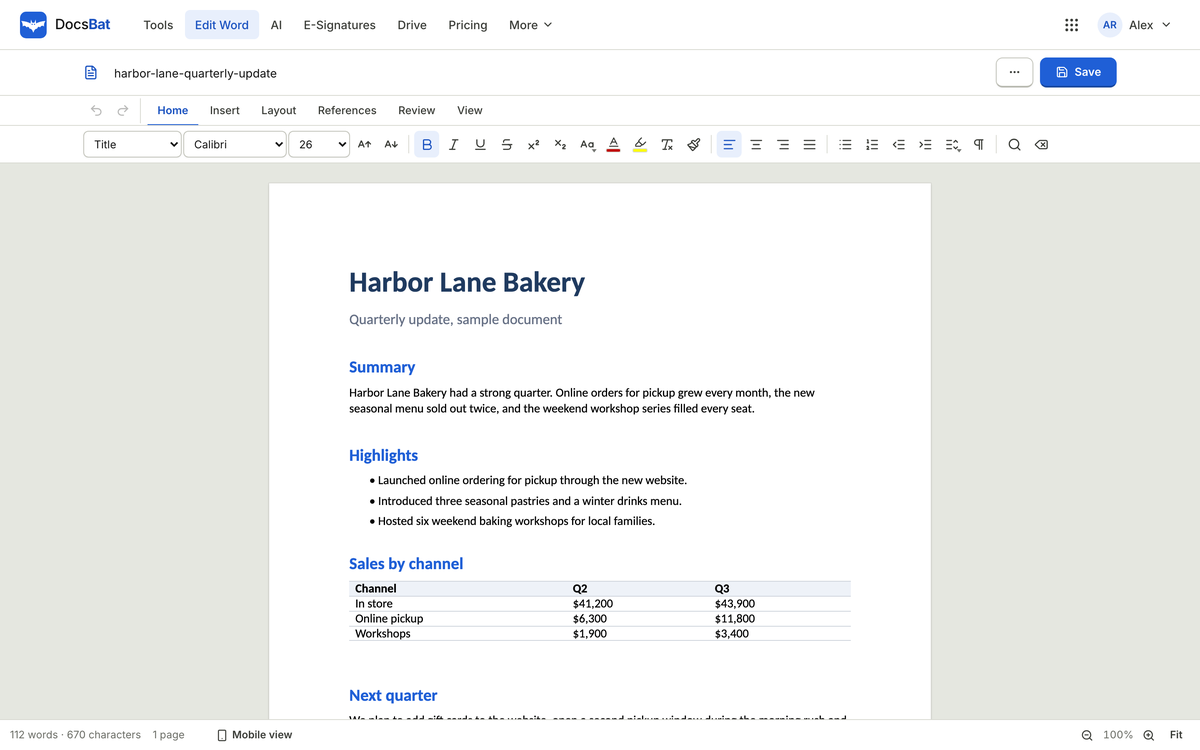
How to edit a Word document in your browser, step by step
Here is the whole process from email attachment to finished file.
- Sign in. Go to docsbat.com and sign in with your OfficeBats account. If you do not have one, you can create a free account. The same login works in every OfficeBats app.
- Upload the document. Drag the .docx into the page or pick it from your device. It is saved to your Drive so you can come back to it later.
- Make your edits. Click into the text and type. Use the toolbar for bold, italics, lists and links. Click a table cell to edit it, or click a picture to move or replace it.
- Review the whole document. Scroll through once before saving, so a heading further down that also needs updating does not slip past.
- Save or export. Save as .docx if the other person needs to keep editing. Export to PDF if it is a final version you want to send, print or have signed.
Editing on a phone
The editor works on phones, which is handy for small fixes: correcting a name, updating a date, replacing a figure in a table. For long rewrites a bigger screen is still more comfortable.
Useful tools beyond the editor
Editing text is often only part of the job. DocsBat includes 17 Word tools, and a handful of them come up again and again when you work with documents from other people.
| Task | Tool to use |
|---|---|
| Clean up a reviewed draft | Accept changes and remove comments |
| Change a name or term everywhere | Find and replace |
| Add "Draft" or "Confidential" across pages | Watermark |
| Number the pages | Page numbers |
| Add a running title or footer line | Header and footer |
| Combine several documents | Merge |
| Break a long manual into chapters | Split (by heading, page break or equal parts) |
| Shrink a picture heavy file | Compress |
| Restrict who can open it | Protect |
A common example: a freelance writer receives a reviewed draft full of tracked changes and margin comments. They agree with most of the edits. Rather than clicking through each one, they run Accept changes and remove comments, then open the clean file in the editor to make their final tweaks. A few minutes instead of an afternoon.
Sharing the finished document
Once your edits are done, you have a few ways to get the document to where it needs to go.
- Send the .docx if the other person will keep working on it.
- Export to PDF if the layout must look exactly the same on every device. DocsBat's Word to PDF conversion keeps lists, tables, pictures, headers, footers and page numbers, and uses fonts that match the size and spacing of common Word fonts so lines break in the same places. Our guide to Word to PDF without breaking your formatting goes into the details.
- Send it for signature. If the document is an agreement, you can send it for e-signature directly. The Word file is converted to a PDF for signing, signers do not need an account, and the final signed PDF comes with an audit trail. See how to send documents for e-signature.
- Share a link from Drive that expires after 1 day, 7 days, 30 days or 1 year, with a download count so you know when it has been opened.
Honest limits: when an online editor is not the right tool
An online editor is great for most everyday edits, but it is fair to be clear about what it does not do.
Co-editing works on Word files from your Drive
Several people can edit the same document at once, with live cursors and comments, when it is opened from your OfficeBats Drive. Footnotes and Word's own comments sync as a whole, so if two people change those at the same moment, the last change wins.
Very complex layouts
Documents with unusual layout tricks or heavily nested tables are harder for any editor other than the one they were made in. For those, export a PDF after editing and compare it with the original.
Macros do not run
You can edit the content of a .docm file, but if your workflow depends on macros running, that belongs in desktop software.
Privacy and security basics
If you edit sensitive files, it is fair to ask where they go.
- Connections use HTTPS, and stored files are encrypted at rest by the storage provider.
- Your documents are not used to train AI models.
- You can turn on two-factor sign in for your OfficeBats account, which protects every app at once.
- Deleting your account removes your data in every app.
The security page has the full list.
Where to start
If you have a Word file that needs a quick fix right now:
- Make sure it is a .docx (not an old .doc).
- Open it in DocsBat, make your edits, and read it through once.
- Save as .docx if someone will keep editing, or export to PDF if it is final.
The Free plan covers occasional edits with 10 tool tasks a day. If documents are a daily part of your work, the Pro plan removes the task limit, raises the file size to 100 MB, and covers all seven OfficeBats apps under one subscription.