How to summarize a long PDF with AI and check every point
Turn a long report, contract or scan into a summary with page numbers, then ask follow up questions. Step by step, with tips for checking the result.
A 60 page annual report lands in your inbox an hour before the meeting. A supplier sends a contract with twelve schedules. A government agency publishes guidance as a scanned PDF. You need the gist now, and you need to know where each point came from so you can check the parts that matter.
That second part is what separates a useful AI summary from a risky one. This guide shows how to summarize a long PDF with PDFbat AI, how to choose the right length, and how to use page citations to verify the result in minutes.
What a good PDF summary looks like
Before the steps, it helps to know what to aim for. A good summary of a long document:
- Starts with a short overview: what the document is, who wrote it and what it covers.
- Lists the key points in the order the document makes them.
- Keeps the numbers, dates, names and obligations, because those are what you act on.
- Says where each point comes from, so you can open the page and read the original wording.
- Says when something is missing, instead of filling the gap with a guess.
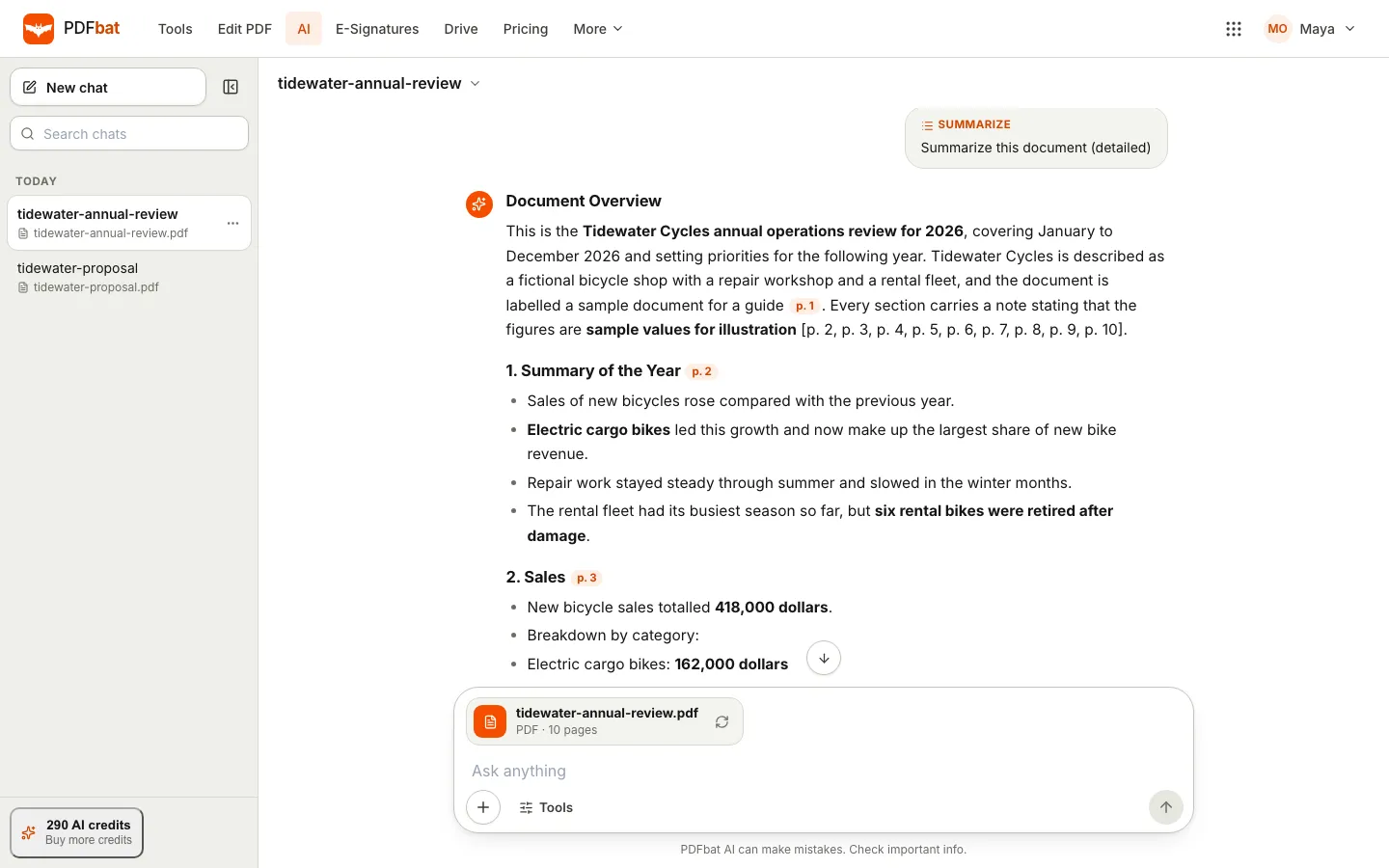
PDFbat's summaries are written in Markdown with headings and bullet points, and cite pages after facts, like p. 3, so every claim has a place to check.
How to summarize a PDF, step by step
- Open AI in the PDFbat top bar. You need to be signed in with your OfficeBats account, because AI features use credits from your shared wallet.
- Select the + button and choose Upload from computer, or Choose from Drive for a file already in your Drive. If the file is a scan, set the language under Scanned pages are in first.
- Wait until the chat says the file is attached, with its page count.
- Open Tools and choose Summarize, or type
/summarizein the box and press Enter. - Read the summary. Each point is followed by the page it came from, so you can open the PDF at that page and read the original.
- Ask follow up questions in the same chat.
Choose the length that fits the job
The summarize command takes an optional word that sets the length:
| Command | What you get | Use it for |
|---|---|---|
/summarize short | Three to five bullet points | A quick decision about whether to read further |
/summarize | A one paragraph overview and five to ten key points | Most documents |
/summarize detailed | A structured summary with a heading for each main section, key points, numbers and dates, and action items | Reports and contracts you will act on |
You can also ask for the summary in another language by ending the command with it, for example /summarize detailed in Spanish. Without that, the summary is written in the language of the document.
Ask questions after the summary
A summary tells you what the document says overall. Questions get you the exact detail you need. Because the document stays attached to the chat, you can ask as many as you like:
- "What are the payment terms, and what happens if we pay late?"
- "List every date and deadline in this document."
- "Which section talks about termination?"
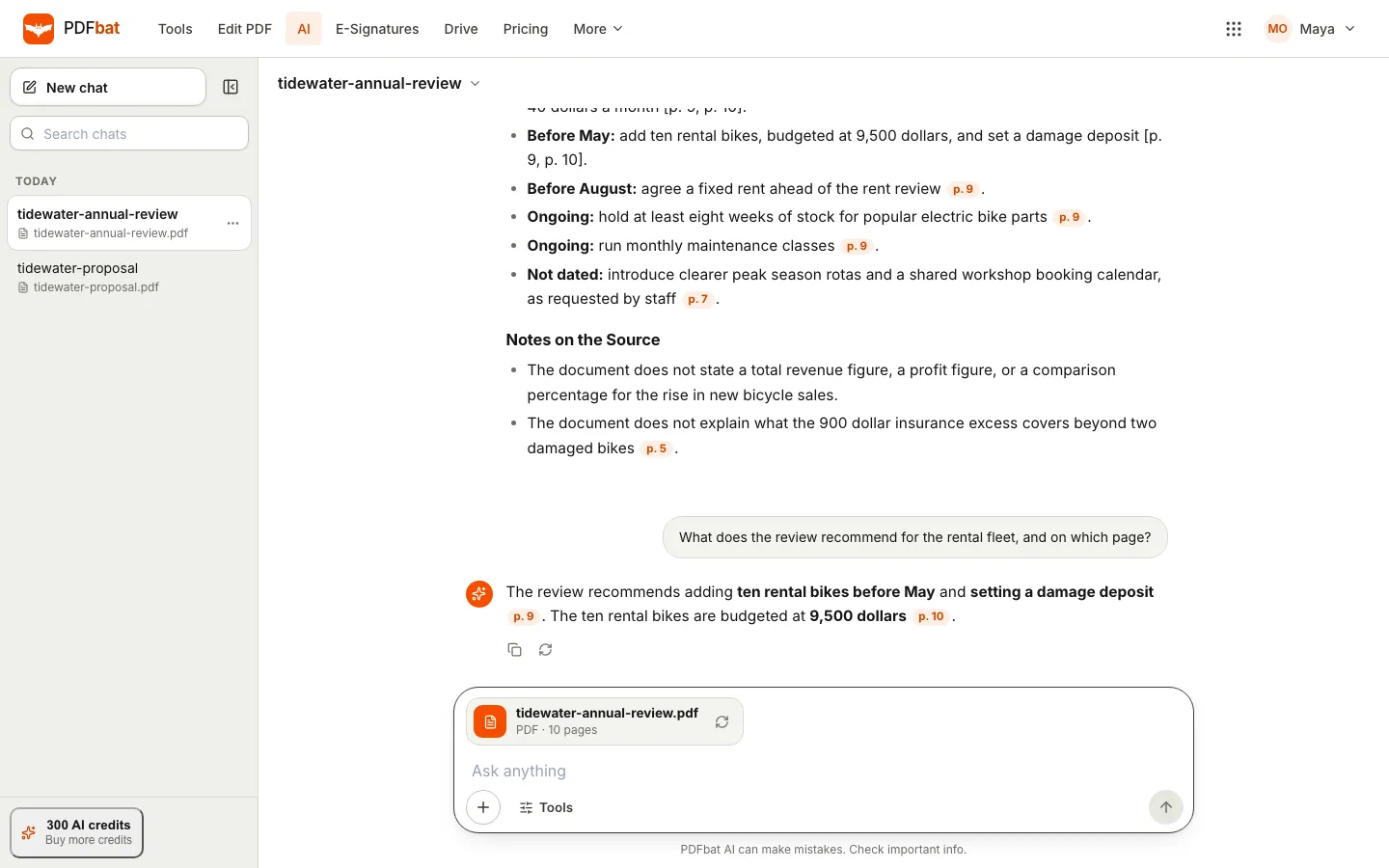
- "What does the review recommend for the rental fleet, and on which page?"
Answers cite pages the same way, so the follow up is as checkable as the summary.
Long documents and scans
How long can the PDF be?
PDFbat AI reads documents up to 300 pages. For very long, text heavy files, you often get more focused results by splitting the PDF into parts with the Split tool and summarizing each part, for example one chapter or schedule at a time.
Scanned PDFs and photos
If pages are images rather than text, PDFbat runs OCR on them when you attach the file, using the language you chose under Scanned pages are in. The summary and answers then work the same way, with page references. For the best results, attach a clean scan at a normal resolution, straight rather than at an angle.
How to check an AI summary in five minutes
AI summaries can contain mistakes, and the chat says so under the box. Here is a quick routine that catches most problems:
- Check the numbers. For every figure that matters, go to the page shown next to it and confirm it there.
- Check the negatives. Words like "not", "unless" and "except" are where summaries most often go wrong. Read those sentences in the original.
- Look for what is missing. If you know the document should cover something, such as a termination clause, ask about it directly.
- Read the notes. When the summary says the document does not state something, that is useful. It means the answer is not in the file.
- Read the original for anything you sign. A summary helps you find the important pages. It does not replace reading them.
We go into this habit in more depth in AI writing help you can check.
Other things you can do with the same document
Once a PDF is attached, the Tools menu has more than Summarize:
- Extract data: fields and tables as CSV or JSON, useful for invoices and statements.
- Review contract: risks, dates, money and obligations, from your side if you say whose side you are on.
- Translate: a translated PDF in the language you name.
- Smart redact: find and remove personal data such as names, addresses, emails and phone numbers.
Each action runs on the same attached file, so you do not need to upload it again.
What it costs
AI features draw from your OfficeBats AI credit wallet, which every Bats app shares. The cost of a summary depends on the length of the document and the length you ask for, so a short summary of a few pages costs less than a detailed summary of a long report. Your wallet balance shows at the bottom of the chat list. New accounts get 2,500 welcome credits when they confirm their email, and AI credits explained covers plans and top ups.
Privacy
Documents you attach are used to answer your questions in that chat. They stay attached to the chat for 30 days so you can come back with more questions, and are removed after that. Chats are private to your account.
Frequently asked questions
Can AI summarize a scanned PDF?
Yes. PDFbat runs OCR on scanned pages when you attach them. Choose the language of the scan under Scanned pages are in before you upload for the best results.
How many pages can PDFbat AI summarize?
Up to 300 pages per document. For very long, text heavy files, splitting the PDF and summarizing each part gives more focused results.
Can I get the summary in another language?
Yes. Add the language at the end of the command, for example /summarize in French. Otherwise the summary uses the language of the document.
How do I know the summary is accurate?
Every fact is followed by a page reference. Go to that page, read the original passage and confirm the numbers, dates and conditions that matter to you.
Is AI free to use?
AI features need an OfficeBats account and use credits from your shared AI wallet. New accounts get 2,500 welcome credits when they confirm their email, and you can buy more when you need them.