Merge, split and organize PDFs like a pro
Combine files into one tidy PDF, split big documents into parts, and reorder, rotate and number pages. Practical workflows for everyday PDF housekeeping.
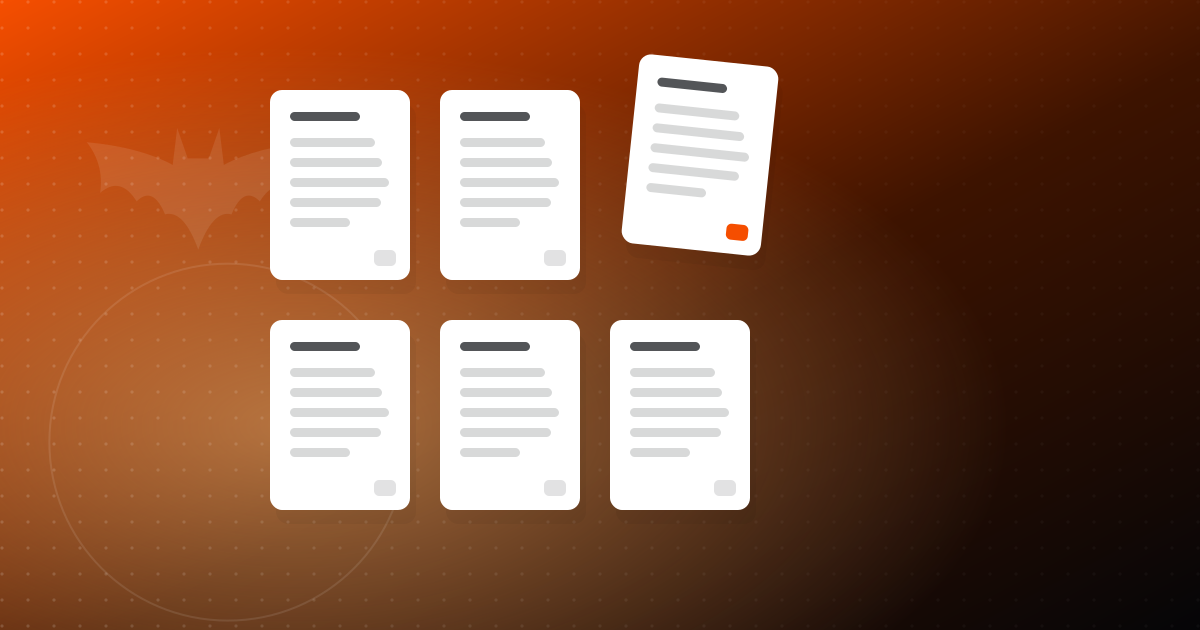
Most PDF work is not glamorous. It is combining five attachments into one file for a client, pulling three pages out of a 90 page report, fixing that one page that scanned upside down, or adding page numbers before a meeting. None of it is hard, but done badly it wastes time and produces files that are confusing to read.
This guide covers the page tools in PDFbat and, more importantly, the workflows that make them useful: what order to do things in, which tool fits which job, and the small touches that make a document feel professional.
The toolkit at a glance
PDFbat has more than 30 tools. These are the ones for structuring documents:
| Tool | What it does |
|---|---|
| Merge | Combines several PDFs into one, with one bookmark per file |
| Split | Breaks one PDF into several |
| Extract pages | Saves chosen pages as a new PDF |
| Delete pages | Removes chosen pages |
| Organize | Reorder pages visually |
| Rotate | Turns pages the right way up |
| Alternate and mix | Interleaves pages from two files |
| Split pages in half | Cuts each page into two |
| N-up | Puts 2, 4, 6, 8, 9 or 16 pages on one sheet |
| Page numbers, Header/Footer, Bates numbering | Labels pages consistently |
The editor's pages panel also lets you reorder, rotate, duplicate, insert blank pages and delete pages while you work on a document.
Merging PDFs into one clean file
Merging is the most common job. A freelancer sends a quote, a scope document and terms as one file. A job applicant combines a cover letter, resume and certificates. An office manager bundles a month of receipts.
How to merge well
- Gather the files and decide the order before you start.
- Name files clearly. Bookmarks are created from the files, so clear names make the final document easier to navigate.
- Run Merge and arrange the files in the order you want.
- Check the result. Look for pages that need rotating or removing.
- Add page numbers if the document will be discussed or printed.
Merge adds one bookmark per file, so a reader can jump straight to "Terms" or "Certificates" from the bookmarks panel instead of scrolling.
Mixing images and other formats
If some of your materials are not PDFs, convert them first. PDFbat can turn JPG, EPUB, XPS and CBZ files into PDF, and also text, Markdown, CSV and code files. A photo of a receipt becomes a page you can merge with everything else.
Splitting and extracting pages
Splitting goes the other way: one big file into smaller ones.
Split versus Extract versus Delete
These three overlap, so here is how to choose:
- Split when you want several output files, such as breaking a combined scan into separate documents.
- Extract pages when you want just a few pages as a new file, leaving the original untouched.
- Delete pages when the file is right except for some pages that should not be there.
A common example: someone needs only the signed signature page and schedule from a long agreement. Extract those pages and send a short, focused file instead of the whole contract.
Splitting scans of books or spreads
If you scanned a book or booklet two pages at a time, each PDF page holds a two page spread. Split pages in half cuts each one into two separate pages, so the result reads like the original.
Double sided scanning without a duplex scanner
If your scanner only scans one side, scan all the fronts, flip the stack, and scan all the backs. You now have two files: odd pages in order, and even pages in reverse. Alternate and mix interleaves them back into the right sequence. It is a small trick that saves a lot of manual reordering.
Organizing pages
Once your content is in one file, Organize gives you a visual view of every page so you can drag them into order.
Rotate what scanned crooked
Pages scanned sideways or upside down are distracting, and they also make OCR less accurate. Rotate fixes them in a click. If you plan to make a scan searchable, rotate first, then follow our guide to making scanned PDFs searchable with OCR.
Insert blank pages for printing
If a document will be printed double sided and you want each section to start on a right hand page, insert blank pages where needed from the pages panel.
Crop and resize
Use Crop to remove dark scan borders or excess margins, and Resize when pages from different sources are different sizes and you want them consistent.
Finishing touches that look professional
A few small additions make a merged document much easier to use.
Page numbers and headers
Add page numbers so people can say "see page 12" in a meeting. Header/Footer adds a consistent line, such as a company name, document title or "Draft" note, to every page.
Bates numbering for legal and records work
Bates numbering stamps a unique, sequential identifier on every page. It is common in legal, compliance and records work where each page must be referenced precisely across many documents.
N-up for handouts and reviews
N-up places several pages on one sheet. Two pages per sheet works well for reviewing slides on paper. Larger settings like 9 or 16 are handy for an overview of a long document, though text gets small.
Watermark, metadata and protection
- Watermark a draft or confidential document so its status is obvious.
- Edit metadata to set a proper title and author, which shows up in viewers and search.
- Protect with an AES-256 password when the document should not be opened by just anyone.
Keeping files tidy with PDF Drive
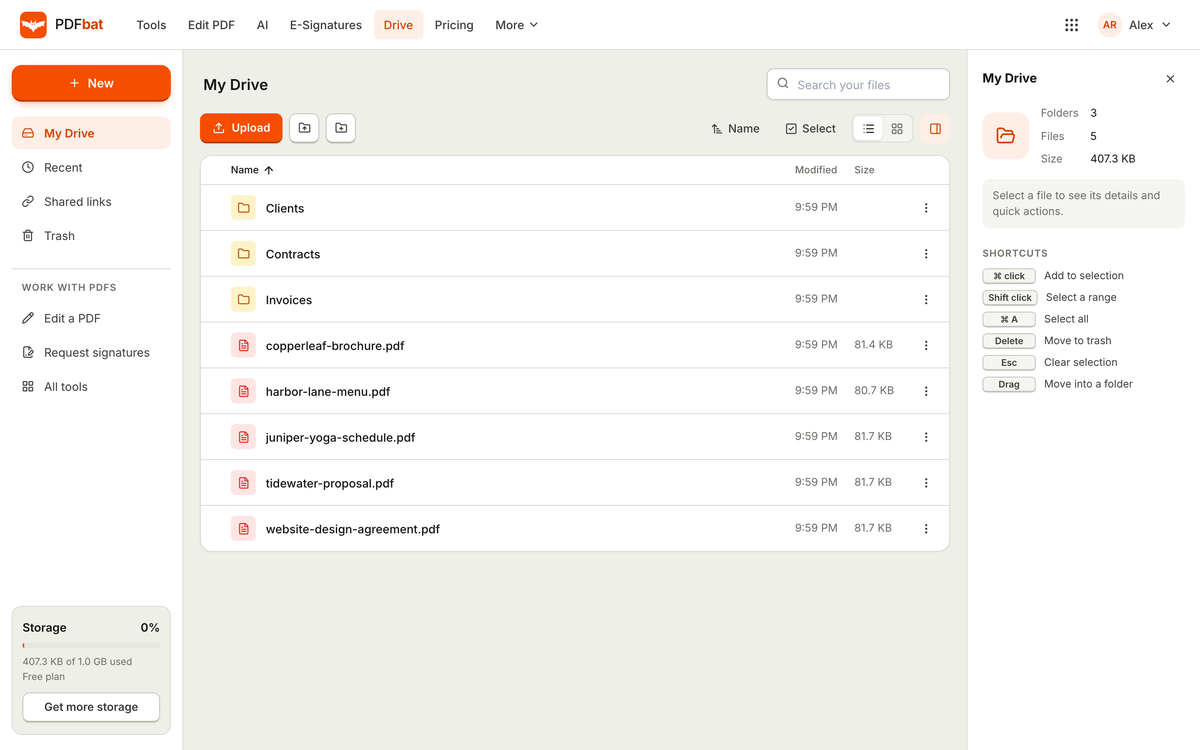
Every tool result in PDFbat is saved to your PDF Drive automatically. You can organize files into folders, open any file in any tool, and share links that expire after 1 day, 7 days, 30 days or 1 year, with download counts. Deleted files stay in trash for 30 days, so a mistake is recoverable.
A quick example
An office manager receives a month of scanned expense receipts, some sideways, some with blank backs. They merge the scans, delete the blank pages, rotate the sideways ones, add page numbers and a header with the month, then compress the result. Our guide on compressing PDFs without losing quality covers that last step. The finished file goes into a "Receipts" folder in PDF Drive and is shared with their accountant through a 30 day link.
Plans and limits
On the free plan, each tool run counts as a task, with 10 tasks a day and files up to 25 MB, and no watermark on your files. If you do a lot of document housekeeping, Pro and Business offer unlimited tasks and 100 MB files. See pricing.
Where to start
- Merge first, then rotate, delete and number pages in one pass.
- Use Extract to send only the pages someone needs.
- Use Alternate and mix to fix single sided scanning, and Split pages in half for book spreads.
- Add page numbers, headers or Bates numbers for documents people will reference.
- Keep everything in PDF Drive folders and share with expiring links.
Open PDFbat and tidy up the next messy stack of files that lands on your desk. No account yet? Sign up free.