How to share a form with a QR code, a link or your own domain
Turn any online form into a QR code for posters and front desks, share the link, embed it on your site or show it on your own domain. Step by step.
A form only works if people can reach it. Some of your respondents are at a desk with your email open. Others are standing in your shop, at an event or in a waiting room with nothing but a phone. A QR code bridges that gap: point the camera, tap, fill in, done.
This guide covers every way to share a form from FormsBat: the link, a QR code for print, an embed for your website and your own custom domain. It also covers the small details that decide whether people actually finish the form once they scan.
Before you share: publish the form
A new form starts as a draft, so nobody can respond yet.
- Open the form and go to the Share tab.
- Press Publish form. The card at the top changes to "Your form is open for responses", and anyone with the link can respond without an account.
- When you need to stop responses, press Close form. You can Reopen form later, and the link and QR code stay the same.
You can also close a form automatically. In Settings, under Limits, set Close automatically on to a date and time, or a Maximum responses number. That is handy for an event with a fixed number of places.
Option 1: the link
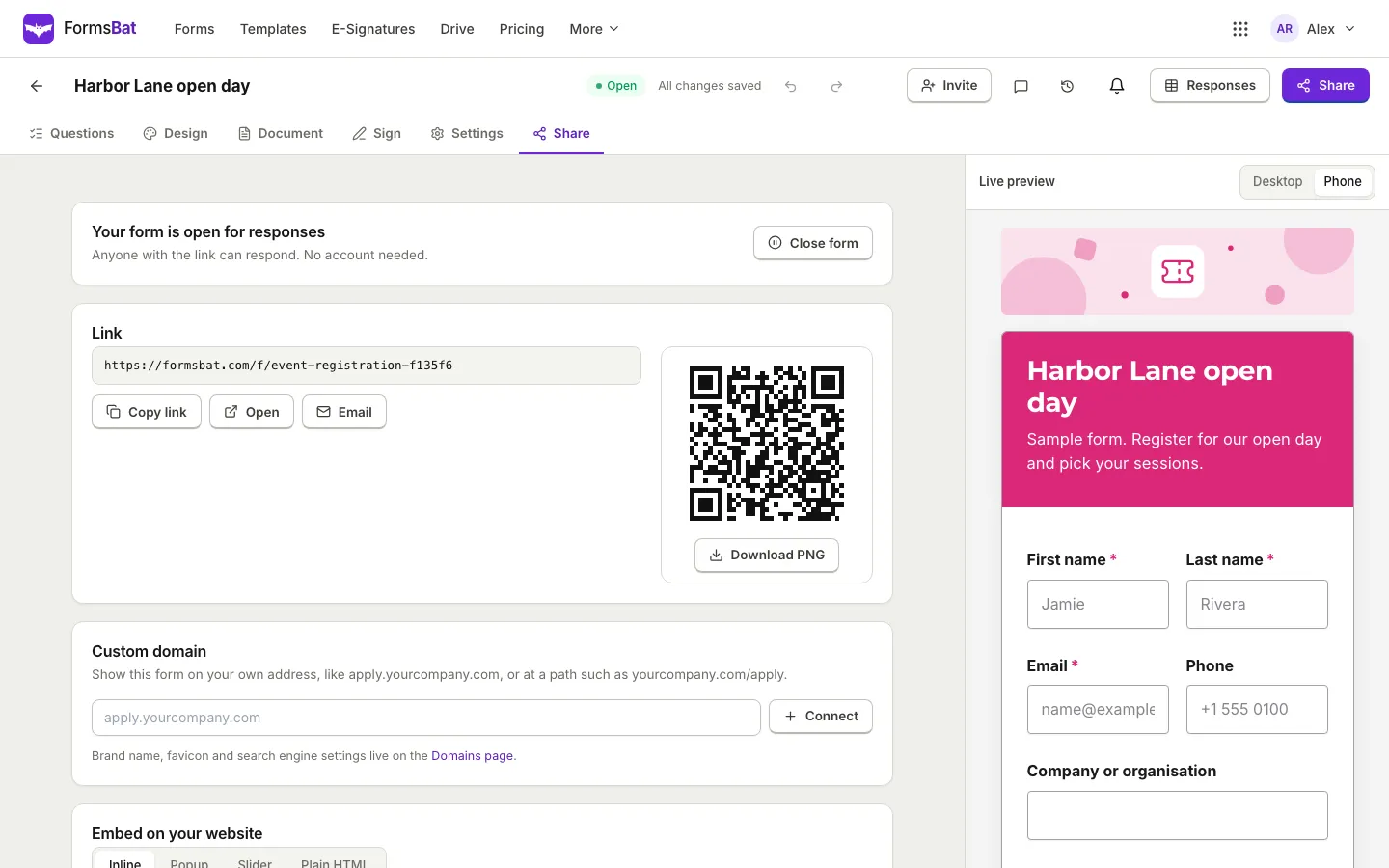
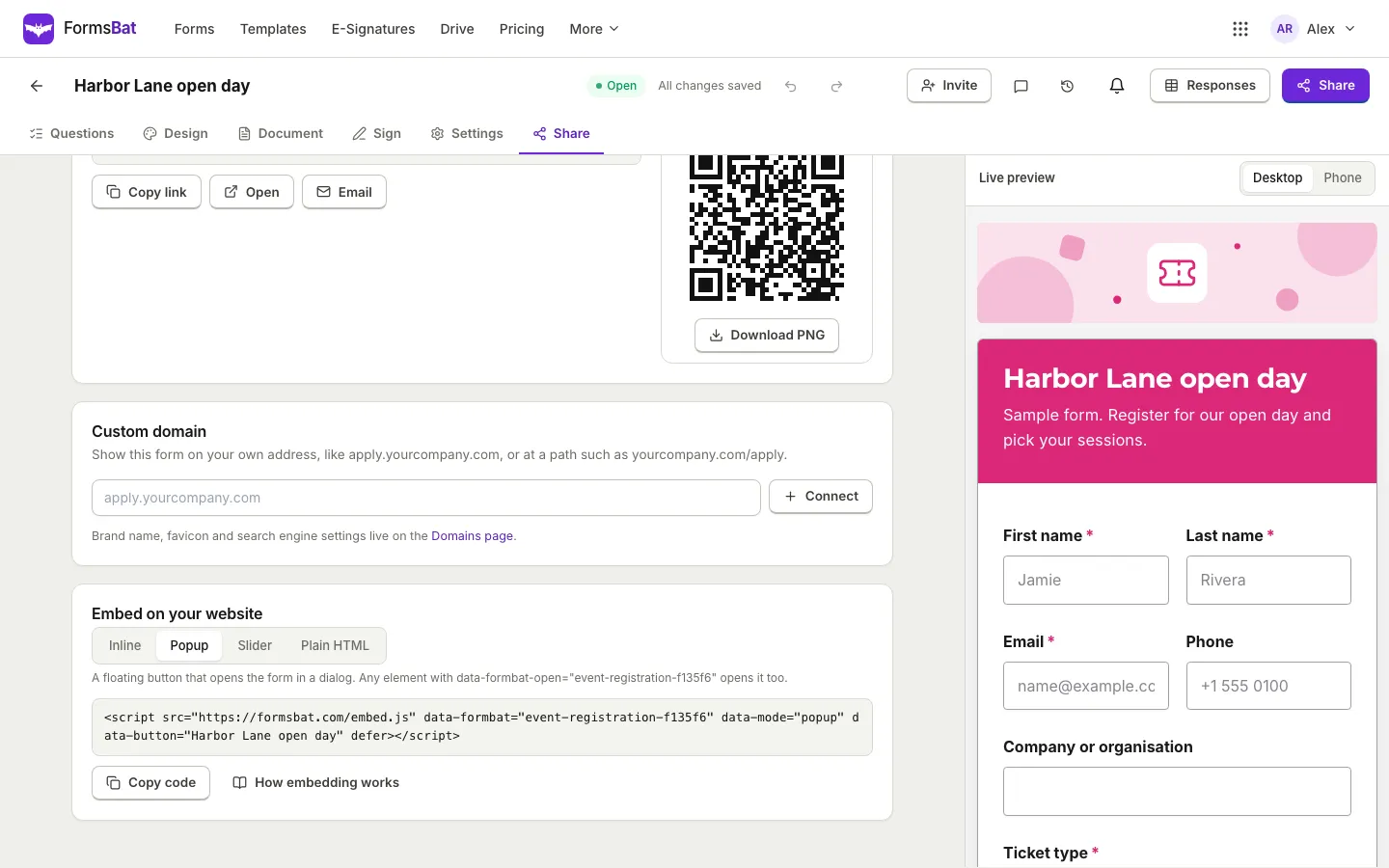
The Link card shows the form's public address, which looks like formsbat.com/f/your-form. Next to it are three buttons:
- Copy link, for pasting into a message, a newsletter or a social post.
- Open, to see the form exactly as respondents do.
- Email, which opens your mail app with the form title as the subject and the link in the body.
Option 2: a QR code
The QR code sits right beside the link on the Share tab. It always points at the form's public link, so it keeps working while you edit questions, change the theme or add logic.
Step by step
- Publish the form as above.
- On the Share tab, press Download PNG under the QR code. The image is 1,200 pixels wide, which is large enough to print sharply on a poster.
- Place the PNG in your poster, flyer, table card or slide.
- Before you print a batch, scan the printed proof with two different phones.
Make the QR code easy to scan
- Size: print it at least 2.5 cm (1 inch) wide for something held in the hand, and much larger for a wall poster read from across a room.
- Contrast: dark code on a light background. Avoid printing it over a photo.
- Quiet zone: leave a clear margin around the code. Don't crop the white border.
- Context: say what happens after the scan, such as "Scan to register for the open day" or "Scan to sign the waiver before class". A code with no explanation gets ignored.
- Placement: put it where people wait or pause: the counter, a table, the back of a door, the last slide of a talk.
Make the form good on a phone
Almost everyone who scans will fill the form on a phone, so check it there first. In the builder, switch the Live preview from Desktop to Phone. Then:
- Keep the first screen short. Name and email before anything else.
- Use Multiple choice and Yes or no questions instead of typing where you can.
- Hide questions that don't apply with logic. Our guide to showing or hiding questions based on answers explains how.
- Try the One at a time layout on the Design tab. It shows one question per screen with a progress bar, which feels natural on a small screen.
- Leave Let respondents save and continue later by link on in Settings for longer forms.
Option 3: embed the form on your website
Under the QR code, Embed on your website gives you code for four styles:
| Embed type | What visitors see |
|---|---|
| Inline | The form inside your page. It resizes itself, so there is never a scroll bar. |
| Popup | A floating button that opens the form in a dialog. Any element with data-formbat-open set to the form's address opens it too. |
| Slider | A floating button that slides the form in from the right. |
| Plain HTML | Clean HTML and CSS that post straight to FormsBat, with no JavaScript. |
Pick a type, press Copy code and paste it into your site's HTML. How embedding works links to the full documentation. The Plain HTML option can also be downloaded as a page.
If you don't have a website yet, Buildan.app builds one with AI and a FormsBat form drops right into it.
Option 4: your own domain
A form on your own address looks more trustworthy, especially on printed material. The Custom domain card on the Share tab offers two ways:
- A whole domain that shows only this form, such as
apply.yourcompany.com. - A path on a domain you already connected, such as
yourcompany.com/apply.
Type the domain and press Connect. FormsBat shows the DNS records to add at your domain provider and checks them for you, with a live status from "Waiting for DNS" through "Issuing certificate" to "Active". Brand name, favicon and search engine settings for your domains live on the Domains page.
Custom domains are part of the paid plans. For printed material that has to last for years, consider making the QR code from your custom domain address with any QR tool you trust: the domain is yours, so the printed code keeps working wherever you point it later.
Which option fits which situation
| Situation | Best way to share |
|---|---|
| Front desk, reception or shop counter | A printed QR code |
| Events, workshops and classes | A QR code on the last slide and on table cards |
| Email newsletter or direct message | The link |
| Your website's contact or booking page | Inline embed |
| A form you want on every page without taking space | Popup or Slider |
| Printed material that should last for years | A QR code made from your custom domain address |
Track how people found the form
If you share one form in several places, add a Hidden field from the Calculations group of the palette. Its settings show the Field id (used in the link), which starts with utm_source_. Add that id and a value to the end of the link, such as ?utm_source_ab1=poster on the poster and ?utm_source_ab1=newsletter in the email, and the source is saved next to every response. You can also give it a Default value for people who open the plain link. Use a different link, and print a different QR code, for each place. The QR code on the Share tab is for the plain link; generate codes for tagged links with any QR tool you trust.
After people scan
Every response appears in Responses, with search, a date filter, CSV and Excel export and summary charts. If you want an email for each one, switch on Email me when a response arrives in Settings. If each response should become a document, set that up on the Document tab; see forms that create documents. For forms that need a signature at the counter, see how to make an online form with a signature field.
Frequently asked questions
Does the QR code change if I edit the form?
No. The QR code points at the form's public link, which stays the same when you edit questions, change the design or close and reopen the form.
Can people fill the form without an account?
Yes. Anyone with the link or the QR code can respond on any phone or computer without signing up. You can switch on Respondents must sign in to a FormsBat account in Settings if you need it.
How big should I print a form QR code?
At least 2.5 cm (1 inch) wide for something people hold, and larger for posters read from a distance. Use the Download PNG button, which gives a 1,200 pixel image that prints sharply.
Can I embed a form on my website and use a QR code at the same time?
Yes. The link, the QR code and every embed type point at the same form, so all responses land in one place.
Can I stop a form from taking responses after a date?
Yes. In Settings, under Limits, set Close automatically on to a date and time, or set Maximum responses. You can also press Close form on the Share tab at any moment.