How to make an online quiz that scores itself
Build a self grading quiz with an answer key, points per question and results that change with the score. Respondents never see the answers.
Marking quizzes by hand is slow, and it is the part nobody enjoys. A self grading quiz checks every answer the moment someone submits, shows them their score, and keeps the results in a table you can sort and export. It works for a pub quiz, a training check, a classroom exit ticket or a product knowledge test for new staff.
This guide walks through building one in FormsBat: setting the answer key, choosing points, showing a result that changes with the score, and reading the results afterwards.
How quiz scoring works
Any question with a fixed set of answers can be scored: Multiple choice, Dropdown, Checkboxes, Picture choice and Yes or no, plus Short text and Number questions where you type the expected answer. For each one you set:
- Correct answer: the right choice. For Checkboxes you tick every right option, and the question only scores when the person picks exactly those.
- Points: how much it is worth. The default is 1.
Short text answers are compared without regard to capital letters, so "canberra" and "Canberra" both count.
When someone submits, FormsBat adds up the points for correct answers into a score, and the points available into a max score. Both can be shown on the thank you screen and used in calculations. Respondents never see the answer key; it is not sent to their browser.
Step 1: Start from the Trivia quiz template, or blank
- Go to Forms and press New form.
- Choose From a template, open the Quizzes and calculators category and pick Trivia quiz. It has ten questions with an answer key, a score and results that change with it. Or start with Blank form.
- Rename the quiz. We called ours "Friday trivia night".
The template opens with a First name question so the result can greet people by name. Keep a name or email question if you want to know whose score is whose in the results.
Step 2: Set the correct answer and points
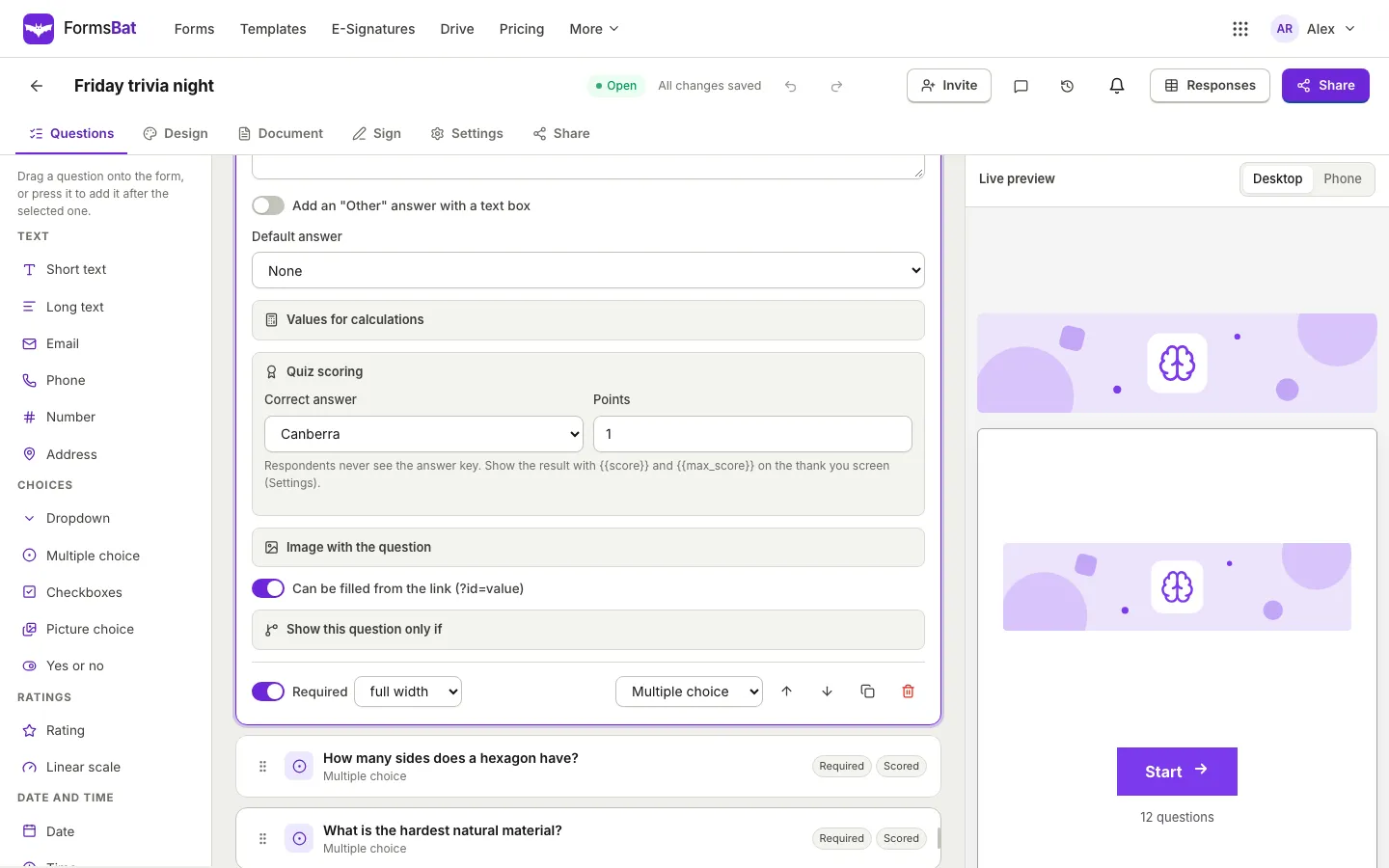
- Click a question card to open it.
- Scroll to Quiz scoring and open it.
- In Correct answer, choose the right option. Leave it on Not scored for questions that don't count, such as the name.
- Set Points if this question is worth more than 1.
Scored questions show a Scored tag on their card, so you can check the whole quiz at a glance.
Step 3: Choose the layout
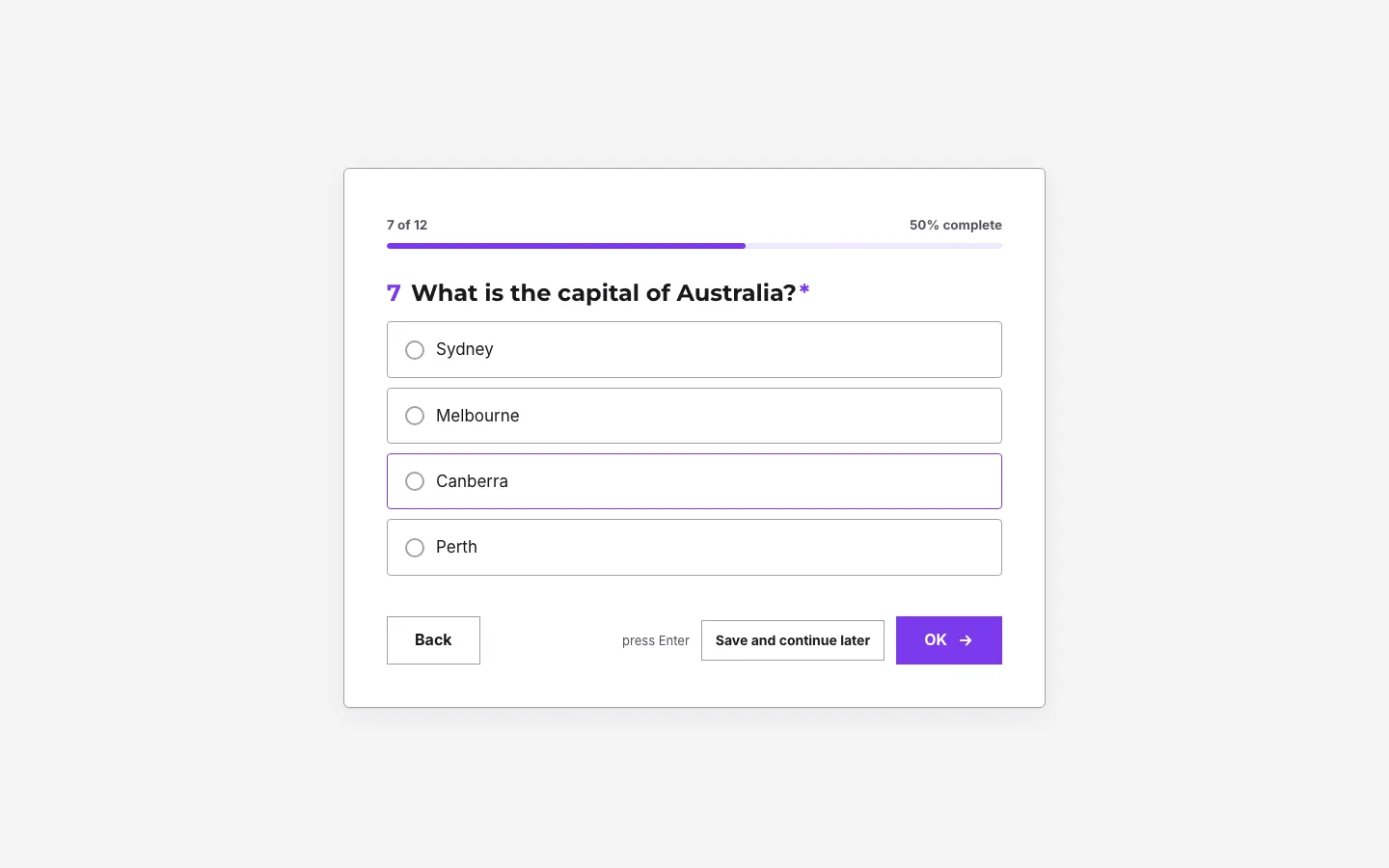
Quizzes feel best one question at a time. On the Design tab, under Layout, pick One at a time: a welcome screen with a Start button, then one question per screen with a progress bar. People press Enter or OK to continue and Back to change an answer.
If you prefer a classic page of questions, choose Classic and use Page break questions to split a long quiz into rounds.
Step 4: Show the score on the thank you screen
Open Settings and scroll to Thank you screen. Use these placeholders in the title or message:
{{score}}: the points the person earned.{{max_score}}: the points available.- Any earlier answer, such as
{{first_name}}.
For example: "You scored {{score}} out of {{max_score}}, {{first_name}}. Have another go and see if you can beat it." FormsBat also shows a "Your score" line under the message.
Step 5: Give different results for different scores
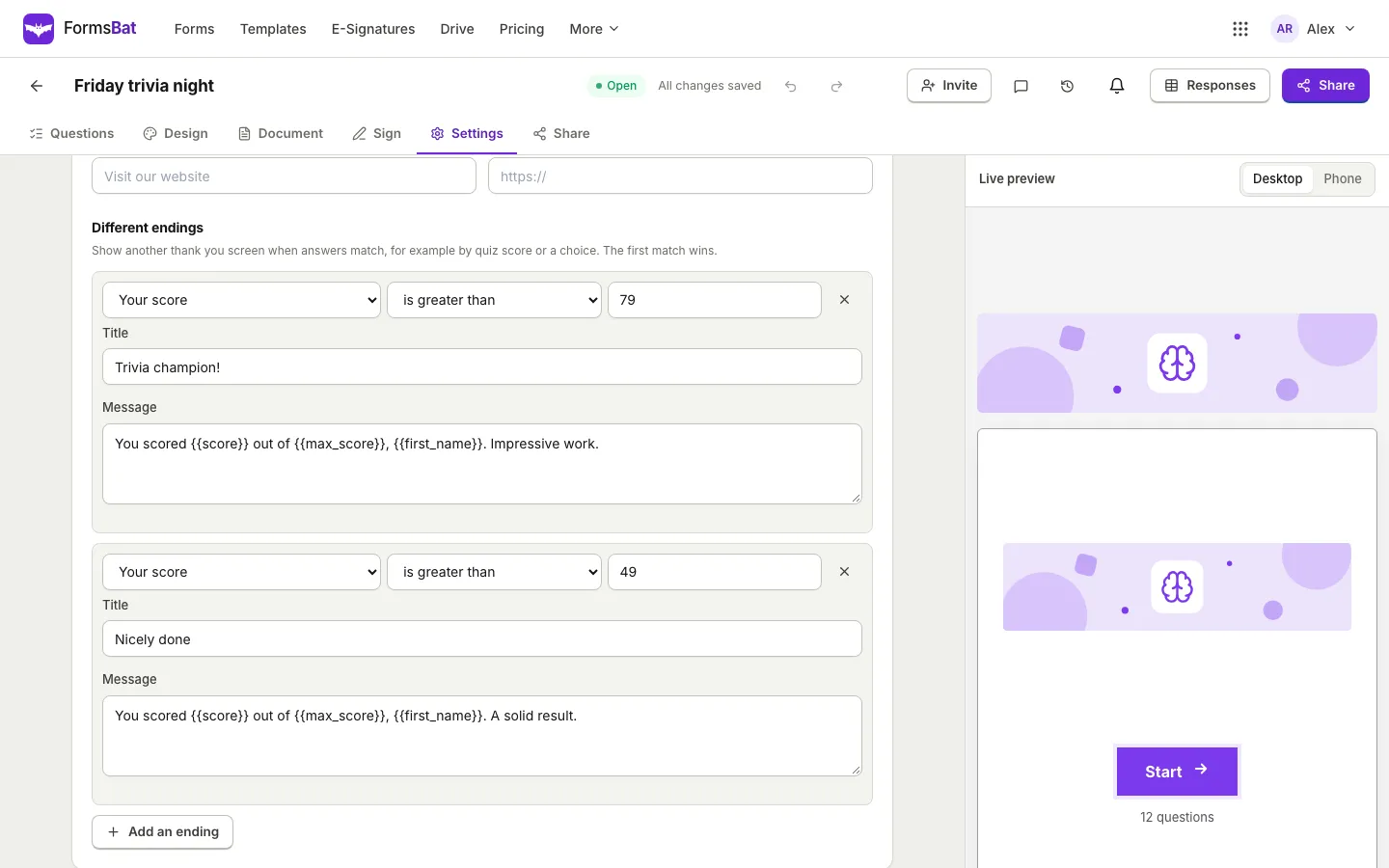
A great score deserves a different message from a near miss. Different endings, also in Settings, picks a thank you screen when the answers match a condition.
The trivia template does it with a Calculation question called "Your score" that works out a percentage with the formula round({score} / max({max_score}, 1) * 100). Then:
- Press Add an ending.
- Set the condition to Your score is greater than 79, with the title "Trivia champion!".
- Add a second ending for is greater than 49 with "Nicely done".
- Everyone else sees the default thank you screen.
Endings are checked in order and the first match wins, so put the highest band first.
Using a percentage instead of the raw score means you can add or remove questions later without rewriting your bands. The calculation formula accepts {score}, {max_score}, numbers, the four operators, brackets and functions such as round, min, max and if.
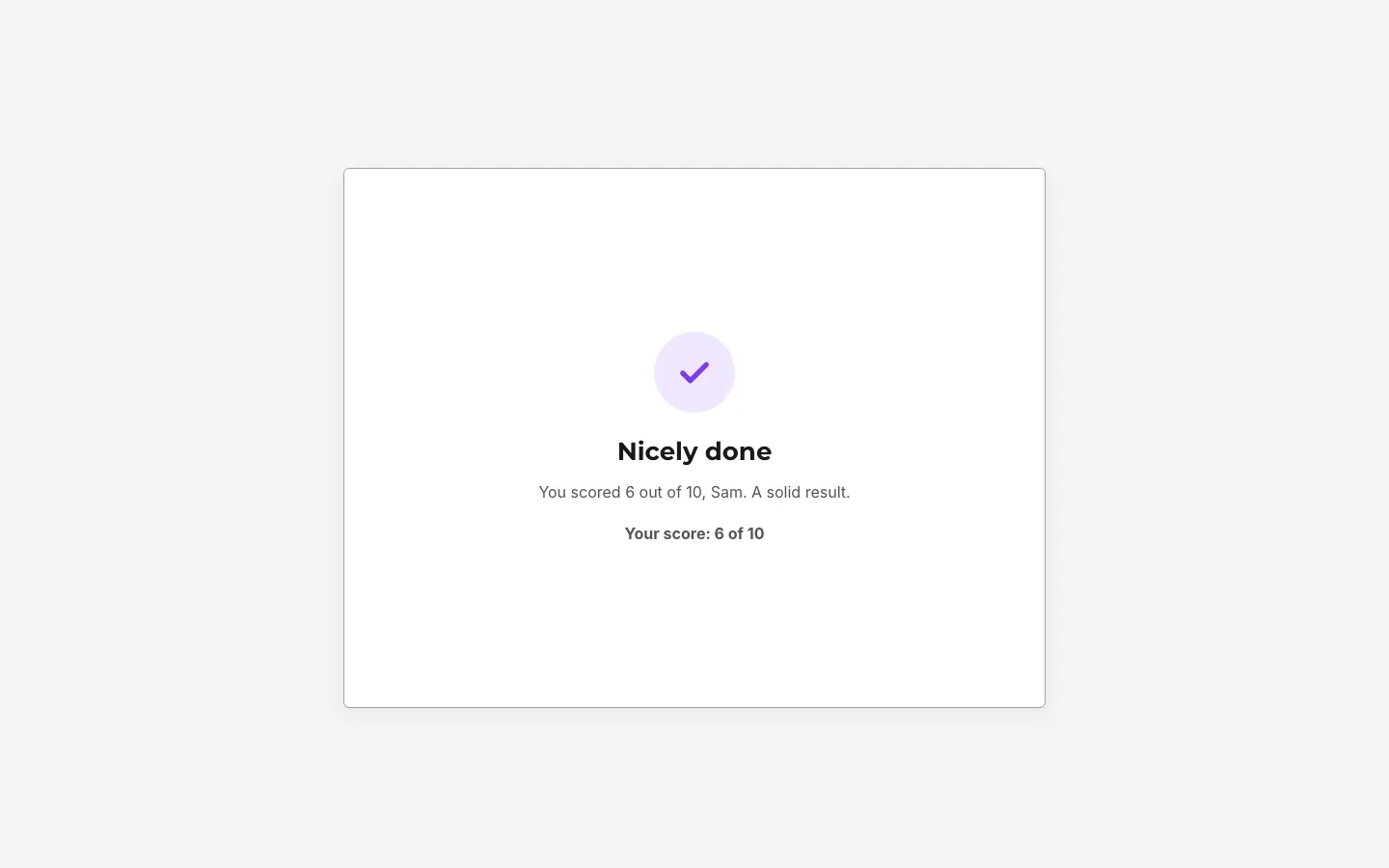
When someone finishes, they see the matching result straight away.
Step 6: Publish and share
Go to the Share tab and press Publish form. Then share the link, embed it on your website or put the QR code on a slide so a room full of people can join from their phones. How to share a form with a QR code has the details.
For a live event, consider these Settings:
- One response per person (remembered in their browser), so the leaderboard stays fair.
- Close automatically on, set to the end of the round.
- Send respondents a copy of their answers, if people want to check what they picked.
Step 7: Read the results
Open Responses. Open any response to see "Score: 6 of 10" at the top, above the answers. Calculation results such as "Your score" are saved with each response like any other answer. You can search, filter by date and export everything to CSV or Excel to rank people or spot the question everyone got wrong. The Summary shows how often each option was picked, which is the quickest way to find a confusing question.
If each response creates a document (set on the Document tab), the score is included in it, which is useful for training records and certificates of completion.
Ideas beyond trivia
The same tools power more than pub quizzes:
- Training checks: a short test at the end of an onboarding module, with a "Please review the safety section" ending for low scores.
- Classroom exit tickets: three questions at the end of a lesson to see what landed.
- Lead qualification: give points to answers that signal a good fit and route high scorers to a "Book a call" ending. The Lead qualification quiz template is a starting point.
- Product recommendation: use endings keyed to choices rather than scores to suggest the right product.
- Self assessments: a scored checklist that tells people where they stand, with no right or wrong, only bands.
For survey style questions that should not be marked at all, such as ratings and NPS, see how to write a survey people finish. And to hide questions based on earlier answers, see how to show or hide form questions.
Frequently asked questions
Can people see the correct answers?
No. The answer key stays on the server and is never sent to the respondent's browser. People only see their score and the message you write.
Can different questions be worth different points?
Yes. Each scored question has a Points setting. The default is 1, and you can raise it for harder questions. The max score adds up the points of every scored question the person saw.
How do I show a different message for high and low scores?
Use Different endings in Settings. Add an ending with a condition on the score, or on a Calculation question that turns the score into a percentage, and write a title and message for it. The first matching ending wins.
Can a checkbox question have more than one right answer?
Yes. Tick every correct option in Quiz scoring. The question scores only when the person selects exactly those options.
Is quiz scoring free?
Yes. Quiz scoring, calculations and different endings are part of the form builder on every plan, including Free.