How to make an online form with a signature field
Build an online form people can sign on any device: a drawn or typed signature, initials and date signed, or a full e-signature with a sealed PDF.

Waivers, consent forms, permission slips, rental applications, volunteer agreements: a lot of paperwork is a few questions followed by "sign here". Printing it, scanning it and chasing the missing pages is the slow part. An online form with a signature field does the whole job in one step, on a phone or a laptop, with nothing to install.
This guide shows two ways to collect signatures with FormsBat: a Signature question inside the form, and a full e-signature that turns each response into a sealed PDF. You will see when each one fits and how to set them up.
Two ways to collect a signature
| Signature question | Send for signature | |
|---|---|---|
| Where it happens | In the form, before Submit | After Submit, in a signing envelope |
| How people sign | Draw with a finger, mouse or pen, or type their name | Sign the generated document |
| What you get | The signature saved with the response, and stamped on the document | A sealed PDF with a certificate of completion and an audit trail |
| Other signers | No | Yes: you and fixed extra signers, in order or all at once |
| Best for | Waivers, sign up sheets, permission slips, receipts | Agreements, applications and consents that need a formal record |
Plenty of forms only need the first. If the signed document is the thing you will rely on later, use the second, or both.
Option 1: add a Signature question
Step 1: Create the form
- Go to Forms and press New form.
- Choose From a template and search for "Liability waiver", "Consent form with signature" or "Photo release". These already contain the right questions and a document with a place for the signature. Or start with Blank form.
- Rename the form at the top. We used "Juniper Yoga outdoor class waiver".
Step 2: Drag in the Signature question
The palette on the left groups question types. Under Signing you will find four that belong together:
- Signature: a pad people draw on, with a Type instead option.
- Initials: a smaller pad for initialling a clause.
- Date signed: filled in automatically when the form is submitted.
- File upload: for an ID or a document that needs to come with the signature.
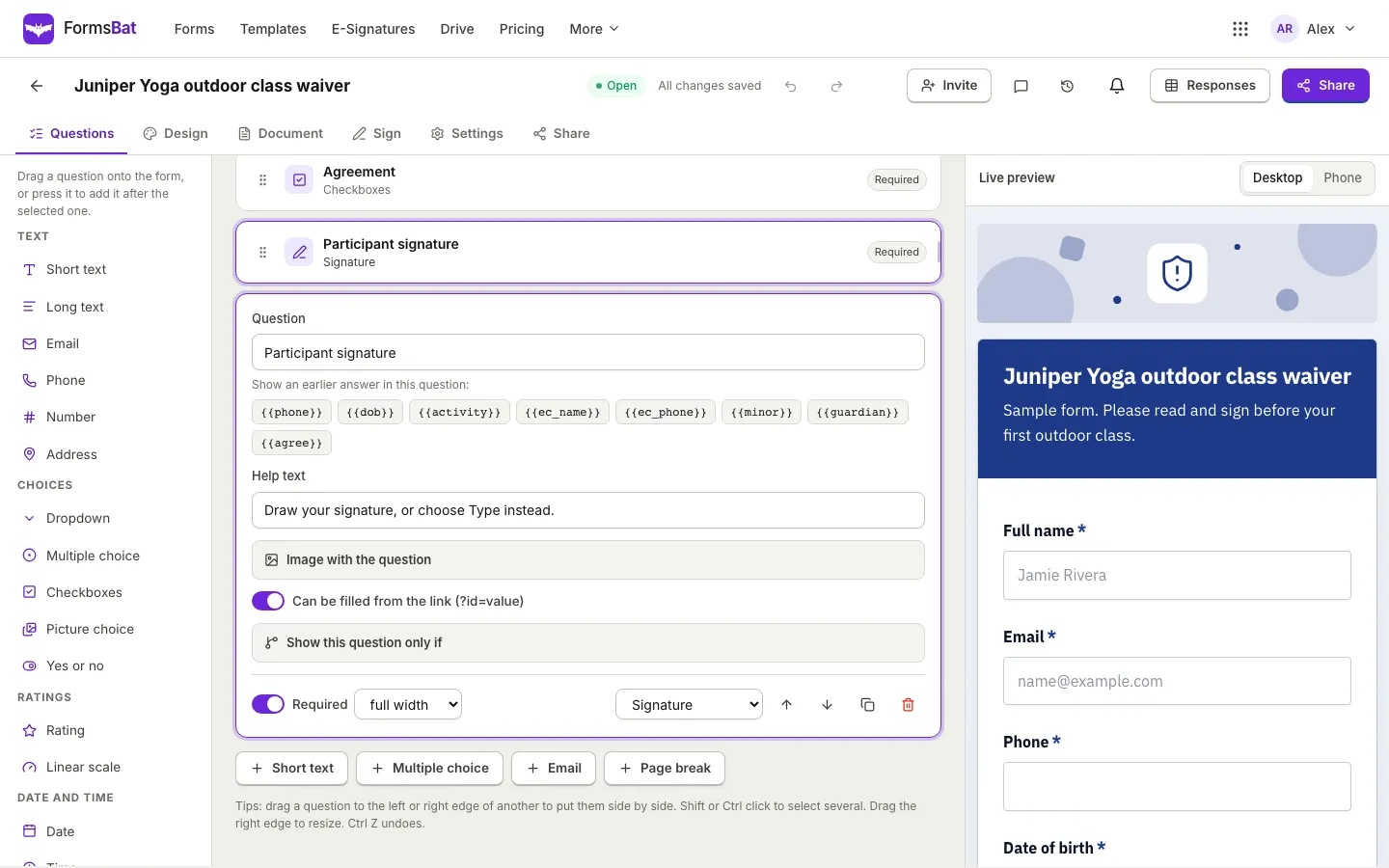
Drag Signature to the end of the form, or press it to add it after the selected question. Click the new card and set:
- Question: what people see, such as "Participant signature".
- Help text: one line of guidance, such as "Draw your signature, or choose Type instead."
- Required: on, so nobody can submit without signing.
Step 3: Put a clear statement above it
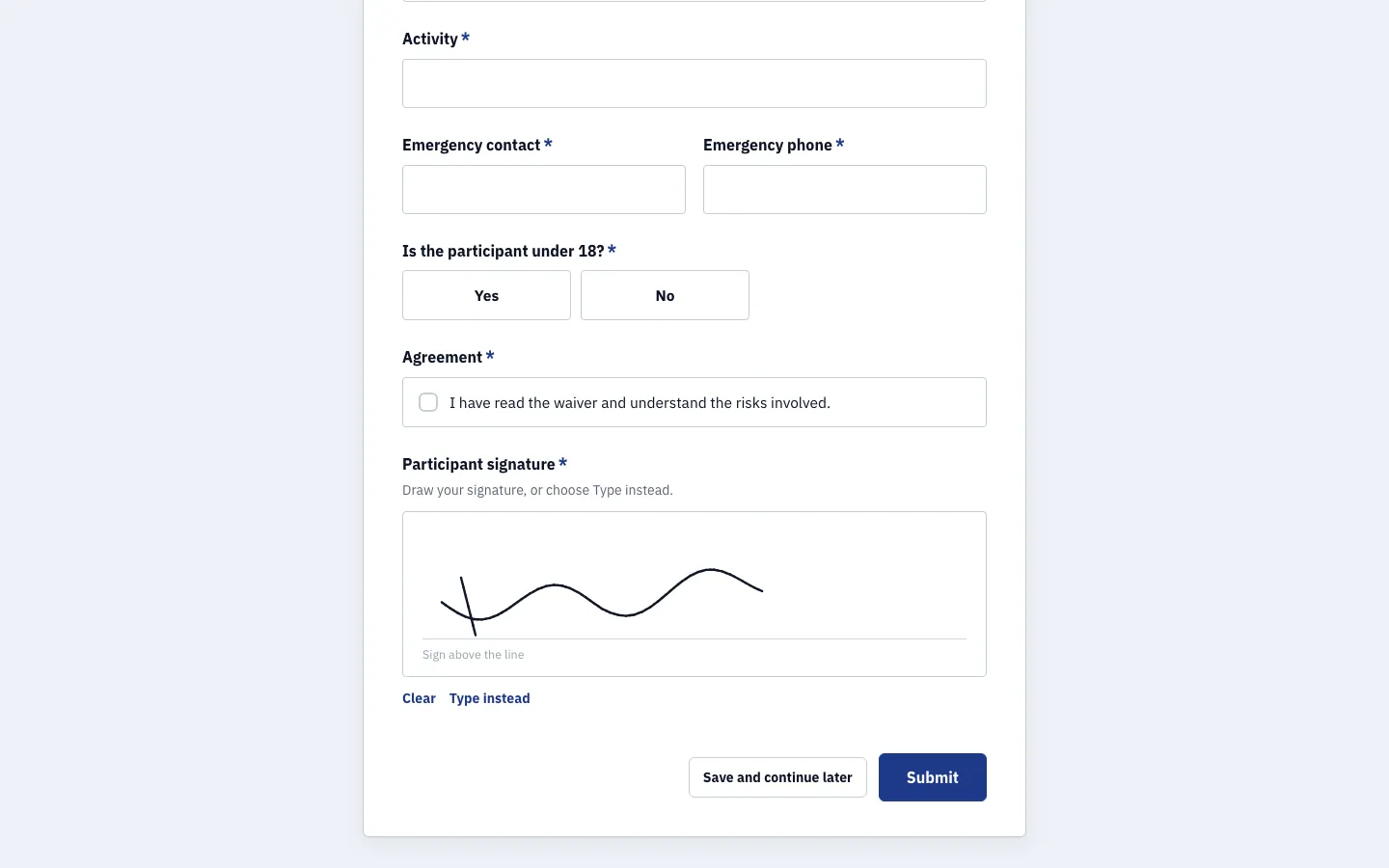
A signature means more when people know what they are agreeing to. Add a Checkboxes question with a single option such as "I have read the waiver and understand the risks involved", and make it required. If the terms are long, use a Text block from the Content group to show them in the form itself.
Step 4: Check what signers will see
On the public form the signature pad sits under its label with "Sign above the line" as a guide. People can Clear and start again, or press Type instead to type their full name, which is drawn in a handwriting style. The pad works with touch, mouse and pen, and with the keyboard through the typed option, so nobody is locked out.
Step 5: Put the signature on the document
If the form creates a document for each response (set on the Document tab), the signature can appear on it:
- Templates that come with a document, such as the liability waiver, already have a signature block with the placeholder in place.
- In your own Word or PDF template, type
{{signature}}where the signature belongs, or{{signature:Question label}}to pick a specific Signature question.
The drawn signature is stamped on the file without any extra step. When the document is a PDF, FormsBat also adds an Electronic signature record page that notes who signed which field and when, and seals the PDF. Own Word and PDF templates are part of Pro; the built in designs and template documents work on every plan.
Option 2: send the document for e-signature
When you need more than a picture of a signature, switch on a signing envelope. Every response then becomes a document that is signed and sealed.
Step 1: Turn it on
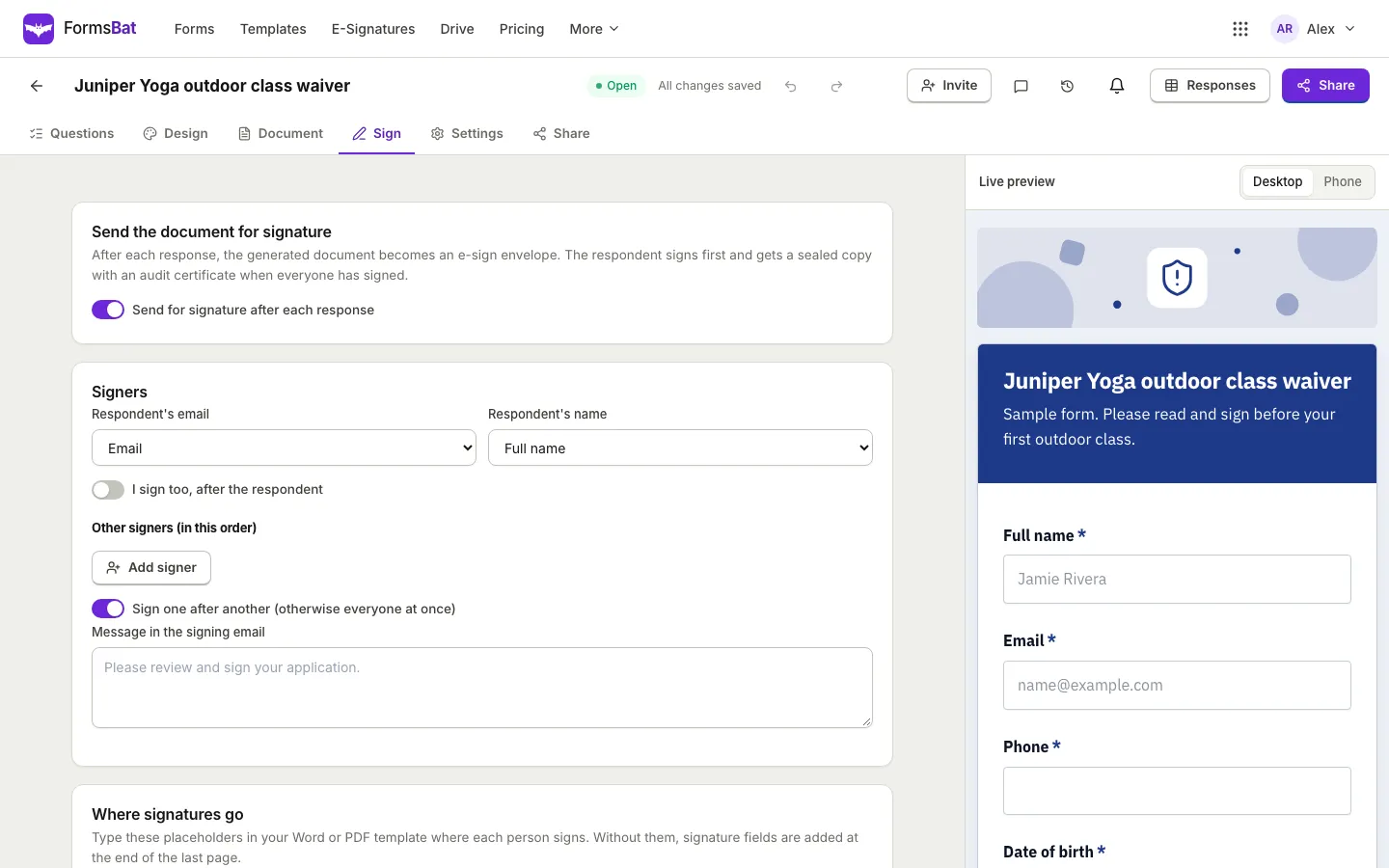
Open the Sign tab and switch on Send for signature after each response. If the form does not create a document yet, FormsBat creates an answers document for signing.
Step 2: Choose who signs
Under Signers:
- Pick the Respondent's email question. The form needs an Email question for this.
- Pick the Respondent's name question, or leave Detect automatically.
- Switch on I sign too, after the respondent if you countersign.
- Use Add signer for anyone else who always signs, such as a manager or a guarantor.
- Leave Sign one after another on to sign in order, or turn it off so everyone gets the request at once.
- Write a short Message in the signing email.
Step 3: Place the signature fields
In a Word or PDF template, type {{signature}} where the respondent signs, {{signature:Owner}} where you sign, and {{signature:Name}} for each extra signer. Without placeholders, signature fields are added at the end of the last page.
Step 4: What happens after Submit
The respondent can sign straight from the thank you screen. When everyone has signed, the result is a sealed PDF with a certificate of completion and an audit trail. It is emailed to everyone and saved to your Drive, and you can follow every envelope under E-Signatures.
For a deeper look at envelopes, signing order and audit trails, see sending documents for e-signature.
Tips for signature forms people actually finish
- Keep the signature last. People sign once they have read everything. A signature in the middle of a form feels like a trap.
- Use logic for second signers. On a waiver, ask "Is the participant under 18?" and show a guardian's name only if the answer is Yes. Our guide to showing or hiding questions based on answers shows how.
- Test on a phone. Switch the live preview to Phone and sign with your finger on a real device before you share the link.
- Let people pause. In Settings, Let respondents save and continue later by link helps when someone has to find a document first.
- Send a copy. Switch on Send respondents a copy of their answers and Attach the generated document, so the signer keeps a record.
- Share it where people are. A QR code at the front desk works well for waivers. See how to share a form with a QR code.
Where signatures work
Signature pads work on the public link, from a QR code and in the Inline, Popup and Slider embeds. The Plain HTML embed posts straight to FormsBat without JavaScript, so it cannot show a signature pad; use one of the other embeds on forms that need a signature.
Finding signed responses later
Every response is in Responses. Open one to see the answers with the signature image and any files. The generated documents are saved to your Drive in a folder for the form, named with the file name pattern you set on the Document tab, such as "Liability waiver Ruth Lindqvist".
A note on legal weight
Electronic signatures are widely accepted for everyday agreements, but the rules depend on where you are and what you are signing. Some documents, such as certain property, family and court papers, often need more. If the stakes are high, check with a lawyer before you replace paper.
Frequently asked questions
Can people sign a form on their phone?
Yes. The signature pad works with a finger on a touch screen, with a mouse or pen on a computer, and anyone who prefers can press Type instead and type their full name.
What is the difference between a Signature question and sending for signature?
A Signature question captures a drawn or typed signature inside the form and stamps it on the document the response creates. Sending for signature turns each response into an e-sign envelope, and when everyone has signed you get a sealed PDF with a certificate of completion and an audit trail.
Can more than one person sign the same response?
Yes, with Send for signature after each response. The respondent signs first, and you can add yourself with I sign too, after the respondent and add fixed extra signers, in order or all at once.
Does the person filling the form need an account?
No. People filling a FormsBat form or signing an envelope do not need an account. Only the form owner signs in.
Where do I put the signature on my own Word template?
Type {{signature}} where the respondent signs. Use {{signature:Owner}} for your own signature and {{signature:Name}} for extra signers. Without placeholders, signatures go at the end of the last page.