How to show or hide form questions based on earlier answers
Add conditional logic to an online form so questions, whole pages and thank you screens change with each answer. A step by step guide with examples.
Long forms lose people. Most of the time the form is not long because you ask too much, but because you ask everyone everything. A student discount field means nothing to a speaker. A guardian's name means nothing to an adult. A delivery address means nothing to someone collecting in person.
Conditional logic fixes that. Each person sees only the questions that apply to them, and the form gets shorter without losing any of the detail you need. This guide shows how to set it up in FormsBat, with real examples you can copy.
What conditional logic does
Conditional logic is a rule attached to a question or a page: "show this only if an earlier answer matches". FormsBat gives you three kinds of rules:
| Rule | Where you set it | What it does |
|---|---|---|
| Show this question only if | On any question | Shows or hides one question |
| Show this page only if | On a page break | Shows or hides a whole page of questions |
| Jump after this page | On a page break | Skips ahead to a later page, or straight to the end |
On top of that, the Settings tab has Different endings, which picks a thank you screen based on the answers. We cover that at the end.
A condition compares an earlier answer with a value. The comparisons available are: is, is not, contains, is greater than, is less than, is answered and is not answered. You can add several conditions to one rule and choose whether All conditions or Any condition must match.
A worked example: an event registration form
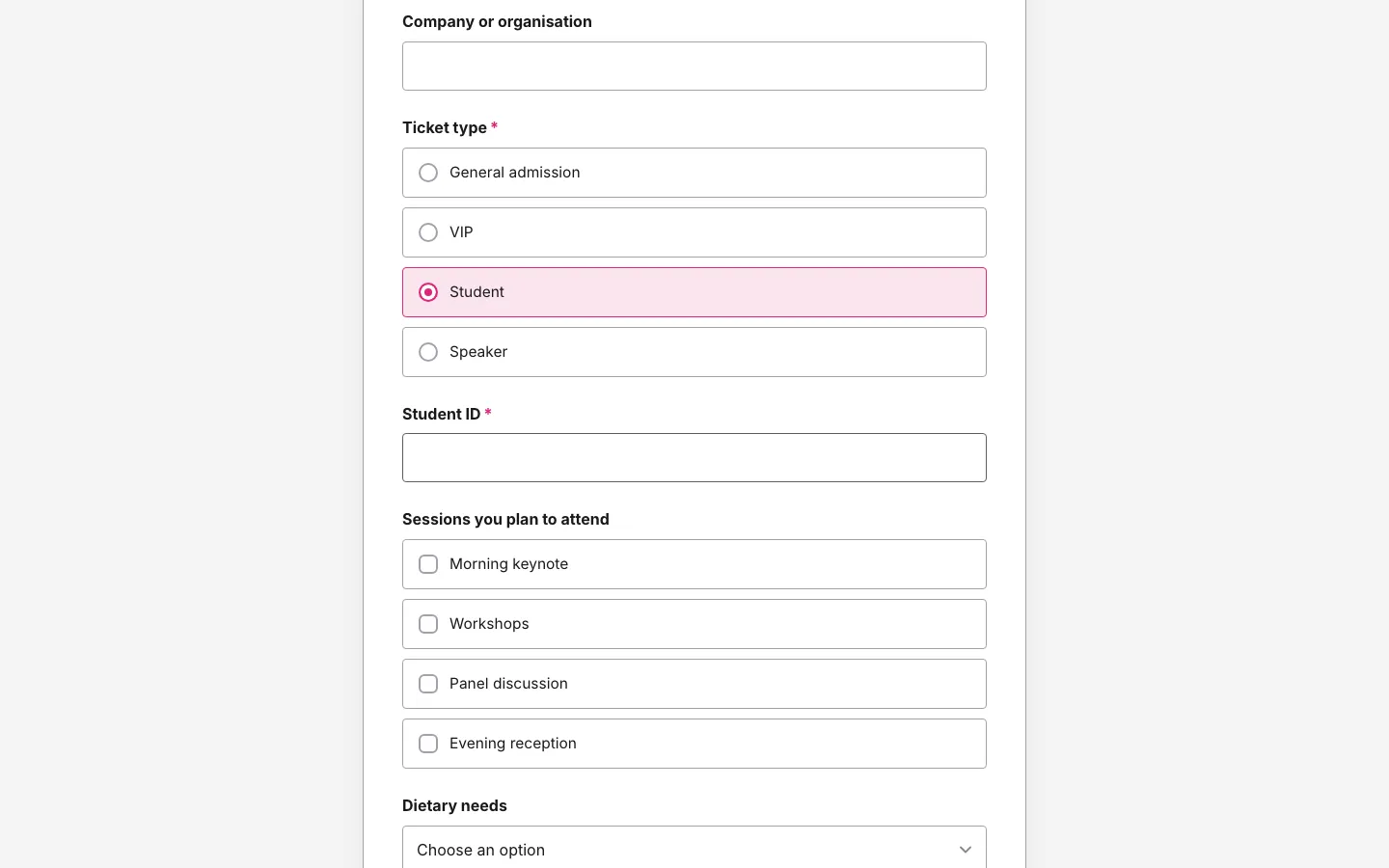
Let's use a common case. You run an open day with four ticket types: General admission, VIP, Student and Speaker. Students get a discount, so you need their student ID. Nobody else should see that question.
Step 1: Start from a template or a blank form
- Open Forms and choose New form.
- Pick From a template and search for "Event registration", or start with Blank form.
- The template already has a Ticket type question with the four options, followed by a Student ID question.
If you start blank, add a Multiple choice question called "Ticket type" with the four options, then a Short text question called "Student ID" below it. Order matters: a condition can only use answers from questions that come earlier in the form.
Step 2: Open the question you want to hide
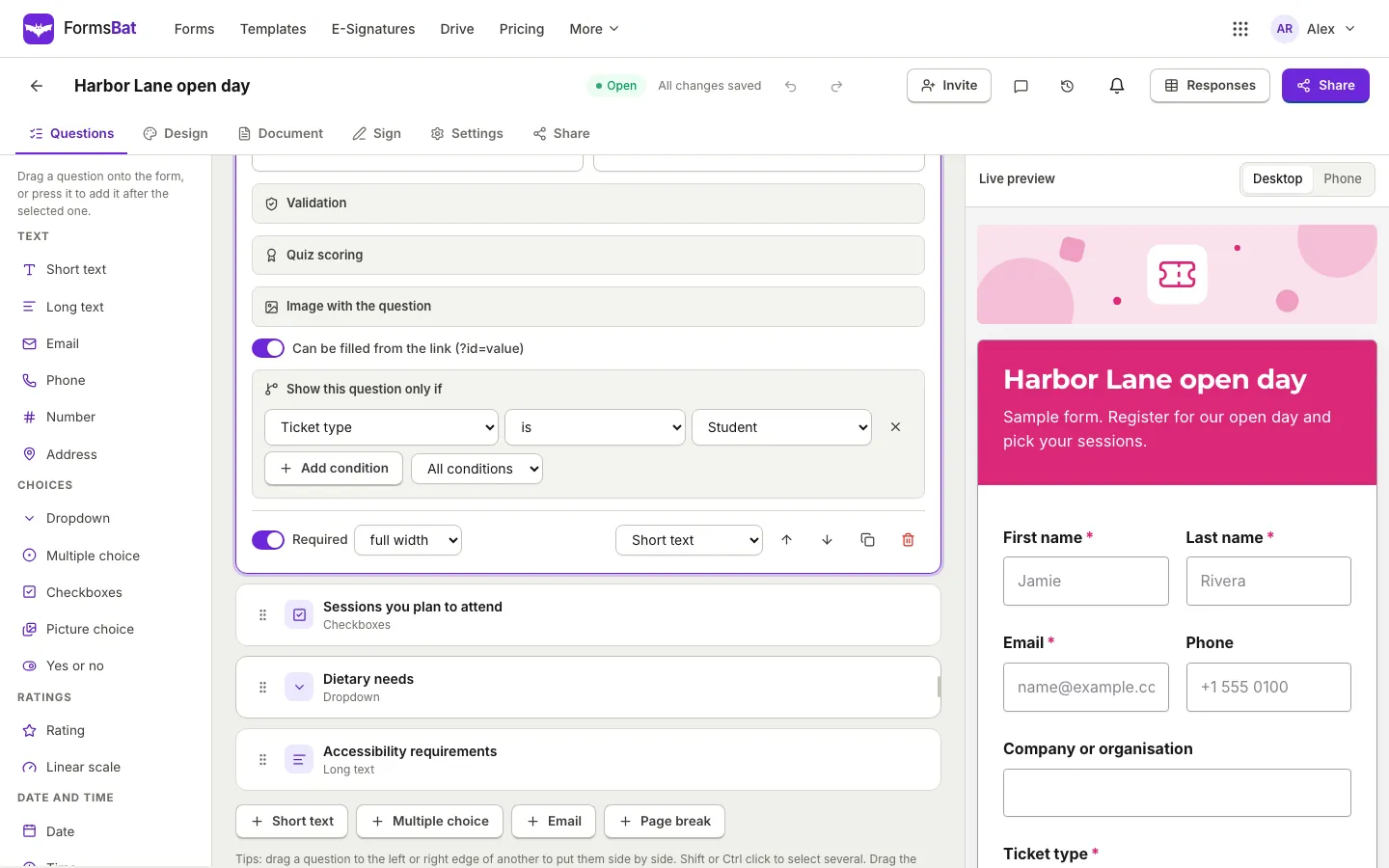
Click the Student ID card on the canvas to open its settings. Scroll down past the label, help text and validation until you see the section Show this question only if.
Step 3: Add the condition
- Press Add condition.
- In the first dropdown choose Ticket type.
- Leave the comparison as is.
- In the last dropdown choose Student.
That's it. The card now shows a small Logic tag, so you can spot conditional questions at a glance when you scroll the form.
Step 4: Make it required, safely
You can switch Required on for Student ID. FormsBat only enforces a required question when it is shown, so a VIP guest is never blocked by a field they cannot see. Answers to hidden questions are not saved with the response either, so a person who picked Student, typed an ID and then switched to General admission does not leave a stray student ID behind.
Step 5: Test it in the live preview
The Live preview on the right updates as you build. Choose Student in the preview and the Student ID field appears right under the ticket choices; pick anything else and it disappears.
More examples worth copying
The same pattern solves a lot of everyday forms. A few that come up often:
- Waivers and consent forms: ask "Is the participant under 18?" as a Yes or no question, then show "Parent or guardian name" only if the answer is Yes.
- RSVPs: show "Number of guests" and "Dietary needs" only if "Will you attend?" contains Yes.
- Returns and refunds: show a File upload for photos only if the reason is Damaged.
- Quotes and orders: show a delivery Address only if "Delivery or collection" is Delivery.
- Feedback: show "What could we do better?" only if a Rating is less than 4.
- Optional details: show "Tell us more" only if "Other" is answered.
Combining conditions
Click Add condition again to add a second row, then set the dropdown next to the button:
- All conditions: every row must match. Use it for narrow cases, such as "Ticket type is Student and Country is Canada".
- Any condition: one match is enough. Use it for "show this if the answer is A or B".
A rule can hold up to ten conditions, which is more than any form should need. If you find yourself writing many, it is usually a sign the question belongs on its own page.
What a condition can look at
Conditions can read text, email, number, date, choice, rating, scale, yes or no and address answers, plus the result of a Calculation question. They cannot look inside file uploads, signatures or initials, because there is nothing sensible to compare.
Showing or hiding a whole page
When several questions depend on the same answer, put them on their own page instead of adding the same rule to each one.
- Drag a Page break from the Layout group in the left palette to where the section should start.
- Give the page a title, for example "Student details".
- Open the page break and use Show this page only if exactly as you did for a question.
Everything on that page is shown or hidden together, and the progress bar adjusts to the pages each person will actually see.
Skipping ahead with jumps
Sometimes the answer means the rest of a section is irrelevant. A "Jump after this page" rule sends people straight to a later page, or to the end of the form, when they leave the current page.
- Open the page break at the top of the page that holds the deciding question.
- Open Jump after this page and press Add a jump.
- Choose the condition, then pick where to go in then go to. The list shows every later page plus The end (submit).
FormsBat checks jump rules when the person leaves the page, and every page in between is skipped. Jumps only go forward, so a form can never loop.
Different thank you screens
The final piece of logic lives in Settings, under Thank you screen. Below the default title and message there is Different endings:
- Press Add an ending.
- Set the condition, for example "Ticket type is Speaker".
- Write a title and message for that group, such as "Thanks for speaking! We'll email your speaker pack this week."
Endings are checked in order and the first match wins, so put the most specific ones first. You can repeat an answer in the message with a placeholder like {{first_name}}. Endings are also how quizzes show a different result for different scores, which we cover in how to make a quiz that scores itself.
Logic and the documents your form creates
If your form fills a PDF or Word document for every response, logic carries through. Hidden questions are simply empty in the document, and in your own Word template you can wrap optional sections in {{#if Question}}...{{/if}} blocks so a whole paragraph only appears when that answer exists. Our guide to forms that create documents explains templates in detail.
Where logic works when you share
Logic runs wherever the form runs: the public link, the QR code and the Inline, Popup and Slider embeds. The one exception is the Plain HTML embed, which posts straight to FormsBat without JavaScript, so logic, calculations and signatures need one of the other options. More on sharing in how to share a form with a QR code.
A short checklist before you publish
- Put deciding questions early, and the questions that depend on them after.
- Read each rule out loud: "Show Student ID only if Ticket type is Student." If it sounds wrong, it is.
- Walk through the form once per path in the live preview, switching between Desktop and Phone.
- Submit a test response for each path and open it in Responses to check what was saved.
- If you use endings, make sure the default thank you message still reads well for everyone who matches none of them.
Logic is the cheapest way to make a form feel short. Most people never notice it, which is exactly the point.
Frequently asked questions
Can a condition use an answer from a later question?
No. A rule can only use answers to questions that come before it in the form. If you move a question above the one it depends on, FormsBat removes the condition that no longer makes sense, so check your rules after reordering.
What happens to a required question that is hidden?
It is not required while it is hidden. FormsBat only checks required questions that the person can see, and answers to hidden questions are not saved with the response.
Can I show a question based on two different answers?
Yes. Add a second condition with Add condition, then choose All conditions if both must match or Any condition if either one is enough. One rule can hold up to ten conditions.
Does conditional logic work in embedded forms?
Yes, in the Inline, Popup and Slider embeds and on the public link. The Plain HTML embed works without JavaScript, so it does not run logic, calculations or signatures.
Is conditional logic included on the Free plan?
Yes. Question logic, page logic, jumps and different endings are part of the form builder on every plan, including Free.