How to fill out a PDF form online and save it
Type into PDF form fields, tick boxes, pick from dropdowns, sign and date, then save a copy that keeps your answers. Works for flat forms too.
Someone sends you a PDF form: a rental application, a catering order, a school permission slip, a supplier registration. You could print it, fill it in by hand, sign it and scan it back. Or you could fill it in on screen in a few minutes and send back a clean file that anyone can read.
This guide shows how to fill out a PDF form online with PDFbat, how to make sure your answers are actually saved, and what to do when the form has no fillable fields at all.
Two kinds of PDF forms
Before you start, it helps to know which kind of form you have.
- Fillable forms have real form fields built into the file: text boxes, checkboxes, radio buttons and dropdowns. You can click into them and type.
- Flat forms are just pages with lines and boxes drawn on them. They look like a form, but there is nothing to click. Many scanned forms and forms exported from design tools are flat.
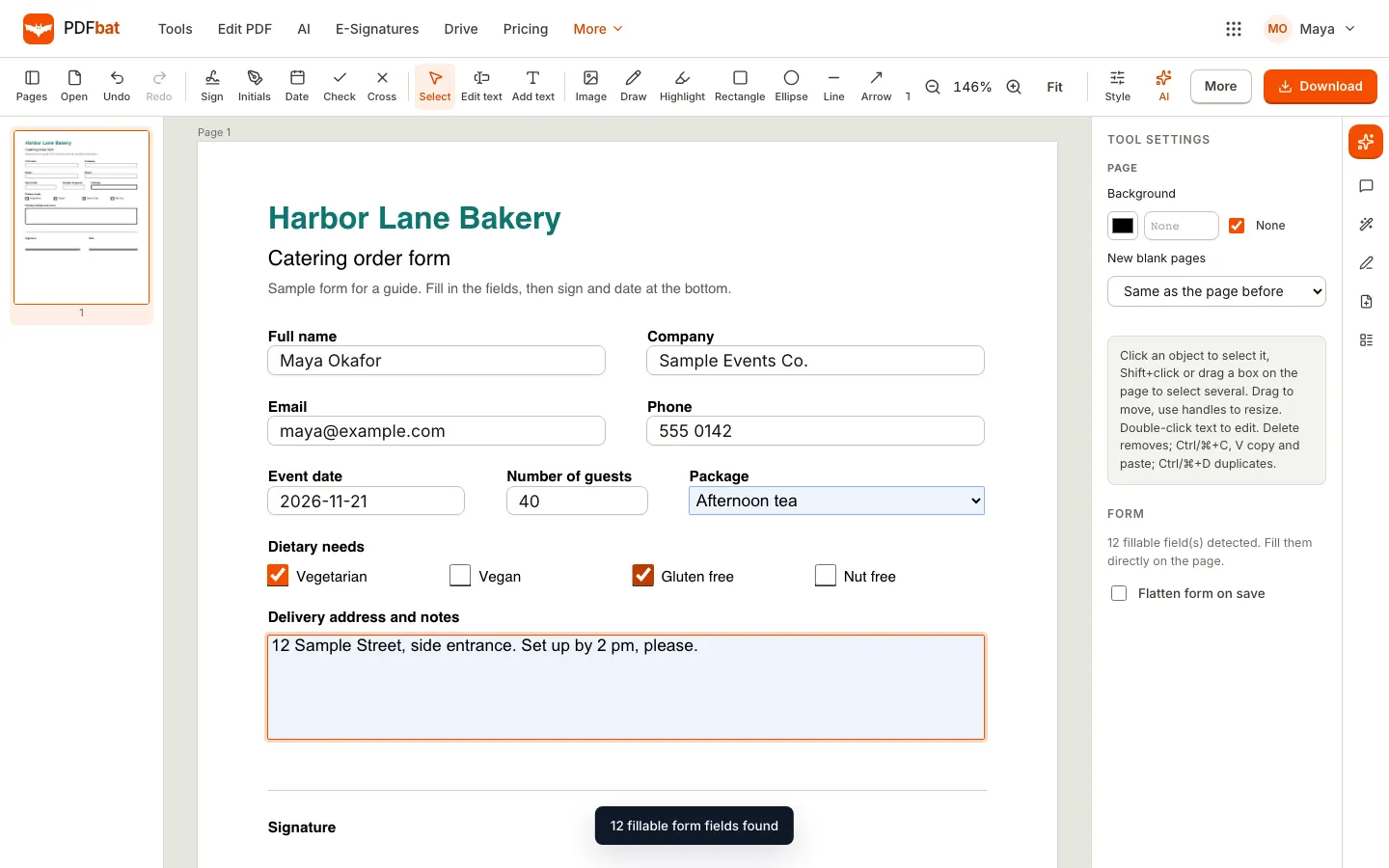
PDFbat checks for fields when you open the file. If it finds them, a message tells you how many fillable form fields it found, and the Form section of the side panel shows the count. If it finds none, you fill the form with text and marks instead, which we cover below.
How to fill out a fillable PDF form
- In PDFbat, open More in the top bar and choose Fill & Sign. You can also use Edit PDF; Fill & Sign simply puts the signing tools first in the toolbar.
- Choose Choose PDF, drop the file on the page, or use Open from Drive.
- Wait for the message that says how many fillable form fields were found.
- Click the first field and type. Press Tab to move to the next field.
- Tick checkboxes and choose options from dropdowns directly on the page.
- Add your signature, initials and date where needed (see the next section).
- Decide whether to flatten the form, then choose Download.
Should you flatten the form?
The Form section of the side panel has a Flatten form on save checkbox. Flattening turns the filled fields into ordinary page content.
| Leave fields editable when | Flatten when |
|---|---|
| Someone else still needs to fill in their part | You are sending the final version |
| You may correct an answer later | You want to stop anyone changing your answers |
| The recipient's system reads the field values | The form is going to print or an archive |
If you are not sure, keep a copy of the unflattened file in your Drive and send the flattened one.
Signing and dating the form
Most forms end with a signature and a date. In the toolbar:
- Sign opens the Add your signature dialog. Draw it with a mouse, finger or stylus, type your name and pick one of several handwriting styles, or upload an image of your signature. Choose a colour, and tick Save for next time to reuse it.
- Initials works the same way for forms that ask you to initial each page.
- Date stamps today's date where you click.
- Check and Cross place a tick or a cross, useful on flat forms with drawn boxes.
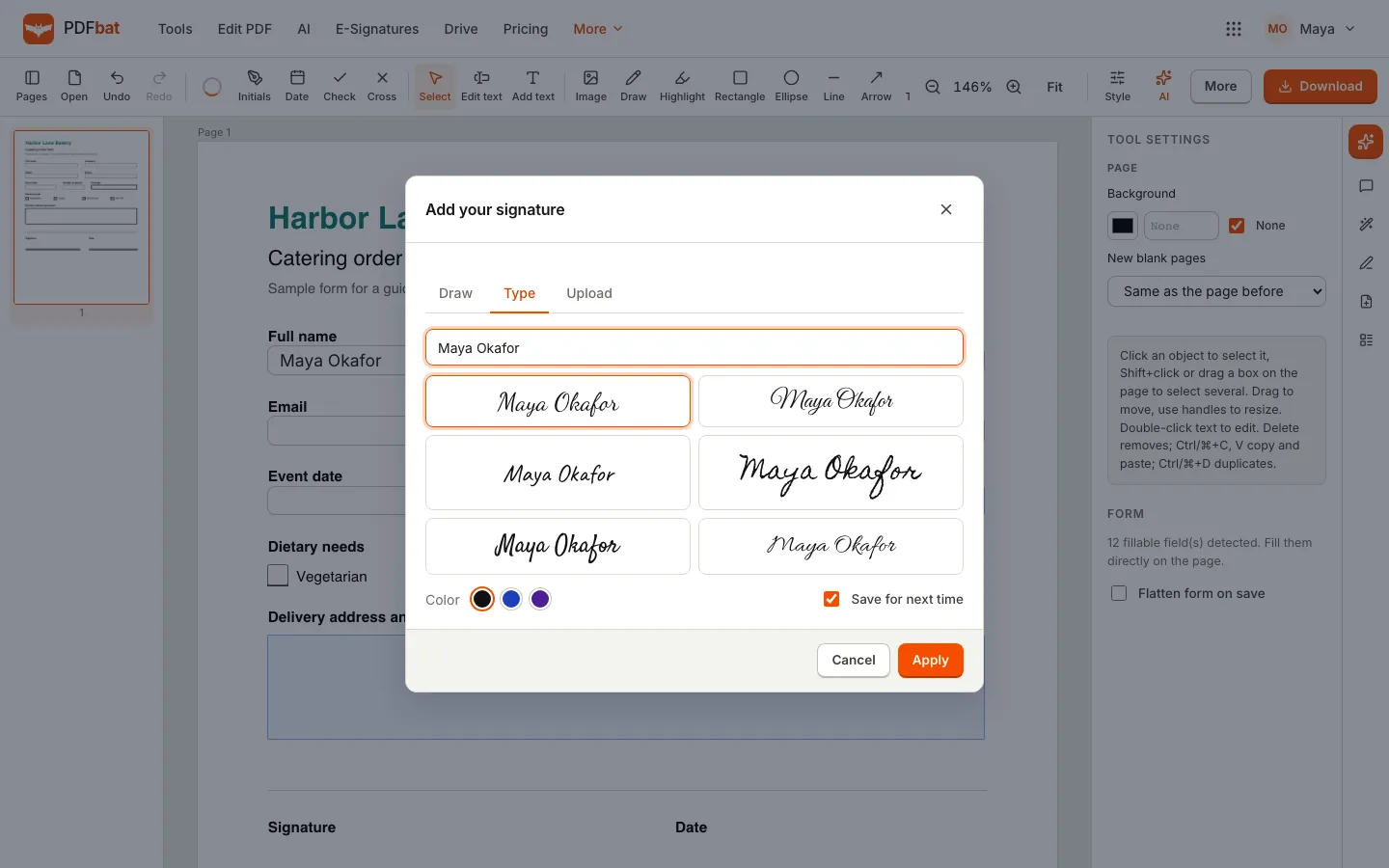
After you place a signature you can drag it into position and resize it with the corner handles. We go deeper into signature types and legal questions in how to sign a PDF online.
How to fill a flat PDF form with no fields
A flat form needs a different approach, but it is just as quick:
- Open the file the same way. You will not see a fields message.
- Choose Add text and click on the first blank line. Type your answer.
- Drag the text box so it sits on the line. Use the side handles to set a width if the answer is long, so it wraps neatly.
- Select a text box and use the Style panel to match the size to the form's printed text.
- Use Check or Cross for drawn checkboxes.
- Sign and date as above, then Download.
Tip: after the first answer, select it and copy and paste it (Ctrl or Cmd plus C and V) to get the next box with the same size and font, then retype the text. It keeps the whole form consistent.
What if the form is a scan?
A scanned form is an image. You can still place text, marks and a signature on top of it with the same tools. If you also need to search or copy the printed text of the form, run OCR first. Our guide to making scanned PDFs searchable explains how.
Making sure your answers are saved
The most common complaint about filling PDF forms is that the answers disappear. It usually happens for one of two reasons: the form was filled in a viewer that cannot save field values, or the person sent the original file instead of the filled one.
With PDFbat, Download writes a new PDF that contains your answers, and when you are signed in it also saves that PDF to your Drive. To be sure:
- Open the downloaded file and check every page before sending.
- Send the downloaded file, not the original attachment from the email.
- If the recipient says fields look empty, send the flattened version. Flattened answers are part of the page and display in every viewer.
Filling a form together
Some forms need two people: an employee and a manager, a tenant and a landlord. When you open a PDF from your Drive, PDFbat can share it live. Use the Share button to invite someone by email or OfficeBats username, or turn on a share link. Form fields are held while someone is typing in them, so two people cannot overwrite the same answer at once, and each person's pointer shows on the page.
If you need signatures from people outside your team, with a signing order and an audit trail, send the form for e-signature instead. See send documents for e-signature.
Common problems and fixes
The text is too big for the field
Long answers can overflow a small field. Shorten the answer, or for a flat form use Add text with a fixed width so it wraps.
A field will not accept my typing
Some fields are set as read only by the person who made the form. You cannot fill those, but you can add text next to them if the form allows it.
The dropdown does not have my option
Dropdown options are part of the form. If none fits, ask the sender, or add a short note with Add text next to the field.
I need to fill the same form every month
Save a filled copy without flattening in your Drive. Next month, open that copy, change the few answers that differ, and download a new version.
When a form should be built, not filled
If you are the one sending the form to dozens of people, a PDF is not the easiest way to collect answers. An online form that fills a document for each response saves everyone time. Read forms that create documents to see how FormsBat does it.
Frequently asked questions
Can I fill out a PDF form online for free?
Yes. Fill & Sign, including form fields, signatures, initials and dates, is part of the PDFbat free plan, and your downloaded files have no watermark.
Why does my filled PDF look empty when someone else opens it?
They may be opening the original file, or a viewer that does not show field values. Send the downloaded copy, and flatten the form so the answers become part of the page.
Can I fill a PDF form that has no fields?
Yes. Use Add text to type on the lines, Check or Cross for boxes, and Sign and Date for the signature block. It works on flat and scanned forms.
Is a typed signature valid on a form?
Electronic signatures are recognised for most business documents under laws such as ESIGN in the United States and eIDAS in the European Union. Some documents have special rules, so check if the form is for a court or a will.
Do I need to install anything?
No. PDFbat runs in the browser on Windows, Mac, Chromebook, iPhone, iPad and Android.