How to sign a PDF online, on any device
Sign a PDF in your browser on a laptop or phone: draw, type or upload a signature, fill real form fields, add dates and initials, then flatten and send.
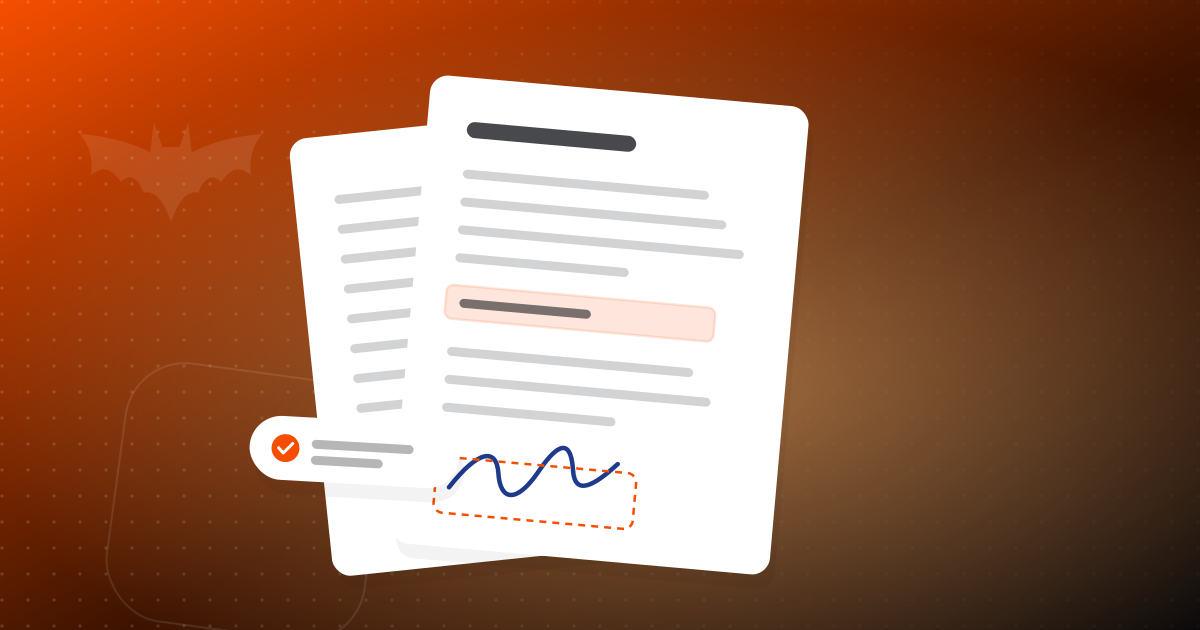
Someone emails you a PDF with a line that says "please sign and return." Not long ago that meant printing it, signing with a pen, scanning it back in and hoping the scan was readable. Today you can do the whole thing in a browser in a couple of minutes, on a laptop or on your phone.
This guide covers how to sign a PDF yourself, how to fill in the rest of the form properly, and when you should use a full e-signature request instead of a simple signature.
Two kinds of "signing a PDF"
It helps to separate two situations, because they need different tools.
| Situation | What you need |
|---|---|
| Someone sent you a document and you need to sign it | Fill and Sign: add your own signature and fill the form |
| You need other people to sign a document you prepared | An e-signature request with signers, order and an audit trail |
This post is about the first case. If you are the one collecting signatures, read sending documents for e-signature, which covers signing order, reminders and audit trails.
Signing a PDF step by step
PDFbat's Fill and Sign works in any modern browser. Here is the basic flow.
- Open the PDF. Upload it from your device or open it from your PDF Drive.
- Fill any form fields. If the document has real form fields, you can click into them and type, tick checkboxes, choose radio buttons, or pick from dropdowns and lists.
- Create your signature. Choose one of three ways: draw it with a mouse, trackpad or finger; type your name and pick a style; or upload a photo of your signature on paper.
- Place it. Click where the signature belongs, then move and resize it until it sits neatly on the line.
- Add initials, a date and marks. Many documents ask for initials on each page, a date beside the signature, or a check or cross in a box.
- Flatten on save. This turns your signature and entries into part of the page so they cannot be casually moved or edited.
- Download or share. The signed copy is also saved in your PDF Drive.
Which signature method should you use?
Each method has its place.
- Drawing feels the most natural on a phone or tablet with a finger or stylus. On a mouse it can look shaky, which is fine but not always pretty.
- Typing is fast and tidy. It is a good default for routine paperwork.
- Uploading gives you a signature that looks exactly like your pen signature. Sign on a plain white sheet, take a clear photo in good light, and upload it. PDFbat removes the background so only the ink remains.
Signing on a phone
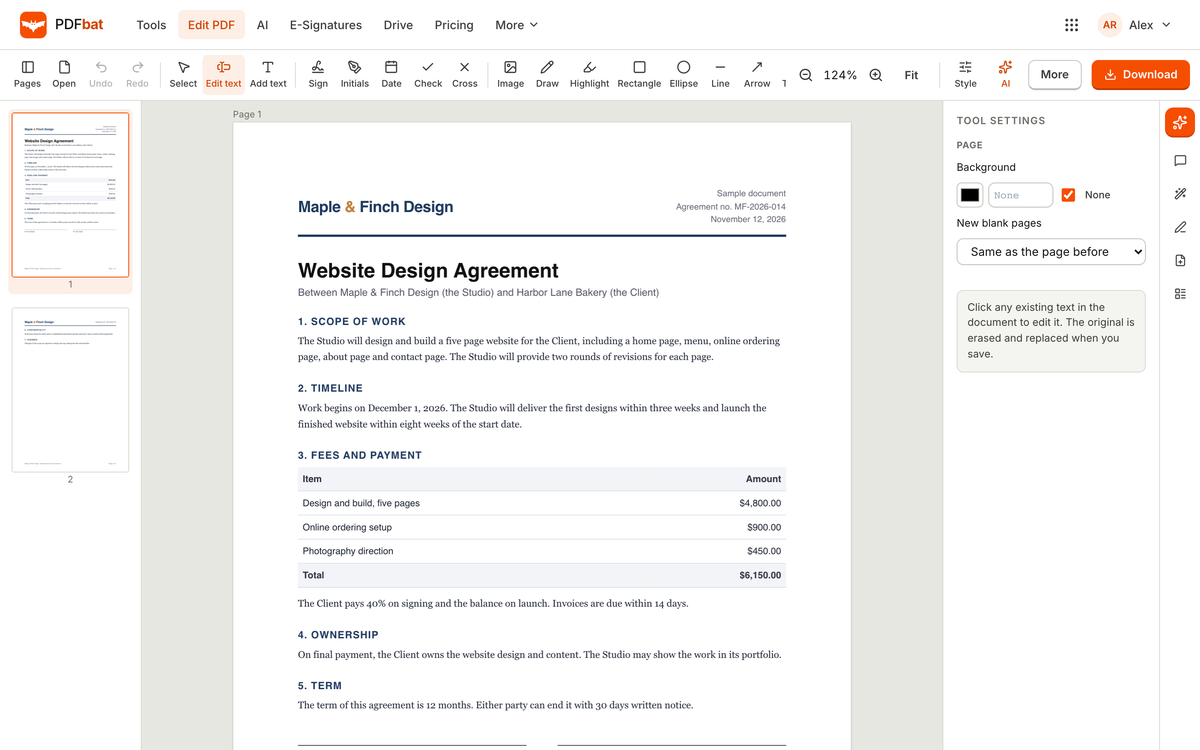
Fill and Sign works on phones, which is often the most convenient option when a document arrives while you are away from your desk.
A few tips make it smoother:
- Turn the phone sideways when drawing your signature. A wider area gives you more room for a natural stroke.
- Zoom in before placing fields. Small form boxes are easier to hit accurately when the page is magnified.
- Use typed text for long answers. Filling a long address or description is easier with the keyboard than with handwriting.
- Check the whole document before saving. Scroll through every page to make sure no required initials or dates were missed.
Filling forms properly
A lot of PDFs that need signing are also forms. There are two kinds you will run into.
Forms with real fields
Some PDFs have interactive fields built in. When you open them, you can click directly into a box and type. PDFbat supports text fields, checkboxes, radio buttons, dropdowns and list boxes. The advantage is that your answers land exactly where they are meant to, aligned and readable.
Flat forms with no fields
Other PDFs are just printed forms saved as a file, or scans of paper forms. There are no boxes to click. In that case, add text where it belongs and place your signature, initials and date as normal. Take a moment to line text up with the printed lines so it looks neat.
If the form is a scan and you want to search or copy its text later, you can run OCR first. Our guide on making scanned PDFs searchable explains how.
Is an online signature legally valid?
For most everyday business documents, yes. In the United States, the ESIGN Act recognises electronic signatures, and in the European Union, the eIDAS regulation does the same. Contracts, agreements, consent forms, purchase orders and many other documents can be signed electronically.
There are exceptions. Some documents have special rules, such as certain wills and some court, family law and real estate documents. If you are signing something with major legal weight, check with the person who sent it or with a legal professional about what form of signature is required.
When to use an e-signature request instead
Placing your own signature on a PDF is quick, but it does not create a record of who signed, when, or from where. If that record matters, for example on an agreement between two businesses, a proper e-signature request is better. In PDFbat, envelopes include an audit trail with timestamps and IP addresses, a certificate of completion, and a final PDF sealed with a digital signature so later changes can be detected.
Common mistakes to avoid
A few small things trip people up.
- Signing the wrong version. If there have been several drafts, confirm you have the latest one before you sign.
- Forgetting to flatten. An unflattened signature can be moved or deleted by anyone who opens the file in an editor.
- Missing initials. Long contracts often need initials on every page. Scroll through all pages before saving.
- Using a blurry signature photo. If you upload a signature, use good lighting and dark ink on white paper.
- Sending an editable copy. Once signed, send the flattened version, not the working file.
A quick example
A cafe owner receives a supplier agreement on their phone during a busy morning. They open it in PDFbat, type the business name and address into the form fields, tap their saved signature onto the signature line, add the date and initials on each page, flatten, and send it back. It takes a few minutes, standing at the counter, with no printer involved.
What the free plan covers
Fill and Sign is part of PDFbat's tools. On the free plan you get 10 tool tasks a day with files up to 25 MB, with no watermark on your files. If you sign documents often, or need to send envelopes to other people regularly, Pro and Business remove the daily limits. See pricing for details.
Where to start
- Use Fill and Sign when you are the one signing. Use an e-signature request when you are collecting signatures from others.
- Draw, type or upload your signature, and save it for next time.
- Fill real form fields where they exist, and add neatly placed text where they do not.
- Flatten on save, and check every page for missing initials or dates.
- For important agreements, prefer an envelope with an audit trail.
Open PDFbat, choose Fill and Sign, and try it on the next document that lands in your inbox. New here? Create a free account.