How to edit text in a PDF without converting it to Word
Change the words already in a PDF, right in your browser, with no round trip through Word. Steps, font tips, scanned pages and checks before you send.
You have a PDF with one wrong date, a misspelled name or a price that changed. The usual advice is to convert the PDF to Word, fix it there and export a new PDF. That works for some files, but it often costs you the layout: lines reflow, tables shift, fonts change and a one page letter becomes a page and a half.
For a small correction you do not need any of that. You can change the text inside the PDF itself. This guide shows how to do it in your browser with PDFbat, what happens to the original words, and when converting really is the better choice.
Why converting to Word is usually the wrong first step
A PDF is a finished page. Every line of text sits at an exact position with an exact font. A Word document is a flowing text that the program lays out for you. Converting a PDF to Word means guessing how the fixed page should become flowing text, then guessing again when you export it back.
Conversion makes sense when you plan to rewrite large parts of a document or reuse it as a template. We cover that in how to convert a PDF to Word. For a change of a few words or lines, editing in place is faster and keeps everything else on the page exactly where it was.
What "editing in place" means
There are two ways a PDF editor can change text:
- Covering it up. The editor draws a white box over the old words and puts a new text box on top. It looks right, but the old text is still in the file. Anyone can select it, copy it or find it with search.
- Replacing it. The editor removes the original characters from the page and writes the new ones in the same position and size. The file reads, searches and copies like the original.
PDFbat does the second. When you edit a line with the Edit text tool, the original is erased and replaced when you save, so the old wording does not linger underneath.
How to edit text in a PDF, step by step
You need an OfficeBats account to save to your Drive, but you can open the editor in any modern browser on a computer, tablet or phone.
- Open the PDFbat editor and choose Choose PDF, drop a file on the page, or pick Open from Drive if the file is already in your Drive.
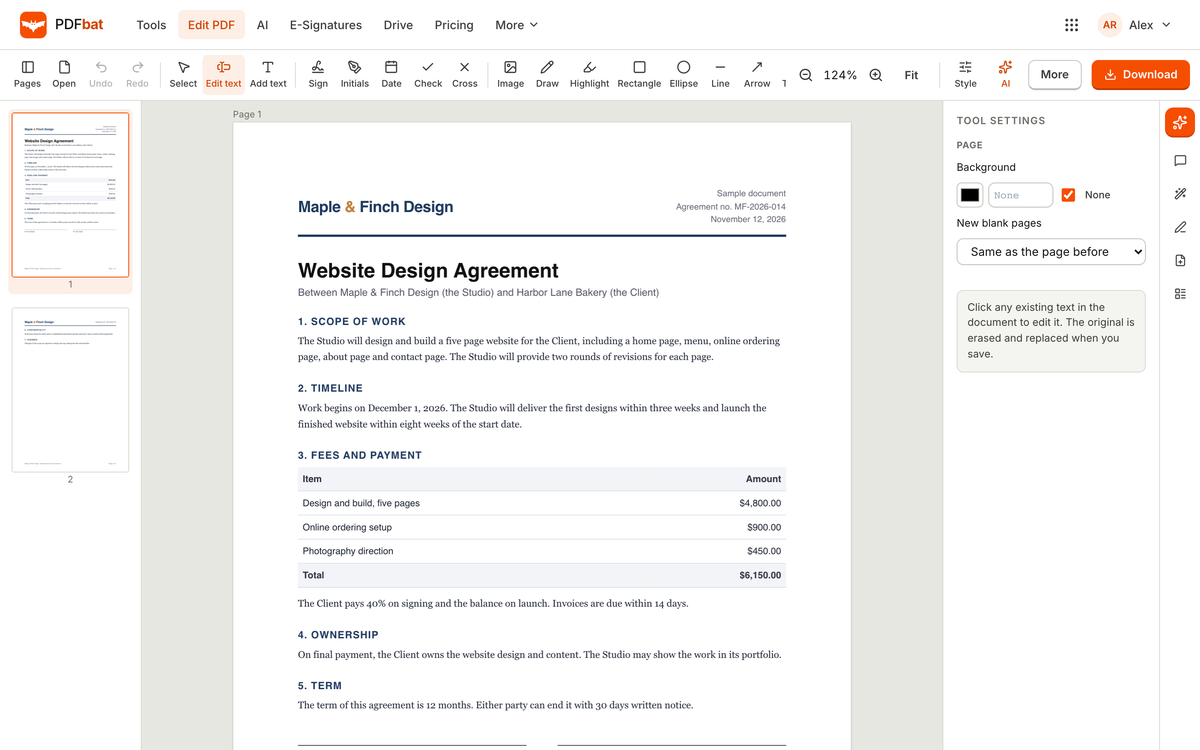
- In the toolbar, select Edit text.
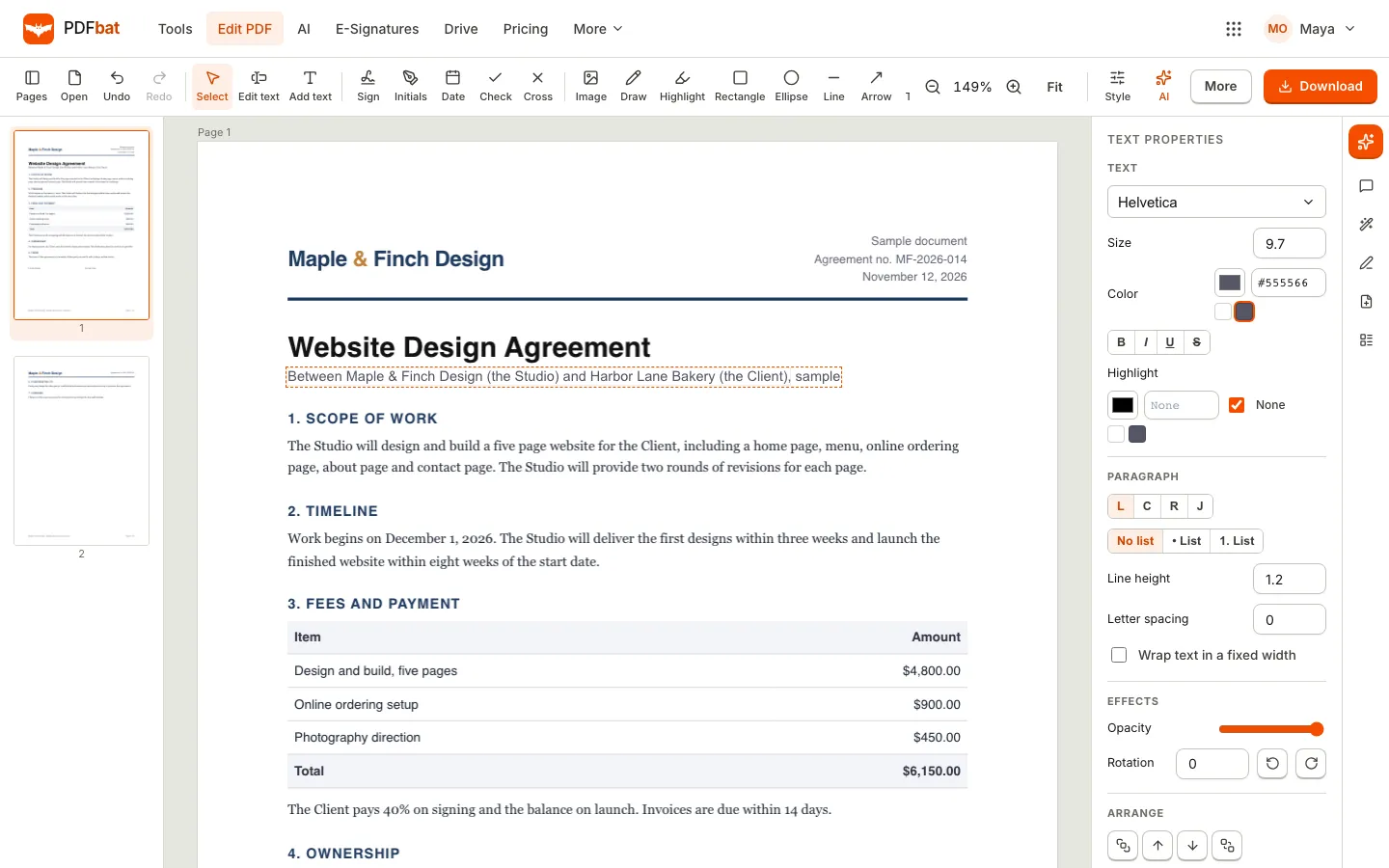
- Click the line you want to change. A dashed box appears around it and the text becomes editable.
- Type your change. Use the arrow keys to move inside the line, and Backspace or Delete to remove words.
- Click outside the box when you are done. Repeat for any other lines.
- Choose Download. When you are signed in, the edited PDF is also saved to your Drive.
Matching the font, size and colour
When you click a line, the Text properties panel on the right shows the font, size and colour PDFbat picked to match the original. Most of the time you can leave these alone. If the new words look slightly different from the rest of the paragraph, adjust them there:
- Font: pick the closest family from the list. Fonts embedded in a PDF are often partial copies that only contain the letters used in the document, so an exact match is not always possible.
- Size and colour: copy them from a neighbouring line if they drift.
- Bold, italic, underline: use the B, I and U buttons for the part you changed.
Adding new text instead of changing old text
To add a sentence that was not there before, choose Add text instead and click where it should go. Drag the side handles to set a width so the text wraps like a paragraph. This is also the way to fill in a blank line on a form that has no fillable fields.
Editing text in other languages and scripts
Editing is harder in some scripts than others. Arabic, Hebrew, Persian and Urdu run right to left and join their letters. Hindi, Tamil, Malayalam, Bengali and Thai combine characters into shapes. Many editors show boxes or broken letters as soon as you type in these scripts.
PDFbat types every language and script, including right to left text, with correct shaping, and the edited text still copies and searches correctly in other PDF readers. If your document mixes English with another script, you can edit both in the same file.
What about scanned PDFs?
A scanned PDF is a photo of a page. There is no text in it to edit, only pixels that look like letters. Clicking with Edit text will not find a line.
You have two options:
- Run OCR first. Optical character recognition finds the letters in the scan and adds a real text layer. PDFbat reads 45 languages and lets you pick a second language for mixed documents. Once the file has text, it can be searched and copied. Our guide to making scanned PDFs searchable with OCR walks through it.
- Cover and retype. For one or two words on a scan, use Whiteout to cover the old words with a white box, then Add text on top in a similar font. This is honest for a scan, because there is no hidden text underneath to leak.
Removing text you should not share
Sometimes the edit is not a correction but a removal: an account number, a home address, a name. Deleting the words with Edit text removes them, but if you need a visible black bar, use the Redact tool instead. Drag over the content, and when you save, the text and images underneath are deleted, not just hidden. A plain black rectangle drawn with a shape tool would leave the text in the file.
A quick checklist before you send the edited PDF
Run through these points before the file goes to a client or an official portal:
| Check | Why it matters |
|---|---|
| Read every changed line aloud | Typos are easy to miss when you only changed a few words |
| Compare the line spacing | A larger font can push a line closer to the one below |
| Search for the old wording | Confirms it is gone, not covered |
| Look at headers and footers | A new text box placed near the bottom can overlap a footer |
| Open the download in another viewer | Your browser's PDF viewer is fine for a quick look |
If the file is going out for signature, do the edits first, then send it. Our guide to sending documents for e-signature covers that part.
Other changes you can make in the same editor
While the file is open, the toolbar has more than text:
- Sign, Initials, Date, Check and Cross to complete a form or agreement.
- Image, Draw, Highlight and shapes for markup.
- Link to make an area clickable, and Comment for a sticky note.
- Table to add a small table, for example a revised price list.
- Pages opens the pages panel to reorder, rotate, duplicate, insert or delete pages.
When you need more, More sends the current file to another tool: request signatures from others, compress, password protect, add a watermark, add page numbers or convert to images.
When converting to Word is still the right call
Editing in place is best for corrections. Convert instead when:
- You will rewrite most of the document.
- You want to reuse the content as a template for future documents.
- The PDF was made from a Word file you no longer have and you need a fully editable source.
In those cases, convert once, keep the Word file in your Drive and edit it in DocsBat, then export a new PDF when it is ready.
Frequently asked questions
Can I edit text in a PDF for free?
Yes. The PDFbat editor, including Edit text, is part of the free plan, and there is no watermark on your files. The free plan has daily limits on tool tasks and a file size limit, and Pro removes the task limit.
Does the old text stay hidden under my edit?
No. With Edit text, the original characters are removed from the page and your new text is written in their place when you save. Searching the downloaded file for the old wording will not find it.
Why can't I click on any text in my PDF?
The file is most likely a scan, which is an image of a page with no real text. Run OCR to add a text layer, or use Whiteout and Add text to cover and retype a few words.
Will the edited text use the same font?
PDFbat matches the original font, size and colour as closely as it can and shows the choice in the Text properties panel, where you can adjust it. Some PDFs embed only part of a font, so a close match is sometimes the best available.
Can I edit a PDF on my phone?
Yes. The editor runs in Safari and Chrome on phones and tablets. On a small screen the pages panel opens as a drawer and the properties open as a sheet at the bottom.