How to convert a PDF to Word and keep it editable
Turn a PDF into an editable Word file, fix the usual layout problems, and learn when it is smarter to edit the PDF directly instead of converting it.
A PDF is designed to look the same everywhere. That is great for sharing a finished document and frustrating when you need to change it. Maybe a client sent last year's proposal as a PDF and you need to update it, or you have a policy document where only the source file was lost.
Converting a PDF to Word gives you a document you can actually rewrite. This guide explains how conversion works, how to get the cleanest result, what to fix afterward, and when you should skip conversion altogether.
What happens when you convert a PDF to Word
A Word document is built from paragraphs, headings, lists and tables that flow from page to page. A PDF is closer to a printed page: every piece of text is placed at a fixed position. Conversion means reading those positioned pieces and rebuilding them as flowing paragraphs, tables and images.
That is why results vary. A simple, text based report usually converts cleanly. A magazine style layout with columns, text boxes and overlapping images is harder, because the converter has to guess how the pieces relate.
Text based PDFs versus scans
There are two very different kinds of PDF:
- Text based PDFs were exported from a program like a word processor. The text is real text that you can select and copy.
- Scanned PDFs are pictures of paper. There is no text inside, only images of text.
You can test this quickly: try to select a sentence. If you can highlight individual words, it is text based. If you can only select the whole page like a photo, it is a scan. Scans need OCR (optical character recognition) before their text can be edited. See make scanned PDFs searchable with OCR.
Converting step by step
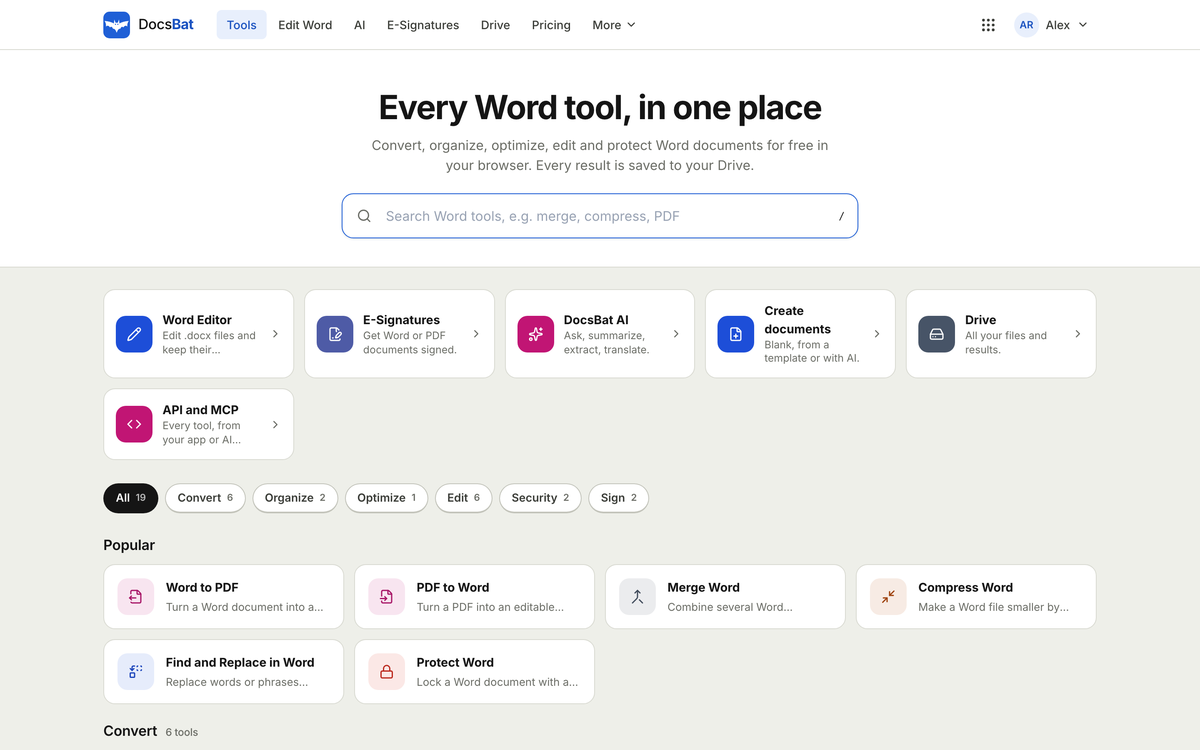
DocsBat includes a PDF to Word tool and an online Word editor, so you can convert and edit in the same place.
- Check the PDF. Make sure it is text based, or run OCR in PDFbat first if it is a scan.
- Run PDF to Word. Upload the PDF and convert it to a .docx file.
- Open the result in the editor. DocsBat edits text, lists, tables, pictures and links in the browser, including on phones.
- Review page by page. Look for the common issues described below and fix them.
- Make your edits. Rewrite, add sections, update numbers.
- Save as .docx or export to PDF. Keep the Word version as your new source file and export a fresh PDF when you need to share.
What to check and fix after conversion
Even good conversions usually need a little tidying. Here is what to look at.
Headings and paragraphs
Check that headings look like headings and body text flows as paragraphs. Occasionally a line break in the PDF becomes a hard paragraph break in Word, so a sentence is split across two "paragraphs." Joining them makes the document easier to edit.
Lists
Bulleted and numbered lists sometimes arrive as plain lines that start with a symbol or number. If you plan to add items, converting them back into real lists will keep numbering correct.
Tables
Tables are the most likely part to need attention. Check that columns line up and that cells did not merge or split in odd ways. Simple tables usually come through well. Complex tables with merged cells may need a few adjustments.
Fonts
If the PDF used fonts you do not have, the Word document may show substitutes. The text is still correct, but line lengths can shift slightly, which might change where pages break.
Images and headers
Make sure images are in the right place and that headers, footers and page numbers appear as you expect.
When not to convert at all
Conversion is the right tool when you need to substantially rewrite a document. But if you only need to fix a typo, update a date or change a name, converting can create more work than it saves.
PDFbat's editor can edit existing text in the PDF itself. It removes the old characters and writes new text in the same position and size, and the result stays searchable and copyable. For small corrections, that keeps the original layout perfectly intact.
| You need to | Best approach |
|---|---|
| Fix a typo or update a date | Edit the PDF directly in PDFbat |
| Remove sensitive information | Use true redaction in PDFbat |
| Rewrite sections, add pages of new content | Convert to Word in DocsBat |
| Reuse a document as a template | Convert once, keep the .docx as master |
| Just copy some text out | PDF to text, or select and copy |
A quick example
A freelance consultant gets a past proposal back from a client as a PDF and wants to reuse its structure for a new project. Since nearly every section will change, they convert it to Word in DocsBat, fix a couple of tables, replace the content, and save the .docx as their new proposal template. Later, a client asks them to correct a single figure in a signed off PDF report. For that, they edit the number directly in PDFbat rather than converting the whole report.
Going back to PDF without breaking the layout
After editing, you will usually want a PDF again for sharing. DocsBat's Word to PDF keeps the layout using metric compatible font twins (for example, Calibri becomes Carlito and Cambria becomes Caladea, which have the same character widths), and keeps lists, tables, pictures, headers, footers and page numbers. Text in every script is supported through Noto fonts.
For more on this side of the process, read Word to PDF without breaking formatting.
A few honest limitations
It is worth being clear about what to expect.
- Complex layouts may need rework. Multi column designs, posters and heavily designed brochures do not map neatly onto flowing Word paragraphs.
- DocsBat works with modern Word files. It edits .docx, .docm and .dotx, but not the old .doc format.
- Edit together from the Drive. Save the converted file to your Drive and invite people; everyone can edit it at the same time.
- Scans depend on OCR quality. Clear, straight, well lit scans give much better text than faded or skewed ones.
Free plan and limits
PDF to Word is one of DocsBat's 17 Word tools. The free plan includes 10 tool tasks a day and files up to 25 MB. Pro and Business allow unlimited tasks and files up to 100 MB, and one plan covers both DocsBat and PDFbat (plus the other OfficeBats apps). Details are on the pricing page.
The short version
- Check first: is the PDF text based or a scan? Run OCR on scans.
- Convert with DocsBat's PDF to Word, then review headings, lists, tables and fonts.
- Keep the converted .docx as your master copy and export fresh PDFs from it.
- For small fixes, edit the PDF directly in PDFbat instead of converting.
- Expect simple documents to convert cleanly and complex layouts to need some work.
Try it with a document you need to update today on DocsBat.