How to accept all tracked changes and remove comments in a Word document online
Turn a reviewed Word file into a clean final copy in your browser: accept every tracked change, delete comments and switch off Track Changes.
A Word document that has been through a review round is full of other people's marks. Red insertions, struck out deletions, comment bubbles in the margin and initials everywhere. Before it goes to a client, a printer or a signature, it needs to become one clean version.
If you do not have Word installed, or you are on a Chromebook, tablet or someone else's computer, this can feel impossible. It is not. This guide shows how to review a marked up .docx and produce a clean final copy in your browser with DocsBat.
Why a clean final copy matters
Sending a document with tracked changes or comments still in it causes real problems:
- It looks unfinished. The reader sees every edit and every internal remark.
- It leaks information. A comment like "can we push them to 30 days?" was meant for a colleague, not the client.
- Deleted text is not gone. In a tracked document, deleted words stay in the file until the change is accepted. Anyone who turns on markup can read them.
- The next person adds more marks. If Track Changes is still on, every later edit is tracked too.
Accepting all changes, deleting comments and turning off tracking solves all four.
Step one: read the review in the editor
Start by reading what your reviewers did. Open the document in the DocsBat editor:
- Open DocsBat, choose Edit Word and pick your .docx, or open it from your Drive.
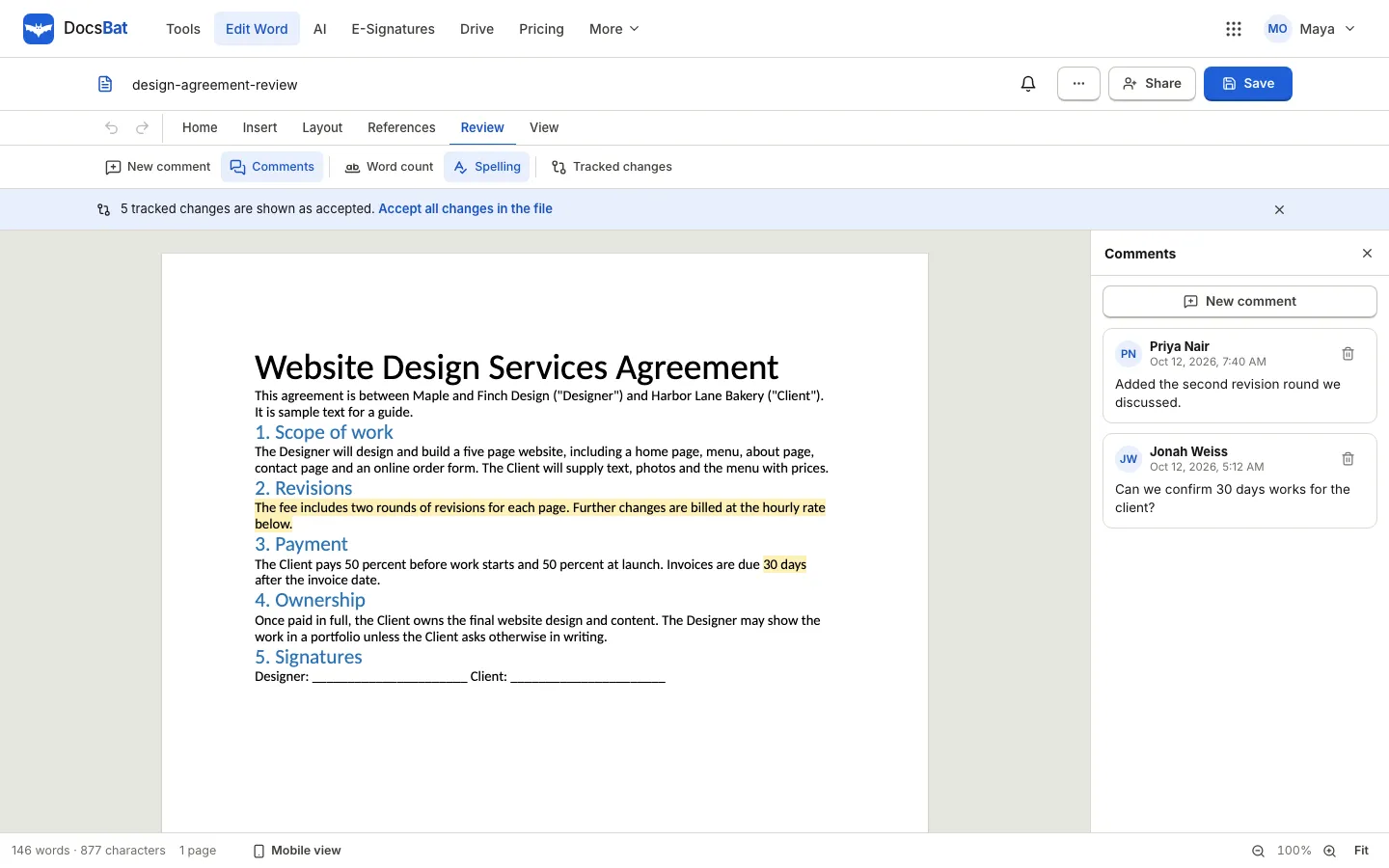
- If the file has tracked changes, a notice under the ribbon says how many and that they are shown as accepted. The document you see is the version you would get after accepting them.
- Open the Review tab and choose Comments to show the Comments panel. Each comment shows its author, date and text, in the order it appears in the document, and the commented text is highlighted on the page.
- Click a comment to jump to the text it refers to.
Answer comments before you remove them
Comments often contain questions that need an answer, not just deletion. Go through them one by one:
- If a comment asks for a change, make it in the text.
- If it is a question for someone else, ask them before you finalize.
- If it is settled, delete it with the bin icon on the comment card.
You can also add your own with New comment, for example to leave a note for the next reviewer. Select the text first, then write the comment.
Step two: produce the clean final copy
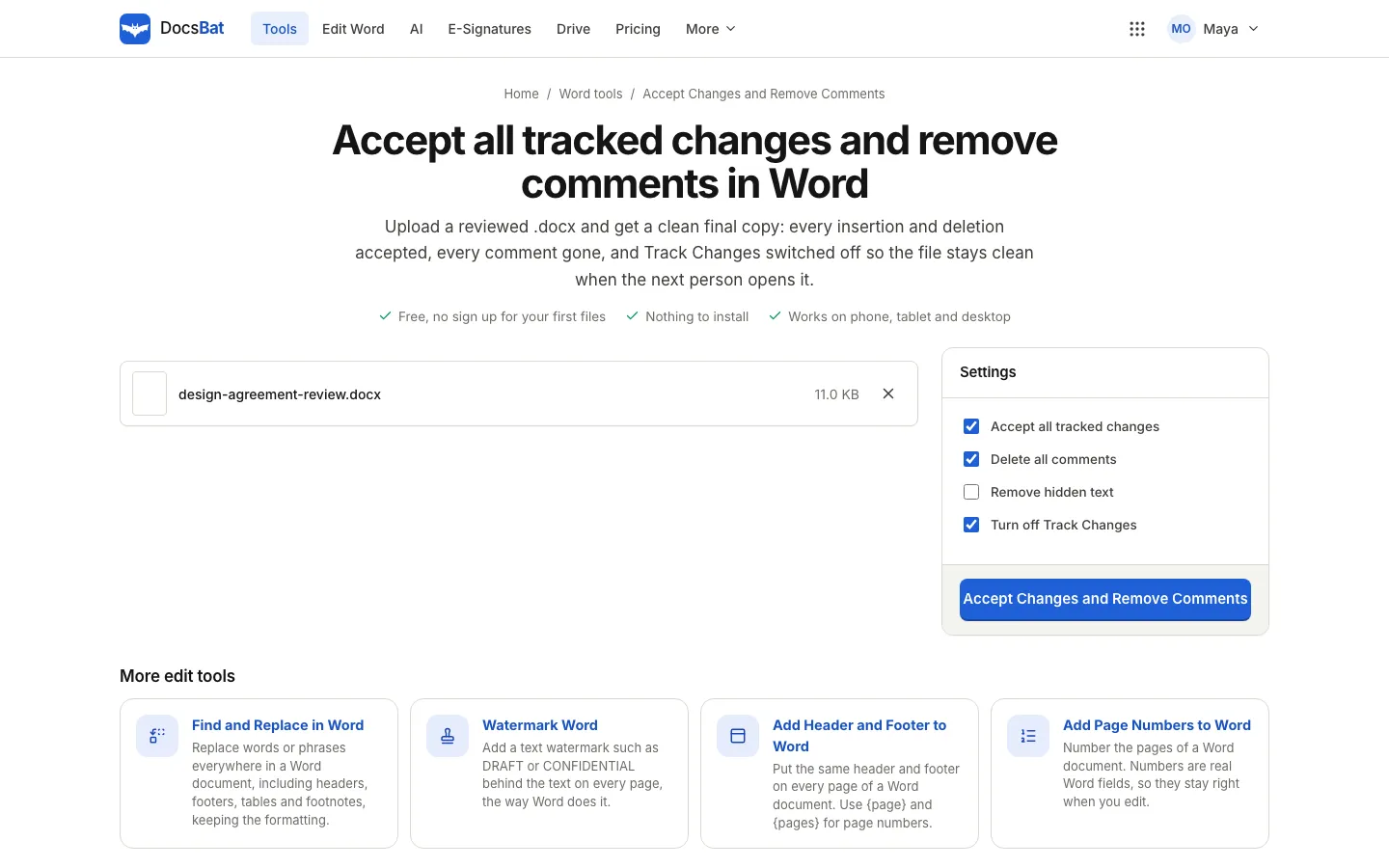
When the review is settled, use the Accept Changes and Remove Comments tool. You can get there from the link in the tracked changes notice (Accept all changes in the file) or from the Word tools list.
- Open Accept Changes and Remove Comments.
- Choose your .docx or drop it on the page. Use the version you just reviewed. If you changed it in the editor, save it first.
- Check the settings:
- Accept all tracked changes: insertions stay, deletions go, and formatting changes are kept as they are now.
- Delete all comments: removes every comment and its marks.
- Remove hidden text: removes text formatted as hidden. Off by default, so turn it on only if you know the file uses hidden text.
- Turn off Track Changes: so the next person who edits the file does not start a new round of marks.
- Choose Accept Changes and Remove Comments.
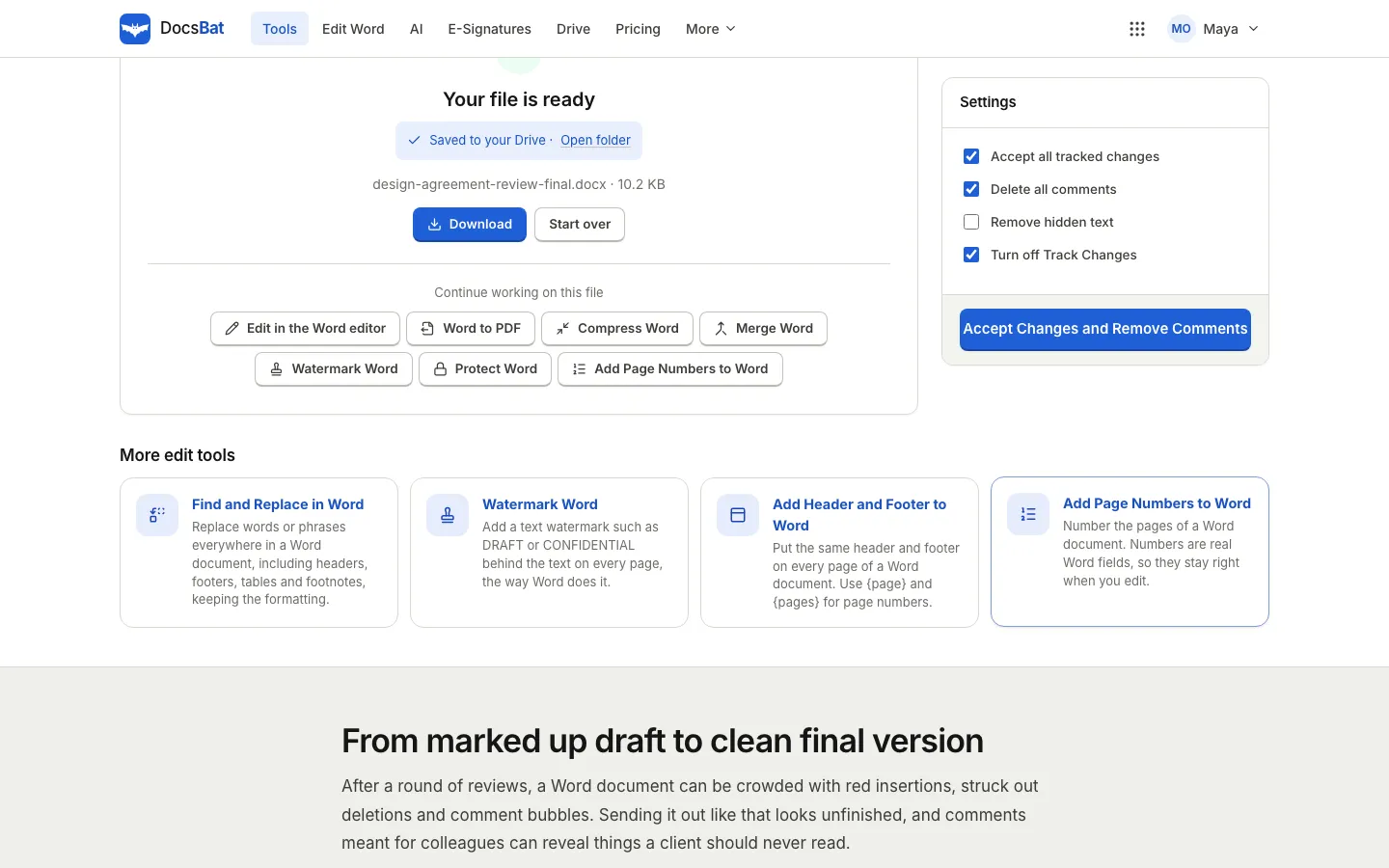
- Download the result. When you are signed in, it is also saved to your Drive with "final" added to the name.
The tool works on the body of the document and also on headers, footers, footnotes and endnotes, where tracked changes are easy to miss.
Step three: check the result
Open the final file in the editor once more:
- The tracked changes notice should be gone.
- Review then Tracked changes should say the document has no tracked changes.
- The Comments panel should be empty.
- Read the paragraphs that had the most edits. Accepting a deletion that ended a paragraph can leave two paragraphs where Word would have merged them, so fix any stray breaks.
Step four: send it in the right format
Decide how the reader should receive it:
- As Word when they will keep editing. Download it as .docx.
- As PDF when it is final. Use Word to PDF from the result screen, or Download as PDF from the editor's File menu. Our guide to Word to PDF without breaking your formatting covers the details.
- For signature when it is an agreement. Convert it to PDF and send it for e-signature in PDFbat, as described in send documents for e-signature.
Other Word tools that help at the end of a review
The same tools page has a few more finishing tools:
| Tool | Use it to |
|---|---|
| Find and Replace in Word | Fix a name or term everywhere, including headers, footers, tables and footnotes |
| Add Page Numbers to Word | Number pages with real Word fields that stay right when you edit |
| Add Header and Footer to Word | Put the same header and footer on every page |
| Watermark Word | Stamp DRAFT or CONFIDENTIAL behind the text |
| Protect Word | Add a password before you send |
Reviewing together instead of in rounds
Tracked changes exist because documents used to travel by email, one person at a time. If your reviewers have OfficeBats accounts, you can skip the rounds: share the document from your Drive, edit it together live, and discuss changes in comments that mention people by name. See how to co-edit a Word document in real time.
Frequently asked questions
Can I accept all tracked changes without Microsoft Word?
Yes. The DocsBat Accept Changes and Remove Comments tool accepts every insertion and deletion in a .docx file in your browser and gives you a clean copy to download.
Does deleting comments remove them completely?
Yes. With Delete all comments on, the comments and the marks that anchor them are removed from the file, not just hidden.
Can I reject tracked changes instead?
The tool accepts changes only. To undo a change you disagree with, open the document in the editor, put the original wording back, and then run the tool.
Will accepting changes affect my formatting?
Formatting changes are kept as they appear now, which is how the document already looks in the editor. Check paragraphs where text was deleted, since a deleted paragraph mark can leave an extra break.
Does the tool work on password protected Word files?
Yes, as long as you know the password. Remove it first with the Unlock Word tool, run Accept Changes and Remove Comments, then add a password again with Protect Word if the final copy needs one.