How to co-edit a Word document in real time without Microsoft 365
Edit the same .docx with your team at the same time in the browser: invite people, see their cursors, comment with @mentions and keep a real Word file.
Emailing a Word file back and forth works until two people edit their own copies at the same time. Then someone has to merge "Proposal v3 final", "Proposal v3 final JW" and "Proposal v4 use this one" by hand, and something always gets lost.
Real time co-editing fixes that: one document, everyone in it at once, every change visible as it happens. You do not need a Microsoft 365 subscription for it. This guide shows how to co-edit a Word document in real time with DocsBat, how sharing and roles work, and the honest limits to know before you rely on it.
What you need
- An OfficeBats account for the owner of the document. A free account is enough.
- The document as a .docx file. DocsBat opens .docx, .docm and .dotx files. Older .doc files need to be saved as .docx first.
- For each person you invite by name, an OfficeBats account. People who open a share link do not need one.
The file stays a real Word document the whole time. It lives in the owner's Drive and is saved back as .docx, so anyone can download it and open it in Word later.
How to start co-editing a Word document
- Open DocsBat, choose Edit Word and open your document from your computer or your Drive.
- Select Share in the top bar.
- If the file came from your computer, DocsBat asks whether to share it. Choose Save and share. The document is saved to your Drive, then opens as a shared document with its own address.
- In the share dialog, type an email address or OfficeBats username, pick a role and select Invite. You can add a short message.
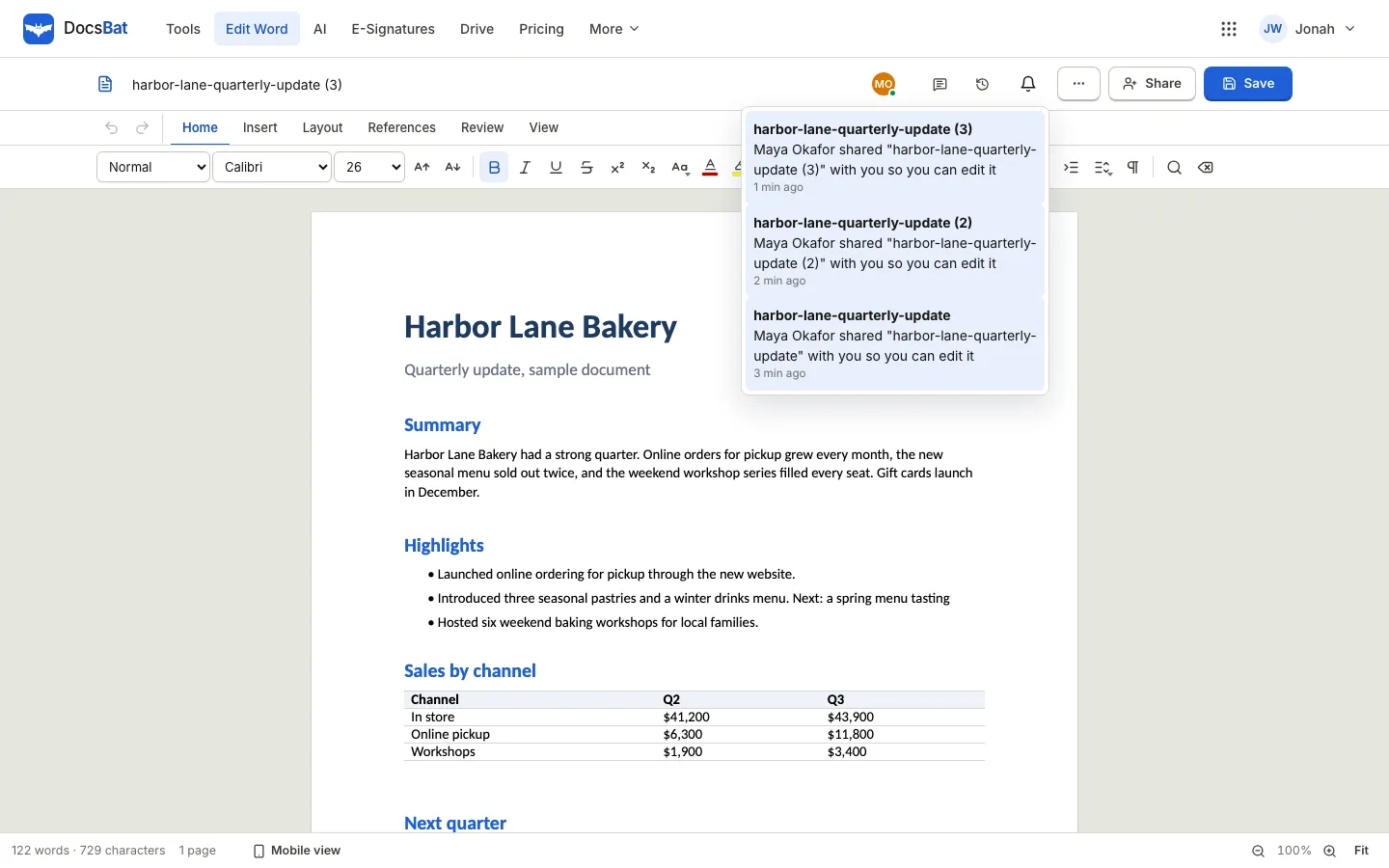
- The person gets an email and a notification in the bell, with a link straight to the document.
If the document is already in your Drive, it becomes shared as soon as you open it, and the Share button goes straight to the dialog.
Choosing roles
Each person gets one of three roles. You can change a role or remove someone at any time from the same dialog, and the change applies to their open window at once.
| Role | Can do |
|---|---|
| Can view | Read the live document and download it as Word or PDF |
| Can comment | Everything above, plus add, reply to and resolve comments |
| Can edit | Everything above, plus change the text and invite others |
The owner is the only one who can turn the share link on or off.
Sharing with a link
Under Share link, choose Anyone with the link: can view, can comment or can edit, then Copy link. People who open the link do not need to be added or have an account, and they get exactly the role the link allows. Turn the link off at any time and it stops working. A link guest can never become an owner or share the document further.
What co-editing looks like in practice
Once two or more people are in the document:
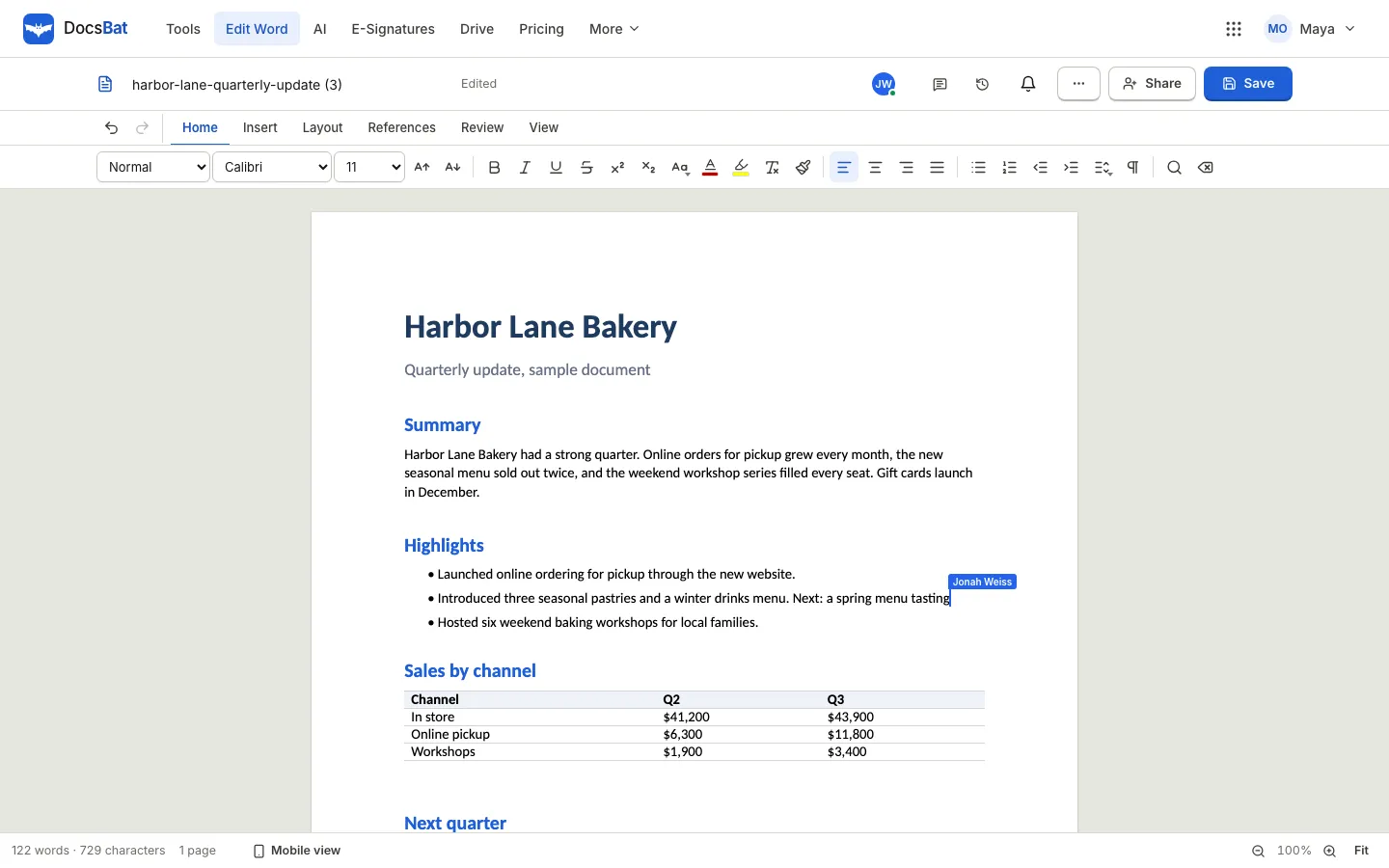
- Avatars at the top show who is in the document right now.
- Named carets show where each person is typing, in their own colour.
- Changes merge as you type. Two people can type in the same paragraph, and both edits are kept.
- Undo is personal. Ctrl or Cmd plus Z undoes your own changes, not someone else's.
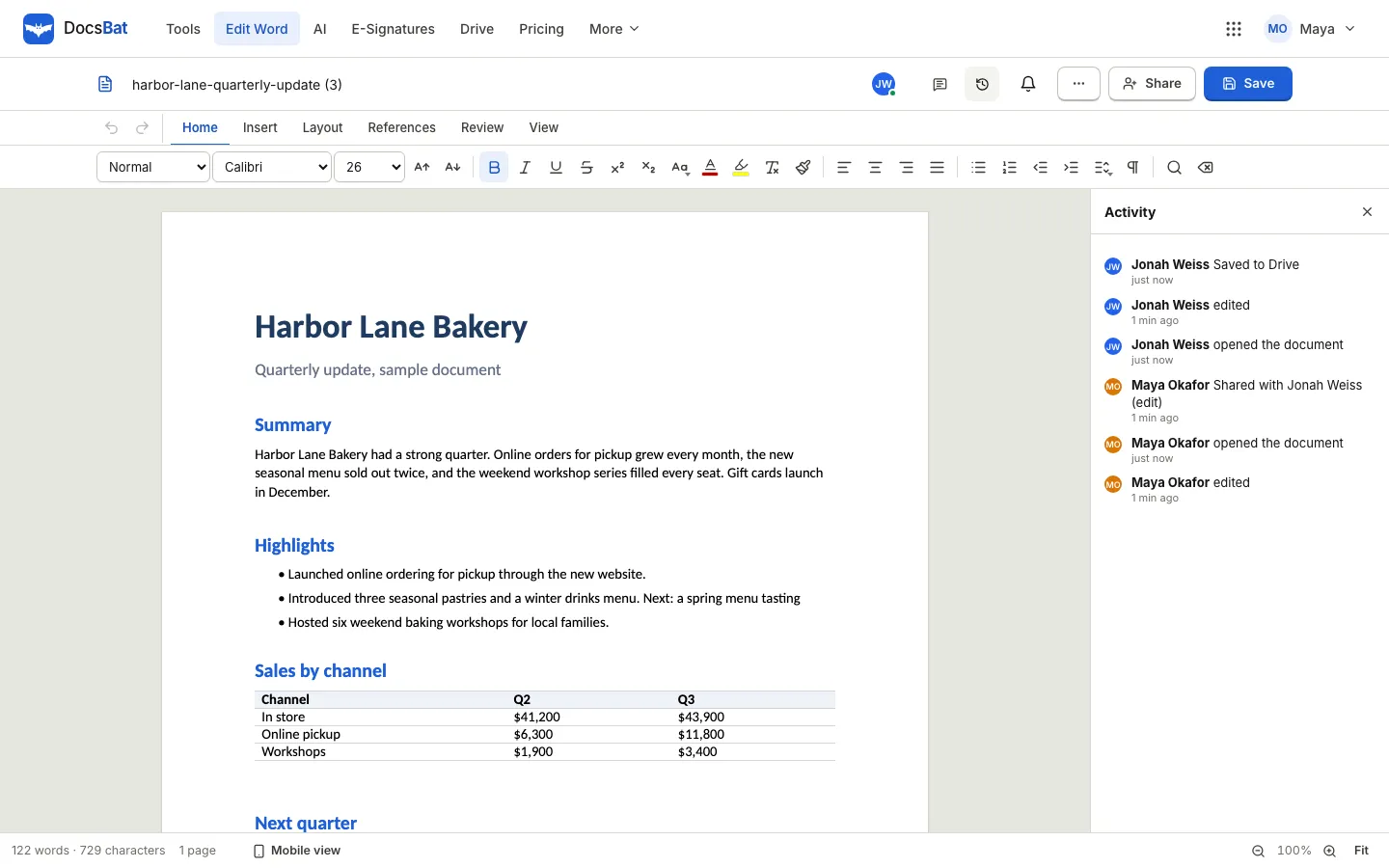
- Activity lists who opened, edited, shared and saved the document.
Comments and @mentions
Use the comments button in the top bar to open the discussion for the document. Type @ in a comment to mention someone who can open the document. They get a notification in the bell, and replies and resolved threads update for everyone live. We cover this way of working across all the apps in comment and mention teammates in documents.
Notifications
The bell collects invitations, mentions and access requests. If someone signed in opens a document they cannot access, they can ask for access. The owner gets an email and a notification, and can allow or decline the request in the share dialog.
How saving works
You do not need to coordinate saves:
- The document is saved to the owner's Drive file automatically a few seconds after an editor stops typing.
- Anyone who can edit can also select Save at any time.
- Anyone who can view can download the current version as Word or PDF from the File menu.
If the Drive file changes outside the shared document, the next time the document opens it starts fresh from that file, and everyone in it reloads. That way nobody keeps editing an old copy.
Honest limits
Live co-editing in DocsBat covers the text and layout people change most. A few parts sync differently, and it is worth knowing them:
- Footnotes and Word comments sync as whole lists. If two people edit footnotes at the same moment, the last change wins. Agree who handles footnotes, or take turns.
- Moving a block by drag and drop re-adds it in the new place. If someone is typing in that same block at that moment, their typing can be lost. Move blocks when nobody else is editing them.
- Very complex layouts made in desktop Word, such as text boxes anchored in unusual ways, are best checked in the downloaded file before you send it.
For most documents, such as proposals, reports, policies, minutes and agreements, these never come up.
A simple workflow for a team document
- The owner creates the document, either blank, from a template, or from an AI draft. See write a business proposal in Word with AI for that last option.
- Invite reviewers with Can comment and co-authors with Can edit.
- Co-authors write their sections at the same time. Reviewers leave comments and @mention the author of each section.
- The owner resolves the last comments and saves.
- Download as PDF for the final version, or send it for signature.
If your document arrives with tracked changes from someone working in desktop Word, clean it up first with the steps in accept all changes and remove comments in Word.
Frequently asked questions
Can I co-edit a Word document without Microsoft 365?
Yes. DocsBat lets several people edit the same .docx at the same time in the browser, with an OfficeBats account for the owner and for each invited person. The file stays a normal Word document you can download.
Do the people I invite need an account?
People you invite by email or username need an OfficeBats account, and a free one is enough. People who open a share link do not need an account and get the role the link allows.
Can two people type in the same paragraph?
Yes. Changes merge character by character, so both people's typing is kept. Each person also has their own undo.
Is co-editing included in the free plan?
Sharing, live co-editing, comments and the activity feed work on the free plan. Plans differ in things like storage and AI credits.
How do I stop sharing a document?
Open Share, remove the person or turn the share link off. Their access ends at once, including any window they have open.