How to write a one page memo with a letterhead
Write a clear one page business memo with a professional letterhead: the right structure, an AI first draft, your logo, and PDF or Word export.

A memo is the shortest serious document most teams write. It announces a decision, a change or a plan, and it should be read in two minutes. When it looks official, with a letterhead, a clear To and From block and a subject line, people take it seriously and file it properly.
This guide covers what goes into a good one page memo and how to write one with a letterhead in SlidesBat, which makes memos as well as presentations. You can start from a template or let AI write the first draft, then export to PDF or Word.
The structure of a one page memo
Almost every business memo uses the same frame:
| Part | What it holds |
|---|---|
| Letterhead | Company name, logo, tagline and address |
| Heading block | To, From, Cc, Date and Subject |
| Opening | The point in one or two sentences |
| Body | The details, in short sections or a small table |
| Next steps | Who does what, by when |
| Footer | Page number, confidentiality note if needed |
The opening matters most. If someone reads only the first two lines, they should know what changed and what they need to do.
Keep it to one page
One page forces choices. A few habits help:
- Lead with the decision, not the background.
- Use short headed sections instead of long paragraphs.
- Put comparisons in a small table, such as before and after.
- Move long detail to an attachment or a link.
- End with dates and owners, not a summary of what you just said.
Option one: let AI write the first draft
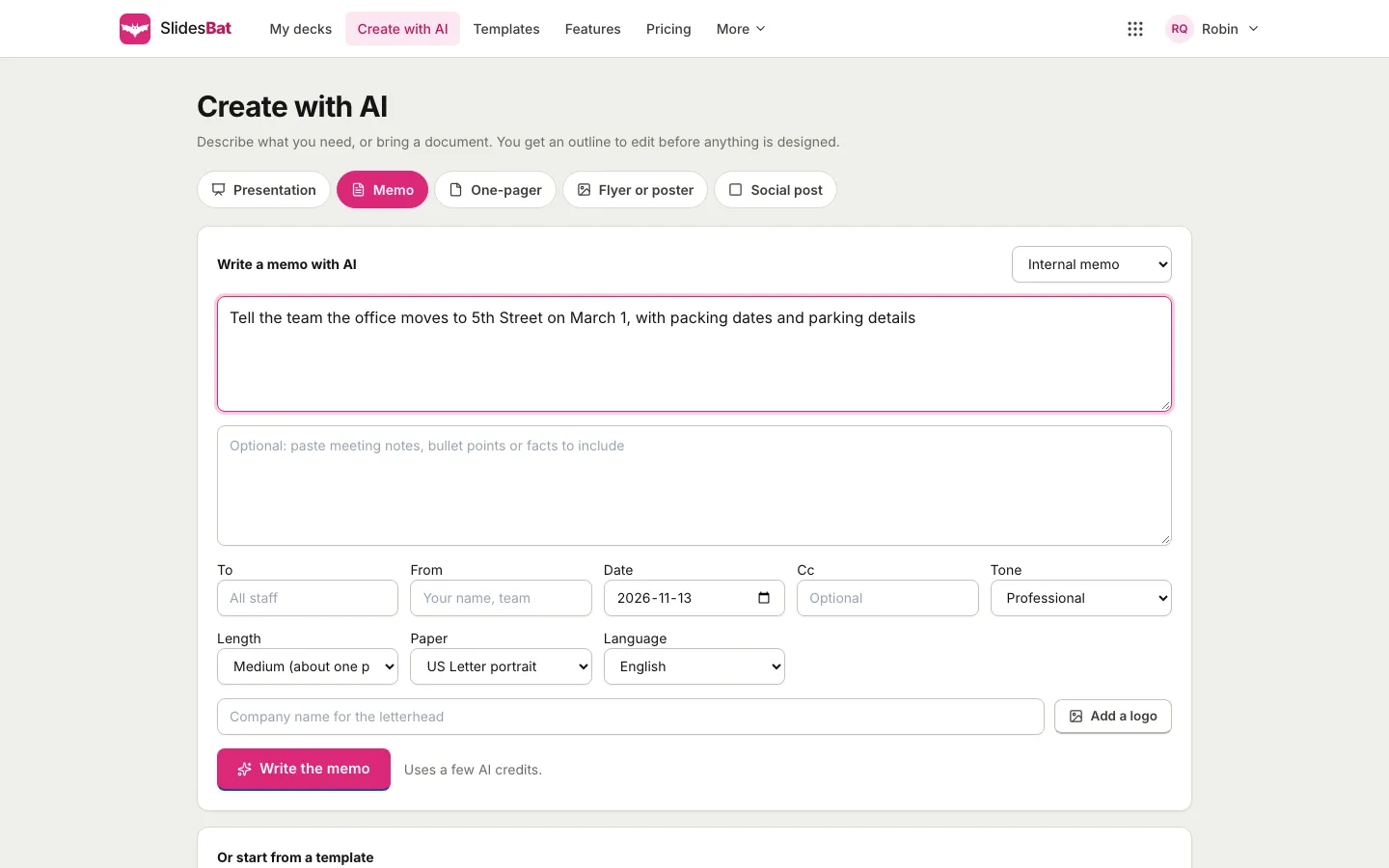
- Sign in to SlidesBat and open Create with AI.
- Choose the Memo tab.
- Pick a memo type in the top right: Internal memo, Policy update, Meeting summary, Project status, Announcement, Incident report, Decision memo, Investor update, Board memo or Welcome memo.
- In the main box, say what the memo is about. For example: "Tell the team the office moves to 5th Street on March 1, with packing dates and parking details".
- Optionally paste meeting notes, bullet points or facts in the second box. The memo uses them, which is the best way to make sure the details are right.
- Fill in To, From, Date and Cc.
- Choose the Tone, the Length and the Paper (US Letter or A4) and the Language. For one page, choose Medium (about one page).
- Type the Company name for the letterhead and press Add a logo to upload yours.
- Press Write the memo. It uses a few AI credits, and the memo opens in the memo editor.
Option two: start from a template
If you prefer to write it yourself, scroll down on the Memo tab to Or start from a template. Templates are free, need no AI, and are fully editable. There is one for each memo type, with a matching letterhead style and a structured sample body that shows where each part goes.
Set up the letterhead
In the memo editor, the Letterhead panel on the right controls the top of every page:
- Company, Tagline and Address: the text in the letterhead.
- Add logo: upload your logo image.
- Style: Classic, Colour band, Centered, Minimal or Side bar.
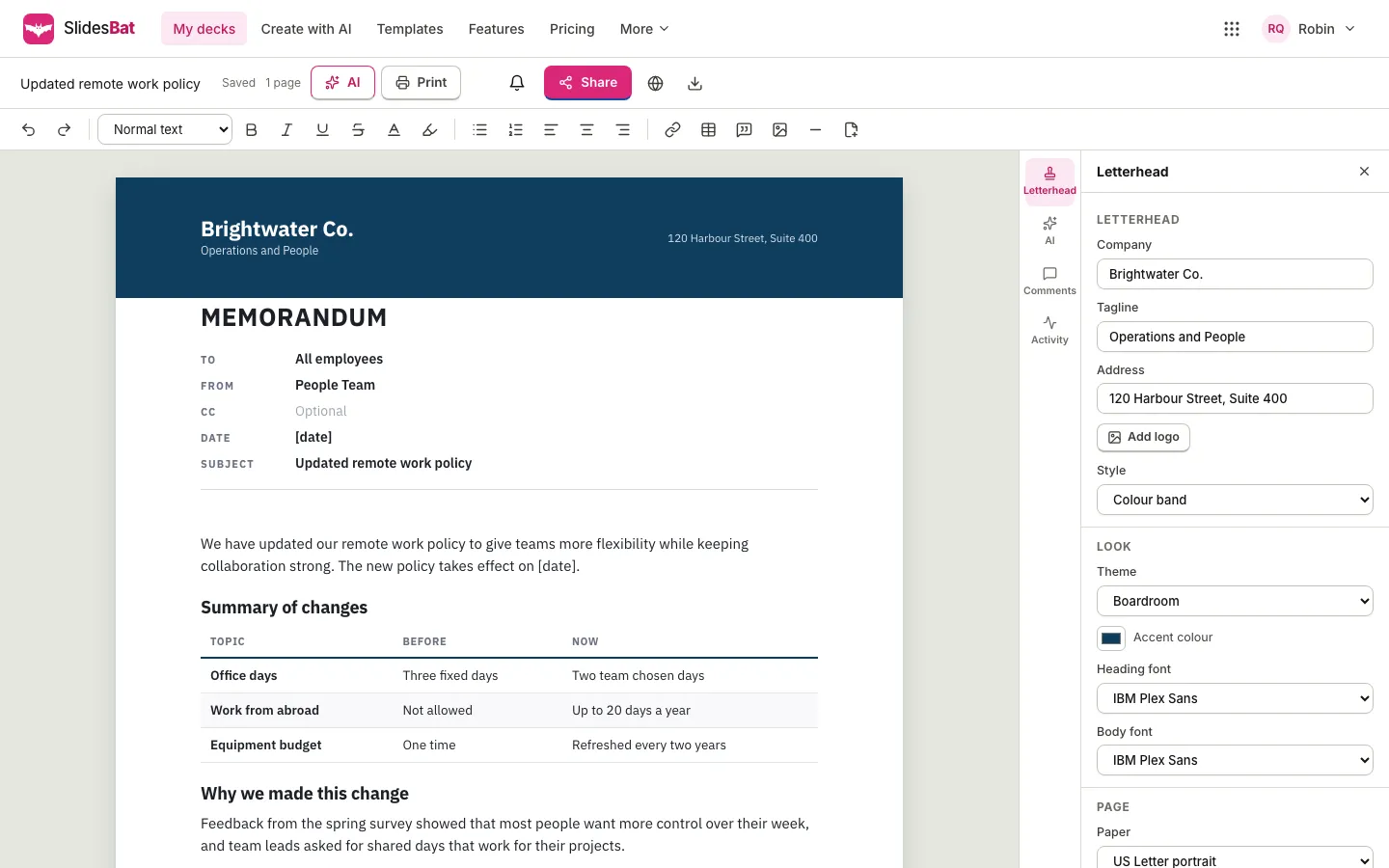
Below it, Look sets the theme, the accent colour and the heading and body fonts, and Page sets the paper, the margins (narrow, normal or wide) and the footer. You can turn on page numbers, add footer text, mark the memo as confidential, and show or hide the To, From, Date and Subject block.
Edit the text
The memo editor works like a word processor: headings, bold and italic, lists, alignment, links, tables, callouts and page breaks. Long memos flow onto new pages, with the letterhead footer and page numbers on each.
To rework a passage with AI, select it and open AI. Quick actions include More formal, Friendlier, Shorter, Expand, Fix grammar, Bullet points and Add next steps, or you can type an instruction of your own. Only the part you selected changes.
Check before you send
- Facts: every date, address, number and name. Anything the AI could not know should come from your notes.
- Placeholders: replace anything in square brackets, such as [date].
- The first two lines: do they say what changed and what people need to do?
- Length: if it runs onto a second page, cut background before you cut details people need.
- The heading block: To, From, Date and Subject all filled in.
Share and export
When the memo is ready:
- Download it as a PDF for email or printing, or as Word (.docx) if someone needs to edit it in a word processor.
- Print it straight from the editor.
- Share it with colleagues to review. They can comment, and @mentions notify the people you name.
On the Free plan, exported memos carry a small "Made with SlidesBat" line in the footer, and Pro removes it.
Memo or something else?
A memo is right for one decision or change that a group needs to know about. If you need to persuade outside readers with a full argument and pricing, write a proposal instead; see how to write a business proposal with AI. If you will present the change in a meeting, turn the memo into a few slides with Create with AI from a document. For longer documents that colleagues edit together, edit Word documents online in DocsBat.
A sample one page memo outline
For an office move, a one page memo might read:
- Subject: Office move to 5th Street on March 1.
- Opening: We move to 5th Street on Monday, March 1. The current office closes at 3 pm on Friday, February 26.
- Packing: dates for each team, where crates are and what to label.
- Getting there: the address, parking options and the nearest transit stop.
- What changes: a small table of before and after, such as desks, meeting rooms and access cards.
- Next steps: owners and dates for IT, keys and the first day.
That fits on one page with room to spare, and every reader knows what to do by the end of the second line.
Frequently asked questions
How do I write a memo with a letterhead?
In SlidesBat, open Create with AI, choose Memo, add the company name and logo for the letterhead, and press Write the memo. Or start from a free memo template. You can then change the letterhead style, fonts and colours in the Letterhead panel.
What should a one page memo include?
A letterhead, a To, From, Date and Subject block, an opening that states the point, short sections with the details, and next steps with owners and dates.
Can I export a memo to Word or PDF?
Yes. Download the memo as a PDF or as a Word (.docx) file, or print it straight from the memo editor.
Do memo templates need AI credits?
No. Memo templates are free, need no AI and are fully editable. AI credits are only used when AI writes or rewrites text.
Which letterhead styles are there?
Classic, Colour band, Centered, Minimal and Side bar, each with your company name, tagline, address and logo.