How to use presenter view with speaker notes in the browser
Present from your browser with speaker notes only you can see: write notes, open presenter view, use the timer and run the show from a phone.
Speaker notes are the difference between reading your slides aloud and actually presenting. The audience sees a clean slide; you see what you planned to say, what comes next and how long you have been talking.
This guide shows how to write speaker notes and present with them in SlidesBat, the OfficeBats presentation app that runs in your browser. You will set up two windows, one for the room and one for you, learn the keyboard shortcuts, and see how to run the show from a phone.
What presenter view shows
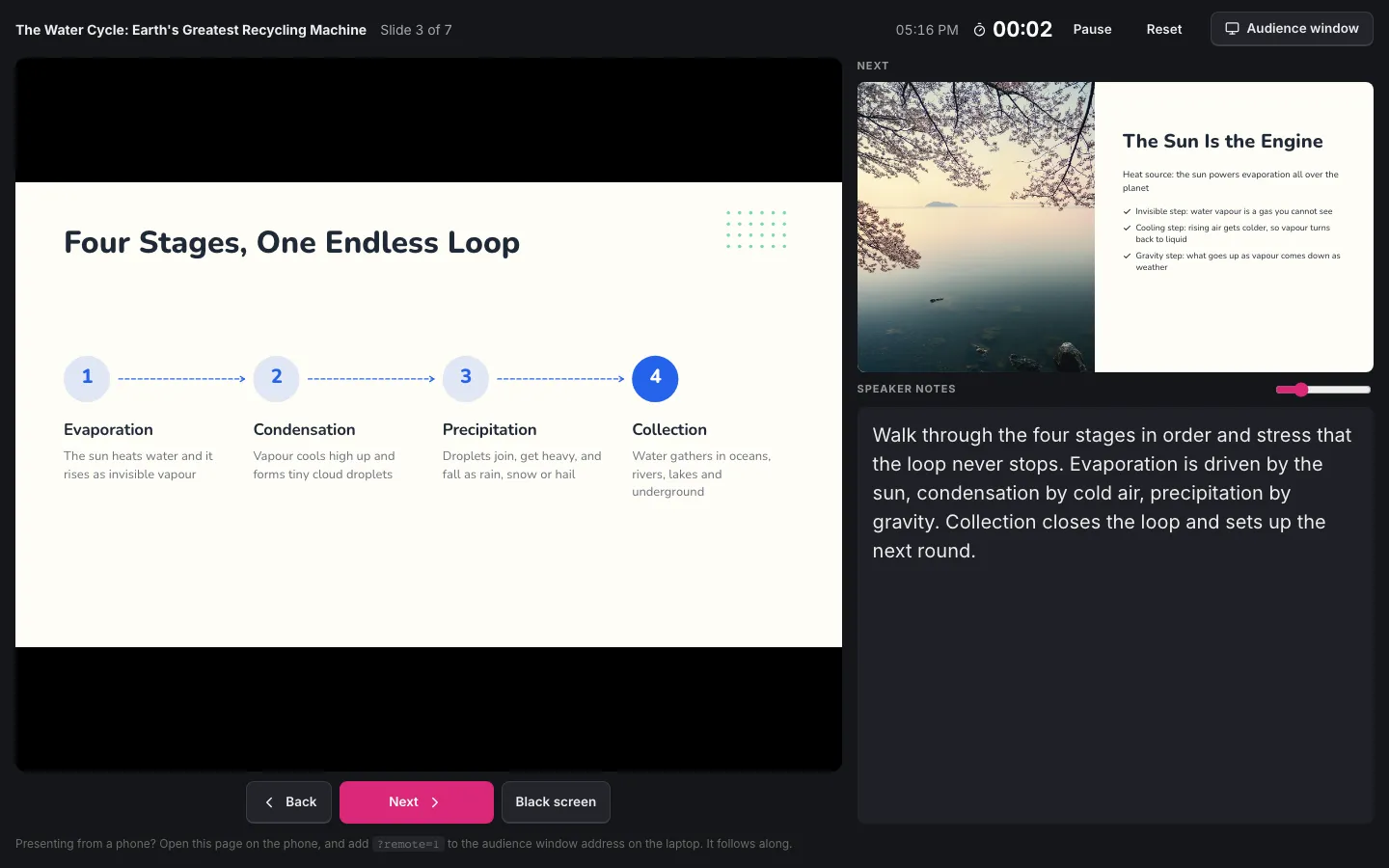
Presenter view is a private window for the speaker. In SlidesBat it shows:
- The current slide, large on the left.
- The next slide, so you can set up the transition in your own words.
- Your speaker notes, with a slider to make the text bigger or smaller.
- The slide number, such as "Slide 3 of 7".
- The clock and a timer, with Pause and Reset.
- Back, Next and Black screen buttons.
- Audience window, which opens the full screen show for the room.
The audience window shows only the slides. The two windows stay in step, so moving forward in one moves the other.
Step 1: write your speaker notes
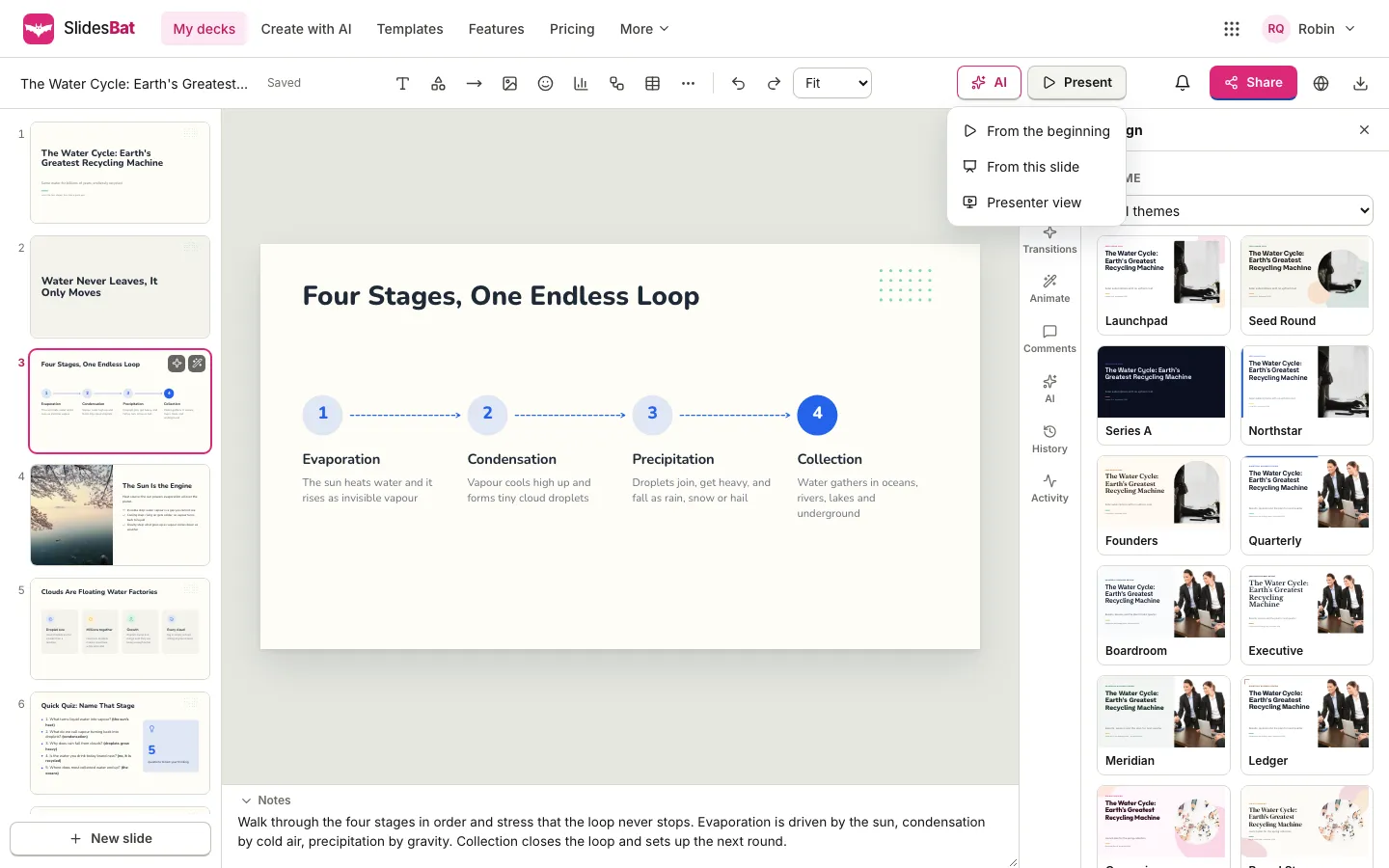
Open your deck in the SlidesBat editor. Under the slide is a box labelled Notes, with the placeholder "Speaker notes: what you will say on this slide". Click into it and type. Notes save with the deck, and the Notes label folds the box away when you want more room for the slide.
Good notes are short prompts, not a script. A useful pattern for each slide:
- The point: one sentence you want the audience to remember.
- The proof: the number, example or story that supports it.
- The bridge: how you get to the next slide.
For example, on a slide about the water cycle: "Four stages, one loop. Sun drives evaporation, cold air condensation, gravity precipitation. Collection closes the loop: on to the sun."
Let AI draft the notes
If you made the deck with AI, it usually arrives with notes already written. For a deck you built by hand, open AI in the editor and choose Write speaker notes. It is one of the quick actions for the current slide, and there is a Write speaker notes button under Whole deck for every slide at once, then edit the notes into your own voice. AI actions use credits from your OfficeBats wallet.
Step 2: open presenter view
- In the editor, select the slide you want to start from.
- Press Present in the top bar. The menu offers From the beginning, From this slide and Presenter view.
- Choose Presenter view. It opens in a separate window.
- In presenter view, press Audience window to open the slide show for the room.
- Drag the audience window to the projector or second screen and make it full screen with the F key.
If you are already in the audience slide show, press Shift and P to open presenter view from there.
On a single screen
With one screen, for example when sharing a window in a video call, share the audience window only and keep presenter view on your own screen beside it. Your notes stay private because they are never part of the shared window.
Step 3: present
Use whichever controls suit you:
| Action | In presenter view | In the audience window |
|---|---|---|
| Next slide or animation step | Next, Right or Down arrow, Space, Enter, Page Down | The same keys, N, or a click on the slide |
| Previous | Back, Left or Up arrow, Page Up | The same keys, Backspace, P, or a click on the left quarter |
| First or last slide | Home or End | |
| Go to a slide | Type its number and press Enter | |
| Black screen | Black screen | B or full stop; W or comma for white |
| Laser pointer | L | |
| All slides | G or O | |
| Full screen | F | |
| End the show | Esc |
Most presentation clickers send the arrow or Page Up and Page Down keys, so they work without any setup. On a touch screen, swipe left or right in the audience window.
Use the timer
The timer starts when presenter view opens. Press Reset just before you begin, and Pause if there is a break or a question session you do not want to count. If you have a strict slot, divide it by your slide count before the talk and check the timer as you go.
Black screen for discussion
When the conversation moves away from the slides, press Black screen. The room's attention comes back to you, and pressing it again brings the slide back.
Present from your phone
You can run the show from a phone instead of a laptop:
- Open presenter view on your phone, signed in to the same OfficeBats account.
- On the laptop connected to the projector, open the audience window and add
?remote=1to the end of its address. - Use Next and Back on the phone. The audience window follows along, and Black screen works too.
Presenter view reminds you of this at the bottom of the page, so you do not need to memorise it.
Notes when you export or share
Speaker notes travel with the deck:
- PowerPoint: when you download as .pptx, speaker notes are kept on each slide, so presenter mode in PowerPoint shows them too.
- Sharing: people you invite with edit access see and can edit the notes. Use comments with @mentions to ask a colleague to review a slide's notes.
A checklist for the day
- Notes on every slide, read aloud once.
- Presenter view and audience window both open, audience on the right screen.
- Timer reset just before you start.
- Clicker tested on Next, Back and Black screen.
- A PDF or PowerPoint copy downloaded, in case the venue's network fails.
If you are still building the deck, start with how to make a presentation from a Word document with AI, and make your numbers easy to read with an editable chart. For a written follow up after the talk, see how to write a one page memo with a letterhead.
Frequently asked questions
How do I see my speaker notes while presenting in the browser?
In the SlidesBat editor, choose Present and then Presenter view. It opens a private window with your notes, the next slide and a timer. Press Audience window to open the slide show for the room on the other screen.
Can the audience see my speaker notes?
No. Notes appear only in presenter view and in the editor. The audience window shows the slides alone, so share or project only that window.
Can I control the slides from my phone?
Yes. Open presenter view on the phone, then add ?remote=1 to the address of the audience window on the laptop. The audience window follows the phone's Next, Back and Black screen.
Are speaker notes kept when I export to PowerPoint?
Yes. The PowerPoint (.pptx) export keeps the speaker notes on each slide.
Can AI write speaker notes for me?
Yes. Open AI in the editor and choose Write speaker notes for one slide or the whole deck, then edit them in your own words. It uses AI credits.