Make a presentation from a Word document with AI
Turn a Word document, PDF or notes into an editable slide deck with AI: upload the file, review the outline, pick a theme, then export to PowerPoint.

You already wrote the report. Now someone wants slides. Copying headings into a blank deck, trimming paragraphs into bullets and hunting for layouts can eat an afternoon, and the result often drifts away from the numbers in the document.
A better way is to let AI read the document, propose an outline that you edit, and only then design the slides. This guide shows how to do that in SlidesBat, the presentation app in OfficeBats, using a sample one page quarterly update for a bakery as the source.
What you need
- A document: a Word file (.docx), a PDF, a Markdown or plain text file, or a PowerPoint file. You can also paste text.
- A free OfficeBats account. Reading your document costs nothing. Writing the outline and the slides uses AI credits, and new accounts get 2,500 welcome credits once the email address is confirmed.
- Five minutes to review the outline. This is the step that makes the deck yours.
Step 1: open Create with AI and choose Presentation
- Sign in to SlidesBat and choose Create with AI in the top bar.
- Keep the Presentation tab selected. The other tabs make a memo, a one-pager, a flyer or poster, or a social post from the same kind of brief.
- In the large box, write a one line brief that says what the deck is for. For example: "A 7 slide quarterly update for the bakery team, based on this report".
The brief matters even when you add a document. The document supplies the facts; the brief tells the AI who the slides are for and what they should achieve.
Step 2: add your Word document
Under the examples you will see three ways to bring in a document:
- Upload a document: drop a .docx, .pdf, .md, .txt or .pptx file onto the button.
- From Drive: pick a document you already keep in your OfficeBats Drive.
- Paste text: paste notes, an article, a report or an outline into a box.
Once the file is read, it appears as a small card with its name and length in characters, and a message confirms that the deck will follow its content. If you added the wrong file, remove it with the cross and try again.
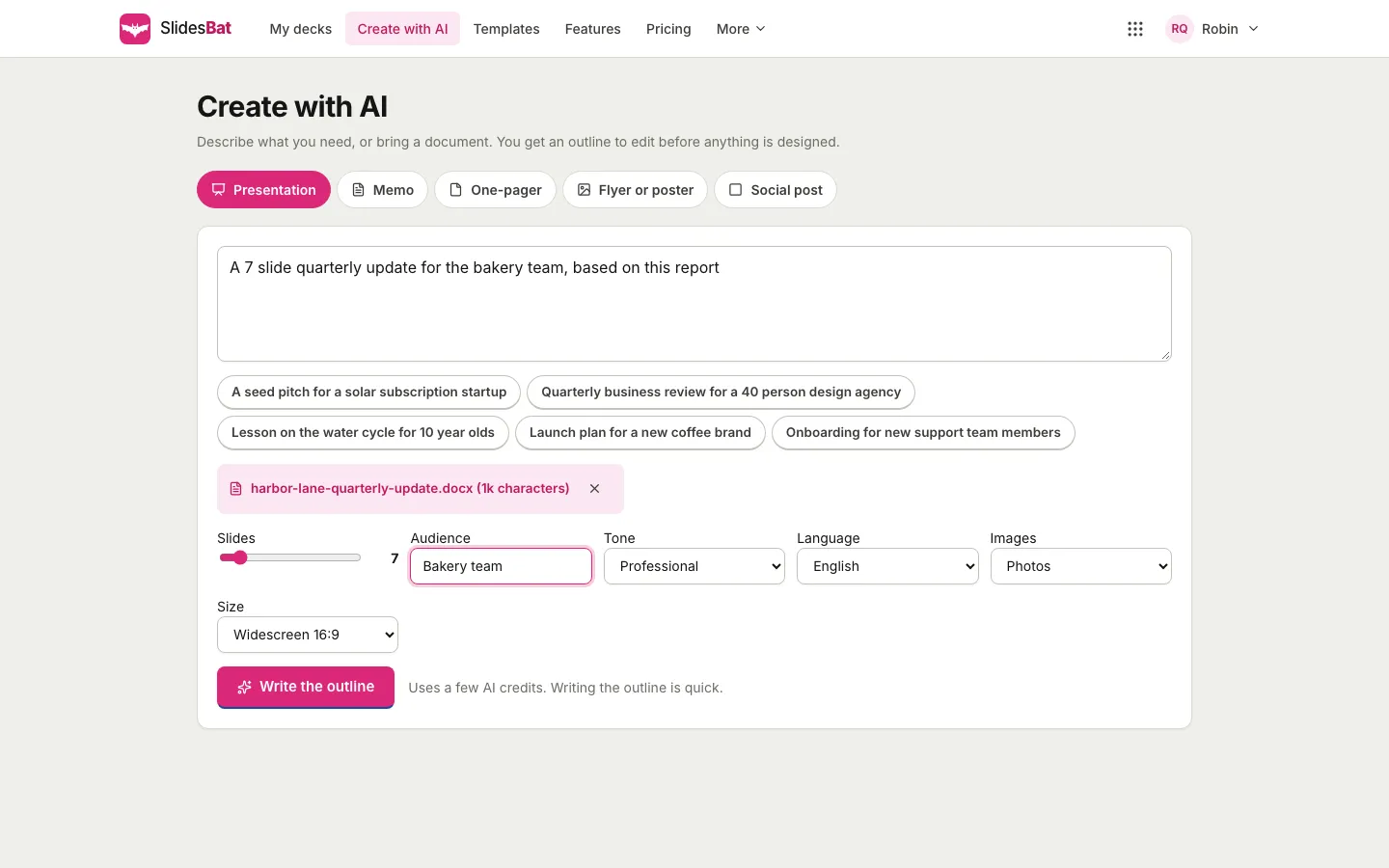
Step 3: set the options
Below the document are the settings that shape the outline:
| Setting | What it does |
|---|---|
| Slides | How many slides, from 3 to 40 |
| Audience | Who will watch, such as "Bakery team" or "Investors" |
| Tone | Professional, friendly, bold, inspiring, persuasive, academic, casual or concise |
| Language | Eighteen languages, from English and Spanish to Japanese and Arabic |
| Images | Photos, minimal photos, illustrations or no images |
| Size | The slide size, such as widescreen 16:9 |
Pick a slide count that fits the time you have. A rough rule is one slide per one or two minutes of talking.
Step 4: write and edit the outline
Press Write the outline. SlidesBat reads the brief and the document and proposes a title and one card per slide. The instruction to the AI is to keep the document's facts, structure and numbers, so figures such as sales by channel come across as they are in the report.
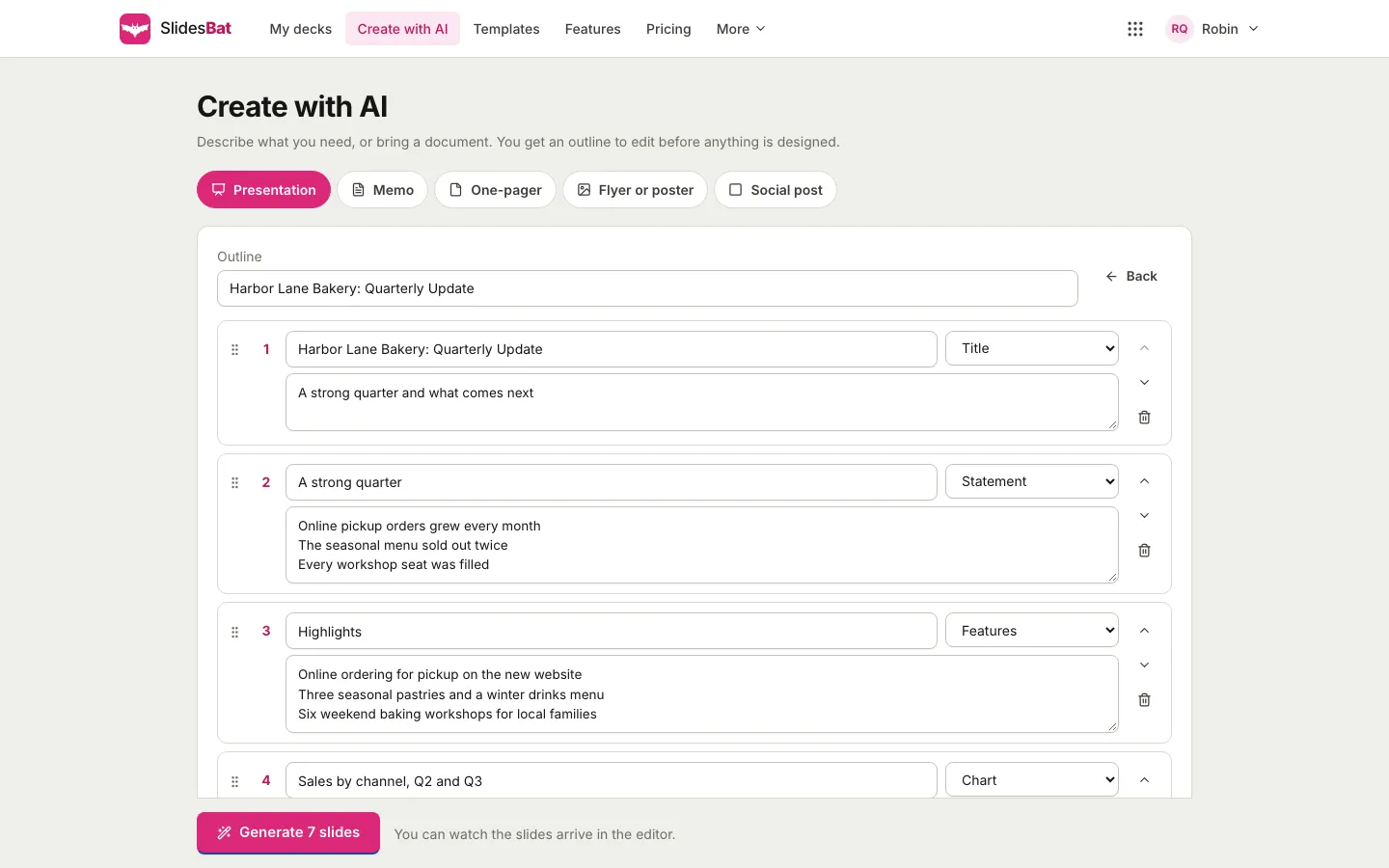
Now make it yours. On each card you can:
- Change the title so it states the point of the slide, not just the topic. "Online pickup is our fastest growing channel" beats "Sales".
- Edit the points, one per line. Keep them short; you will say the rest.
- Choose a layout, such as Title, Statement, Features, Chart, Key numbers, Timeline or Closing. A slide of numbers usually works better as Chart or Key numbers than as a bullet list.
- Reorder slides by dragging the handle or using the up and down arrows.
- Remove a slide with the bin, or press Add a slide at the bottom.
You can also edit the deck title at the top, or press Back to change the brief and start again.
Pick a theme
Next to the outline is the theme list, with a Suggested label on the theme the AI picked for your topic. Filter by category or choose any theme you like. Every theme includes a full set of layouts, and you can change themes later in the editor without rewriting anything.
Step 5: generate the slides
Press Generate, followed by the number of slides. SlidesBat opens the editor and you can watch the slides arrive one by one, with layouts, images that match your image setting, and speaker notes.
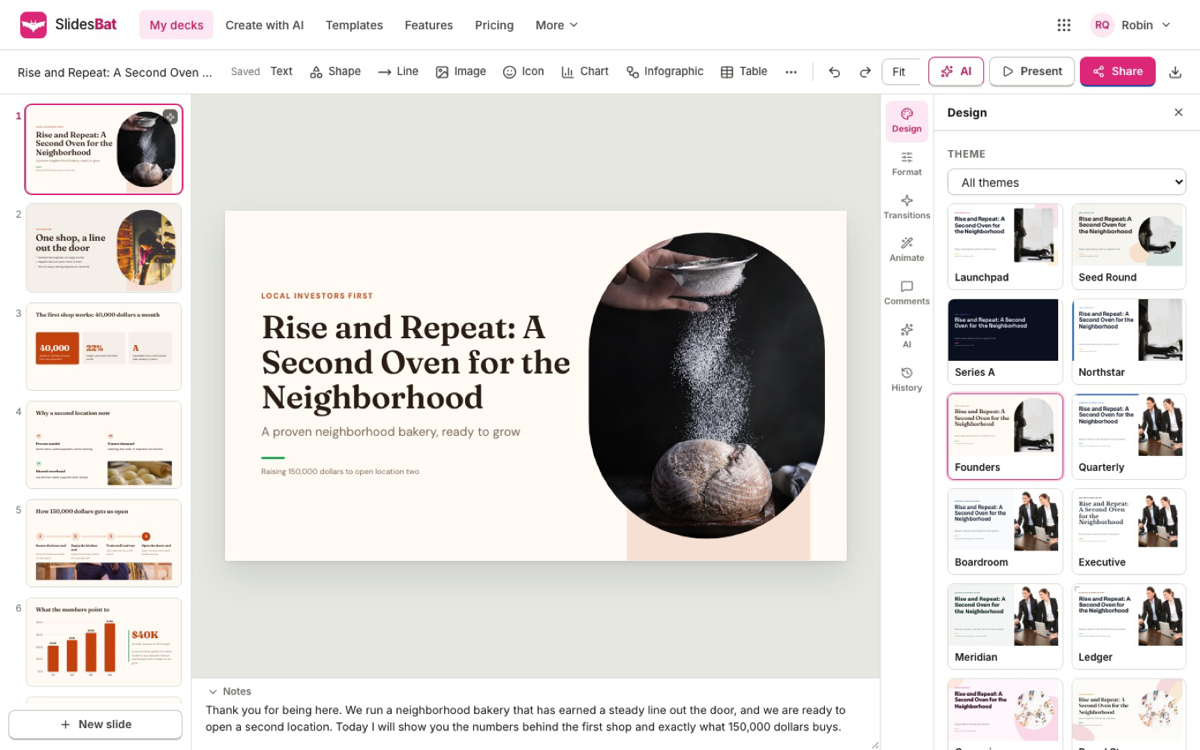
Step 6: check every slide against the document
AI gets you a strong first draft, and you are still the author. Go through the deck with the document open:
- Numbers: compare every figure with the source. Fix anything rounded or summarised in a way you would not say yourself.
- Claims: remove anything the document does not support.
- Images: replace any photo that does not fit. The image library has stock photos and illustrations licensed for commercial use, 2,000 icons, your uploads and your Drive.
- Notes: read the speaker notes under each slide and rewrite them in your own words.
To change a slide, edit it directly, or open AI in the editor and choose an action such as Make it shorter, Fix grammar and spelling or Turn bullets into cards with icons, or type an instruction of your own.
Step 7: share or export
When the deck is ready:
- Present straight from the browser, with presenter view, notes and a timer. See how to use presenter view with speaker notes.
- Share with a view, comment or edit link, or invite people by email. Comments support @mentions.
- Download as PowerPoint (.pptx) with real, editable text, shapes, tables and charts, as a PDF, or as PNG images.
On the Free plan, exports carry a small "Made with SlidesBat" mark, and Pro removes it.
Tips for better decks from documents
- Start from a structured document. Headings in the Word file become natural slide breaks. A wall of text gives the AI less to work with.
- Say what to leave out in the brief, for example "skip the appendix and methodology".
- Use the Chart layout for tables. If the document has a table of figures, set that slide to Chart in the outline. You can refine it later; see how to add an editable chart to a presentation.
- Keep one idea per slide. If a card has eight points, split it into two slides.
- Generate fewer slides than you think. It is easier to add a slide than to cut a padded deck.
If the source document still needs work, write it first in DocsBat; see how to edit Word documents online.
Frequently asked questions
Can AI turn a Word document into a PowerPoint presentation?
Yes. In SlidesBat, upload the .docx on Create with AI, review the outline it writes, and generate the slides. You can then download the deck as a PowerPoint file with editable text, shapes, tables and charts.
Which file types can I turn into slides?
Word (.docx), PDF, Markdown, plain text and PowerPoint (.pptx) files, a document from your OfficeBats Drive, or pasted text.
Does uploading a document use AI credits?
No. Reading the document only extracts its text and is free. Writing the outline and generating the slides use AI credits.
Will the slides keep the numbers from my document?
The AI is instructed to keep the document's facts, structure and numbers. You still review the outline before anything is designed, and you should check every figure against the source before you present.
Can I edit the slides after they are generated?
Yes. Every slide is fully editable in the SlidesBat editor: text, layouts, images, charts and themes. You can also ask the AI to rewrite or redesign a single slide or the whole deck.