How to convert a quote into an invoice (without retyping it)
Send a quote your client accepts online, then turn it into an invoice with one click or automatically. Items, taxes and prices carry over.
Retyping an accepted quote into an invoice is a small job that goes wrong surprisingly often. A line gets missed, a discount is forgotten, the price on the invoice doesn't match the price the client agreed to, and suddenly a simple payment becomes an email thread.
The fix is to never retype it. In BooksBat, a quote your client accepts online becomes an invoice with the same lines, taxes and totals, either with one click or automatically. This guide walks through the whole flow, from writing the quote to getting paid.
Quote, estimate or proposal?
The words are used loosely, so it helps to be clear about what you are sending:
| Document | Usually means |
|---|---|
| Quote | A fixed price for a defined job, valid for a set time |
| Estimate | A best guess that may change once the work starts |
| Proposal | A quote with more explanation: scope, approach, timeline |
In BooksBat they all work the same way. When you create a quote you can set its Type to Quote, Estimate or Proposal, and that word appears on the document your client sees. Pick the one that matches what you are promising.
Step 1: Create the quote
- Open Quotes in the sidebar and press New quote.
- Under Prepared for, choose the customer or create a new one.
- Check the Quote number, the Date and Valid until. The Valid for buttons set the expiry in one click: 7, 14, 30 or 60 days, or Custom.
- Add your Items with a clear description, quantity and price. Add taxes if they apply.
- Write anything the client should know under notes and Terms of the quote: what is included, payment terms, warranty.
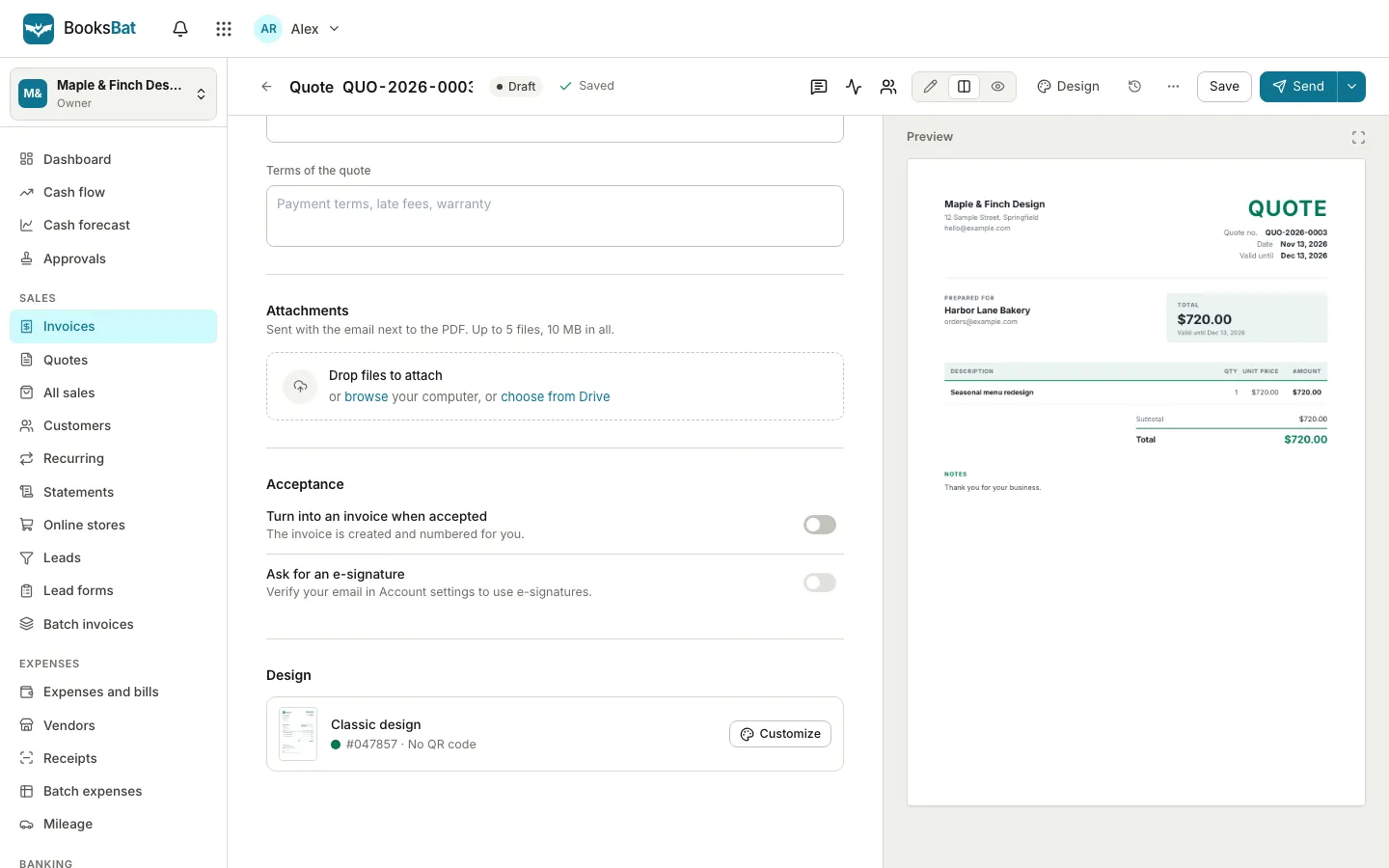
A live preview on the right shows exactly what the client will receive. Design changes the layout, colour and logo, and the same design carries over to the invoice later.
Step 2: Decide what happens when the client accepts
Scroll down to Acceptance. There are two switches:
- Turn into an invoice when accepted: "The invoice is created and numbered for you." Switch this on and you don't have to do anything when the client says yes.
- Ask for an e-signature: "The client signs when they accept." Use it for larger jobs where you want a signed record. It needs a verified email on your account.
Step 3: Send the quote
Press Send. BooksBat emails the client a link to their quote page with the PDF attached, and the status changes from Draft to sent. If you prefer to send it yourself, the ... menu has Copy client link, Download PDF and Download Word, and Mark as sent if you shared it another way.
Step 4: The client accepts online
The client opens a clean page with the quote, a Download PDF button and an Accept this quote box. To accept, they type their full name, tick "I accept this quote and its terms" with the total shown, and press Accept quote. If you asked for an e-signature, the button reads Accept and sign and they sign the quote instead. They can also press Decline.
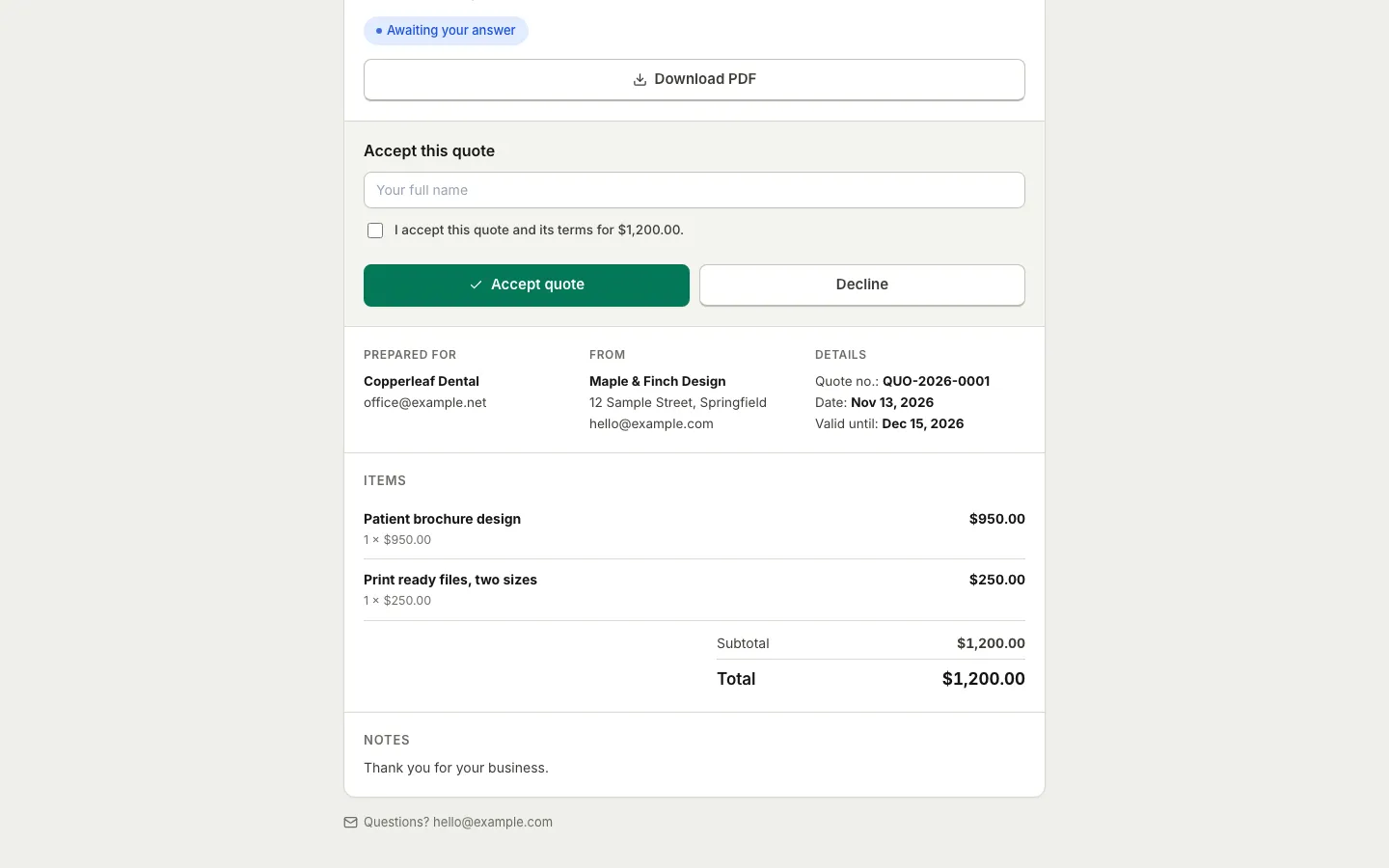
BooksBat records who accepted and when, adds it to the quote's activity, and notifies you. Once the Valid until date has passed, the client can no longer accept it and is asked to request a new quote.
Step 5: Convert the quote into an invoice
If you switched on Turn into an invoice when accepted, the invoice already exists. The notification links straight to it.
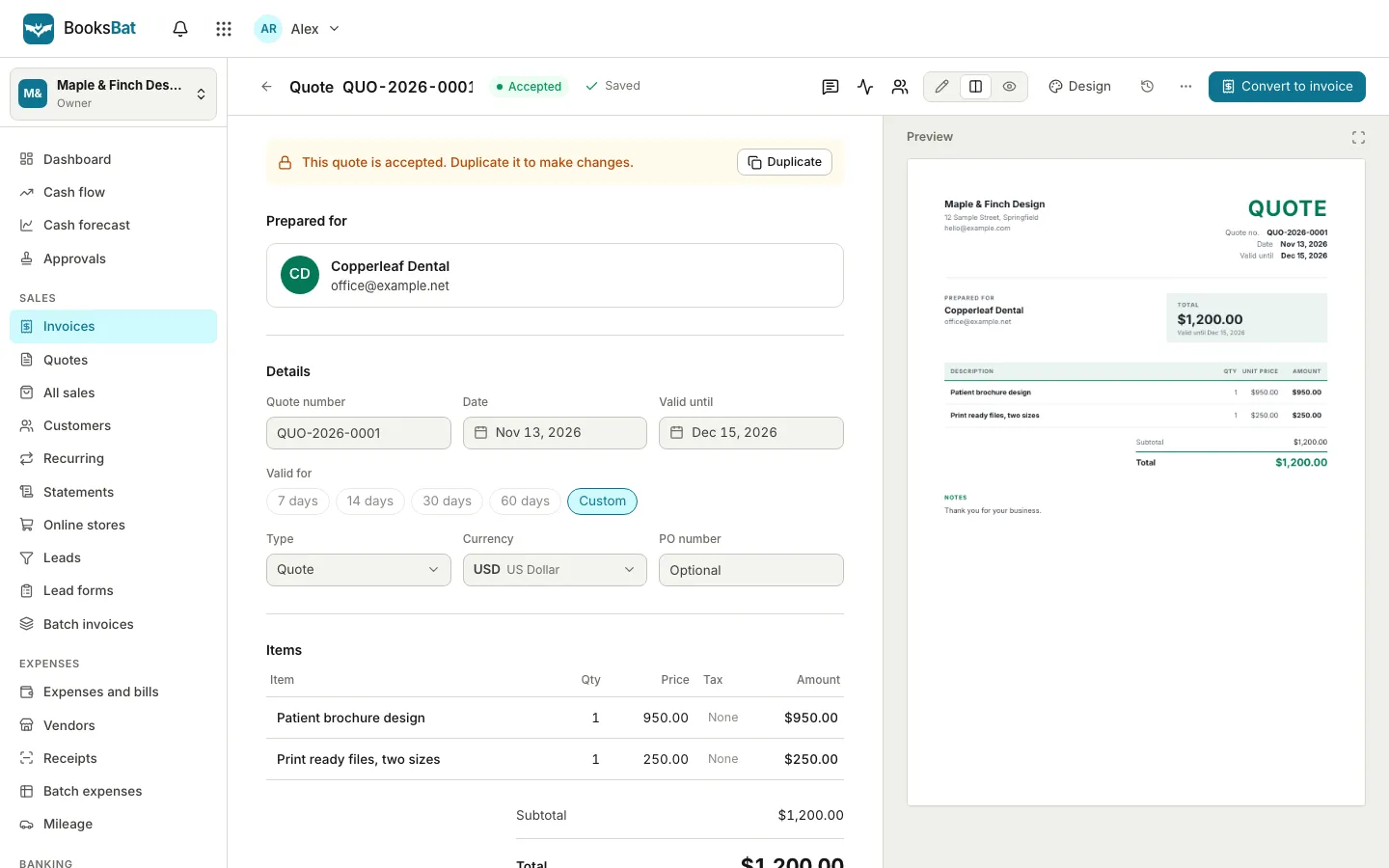
If you didn't, open the quote. Its status now reads Accepted and the top bar shows Convert to invoice. Press it and BooksBat creates the invoice and opens it for you.
What carries over
The new invoice takes everything that matters from the quote:
- the customer
- every line item, quantity and price
- taxes, discount and shipping
- the currency
- the PO number
- the design and accent colour
Notes and terms come from your business defaults, since invoice terms are usually about payment rather than scope. The invoice gets its own number, and the quote shows an Open invoice button so you can always move between the two. Converting twice is not possible: a second click opens the invoice that already exists.
Step 6: Send the invoice and get paid
Open the invoice, set the Payment terms (On receipt, Net 7, Net 14, Net 30, Net 60 or Custom) and press Send. If you connected a payment provider, the client can pay online from the invoice page; otherwise the invoice shows your bank transfer details. When a payment comes in, it posts to your books automatically. Our guide to getting paid faster with online invoice payments covers providers, fees and reminders.
Special cases
The client wants changes after accepting
An accepted quote is locked so the record of what was agreed stays intact. Use Duplicate on the banner at the top, edit the copy and send it as a new quote.
You need an invoice before the quote is accepted
Some jobs start on a handshake. The quote's ... menu has Copy as invoice, which creates an invoice from the quote whatever its status. You can also convert a quote that was sent but not yet answered; BooksBat marks it accepted when you do.
You want a deposit up front
Create a second invoice from the quote with Copy as invoice, set its Type to Deposit invoice and edit the lines to the deposit amount. Bill the balance from the converted invoice when the job is done.
Why this is better than a spreadsheet and a template
- One source of truth: the price the client agreed to is the price you bill.
- A clear record: the quote shows who accepted, when and how, and links to the invoice.
- Real bookkeeping: the invoice posts to your income and receivables, so your profit and loss statement stays correct without extra work.
If you bill the same client every month after the first job, a recurring invoice saves you even more time. And for the bigger picture of quotes, contracts and payments, see small business paperwork from quote to payment.
Frequently asked questions
Can a quote turn into an invoice automatically?
Yes. Switch on Turn into an invoice when accepted in the quote's Acceptance section. When the client accepts online, BooksBat creates and numbers the invoice as a draft, ready for you to check and send.
Does the client need an account to accept a quote?
No. The client opens the link from the email, types their full name, ticks the box and presses Accept quote. If you asked for an e-signature, they sign the quote instead.
What happens if the client accepts after the quote expires?
They can't. After the Valid until date the quote page tells the client it has expired and asks them to request a new one.
Can I edit a quote after it was accepted?
No, an accepted quote is locked so the record of what was agreed stays the same. Duplicate it, change the copy and send it as a new quote.
Is there a limit on quotes?
The Free plan includes 5 quotes a month. Pro and Business have no limit on quotes or invoices.