How to set up recurring invoices for retainer clients
Bill retainers and subscriptions on a schedule. Set up recurring invoices that send themselves weekly, monthly, quarterly or yearly, or wait as drafts.
Retainers are the steadiest income a small business can have, and the easiest to under bill. When the invoice depends on you remembering to send it on the first of the month, one busy week is enough for it to slip. Then it goes out late, gets paid late, and your cash flow wobbles for no good reason.
Recurring invoices remove the memory part. You describe the invoice once, pick a schedule, and BooksBat creates each invoice on time, sends it if you want, and catches up if anything was missed. This guide shows how to set one up and how to run retainers smoothly.
When a recurring invoice makes sense
Use a recurring invoice when the amount and the schedule are predictable:
- Monthly retainers for design, bookkeeping, marketing, IT support or legal advice.
- Subscriptions and memberships: a gym, a studio, a club, a software licence.
- Rent and equipment hire billed to the same customer every period.
- Maintenance contracts: a quarterly service visit, a yearly inspection.
If the amount changes every time, such as hours worked, you can still use a recurring profile with the automatic email switched off. Each invoice is then saved as a draft for you to adjust before sending.
Before you start
You need:
- A customer. Recurring invoices are always for one customer. Add them under Customers first if they are new.
- Your business details and default taxes in settings, so each invoice is complete.
- Pro or Business. Recurring invoices are part of Pro. On Free, the page shows "Recurring invoices are part of Pro" with a link to the plans.
Step 1: Open Recurring and start a profile
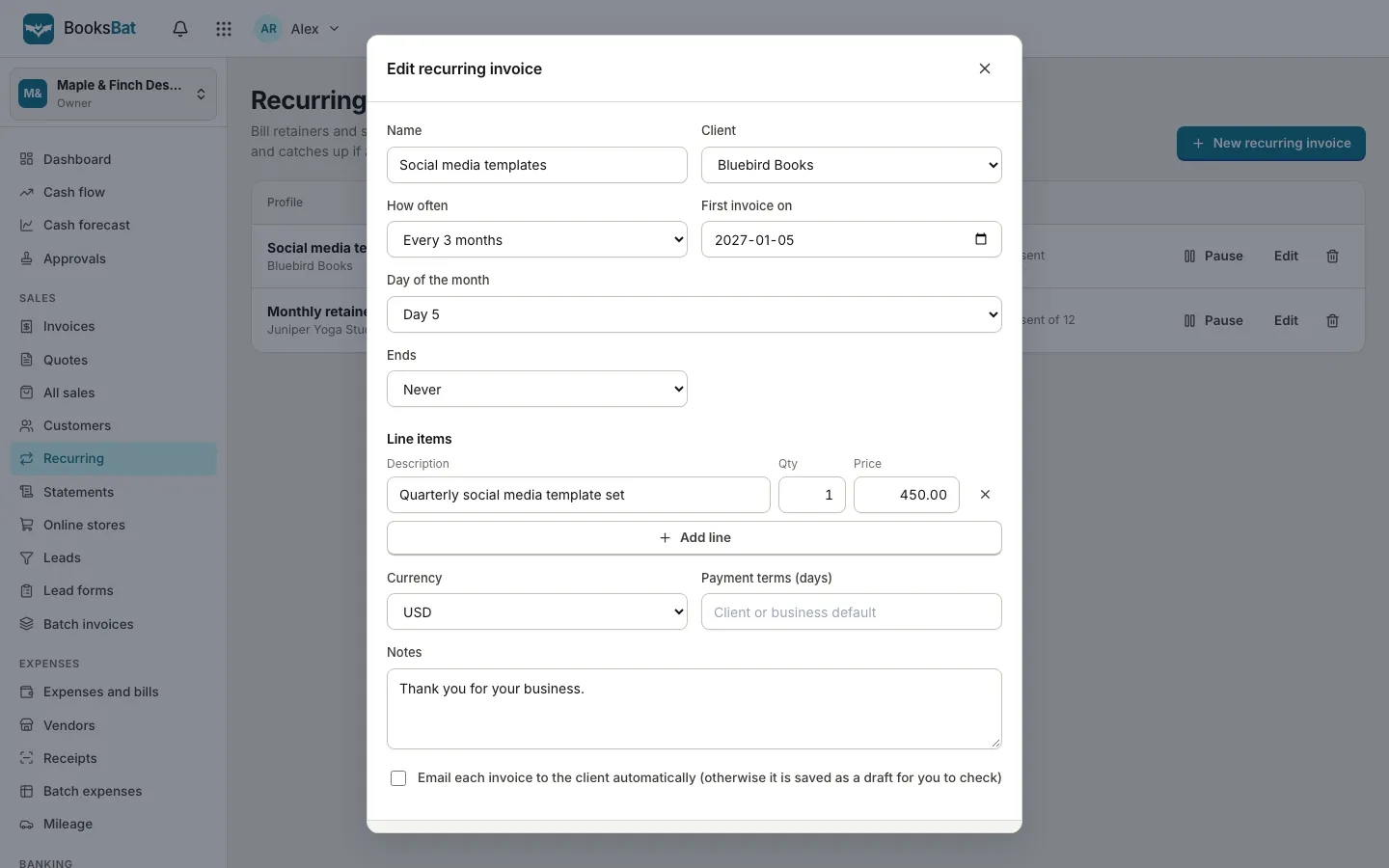
Open Recurring in the sidebar, under Sales, and press New recurring invoice. A dialog opens with everything on one screen.
Step 2: Name it and pick the client
- Name: something you will recognise in a list, such as "Monthly retainer" or "Quarterly maintenance". Customers don't see this name.
- Client: the customer to bill.
Step 3: Set the schedule
How often offers five options:
| Option | Typical use |
|---|---|
| Every week | Weekly cleaning, coaching sessions |
| Every 2 weeks | Fortnightly services, some payroll style billing |
| Every month | Retainers, subscriptions, rent |
| Every 3 months | Quarterly maintenance, quarterly retainers |
| Every year | Annual licences, memberships, renewals |
Then set First invoice on, the date of the first invoice. For monthly, quarterly and yearly schedules you can also pick the Day of the month: Same day as the start date, a specific day from 1 to 28, or Last day of the month. The last option is handy because months have different lengths.
Step 4: Decide when it ends
Ends has three choices:
- Never, for open ended retainers you will cancel by hand.
- After a number of invoices, for fixed term contracts. A twelve month retainer is 12 invoices.
- On a date, when the contract has an end date.
Step 5: Add the line items
Under Line items, describe what you bill each time with a quantity and price. Be specific; "Design retainer, 10 hours a month" answers the client's first question before they ask it. Use Add line for extra lines, then set the Currency, the Payment terms (days) if this client has their own, and any Notes.
Step 6: Send automatically, or review first
The last option is the most important:
Email each invoice to the client automatically (otherwise it is saved as a draft for you to check)
- On: each invoice is created and emailed on schedule. Best for fixed retainers and subscriptions.
- Off: each invoice waits in Invoices as a draft. Best when you adjust the amount each period, or when you like to look before anything goes out.
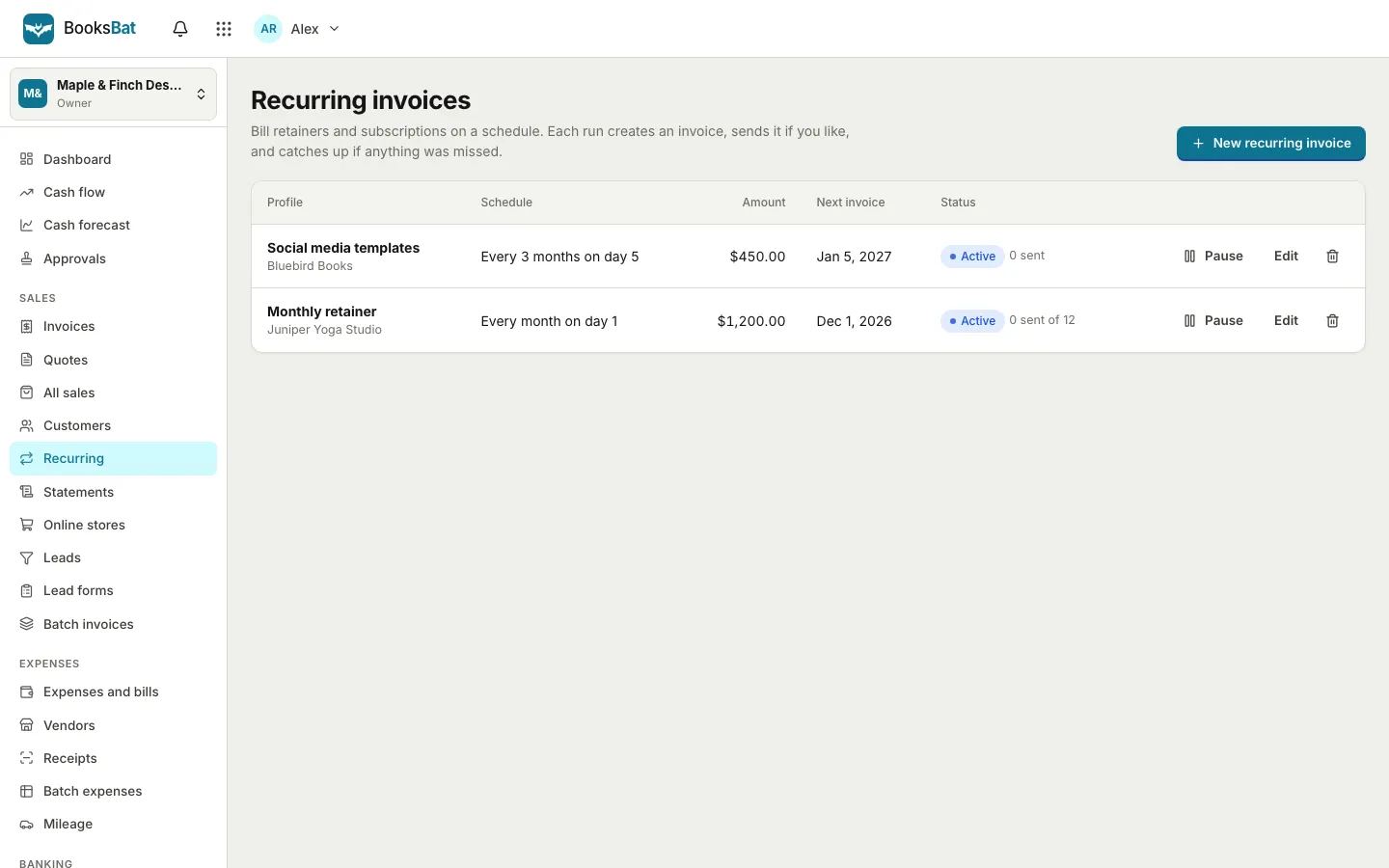
Press Create. The profile appears in the list with its schedule, amount, next invoice date and status.
Managing profiles over time
Each row has three controls:
- Pause stops new invoices without deleting anything. Resume starts again. Use it when a client takes a break.
- Edit changes the schedule, lines or price for future invoices. Invoices that were already created stay as they are.
- Delete removes the profile. Invoices it already created are kept.
The status column also counts what has gone out, such as "3 sent of 12" for a profile that ends after 12 invoices.
What happens if a run is missed
BooksBat checks for due profiles on a schedule and catches up missed runs. Each run creates at most one invoice per date, so a catch up never produces duplicates. Dates are worked out in your business's time zone, so a "first of the month" invoice is dated the first of the month where you are.
Pair recurring invoices with the rest of BooksBat
Recurring invoices are ordinary invoices once they are created, so everything else works on them:
- Online payments: with a payment provider connected, clients pay from the invoice page and the payment posts to your books. See get paid faster with online invoice payments.
- Payment reminders: automatic, polite emails before, on and after the due date, which stop when the invoice is paid. They are part of Pro too.
- Statements: a customer statement shows every invoice and payment for a period, useful for clients who pay several invoices at once.
- Reports: retainer income lands in your profit and loss statement, so you can see how much of your revenue is recurring.
Tips for retainer billing
- Agree the billing date in writing. "Invoiced on the 1st, due in 14 days" in the contract removes any surprise.
- Bill in advance for retainers. Invoicing at the start of the period for the work ahead is common and protects your time.
- Name the period on the invoice. Add the month to the line or the notes so the client's bookkeeper can match it.
- Review once a quarter. Check each profile still matches the agreement, especially after a price change.
- Keep one profile per agreement. Two retainers with one client are easier to manage as two profiles.
If a new client starts with a quote, convert the accepted quote into an invoice for the first job, then set up the recurring profile for the ongoing work.
Frequently asked questions
How often can a recurring invoice repeat?
Every week, every 2 weeks, every month, every 3 months or every year. Monthly, quarterly and yearly schedules can run on a fixed day of the month or on the last day of the month.
Can recurring invoices be sent automatically?
Yes. Tick Email each invoice to the client automatically and each invoice is created and emailed on schedule. Leave it off and each invoice is saved as a draft for you to check and send.
What happens to past invoices if I edit or delete a profile?
They are kept. Editing a profile changes future invoices only, and deleting a profile keeps every invoice it already created.
Can I stop a recurring invoice for a while?
Yes. Press Pause on the profile and no new invoices are created until you press Resume.
Are recurring invoices on the Free plan?
No. Recurring invoices are part of the Pro and Business plans, along with automatic payment reminders.