Sell event tickets on your own website, with QR check in
Sell event tickets and take free RSVPs on your own website: ticket types, QR tickets by email, a waitlist for sold out nights and check in at the door.

If you run gigs, talks, workshops, markets or club nights, ticketing platforms are convenient, but they put their brand between you and your audience and keep much of the relationship. Selling tickets on your own website keeps your events, your attendee list and your look in one place.
This guide shows how to do it with Buildan.app, using Stubroom as the worked example. Stubroom is an events and ticketing site for a sample venue collective, built on Buildan.app, with paid tickets, free RSVPs, QR codes, a waitlist and check in. You can try it as a live demo before you build anything.
What event ticketing on your own site involves
A ticketing site has more moving parts than a page with a buy button:
| Part | What it does |
|---|---|
| Event pages | Date, time, venue, description and the ticket types |
| Ticket types | General admission, early entry, seats, each with its own price and capacity |
| Checkout | Card payment, and seats held while someone pays |
| Tickets | A unique QR code per ticket, sent by email and kept in the buyer's account |
| Waitlist | When a night sells out, people queue for returned seats |
| Door list | Names, emails and a CSV download |
| Check in | Scan or type the code, and each ticket only works once |
You can build a simple version with a described site and a payment button, or start from Stubroom and get all of it.
Option one: a described events site
For a small number of events with simple payment, a described site is enough. In Buildan.app choose New site, stay on Describe it, and describe your venue or series: what kind of events, who comes and what visitors should do. Buildan.app plans the pages and sets up the CMS, where an events collection can give each event its own page with an RSVP form.
For paid tickets on a described site, the integrations include payment buttons from Stripe, PayPal and others. This works for selling a few tickets, but you manage capacity, the door list and check in yourself.
Option two: start from Stubroom
Stubroom is an app template. It is built from site members, server functions, workflows, payments and data components, so it needs the Business plan. Start it from the Template tab of the Create a new site page, or from Use this template on the live demo.
What your audience can do
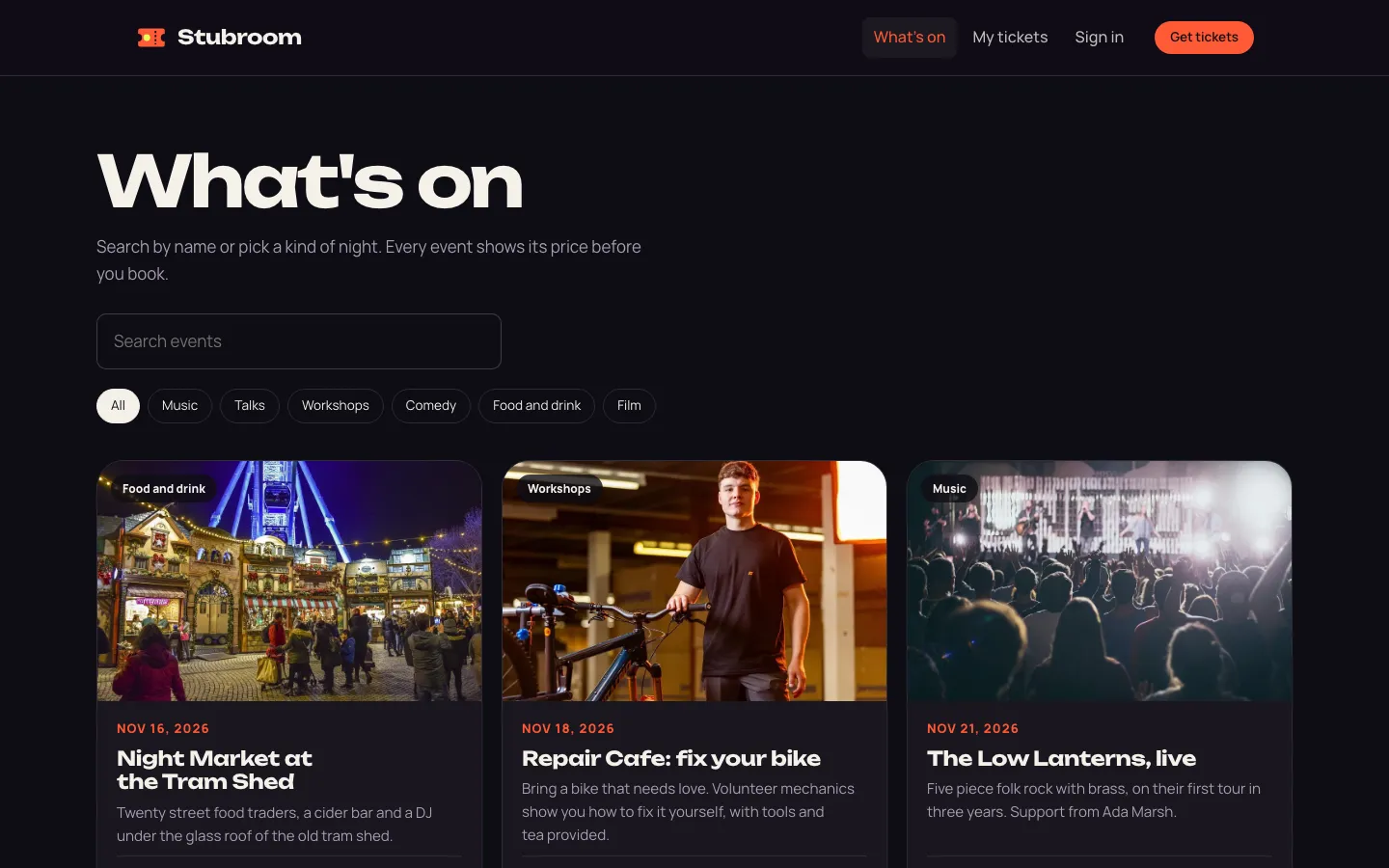
- Browse events on the What's on page, search by name or filter by kind of night: music, talks, workshops, comedy, food and drink or film.
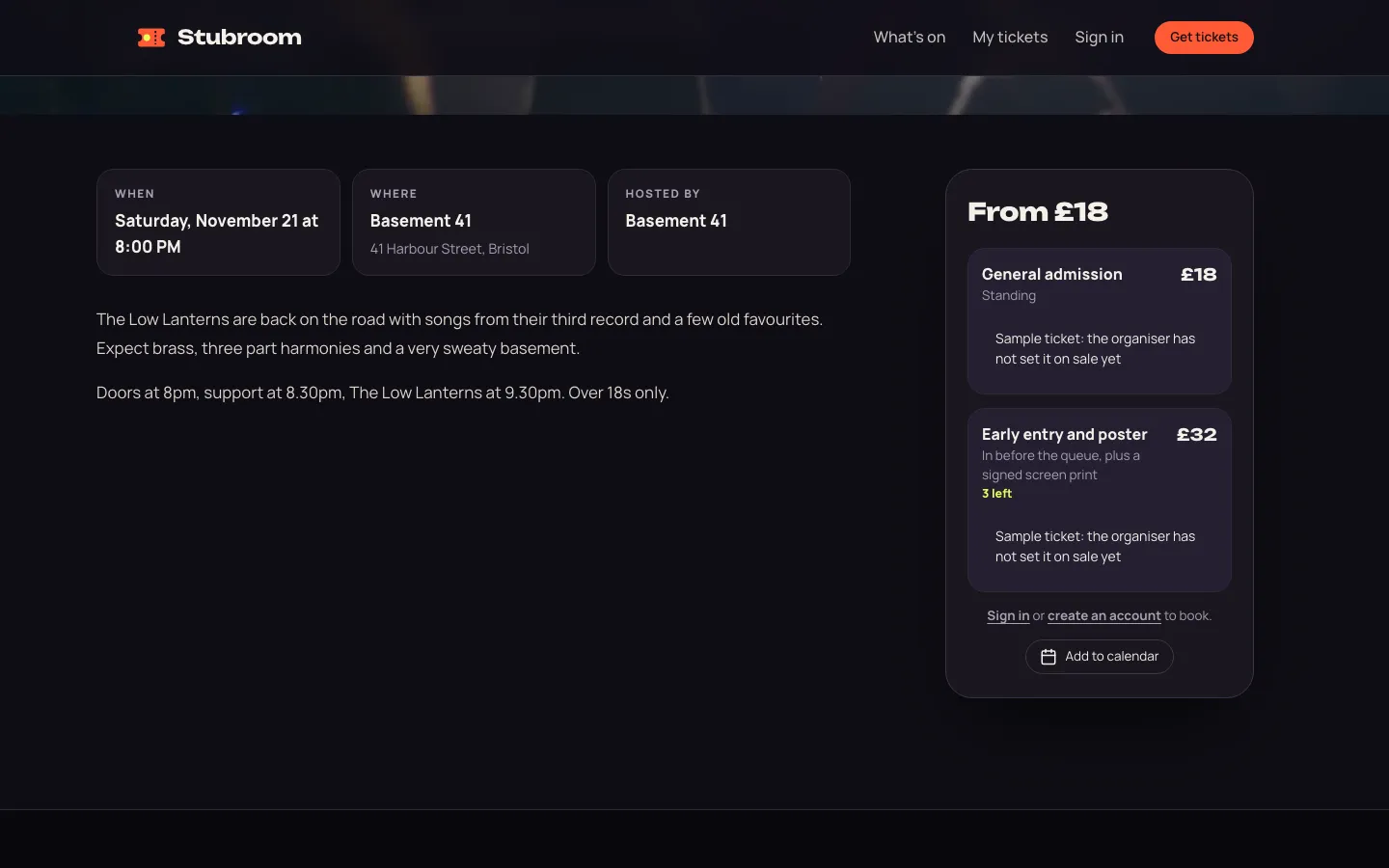
- Pick a ticket type on the event page. Each type shows its price and, when seats run low, how many are left.
- Book paid tickets through Stripe, or RSVP to free events.
- Get the ticket as a QR code by email and in their account under My tickets, with a calendar file.
- Join the waitlist when a ticket type is sold out. When seats come back, the waitlist hears first.
What you see as the organiser
Organisers are members with the organiser role, which you set in the CMS. The organiser view lists every event with its sales and capacity, and the attendee table has names and emails for the door list, with a CSV download. If you add seats to a sold out ticket type, the waitlist gets them first.
Check in at the door
The check in page asks you to scan the QR code on a ticket, or type the code. Scan with camera uses the device camera in browsers that support QR scanning; otherwise you type the code. A ticket checks in once: a second scan shows Already checked in, and tickets for the wrong event or refunded tickets are refused.
Set up Stubroom for your events
The template arrives with sample events, each marked Sample. Work through it in this order:
- Brand the site. Change the name, logo, colours and fonts in the visual editor, and replace the photos with your own.
- Create your events in the Events collection: title, summary, description, cover, start and end, the time zone offset, venue, address, category and organiser. For an online event, add the link, which only ticket holders see.
- Add ticket types for each event in the Ticket types collection, with a name, description and capacity. Paid types are linked to a store product with the price.
- Connect your own Stripe account so ticket money goes straight to you.
- Give yourself the organiser role on your profile, and give it to anyone who will work the door.
- Book a test ticket, open the QR code on your phone and check it in from another device.
How Stubroom handles the tricky parts
The details are what make ticketing trustworthy. Stubroom has workflows for each:
| Workflow | What it does |
|---|---|
| Email the ticket | Emails each new ticket with its QR code to the person who booked it |
| Issue paid tickets | Issues tickets when a payment arrives, even if the buyer closes the tab before coming back |
| Give back unpaid seats | Every 10 minutes, seats held by checkouts not paid within 40 minutes go back on sale, and the waitlist hears first |
| Waitlist emails | Tells people on a waitlist when tickets come back |
| Welcome email | Welcomes new members |
There is also an RSS feed of events, so fans and listings sites can follow what is coming up.
Writing event pages that sell
A ticket page has to answer questions quickly. For each event:
- Lead with when and where. Date, start time and venue at the top, as Stubroom does with its When, Where and Hosted by cards.
- Say what happens. Doors, support, main act and finish times stop a lot of emails.
- Be clear about the ticket types. What does early entry include? Is it standing or seated?
- State age limits and access information plainly.
- Use a real photo of the act, the room or a past night.
Each event gets its own page, title and description, and Buildan.app writes the sitemap and structured data. Put the site on your own domain: Pro includes 5 custom domains and Business includes 50.
Try the demo
Open the Stubroom demo from the Demos page on buildan.app. RSVP to a free event and open your QR ticket, book a paid ticket with the test card 4242 4242 4242 4242, join the waitlist for a sold out night and download the calendar file. Accounts and everything visitors add are wiped every night.
If you also teach, the same building blocks run an online course website. For a simpler payment page without tickets, see how to build a payment form, and for how a site grows into an app, read from website to web app.
Frequently asked questions
Can I sell tickets on my own website without a ticketing platform?
Yes. The Stubroom template on Buildan.app sells paid tickets through your own Stripe account and takes free RSVPs, sends each ticket as a QR code and runs check in at the door, all on your site.
How do attendees receive their tickets?
Each ticket is emailed with its QR code to the person who booked it, and it is also kept in their account under My tickets, with a calendar file.
What happens when an event sells out?
People can join a waitlist for the sold out ticket type. When seats come back, from unpaid checkouts or extra capacity, the waitlist hears first.
How does check in work?
Organisers open the check in page and scan the QR code with the device camera or type the code. Each ticket checks in only once, and wrong event or refunded tickets are refused.
Which plan do I need to sell tickets with Stubroom?
Stubroom needs the Business plan, because it uses site members, server functions, workflows and payments.