Make a loan amortization schedule with the PMT function
Build a month by month loan schedule with PMT, IPMT and PPMT, then see how extra payments change your payoff date and interest. Free template included.
An amortization schedule shows every payment on a loan: how much goes to interest, how much pays down the balance, and what you still owe afterwards. It turns a vague "about $550 a month for five years" into a plan you can test. What if you pay $100 more each month? When would the loan be gone, and how much interest would you save?
This guide builds a schedule with the PMT function in SheetsBat, explains each formula, and shows how to model extra payments. If you just want the result, the free Loan amortization schedule template does everything below in one click.
The formulas you need
Three financial functions do the heavy lifting. All of them take the rate per period, the number of periods and the loan amount.
| Function | What it returns |
|---|---|
PMT(rate, nper, pv) | The fixed payment per period |
IPMT(rate, per, nper, pv) | The interest part of one specific payment |
PPMT(rate, per, nper, pv) | The principal part of one specific payment |
Two details catch almost everyone:
- Use the monthly rate and the number of months. For monthly payments on a 6.9% loan over 5 years, the rate is
6.9%/12and the number of periods is5*12, or 60. - Mind the sign. Spreadsheet finance functions treat money you receive as positive and money you pay as negative. Pass the loan amount as a negative number, or put a minus sign in front of the function, to get a positive payment.
Step 1: set up the inputs
Start a new spreadsheet, or open sheetsbat.com/new to try it without an account. Put your inputs in one block so every formula can point at them:
| Cell | Label | Example |
|---|---|---|
| C4 | Loan amount | 28,000 |
| C5 | Annual interest rate | 6.90% |
| C6 | Term (years) | 5 |
| C7 | First payment date | 12/1/2026 |
| C8 | Extra each month | 0 |
Giving these cells names makes the formulas far easier to read. Select C4, open the menu arrow next to the Name box (left of the formula bar), choose Name this range and call it LoanAmount. Do the same for AnnualRate, TermYears, FirstPayment and ExtraPayment. The template already uses these names.
Step 2: calculate the monthly payment with PMT
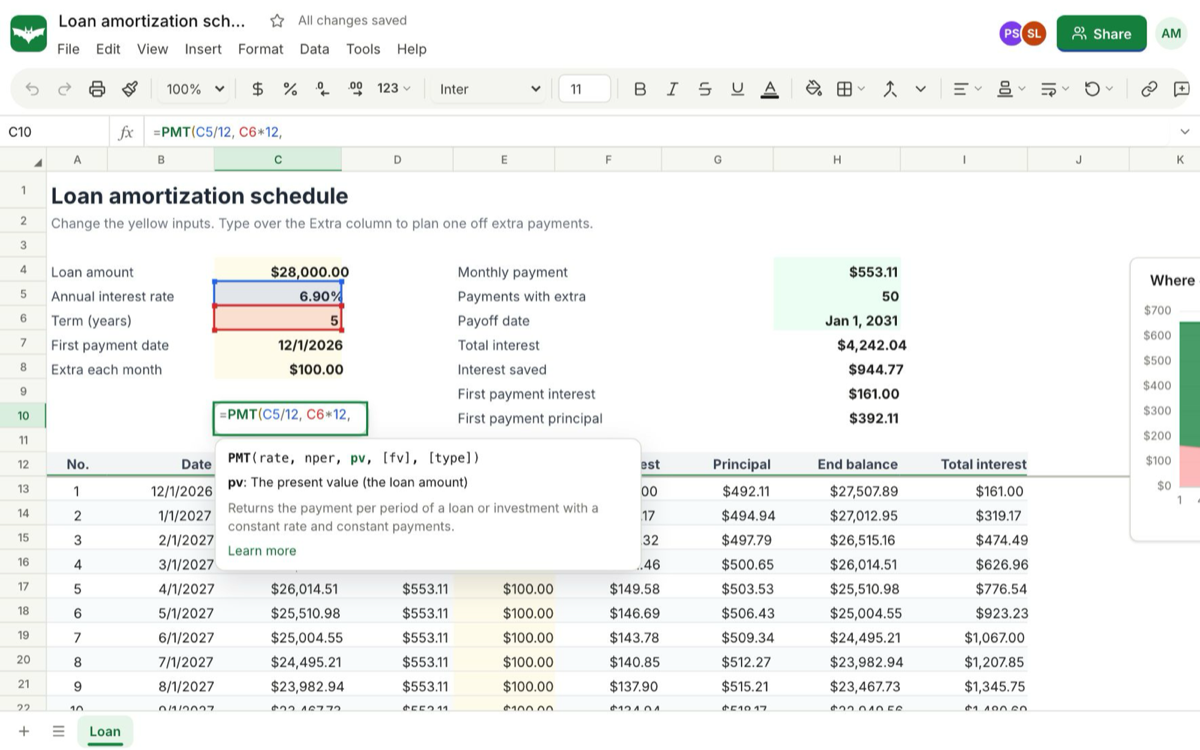
In the cell for the monthly payment (H4 in the template), enter:
=PMT(AnnualRate/12, TermYears*12, -LoanAmount)For a $28,000 loan at 6.9% over five years, the result is $553.11 a month. Name this cell MonthlyPayment.
The template also shows the split of the very first payment, which is a good sanity check:
=-IPMT(AnnualRate/12, 1, TermYears*12, LoanAmount)
=-PPMT(AnnualRate/12, 1, TermYears*12, LoanAmount)
These return $161.00 of interest and $392.11 of principal. Together they add up to the $553.11 payment.
Step 3: build the schedule rows
Below the inputs, add a header row with these columns: No., Date, Balance, Payment, Extra, Interest, Principal, End balance and Total interest. Then fill the first payment row (row 13 in the template):
| Column | Formula in the first row | What it does |
|---|---|---|
| No. | 1 | Payment number |
| Date | =IF(D13>0, EDATE(FirstPayment, A13-1), "") | Moves one month forward per payment |
| Balance | =LoanAmount | What you owe before this payment |
| Payment | =IF(C13<=0, 0, MIN(MonthlyPayment, C13*(1+AnnualRate/12))) | The regular payment, smaller on the final one |
| Extra | =IF(C13<=0, 0, MAX(0, MIN(ExtraPayment, C13*(1+AnnualRate/12)-D13))) | Any extra principal you pay |
| Interest | =C13*AnnualRate/12 | One month of interest on the balance |
| Principal | =D13+E13-F13 | Everything that is not interest |
| End balance | =ROUND(MAX(0, C13-G13), 2) | What you owe after this payment |
| Total interest | =IF(D13>0, SUM(F$13:F13), 0) | Running total of interest paid |
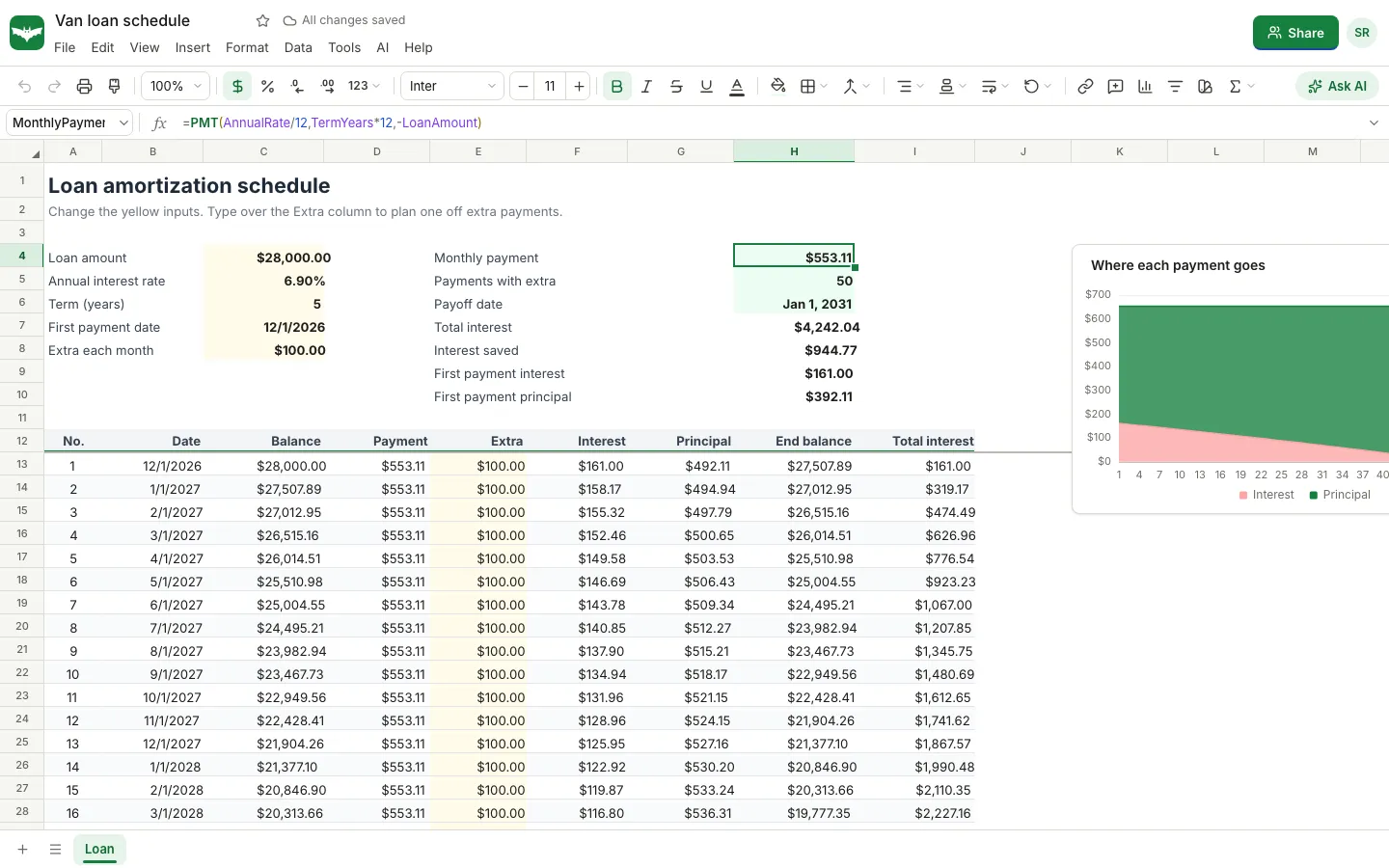
In the second row, change only two things: the number becomes =A13+1 and the starting balance becomes the previous end balance, =H13. Then select the second row and drag the fill handle down until you have one row per month. For a five year loan that is 60 rows; the template has 120 so it covers terms of up to ten years.
The MIN and MAX checks matter. They stop the final payment from overshooting the balance, and they turn every row after the payoff into zeros instead of negative numbers.
Step 4: add the summary
A few formulas above the schedule answer the questions people actually ask:
Payments made:    =COUNTIF($D$13:$D$132, ">0")
Payoff date:      =IFERROR(INDEX($B$13:$B$132, COUNTIF($D$13:$D$132, ">0")), "")
Total interest:   =SUM($F$13:$F$132)
Interest saved:   =MAX(0, MonthlyPayment*TermYears*12-LoanAmount-H7)
The last one compares what you would pay in interest with no extra payments against what the schedule actually charges. H7 is the cell with the total interest.
Step 5: test extra payments
Now the useful part. Change Extra each month and watch the summary. With the sample loan:
| Extra each month | Payments | Payoff date | Total interest |
|---|---|---|---|
| $0 | 60 | Nov 1, 2031 | $5,186.79 |
| $100 | 50 | Jan 1, 2031 | $4,242.04 |
| $300 | 37 | Dec 1, 2029 | $3,119.72 |
With $100 extra the template reports $944.77 of interest saved, and with $300 extra it reports $2,067.09. These figures come straight from the template with its sample inputs. Your own numbers will differ, and your lender's rules on rounding and extra payments always win, but the shape is the same for any fixed rate loan: money paid early cuts interest because every later month starts from a smaller balance.
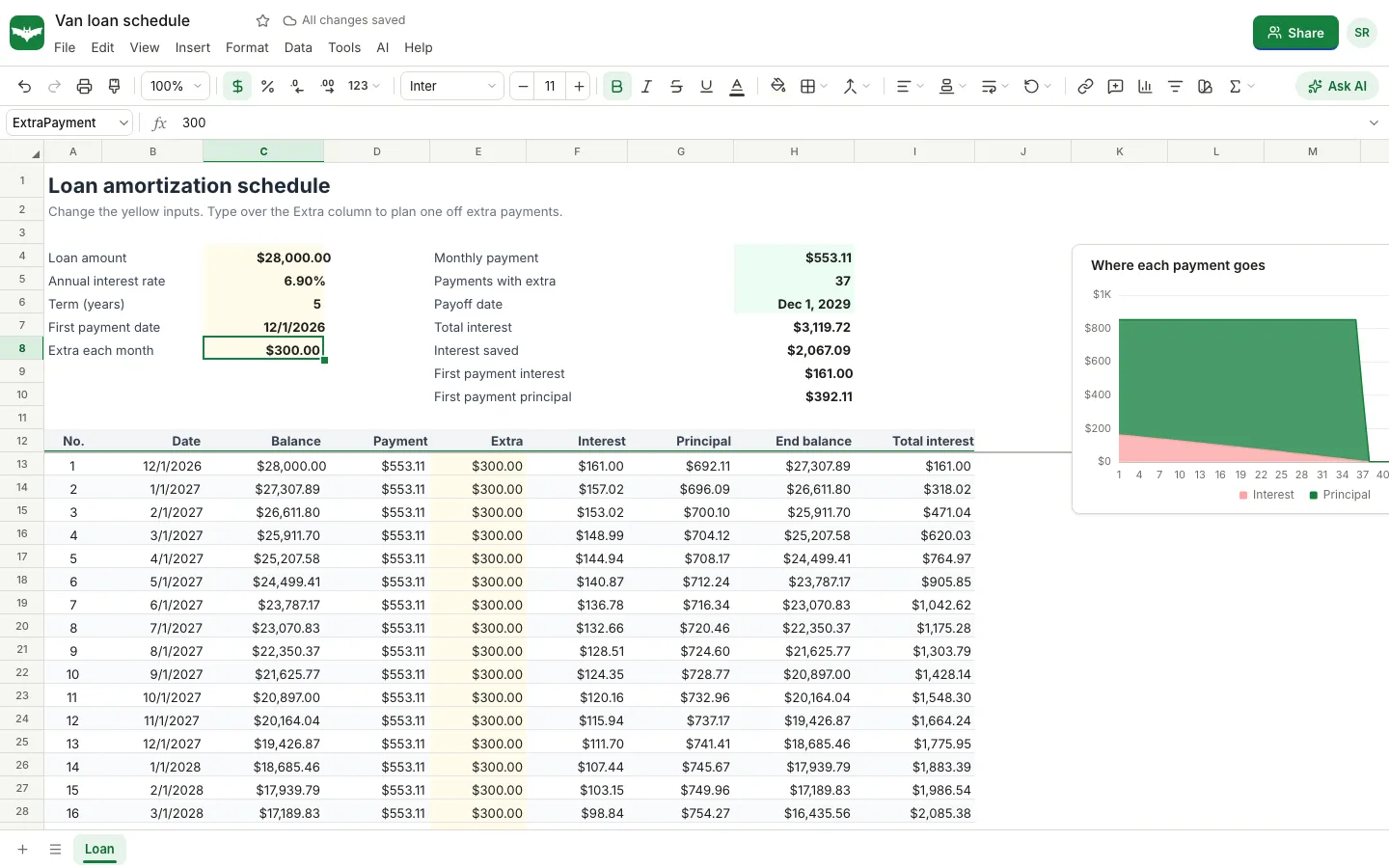
For one off payments, such as a bonus or a tax refund, type a number straight over a single cell in the Extra column. Only that month changes, and every row after it recalculates.
Use the template instead
Everything above is ready made in the free Loan amortization schedule template, including the named inputs, the schedule, the summary and the chart. Open sheetsbat.com/templates, choose it, and replace the yellow cells with your loan. It opens as a copy in your account, so you can change anything.
For a home loan, the Mortgage calculator template is a better fit. It adds the down payment, property tax, home insurance, PMI and HOA dues, and builds a yearly schedule with CUMPRINC and CUMIPMT for terms such as 30 years.
Check your work
- The payment is negative. Put the minus sign in front of the loan amount, as in
-LoanAmount. - The payment is far too high. You probably used the annual rate. Divide by 12.
- The balance never reaches zero. The number of rows is shorter than the term, or a row points at the wrong previous balance.
- Dates show as numbers. Format the Date column as a date.
If you would rather not write any of it, SheetsBat AI can build a table or write a formula from a plain description, for example "add a column with the share of each payment that goes to interest". AI features need a free account and use credits from your OfficeBats wallet.
When the schedule is ready, use File, then Download, to save it as Excel, or Save to Drive to keep a copy in the OfficeBats Drive next to your other files. To share it with a partner or an adviser, see how to co-edit a spreadsheet in real time. For more formula practice on real data, read XLOOKUP vs VLOOKUP with examples, and if the loan is for a business, tracking expenses as a freelancer covers where the interest goes in your books.
Frequently asked questions
What is the formula for a monthly loan payment?
Use PMT with the monthly rate, the number of months and the loan amount as a negative number: =PMT(annual rate/12, years*12, -loan amount). For $28,000 at 6.9% over 5 years it returns $553.11.
Why does PMT return a negative number?
Spreadsheet finance functions treat money you pay out as negative. Enter the loan amount as a negative number, or put a minus sign in front of PMT, to show the payment as a positive amount.
How do I show extra payments in an amortization schedule?
Add an Extra column, include it in the principal paid each month, and cap the final payment so the balance cannot go below zero. The free SheetsBat template has an Extra each month input and lets you type one off extra payments into any row.
What is the difference between IPMT and PPMT?
IPMT returns the interest part of a specific payment and PPMT returns the principal part. Added together for the same payment number, they equal the PMT result.
Can I download the schedule as an Excel file?
Yes. In SheetsBat choose File, then Download, then Excel workbook (.xlsx). The formulas, named ranges and formatting come with it.