XLOOKUP vs VLOOKUP, explained with real examples
XLOOKUP vs VLOOKUP side by side on one sales sheet: exact matches, looking left, missing values and the latest match, with formulas you can copy.

VLOOKUP has been the first lookup formula most people learn for decades. XLOOKUP is the newer function that fixes almost everything people trip over with VLOOKUP. If you have ever counted columns to get the third argument right, or seen a lookup break after someone inserted a column, this guide is for you.
We will compare the two on one small sales sheet, formula by formula, so you can see exactly where they behave the same and where they differ. Every example below was typed into SheetsBat, which calculates both functions (and 534 others) in the browser, but the formulas work the same way in other spreadsheet apps that support XLOOKUP.
The sample data
The examples use the free Sales dashboard template in SheetsBat. Its Data sheet has one row per order in a table named Sales, with these columns:
| Column | Example value |
|---|---|
| Date | 3/15/2026 |
| Order | SO-4120 |
| Region | North |
| Rep | Priya Natarajan |
| Product | Basecamp Lantern |
| Units | 62 |
| Price | $45.00 |
| Revenue | $2,790.00 |
To follow along, open sheetsbat.com/templates, pick Sales dashboard, and add a new sheet for your lookups. You can also start a blank sheet at sheetsbat.com/new without an account; it is saved in your browser until you sign in.
The syntax side by side
VLOOKUP takes four arguments:
=VLOOKUP(lookup_value, table_array, col_index_num, [range_lookup])It searches the first column of table_array for lookup_value, then returns the value from the column you name by number. The last argument decides between an exact match (FALSE) and an approximate match (TRUE, the default).
XLOOKUP takes three required arguments and three optional ones:
=XLOOKUP(lookup_value, lookup_array, return_array, [if_not_found], [match_mode], [search_mode])You point it at the column to search and the column to return, separately. There is no column number to count, and the default is an exact match.
Example 1: find the rep for an order
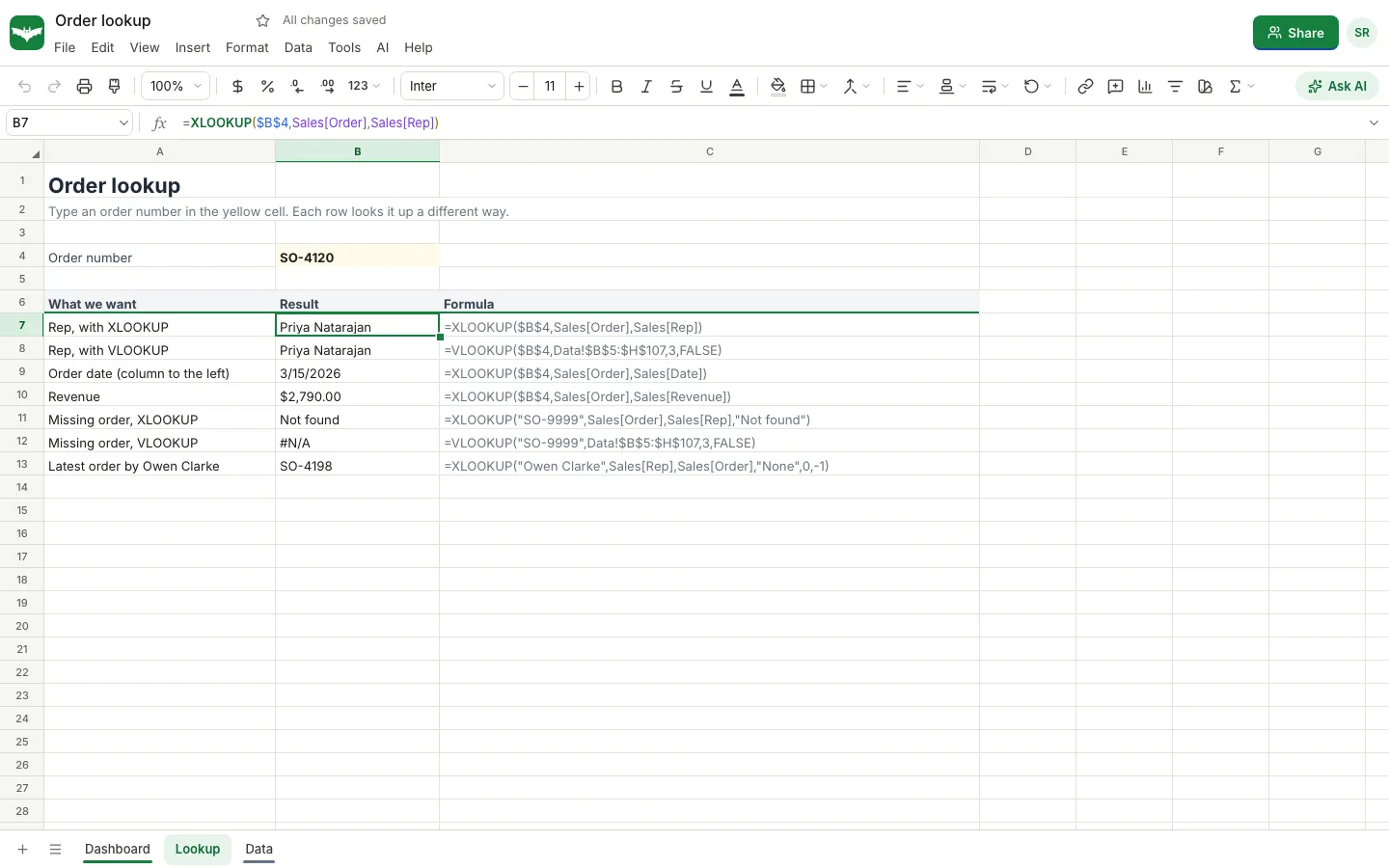
Put the order number SO-4120 in cell B4 of your lookup sheet. Here is how each function finds the rep.
With VLOOKUP, the search column has to be the first column of the range, so the range starts at the Order column (B) and the rep is the third column counting from there:
=VLOOKUP($B$4, Data!$B$5:$H$107, 3, FALSE)With XLOOKUP, you name the two columns directly:
=XLOOKUP($B$4, Sales[Order], Sales[Rep])Both return Priya Natarajan. The difference shows up later. If someone inserts a column between Order and Rep, the VLOOKUP still returns column 3, which is now the wrong column. The XLOOKUP keeps pointing at Sales[Rep], so it keeps working.
Example 2: look to the left
The order date sits in column A, to the left of the Order column. VLOOKUP cannot return a column to the left of the one it searches, so there is no direct VLOOKUP for "the date of order SO-4120". The usual workaround is INDEX with MATCH.
XLOOKUP does not care about direction:
=XLOOKUP($B$4, Sales[Order], Sales[Date])It returns 3/15/2026. Format the cell as a date if you see a serial number instead.
Example 3: handle a missing value
Look up an order that does not exist, such as SO-9999:
=VLOOKUP("SO-9999", Data!$B$5:$H$107, 3, FALSE)returns #N/A. To show something friendlier you would wrap it in IFERROR or IFNA.
XLOOKUP has that built in as the fourth argument:
=XLOOKUP("SO-9999", Sales[Order], Sales[Rep], "Not found")returns Not found. Because the message only appears when there is no match, a real error elsewhere in your data still shows up, which is safer than a blanket IFERROR.
Example 4: find the last match, not the first
Both functions return the first match by default. Suppose you want the most recent order for Owen Clarke, and the data is in date order. XLOOKUP's sixth argument, search_mode, can search from the bottom up:
=XLOOKUP("Owen Clarke", Sales[Rep], Sales[Order], "None", 0, -1)In the sample this returns SO-4198, his latest order. Getting the last match with VLOOKUP needs a helper column or an array formula.
Example 5: approximate matches for tiers
Approximate matching is where VLOOKUP was traditionally used for things like tax brackets, discounts or commission tiers. Say you have a small tier table with minimum revenue in one column and a rate in the next, sorted from smallest to largest:
| Minimum | Rate |
|---|---|
| 0 | 2% |
| 1,000 | 4% |
| 2,500 | 6% |
VLOOKUP with TRUE finds the largest minimum that is less than or equal to the value:
=VLOOKUP(2790, F2:G4, 2, TRUE)XLOOKUP does the same with match mode -1 (exact match or the next smaller item):
=XLOOKUP(2790, F2:F4, G2:G4, , -1)Both return 6%. The XLOOKUP version also works when the table is not sorted, because match mode -1 checks every row unless you ask for a binary search. Match mode 1 gives the next larger item instead, and match mode 2 lets you use wildcards such as "Basecamp*".
Quick comparison
| VLOOKUP | XLOOKUP | |
|---|---|---|
| Default match | Approximate | Exact |
| Return column | A number you count | A range you point at |
| Look to the left | No | Yes |
| Survives inserted columns | No | Yes |
| Built in "not found" value | No, needs IFNA or IFERROR | Yes, the fourth argument |
| Search from the bottom | No | Yes, search mode -1 |
| Wildcards | Yes, with exact match | Yes, match mode 2 |
| Return several columns at once | No | Yes, the result spills |
The last row is worth a note. If return_array covers several columns, XLOOKUP returns all of them and the result spills into the cells to the right. SheetsBat supports spilling arrays, so =XLOOKUP($B$4, Sales[Order], Sales[Region]:Sales[Product]) would fill three cells with the region, rep and product.
How to write the formula in SheetsBat
- Click the cell where you want the result.
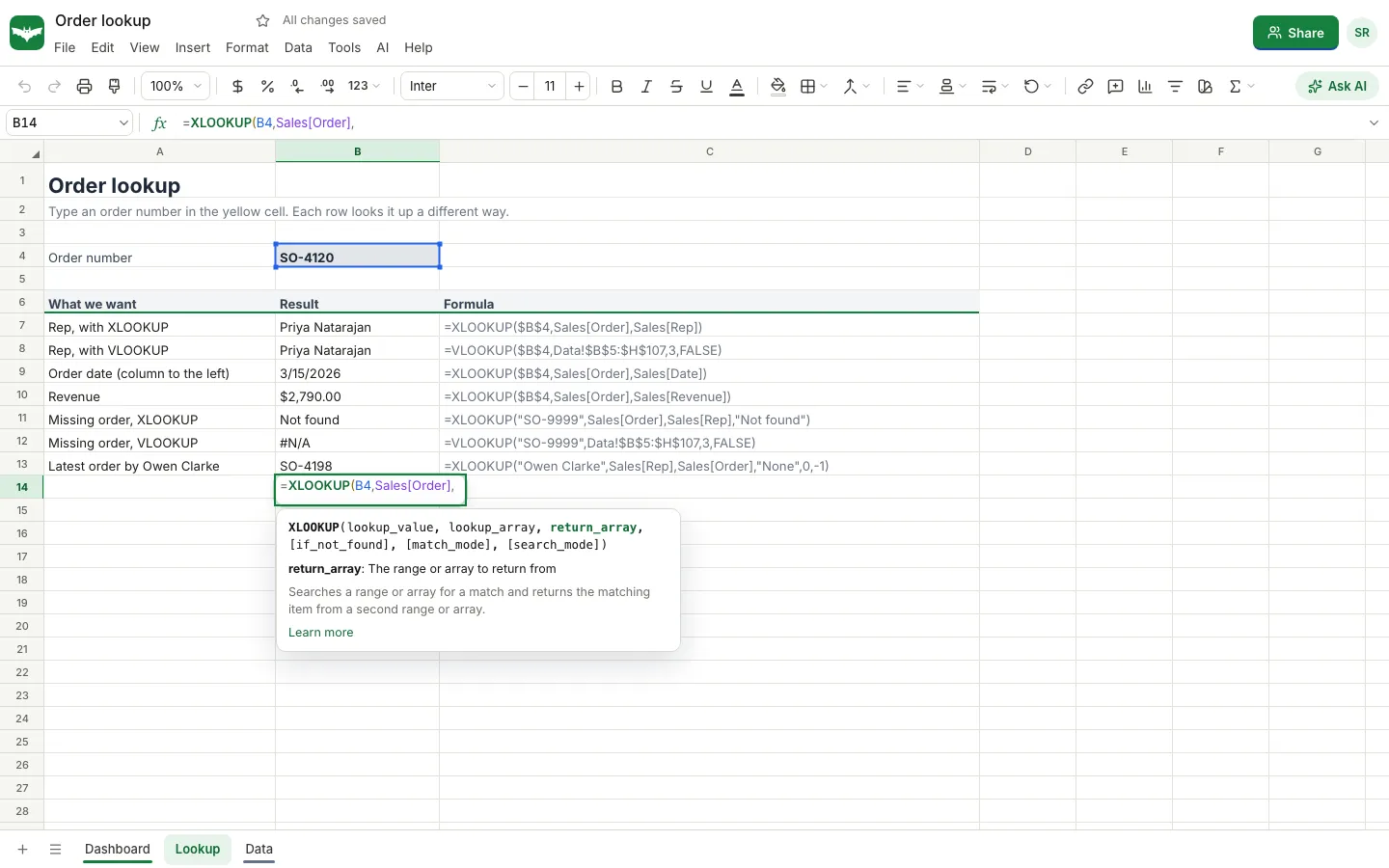
- Type
=XLOOKUP(and the function hint appears under the cell. It lists every argument and highlights the one you are on, with a short description and a link to the full reference. - Click the cell with your lookup value, or type its address, then a comma.
- Select the column to search. Inside a table you can type
Sales[and pick the column name, which keeps the formula readable. - Select the column to return, then close the bracket and press Enter.
If you would rather describe what you want, the Ask AI button in the toolbar opens SheetsBat AI, which can write a formula from a sentence such as "find the rep for the order in B4" and explain an existing formula step by step. AI features need a free account and use AI credits from your OfficeBats wallet. Our post on how AI credits work covers the details.
When VLOOKUP is still fine
VLOOKUP is not wrong. It is still a good choice when:
- You share the file with people whose spreadsheet app does not have XLOOKUP.
- The lookup column really is the first column and the layout will not change.
- You are editing an existing workbook full of VLOOKUPs and consistency matters more than modernising one cell.
SheetsBat opens and saves Excel .xlsx files, so both functions travel with the workbook when you download it.
Common mistakes and how to fix them
- #N/A when the value is clearly there. Check for extra spaces or numbers stored as text.
TRIMandVALUEfix most of these, and the Data menu in SheetsBat has clean up tools for whole columns. - The wrong row with VLOOKUP. You probably left out
FALSE, so it ran an approximate match on unsorted data. - #REF! with VLOOKUP. The column number is larger than the number of columns in the range.
- Different sized ranges in XLOOKUP.
lookup_arrayandreturn_arraymust have the same number of rows. Using whole table columns such asSales[Order]avoids this.
Once lookups feel natural, summarising the same data is the next step. Our guide to making a pivot table uses the same sales sheet, and if you build schedules or budgets, see how to make a loan amortization schedule with PMT.
Frequently asked questions
Is XLOOKUP better than VLOOKUP?
For most new formulas, yes. XLOOKUP defaults to an exact match, can look left, keeps working when columns are inserted and has a built in value for missing matches. VLOOKUP is still useful when you share files with apps that do not support XLOOKUP.
Can XLOOKUP replace INDEX and MATCH?
In most cases. XLOOKUP looks in one column and returns from another, which is what INDEX with MATCH is usually used for. For two way lookups you can nest one XLOOKUP inside another, or keep using INDEX with MATCH if you prefer.
Why does my VLOOKUP return the wrong value?
The most common cause is a missing fourth argument. Without FALSE, VLOOKUP does an approximate match and can return a nearby row. Add FALSE for an exact match.
Does SheetsBat support XLOOKUP and VLOOKUP?
Yes. SheetsBat calculates 536 functions, including XLOOKUP, XMATCH, VLOOKUP, HLOOKUP, INDEX and MATCH, with spilling arrays and table references. You can try it at sheetsbat.com/new without an account.
Will my XLOOKUP formulas work after I download the file as Excel?
Yes. SheetsBat saves workbooks as .xlsx with the formulas intact, so they keep calculating in other spreadsheet apps that support the same functions.